00193688-06_Installation SIPLACE Explorer2.1_EN.pdf - 第119页
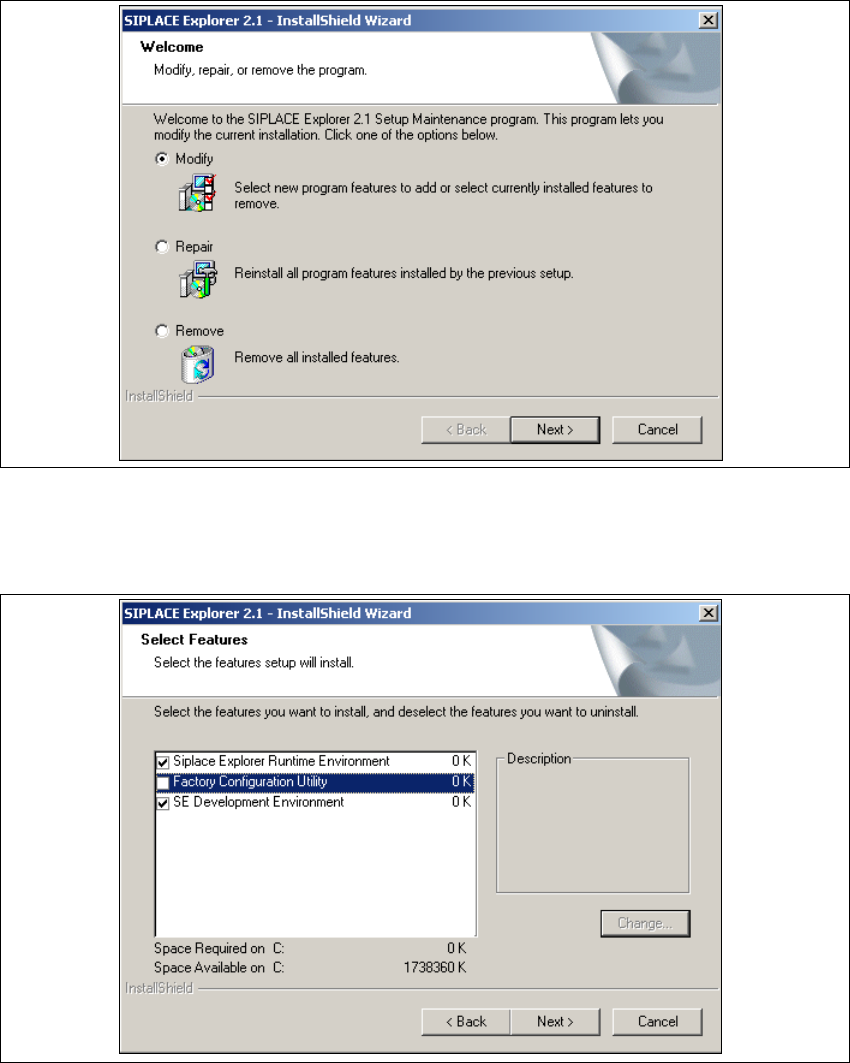
Installation and Configuration Guide SIPLACE Explorer 5 Uninstallation Edition 08/2006 EN 5.2 Modify 119 5.2 Modify 5 Fig. 5 - 2 SIPLACE Explorer 2.1 - install shield wizard → Click on Modify and then on Next to continue…
5 Uninstallation Installation and Configuration Guide SIPLACE Explorer
5.1 Start Modify Dialog Edition 08/2006 EN
118
5.1 Start Modify Dialog
→ Open the SIPLACE Explorer 2.1 - InstallShield Wizard via the Windows menu
Start → Programs → SIPLACE Explorer 2.1 → Modify-Uninstall.
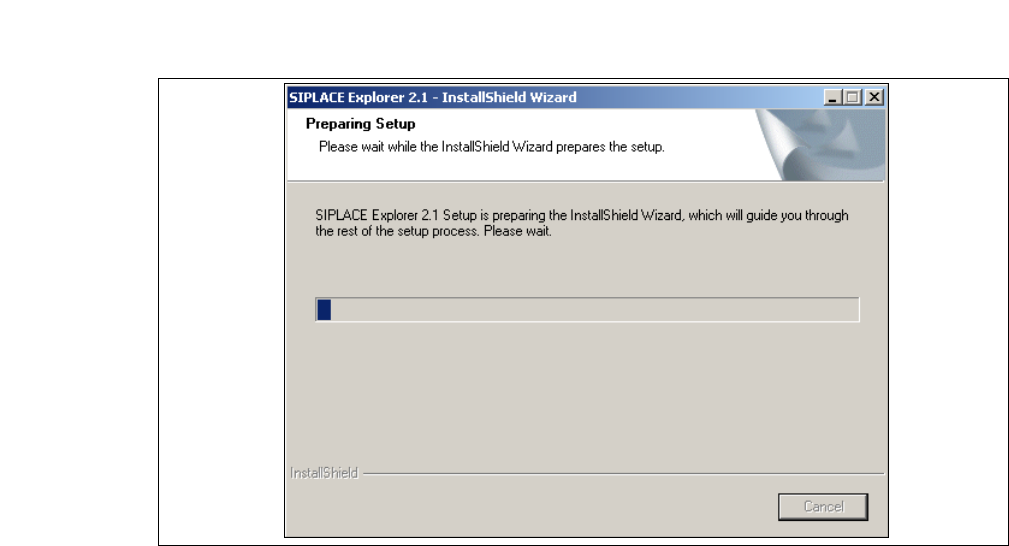
→ The SIPLACE Explorer 2.1 InstallShield Wizard will be prepared.
5
Fig. 5 - 1 SIPLACE Explorer 2.1 - install shield wizard
→ The welcome screen will appear. Select the process you wish to perform.
Installation and Configuration Guide SIPLACE Explorer 5 Uninstallation
Edition 08/2006 EN 5.2 Modify
119
5.2 Modify
5
Fig. 5 - 2 SIPLACE Explorer 2.1 - install shield wizard
→ Click on Modify and then on Next to continue.
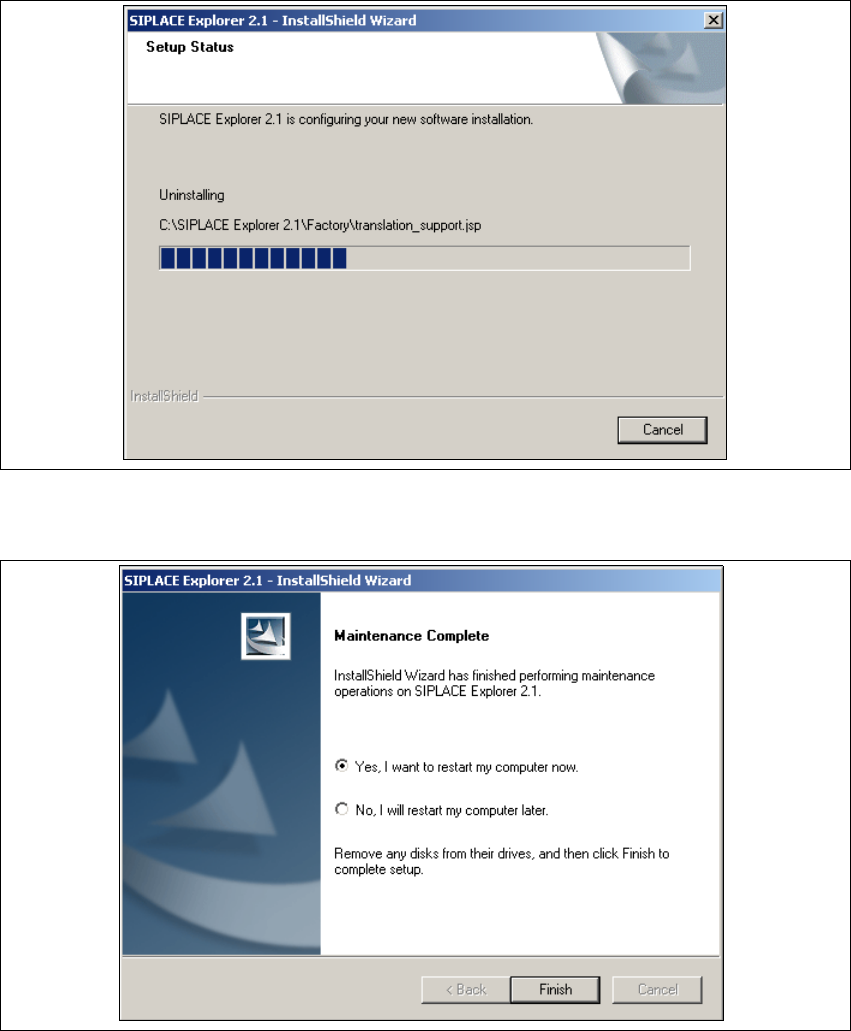
→ You will see the Select Features dialog box.
5
Fig. 5 - 3 SIPLACE Explorer 2.1 - install shield wizard
→ Now select the features you wish to remove, by disabling the relevant checkbox next to the
feature(s). The checkbox must be enabled if you wish to install the feature.
→ Once you have selected the required installation option, click on the Next button to continue.
5 Uninstallation Installation and Configuration Guide SIPLACE Explorer
5.2 Modify Edition 08/2006 EN
120
→ Uninstallation will be performed. The Setup Status dialog box shows you which features will
be uninstalled or installed.
5
Fig. 5 - 4 SIPLACE Explorer 2.1 - install shield wizard
→ SIPLACE Explorer 2.1 uninstallation/installation has been completed.
5
Fig. 5 - 5 Modify completed
→ Click on Finish to close the SIPLACE Explorer 2.1 - InstallShield Wizard.