00193688-06_Installation SIPLACE Explorer2.1_EN.pdf - 第111页
Installation and Configuration Guide SIPLACE Explorer 4 Configuration Edition 11/2006 EN 4.3 Database Settings 111 → Please specify the following in formation: –U R L s i t e This URL contains a port numb er , which appl…
4 Configuration Installation and Configuration Guide SIPLACE Explorer
4.2 Configuring the Factory Configuration Utility Edition 11/2006 EN
110
→ The following details can be defined:
– The file and path for the archived data
– A schedule specifying the intervals and times when data is to be removed from the line
system database and stored in the archive.
– When to execute the archiving schedule.
– The archiving schedule defined here will be stored in the database and can be called up
when required.
NOTE
Remember to regular perform a database backup for the factory database. This can be carried
out with the database tool on your computer e.g. with the Enterprise Manager for the MS SQL
server. 4
4.2.8 How to Generate a Website
NOTE
To generate a factory website, you require web server manager privileges (Tomcat administrator)
and the corresponding password. 4
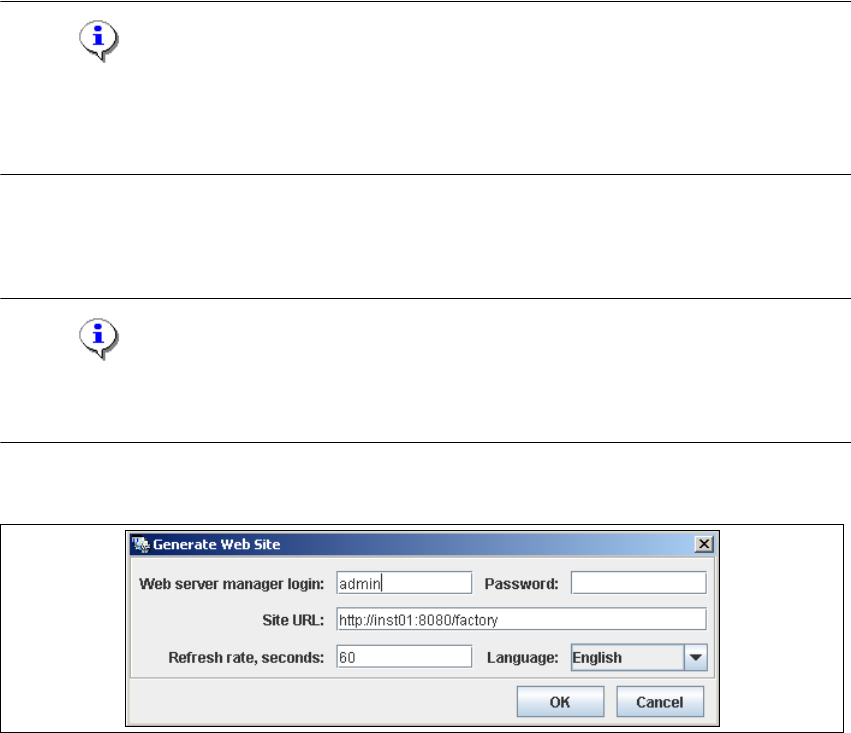
→ Select the function Generate Web Site ... from the File menu.
4
Fig. 4 - 50 Factory Configuration Utility - generate website
→ Specify the access data for the Tomcat administrator. If you entered admin and an empty
password during Tomcat configuration, this data will be automatically used as a default login.
If this is not the case, use the data you specified during Tomcat configuration.
Installation and Configuration Guide SIPLACE Explorer 4 Configuration
Edition 11/2006 EN 4.3 Database Settings
111
→ Please specify the following information:
–URL site
This URL contains a port number, which applies to the web server (Tomcat 5.5) e.g. "8080".
If you change the port number here, you will also need to update the port number of the web
server see “Port Configuration after Changing Tomcat Port Number” on page 66.
–Refresh rate
For capacity purposes, we recommend a refresh rate of at least one minute (60000 ms).
– Factory website language
→ Check your entries and confirm with OK. Factory website generation will begin.
The factor website is the so-called "single entry point" for all production line websites. This
means that you can navigate directly from the factory website to all other production line
websites which have been configured with the Factory Configuration Utility. 4
→ Start the Microsoft Internet Explorer. Enter the HTTP address of the factory website in the
Address field.
→ The login page will open. For a detailed description of the factory website, please see the
Getting Started manual.
4.3 Database Settings
4.3.1 Database Connection Wizard
The database Connection Wizard is started if the system is unable to establish a connection to the
database. This could occur in the following cases: 4
– Runtime Environment:
Step 5 - Configure System Database page 79
– Development Environment:
Step 7 - Configure System Database page 79
– Factory Configuration Utility
Loading the DB settings on Factory Configuration Utility start, page 93
4 Configuration Installation and Configuration Guide SIPLACE Explorer
4.3 Database Settings Edition 11/2006 EN
112
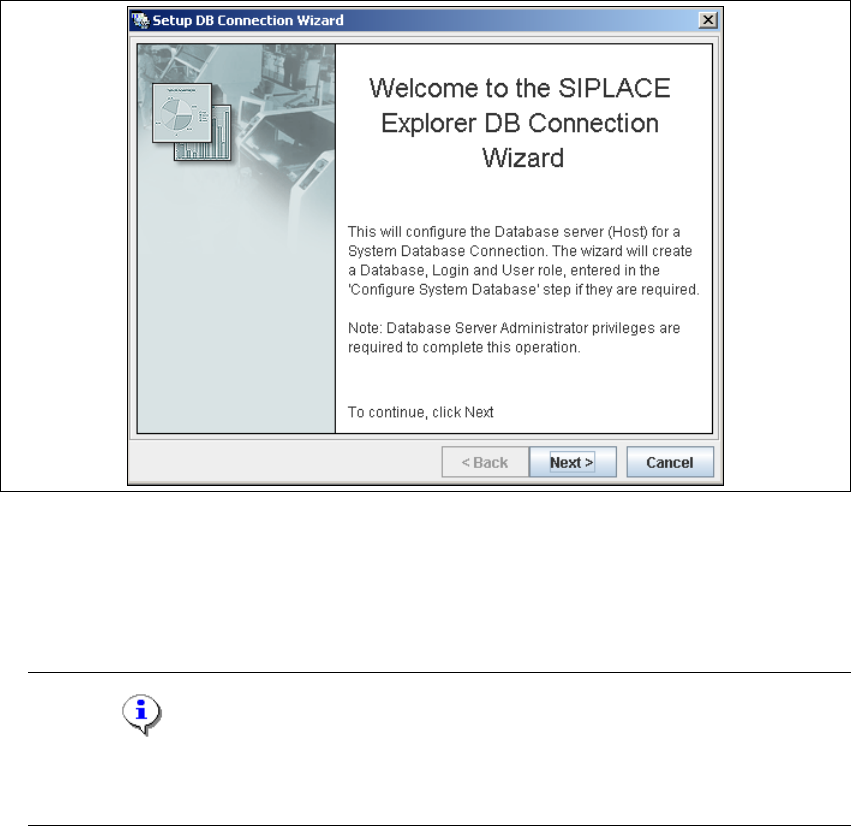
→ Setup and configuration of the system database consists of a simple three-step procedure.
Click on Next to continue.
4
Fig. 4 - 51 Welcome screen - database connection wizard
– Step 1- Connection to Database
→ At Step 1 you will need to specify your login and password to access the MS SQL Server.
Click on Next to continue.
NOTE
Please note that users must have DB administrator privileges to perform the necessary tests
and configuration. 4