00193688-06_Installation SIPLACE Explorer2.1_EN.pdf - 第64页
3 Installing SIPLACE Explorer Installation and Configuration Guide SIPLACE Explorer 3.4 Tomcat Configuratio n Edition 11/2006 EN 64 → Select the file tomcat5.exe and click on the Open button. → The Add a Program dialog b…
Installation and Configuration Guide SIPLACE Explorer 3 Installing SIPLACE Explorer
Edition 11/2006 EN 3.4 Tomcat Configuration
63
3
Fig. 3 - 54 Windows firewall - exceptions
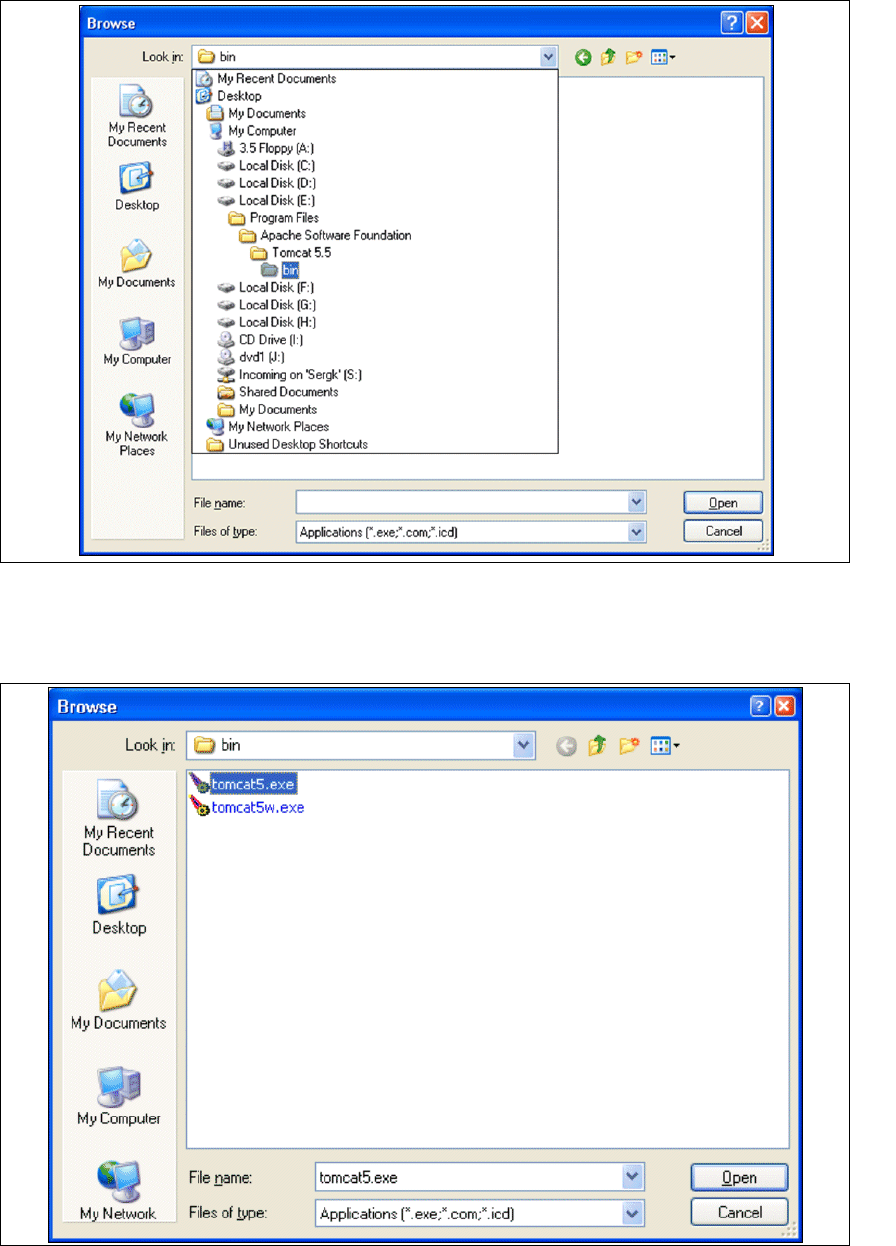
→ In the Tomcat installation path, click on the ..\Tomcat 5.5\bin path and then on the Open
button.
3
Fig. 3 - 55 Windows firewall - exceptions
3 Installing SIPLACE Explorer Installation and Configuration Guide SIPLACE Explorer
3.4 Tomcat Configuration Edition 11/2006 EN
64
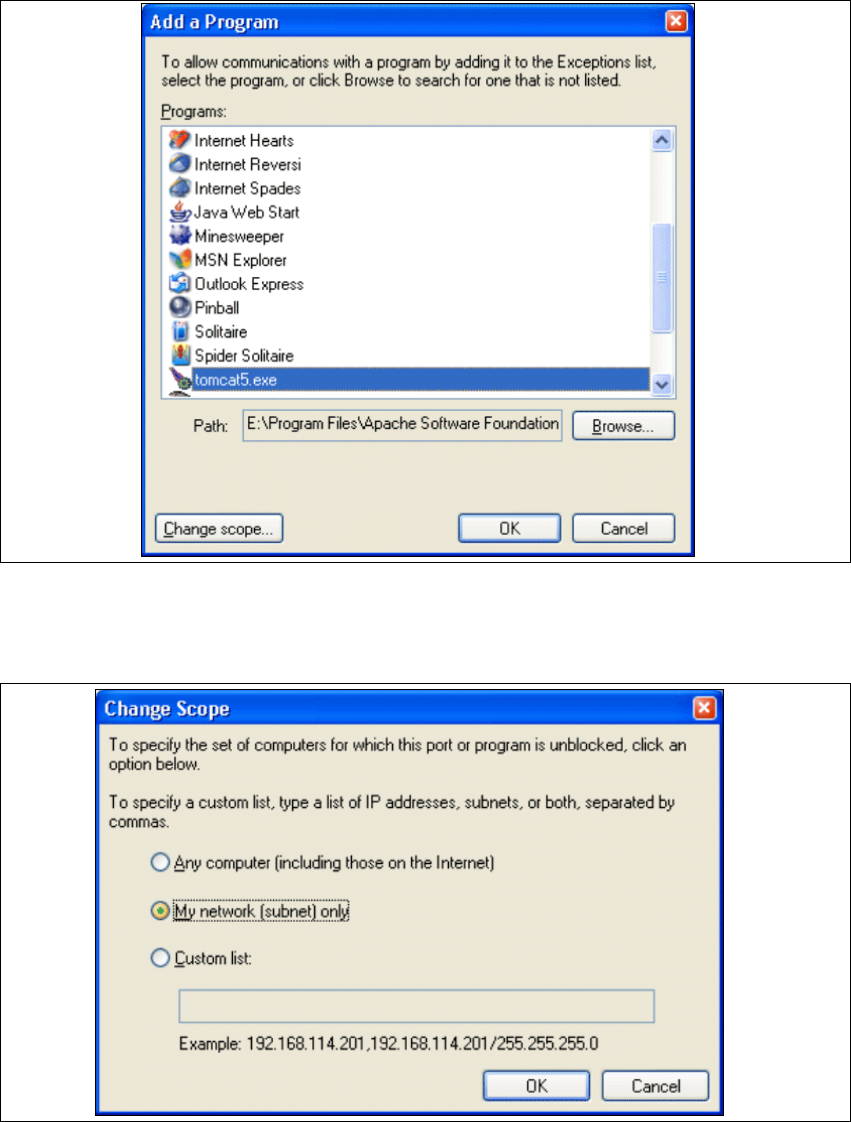
→ Select the file tomcat5.exe and click on the Open button.
→ The Add a Program dialog box will open again:
3
Fig. 3 - 56 Add a program
→ Select the entry tomcat5.exe from the Programs menu and click on the Change Scope
button.
3
Fig. 3 - 57 Change scope
Installation and Configuration Guide SIPLACE Explorer 3 Installing SIPLACE Explorer
Edition 11/2006 EN 3.4 Tomcat Configuration
65
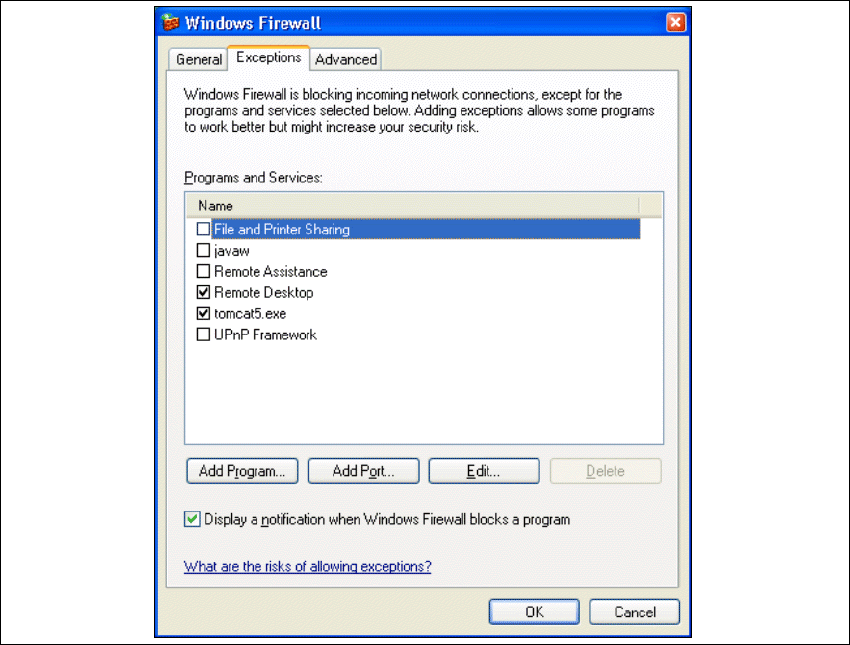
→ Enable the My network option and confirm with OK. You have now released the port for
Tomcat. This can be checked in the Windows Firewall - Exceptions
dialog box.
3
Fig. 3 - 58 Windows firewall - exceptions
→ Now release the port for SIPLACE Explorer V2.1. Proceed as described for Tomcat 5.5.