00193688-06_Installation SIPLACE Explorer2.1_EN.pdf - 第71页
Installation and Configuration Guide SIPLACE Explorer 4 Configuration Edition 11/2006 EN 4.1 Standard Monitoring Application (SMA) 71 4.1.1.2 Step 1 - Edit Line List → Crea te the releva nt production line(s) here. 4 Fig…
4 Configuration Installation and Configuration Guide SIPLACE Explorer
4.1 Standard Monitoring Application (SMA) Edition 11/2006 EN
70
4.1.1.1 Starting Line Configuration
→ Open Line Configuration.
Proceed by selecting Programs → SIPLACE Explorer 2.1 → Line Configuration from the
menu in Windows or by clicking on the icon in the console. Right-click with the mouse to
select the Line Configuration menu.
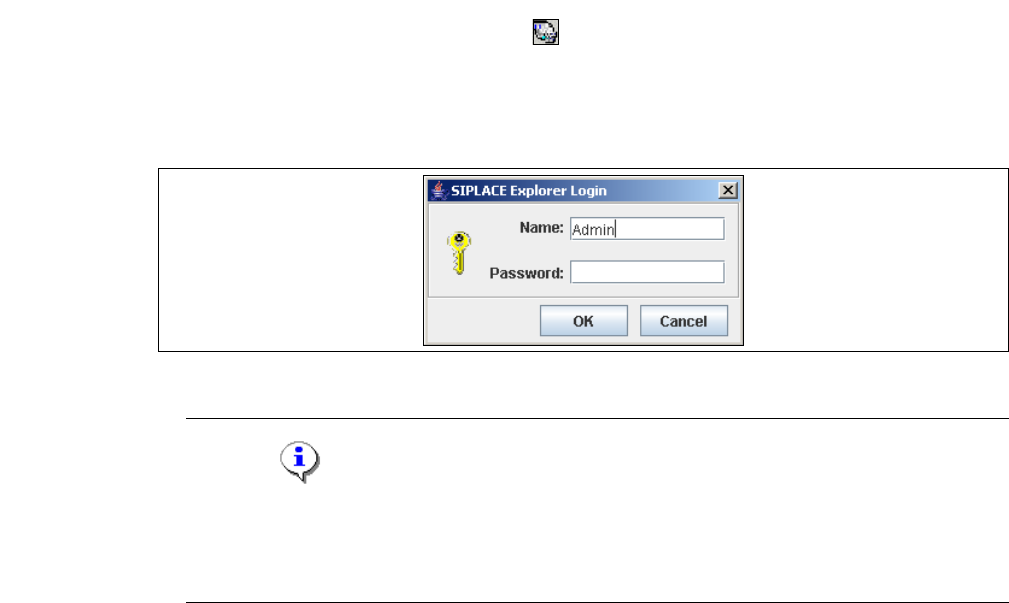
→ When you first start the Line Configuration, the login dialog box will open. Register yourself
as a default user with "Admin" or "Operator" and leave the password field empty.
4
Fig. 4 - 1 SIPLACE Explorer login
NOTE
Access to the Runtime Environment tools is restricted or permitted as required, by using the
SE Security Manager. For details of the relevant settings in the SE Security Manager, refer
to the Getting Started for SIPLACE Explorer 2.1. 4
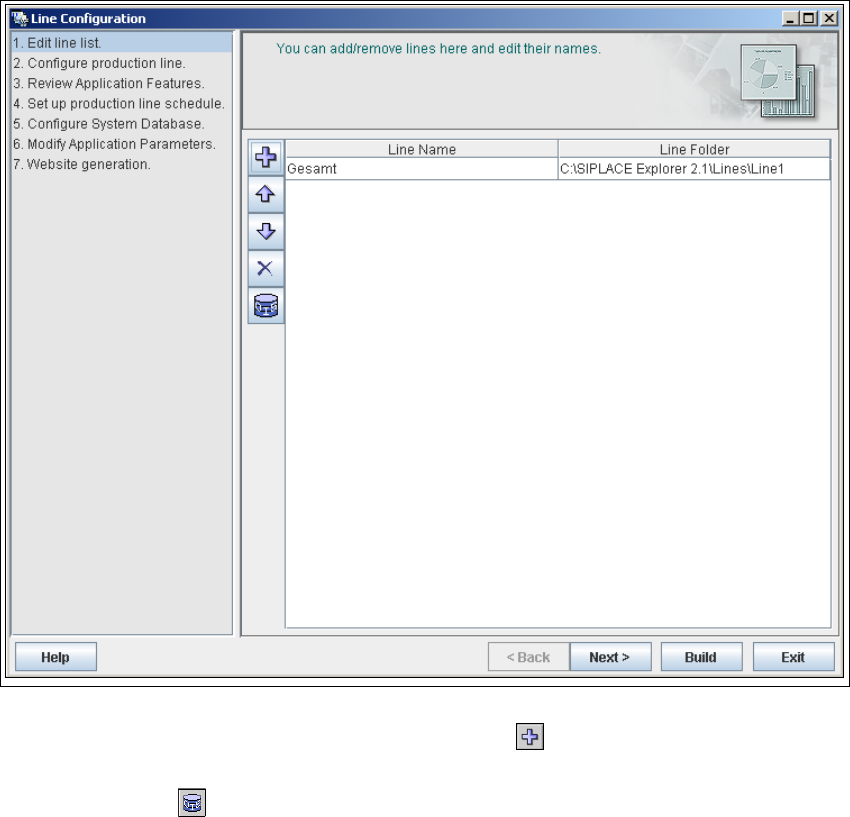
→ The Line Configuration dialog box will open. This is the first step of the line configuration
process.
Installation and Configuration Guide SIPLACE Explorer 4 Configuration
Edition 11/2006 EN 4.1 Standard Monitoring Application (SMA)
71
4.1.1.2 Step 1 - Edit Line List
→ Create the relevant production line(s) here.
4
Fig. 4 - 2 Step 1: line list
→ New production lines can be created with the Add line icon.
→ An existing production line can be imported with the OIS import function. Simply click on the
OIS Import icon .
4 Configuration Installation and Configuration Guide SIPLACE Explorer
4.1 Standard Monitoring Application (SMA) Edition 11/2006 EN
72
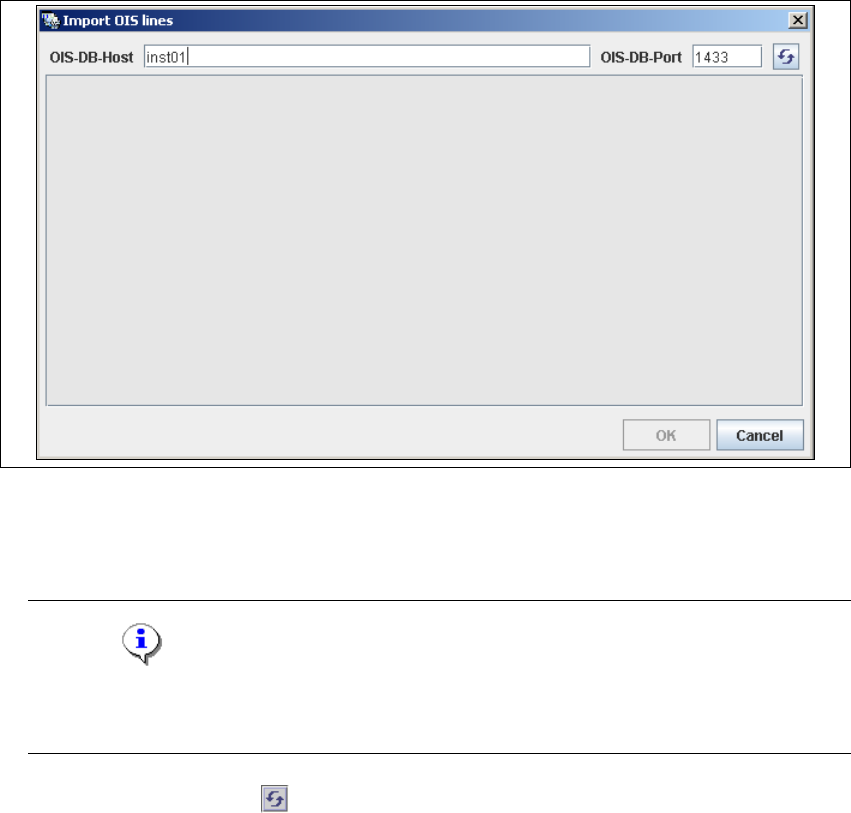
→ The Import OIS Lines dialog box will open.
4
Fig. 4 - 3 Step 1: import OIS lines
→ Enter the OIS DB host name in the OIS-DB-Host field and the OIS DB port in the OIS-DB-Port
field.
NOTE
If you have installed MSDE 2000, you must now enter the MSDE port number shown during
the installation procedure. 4
→ Click on the Refresh icon .