00193688-06_Installation SIPLACE Explorer2.1_EN.pdf - 第60页
3 Installing SIPLACE Explorer Installation and Configuration Guide SIPLACE Explorer 3.4 Tomcat Configuratio n Edition 11/2006 EN 60 → The Windows Firewall dialog box will open: 3 Fig. 3 - 51 Windows firewall → Select the…
Installation and Configuration Guide SIPLACE Explorer 3 Installing SIPLACE Explorer
Edition 11/2006 EN 3.4 Tomcat Configuration
59
3.4 Tomcat Configuration
3.4.1 Using Windows XP Professional with SP2
If you have installed Windows XP Professional with SP2 as your operating system, you will need
to reconfigure the XP firewalls before using SIPLACE Explorer V2.1. This involves releasing the
ports Tomcat 5.5 and SIPLACE Explorer V2.1. 3
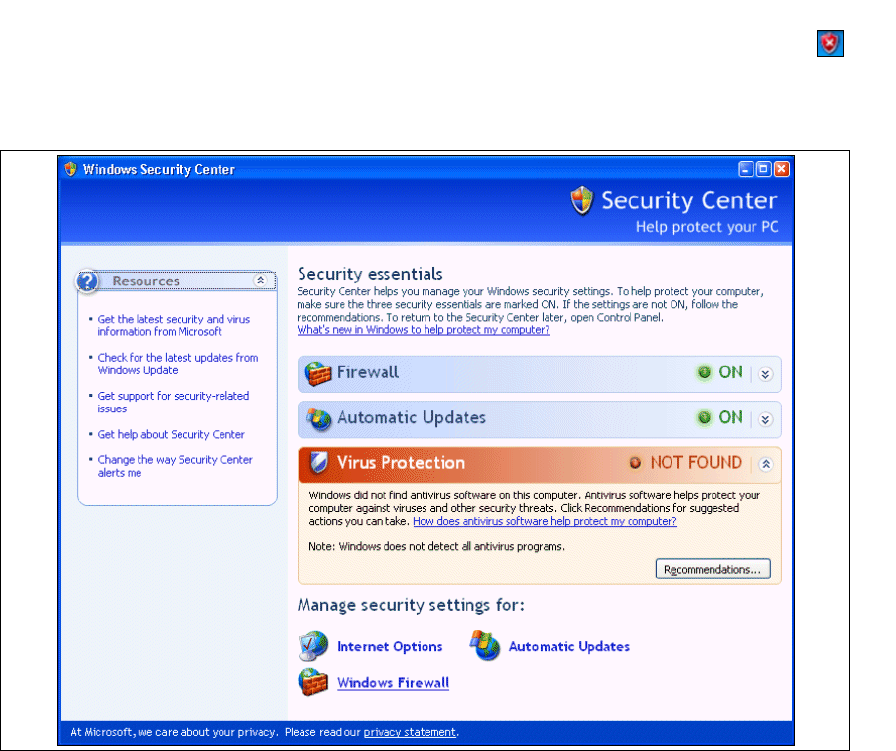
→ Start the Windows Security Center by double-clicking on the Windows Security Alerts
icon in the console.
→ The Windows Security Center dialog box will open:
3
Fig. 3 - 50 Windows Security Center
→ Proceed to Manage security settings for and select the option Windows Firewall.
3 Installing SIPLACE Explorer Installation and Configuration Guide SIPLACE Explorer
3.4 Tomcat Configuration Edition 11/2006 EN
60
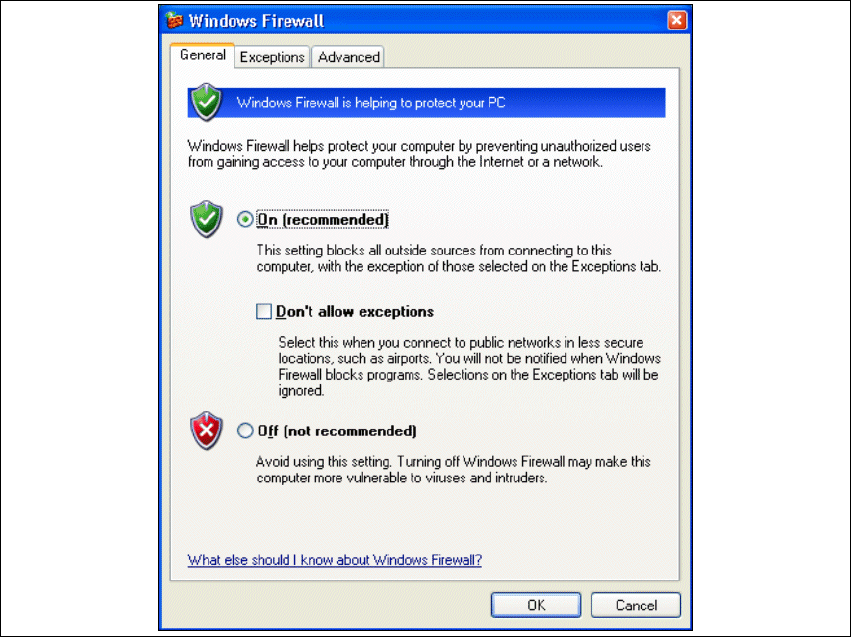
→ The Windows Firewall dialog box will open:
3
Fig. 3 - 51 Windows firewall
→ Select the Exceptions tab.
Installation and Configuration Guide SIPLACE Explorer 3 Installing SIPLACE Explorer
Edition 11/2006 EN 3.4 Tomcat Configuration
61
3
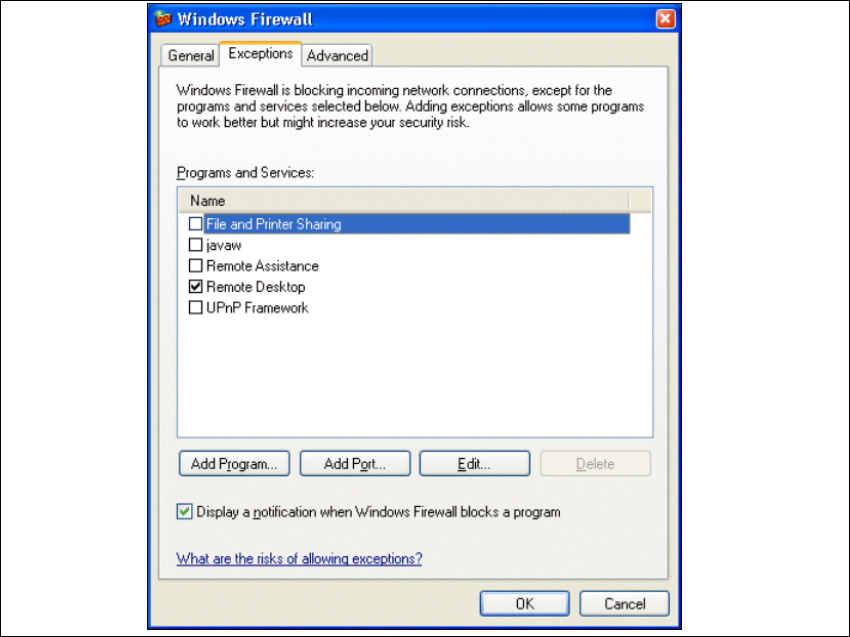
Fig. 3 - 52 Windows firewall - exceptions
→ Click on the Add Program button.