00193688-06_Installation SIPLACE Explorer2.1_EN.pdf - 第90页
4 Configuration Installation and Configuration Guide SIPLACE Explorer 4.1 Standard Monitoring Application (SMA) Edition 11/2006 EN 90 NOTE Follow these steps and note that you may skip step s 5-8 and do the required conf…
Installation and Configuration Guide SIPLACE Explorer 4 Configuration
Edition 11/2006 EN 4.1 Standard Monitoring Application (SMA)
89
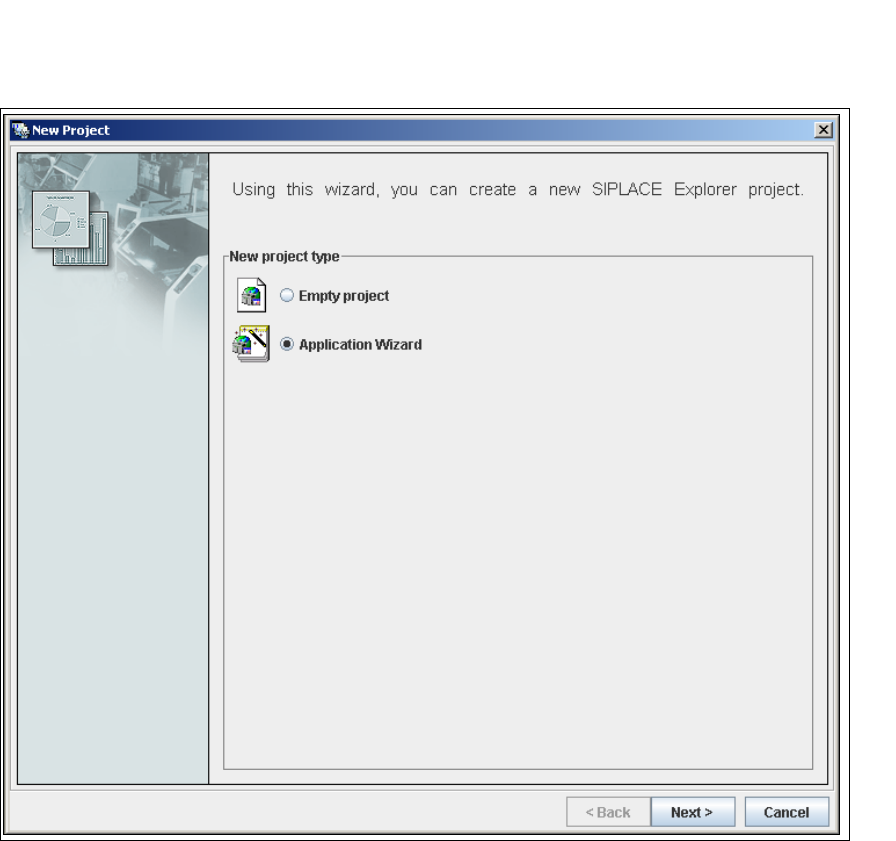
→ In order to open the application wizard
you must select File → New Project from the menu or click on the corresponding button in the
SIPLACE Explorer navigator toolbar.
→ The New Project dialog box will open.
4
Fig. 4 - 24 'New project' dialog box
→ There are two ways to create an SMA:
– Select Empty Project to build your application from scratch or
– Application Wizard to customize and configure a prebuilt application.
→ In this section we will discuss the second option.
→ Once you have selected Application Wizard and clicked Next, you will be presented with an
eight-step wizard that will help you to create SIPLACE Explorer customized for your production
line.
4 Configuration Installation and Configuration Guide SIPLACE Explorer
4.1 Standard Monitoring Application (SMA) Edition 11/2006 EN
90
NOTE
Follow these steps and note that you may skip steps 5-8 and do the required configurations
later. 4
4.1.2.2 Step 1- Select Target Application
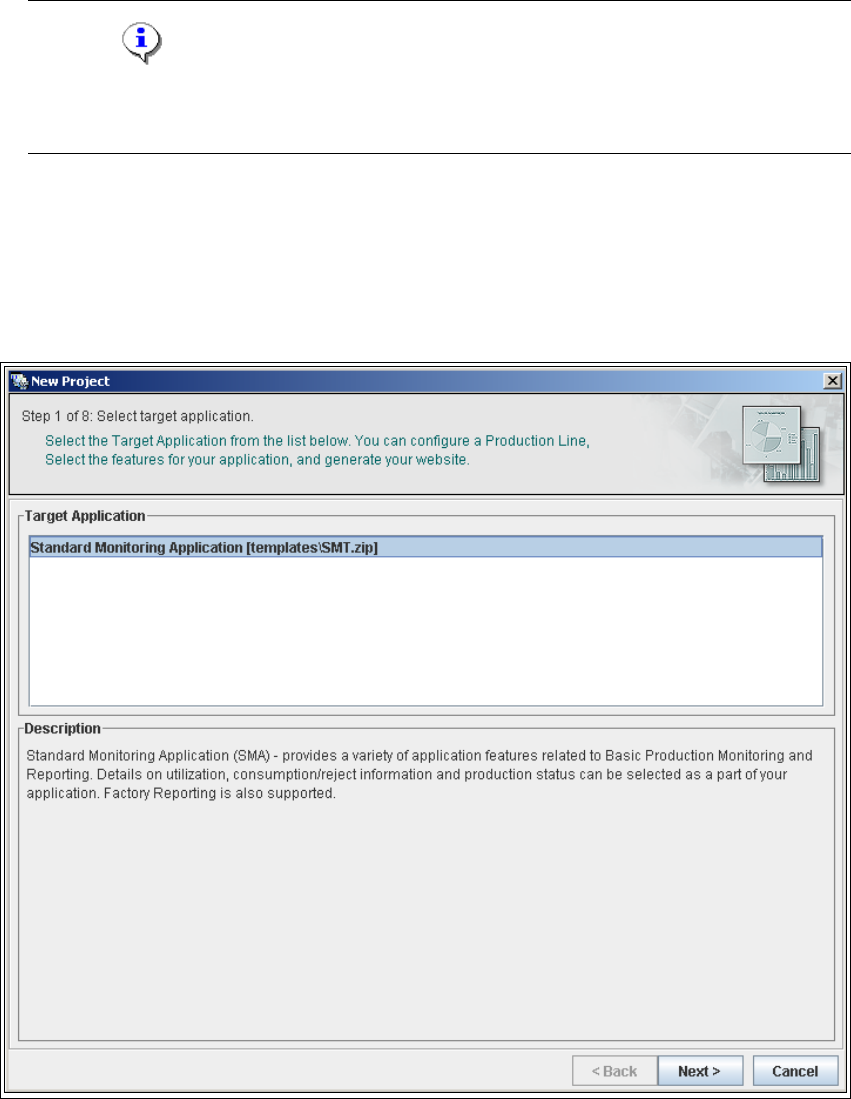
→ Select the required target application (this defines a set of templates needed to create a
customized application). The description field provides an explanation of the target application
concerned, helping you to make your selection from the list of Target Applications.
4
Fig. 4 - 25 Step 1: Select target application
→ Once you have selected the desired application click on the Next button to continue with the
next step.
Installation and Configuration Guide SIPLACE Explorer 4 Configuration
Edition 11/2006 EN 4.1 Standard Monitoring Application (SMA)
91
4.1.2.3 Step 2 - Select Configuration Type
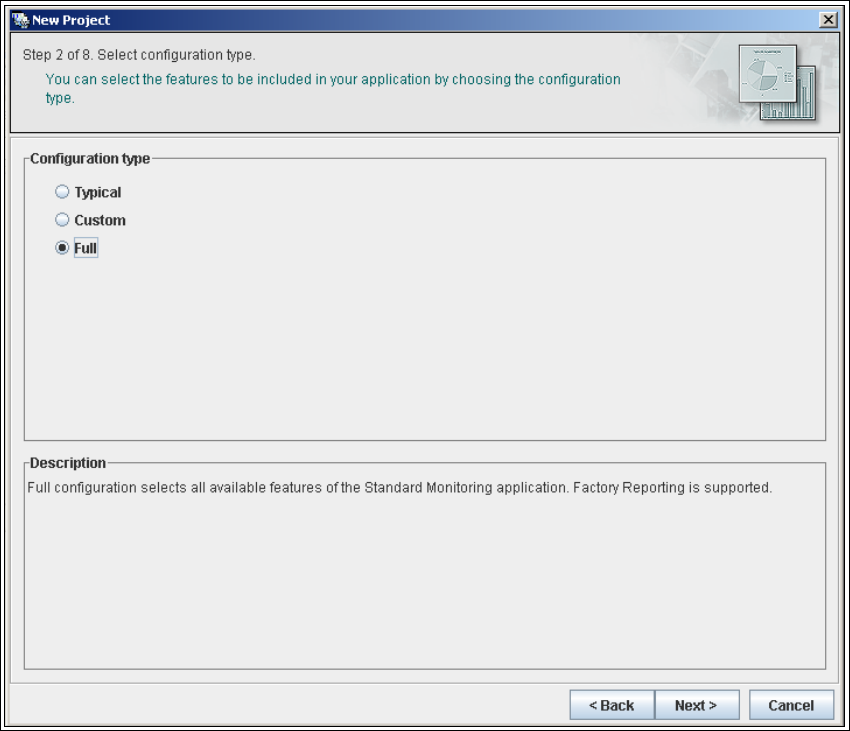
→ You can select one of the following configuration types for the application to be created:
–Typical
The new application will include features required for Factory Reporting.
–Custom:
allows the user to choose the features to be included in the new application. All features
valid for the equipment in the production line are available for selection (see below).
– Full:
All features valid for the equipment in the production line will be included in the new
application.
4
Fig. 4 - 26 Step 2: Select configuration type
→ Select the required configuration type and click on the Next button to continue with the next
step.