00193688-06_Installation SIPLACE Explorer2.1_EN.pdf - 第116页
4 Configuration Installation and Configuration Guide SIPLACE Explorer 4.3 Database Settings Edition 11/2006 EN 116
Installation and Configuration Guide SIPLACE Explorer 4 Configuration
Edition 11/2006 EN 4.3 Database Settings
115
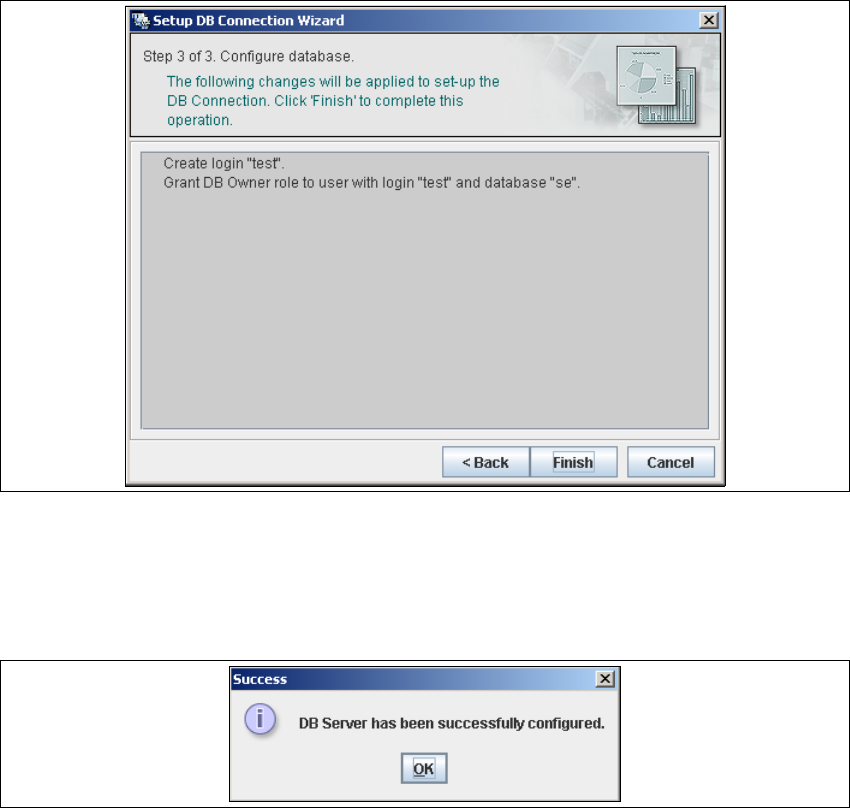
– Step 3- Configure Database
→ Step 3 takes your modifications from Step 2 and uses them to configure the database
connection.
4
Fig. 4 - 54 Step 3- database connection wizard
→ Click on Finish and the wizard will carry out the required configuration. The DB settings are
now correctly specified for your project. and the database and set user will be created.
→ You will receive a success message.
4
Fig. 4 - 55 Step 3 database connection wizard
→ Click OK. You can now configure your system database.
4 Configuration Installation and Configuration Guide SIPLACE Explorer
4.3 Database Settings Edition 11/2006 EN
116

Installation and Configuration Guide SIPLACE Explorer 5 Uninstallation
Edition 08/2006 EN
117
5Uninstallation
SIPLACE Explorer V2.1 has a modify dialog for uninstallation purposes. This can be started from
the Windows menu. There will then be three uninstallation procedures at your disposal: 5
–Modify
Use this function if you want to add individual features to the current SIPLACE Explorer
V2.1 or if you want remove installed features from the current SIPLACE Explorer V2.1.
(see page 119)
–Repair
Use this function if the current installation of SIPLACE Explorer V2.1 no longer functions
properly or if individual features have been unintentionally removed. This option recovers
the previous setup.
(see page 121)
–Remove
Use this function if you want to completely remove SIPLACE Explorer V2.1 from your
computer.
(see page 123)