00193688-06_Installation SIPLACE Explorer2.1_EN.pdf - 第21页
Installation and Configuration Guide SIPLAC E Explorer 3 Installing SIPLACE Explorer Edition 11/2006 EN 3.1 Initial Installation of SIPLACE Explorer 2.1 21 3 Inst alling SIPLACE Explorer There are two dif ferent typ es o…
2 System Components and Configurations Installation and Configuration Guide SIPLACE Explorer
2.3 Standard Installation of SIPLACE Explorer Edition 11/2006 EN
20
2.3.3 Single Line Layout
The Single Line Layout installation variant supports exactly one multi line. 2
SIPLACE Explorer is installed on the existing SIPLACE line server, with all system components.
SIPLACE Pro and OIS/SIS are also installed on this SIPLACE line server. 2
NOTE
Please note that this installation variant only allows you to monitor one application with up to 7
machines- 2
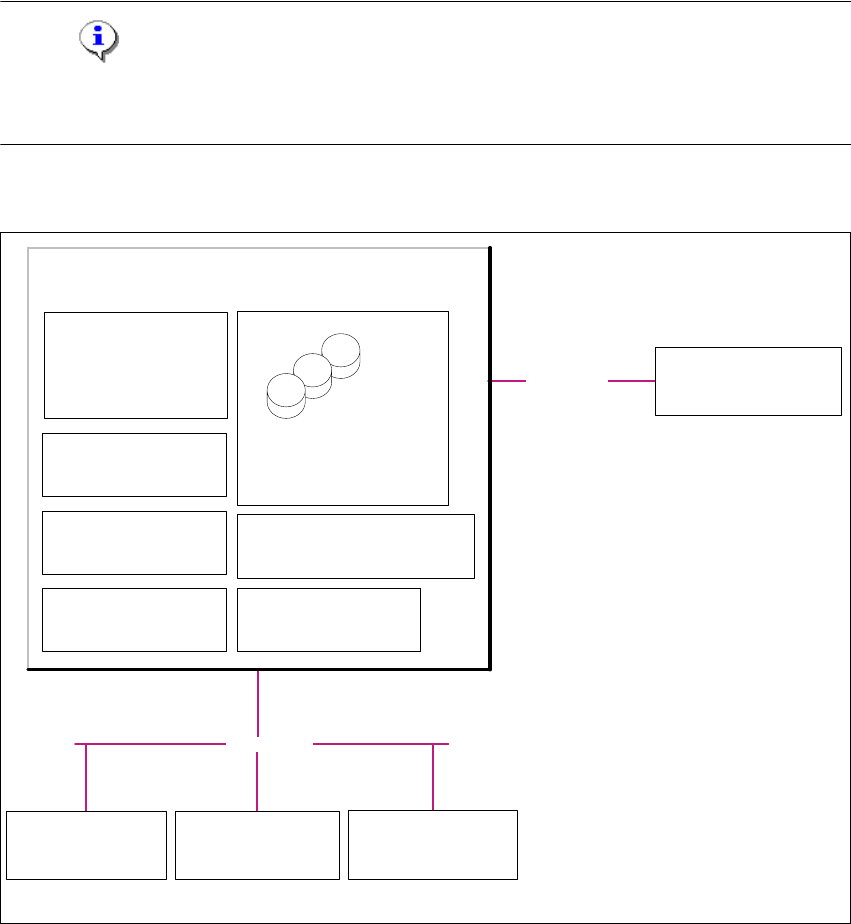
The following overview shows an example of the "Single Line Layout" installation: 2
2
Fig. 2.3 - 3 Installation Variants: Single Line Layout
2
2
Customer LAN
- SIPLACE Pro Server
- SIPLACE Pro Desk
- Line Control Server /GUI
- OIS Server / OIS Client
- SIS Server
SIPLACE Explorer
Webpages:
- MS internet Explorer
- SIPLACE Pro DB
- SIPLACE Explorer DB
- SIPLACE Explorer Factory DB
- OIS DB
- SIS DB
SIPLACE Line Server
(already existing)
SIPLACE Explorer
Factory Host
SIPLACE Explorer Webserver:
-Tomcat
- Java 2SE
Report Generation :
- MSXM
- Excel
SQL Server
Customer Computer
SIPLACE Explorer Websites:
- MS Internet Explorer
SIPLACE Explorer
Runtime Environment
SIPLACE LAN
Station Computer:
- OIS Client
- SW Software, platform I
Multi Line
Station Computer:
- OIS Client
- SW Software, platform II
Station Computer:
- OIS Client
- SW Software, platform III
Installation and Configuration Guide SIPLACE Explorer 3 Installing SIPLACE Explorer
Edition 11/2006 EN 3.1 Initial Installation of SIPLACE Explorer 2.1
21
3 Installing SIPLACE Explorer
There are two different types of installation for SIPLACE Explorer 2.1: 3
– Initial installation of SIPLACE Explorer 2.1
Choose this option if you do not yet have a version of SIPLACE Explorer installed on your
system. Follow the instructions at “Initial Installation of SIPLACE Explorer 2.1” on page 21.
– Update installation of SIPLACE Explorer 2.1. Choose this option if you already have an
executable version of SIPLACE Explorer 1.2, 2.0 or 2.0 SP1 installed on your system.
Follow the instructions at “Update Installation of SIPLACE Explorer 2.1” on page 51.
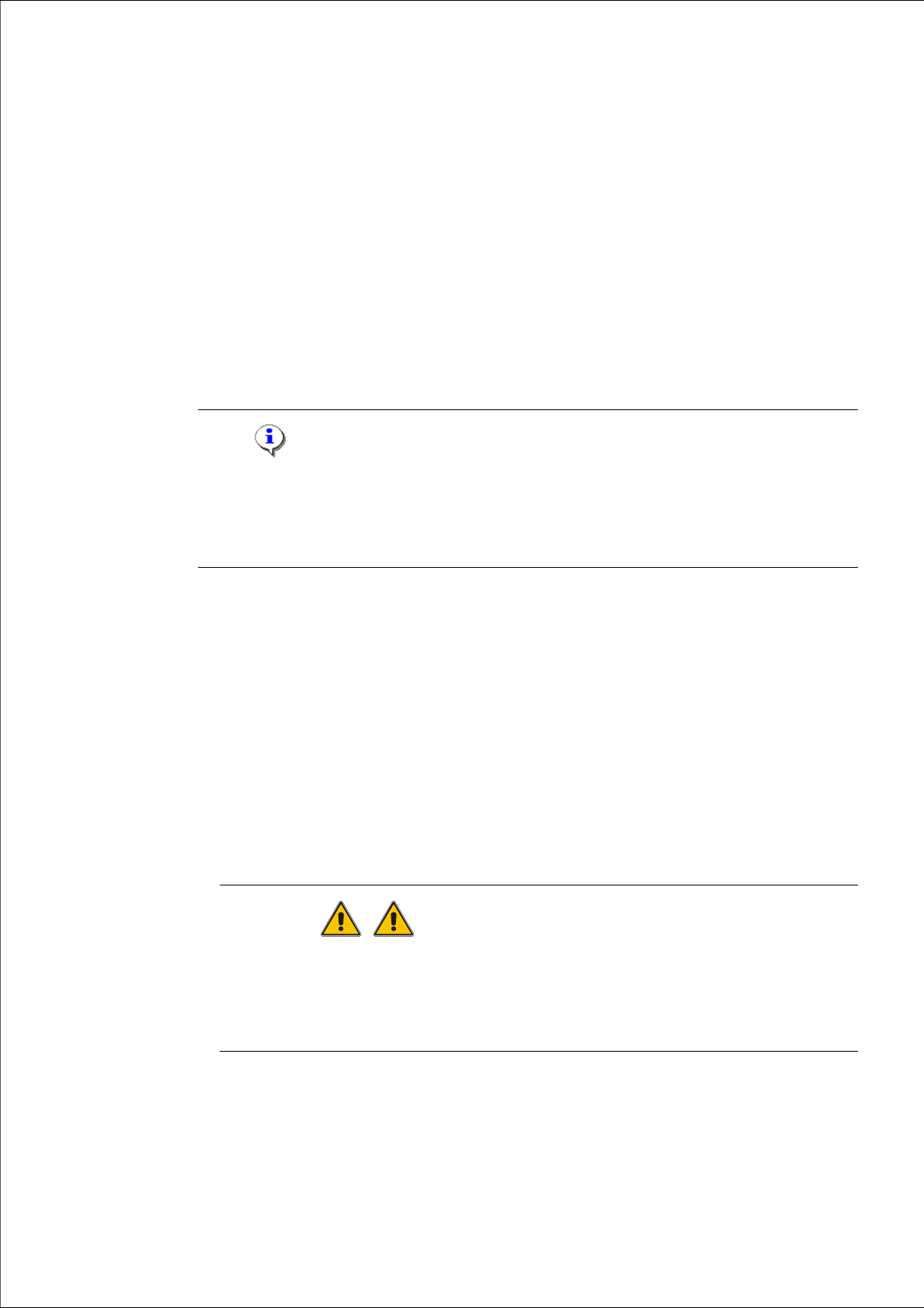
NOTE
To ensure a reliable data quality from SIPLACE Explorer, make sure that the versions of all
supported data sources match the version of SIPLACE Explorer installed. This means, that your
initial or upgrade installation of SIPLACE Explorer may require you to also update the supported
data sources. 3
3.1 Initial Installation of SIPLACE Explorer 2.1
Please select one of the following installation procedures: 3
– SIPLACE Explorer 2.1 (see page 29)
There are three different installation options for SIPLACE Explorer V2.1: 3
– SIPLACE Explorer V.2.1 Runtime Environment
– SIPLACE Explorer V.2.1 Factory Configuration Utility
– SIPLACE Explorer V.2.1 Development Environment
WARNING
Do not install "SIPLACE Explorer V.2.1 Runtime Environment" and "SIPLACE Explorer V.2.1
Development Environment" on the same computer. These two options will not run parallel to
one another. Before working with these options in succession, make sure you know the steps
for starting/terminating the respective option and observe these. 3
3 Installing SIPLACE Explorer Installation and Configuration Guide SIPLACE Explorer
3.1 Initial Installation of SIPLACE Explorer 2.1 Edition 11/2006 EN
22
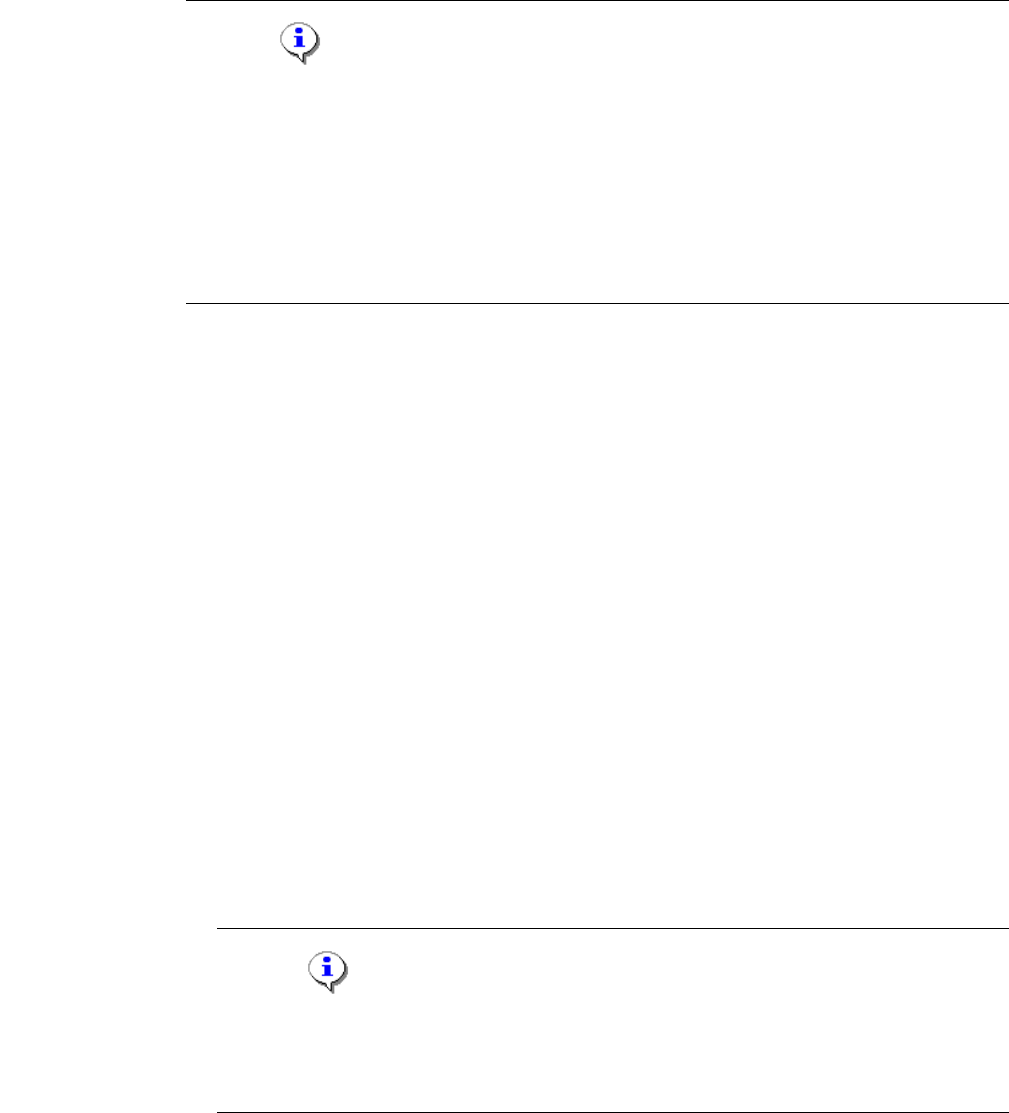
NOTE
If you install SIPLACE Explorer V.2.1 on the same computer as the previous version of
SIPLACE Explorer, you will be able to use both versions to generate applications and for
configuration purposes. However, both versions can not be run simultaneously to monitor
production data. Since SIPLACE Explorer V.2.1 Runtime Environment is automatically
started as a Windows service, you will need to terminate this program before you can monitor
production data with the previous version.
However, we do not recommend this type of installation! 3
– J2SE Runtime Environment 5.0.07 (see page 24)
Before you install SIPLACE Explorer V2.1, make sure that Java 2 SE 5.0 update 7 has been
installed on your computer. Install Java 2 SE 5.0 on the same computer as SIPLACE
Explorer V.2.1. 3
– Bundled Web Server Installation (see page 37)
The software components required for the web server are installed with this option. The
system will be checked for the required software components and their versions. You will
see the result of this check in a notifications window and can then install any missing
components via this option. 3
The following software components are included in the Bundled Web Server installation and
will be installed when required: 3
– Tomcat 5.5.9 (see page 39)
If you wish to install a configuration with web release, you will also need to install the
option Tomcat 5.5.9. Tomcat 5.5.9 is necessary for making websites available via
SIPLACE Explorer V.2.1 Runtime Environment and SIPLACE Explorer V.2.1 Factory
Configuration Utility. 3
NOTE
Before installing Tomcat 5.5.9, make sure that all versions of Tomcat < 5.5 have been
uninstalled. Use the Apache Tomcat uninstallation programm via the Windows menu
Start → Programs → Apache Tomcat 5.5 → Uninstall Tomcat. 3
– J2SE Runtime Environment 5.0.07 (see page 24)