00193688-06_Installation SIPLACE Explorer2.1_EN.pdf - 第47页
Installation and Configuration Guide SIPLAC E Explorer 3 Installing SIPLACE Explorer Edition 11/2006 EN 3.1 Initial Installation of SIPLACE Explorer 2.1 47 → Once the installation pr ocedure has finished , the Inst allat…
3 Installing SIPLACE Explorer Installation and Configuration Guide SIPLACE Explorer
3.1 Initial Installation of SIPLACE Explorer 2.1 Edition 11/2006 EN
46
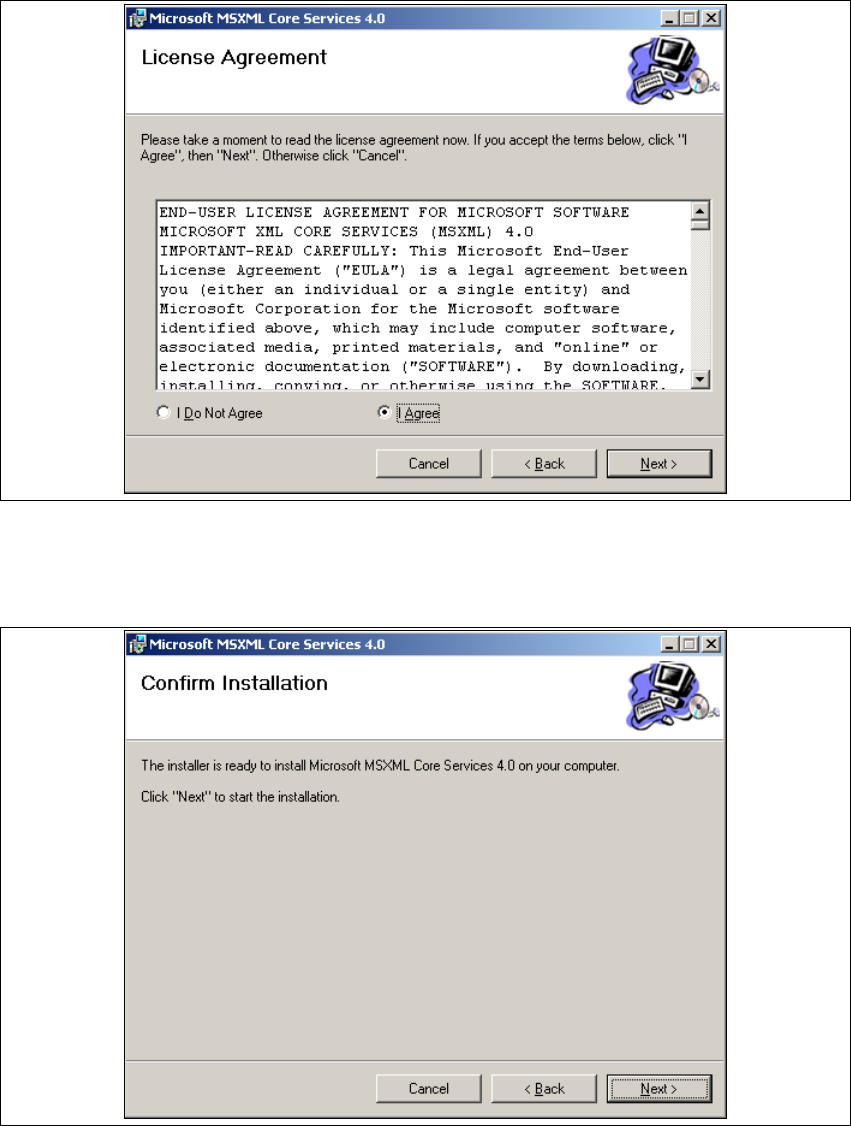
→ Read the license agreement. If you agree click I Agree, otherwise click I Do Not Agree. Click-
ing on I Do Not Agree terminates the installation.
3
Fig. 3 - 35 MSXML 4.0 setup - license agreement
→ Click on Next, to continue the installation procedure.
→ The Confirm Installation dialog box will open.
3
Fig. 3 - 36 MSXML 4.0 setup - user information
→ Click on Next to continue. The actual installation of MS XML 4.0 will start.
Installation and Configuration Guide SIPLACE Explorer 3 Installing SIPLACE Explorer
Edition 11/2006 EN 3.1 Initial Installation of SIPLACE Explorer 2.1
47
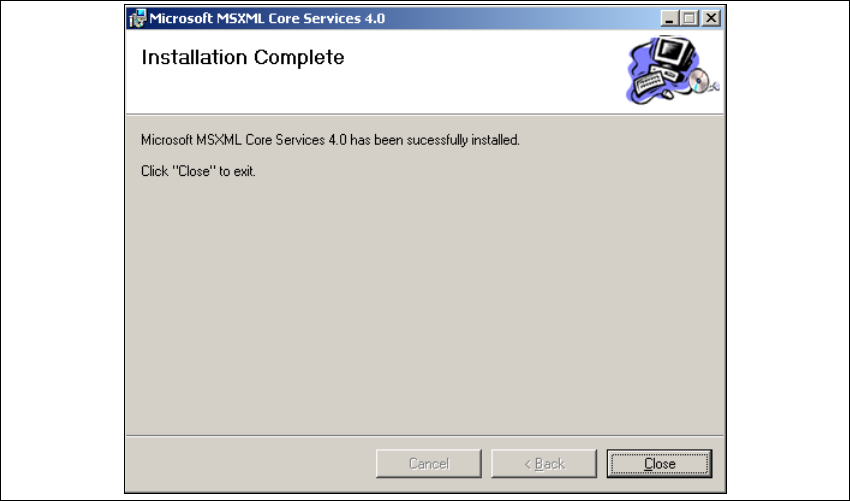
→ Once the installation procedure has finished, the Installation Complete dialog box will open.
3
Fig. 3 - 37 MSXML 4.0 setup - installation complete
→ Click on Close.
3.1.3.3 Bundled Web Server Installation - J2SE Runtime Environment 5.0.07
For a detailed description of this installation, please see Section “Installation of Java J2SE
Runtime Environment 5.0” on page 24. 3
3 Installing SIPLACE Explorer Installation and Configuration Guide SIPLACE Explorer
3.1 Initial Installation of SIPLACE Explorer 2.1 Edition 11/2006 EN
48
3.1.4 MSDE 2000 Installation Procedure
NOTE
You must have Windows administrator privileges to perform installation. 3
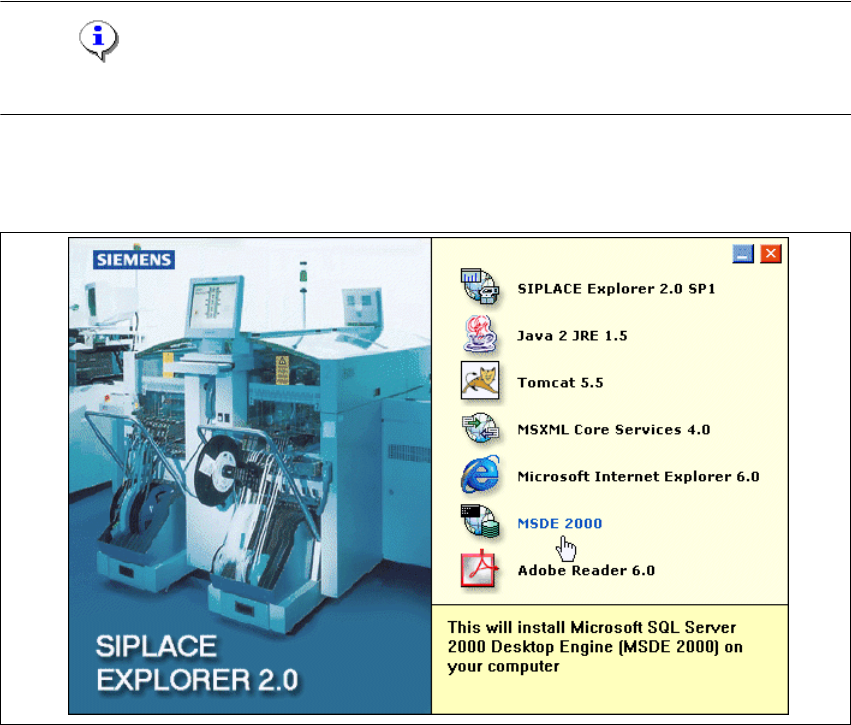
→ Place the SIPLACE Explorer CD in your CD-ROM drive.
→ The Start screen will appear.
3
Fig. 3 - 38 SIPLACE Explorer setup - Start screen
→ Select MSDE 2000. The MSDE 2000 installation procedure will run automatically.