00193688-06_Installation SIPLACE Explorer2.1_EN.pdf - 第36页
3 Installing SIPLACE Explorer Installation and Configuration Guide SIPLACE Explorer 3.1 Initial Installation of SIPLACE Explorer 2.1 Edition 11/2006 EN 36 → Once the installation proc edure has finished, the follo wing d…
Installation and Configuration Guide SIPLACE Explorer 3 Installing SIPLACE Explorer
Edition 11/2006 EN 3.1 Initial Installation of SIPLACE Explorer 2.1
35
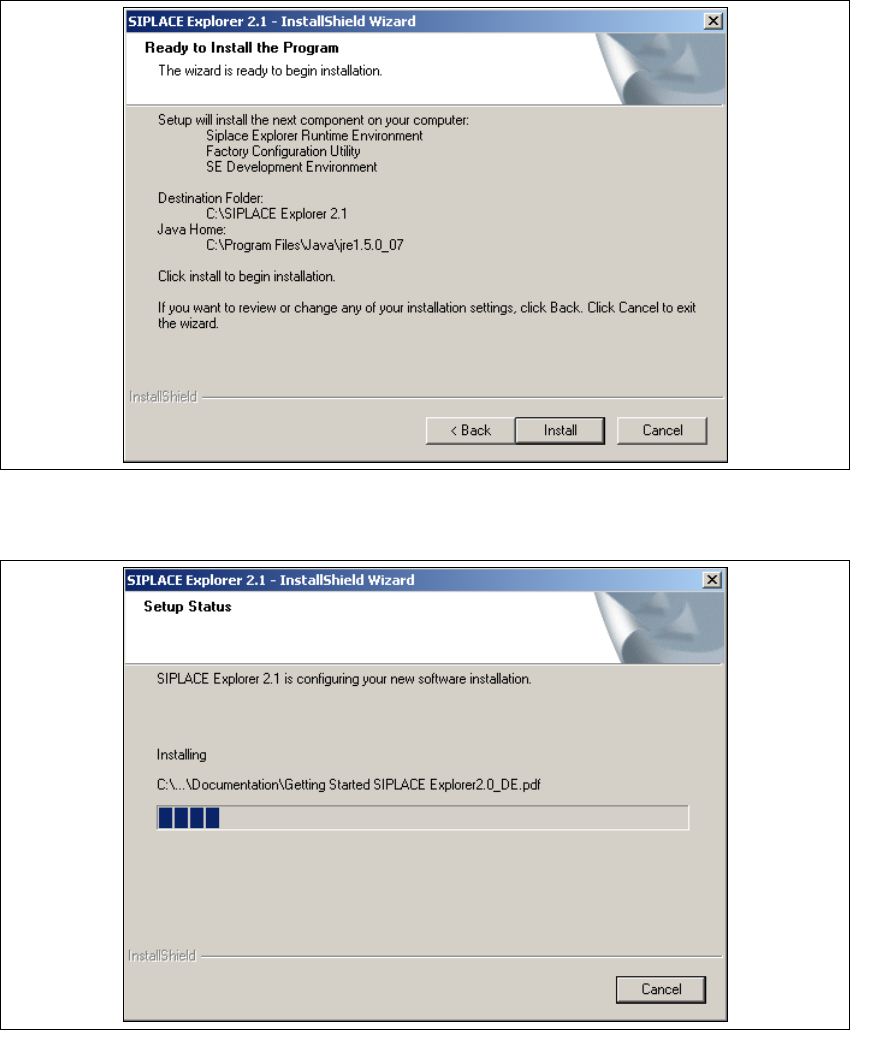
→ The Ready to Install the Program dialog box will open.
3
Fig. 3 - 19 SIPLACE Explorer setup - 'ready to install' dialog box
→ Click on the Install button, to begin the actual installation of SIPLACE Explorer V2.1.
3
Fig. 3 - 20 SIPLACE Explorer setup - setup status
3 Installing SIPLACE Explorer Installation and Configuration Guide SIPLACE Explorer
3.1 Initial Installation of SIPLACE Explorer 2.1 Edition 11/2006 EN
36
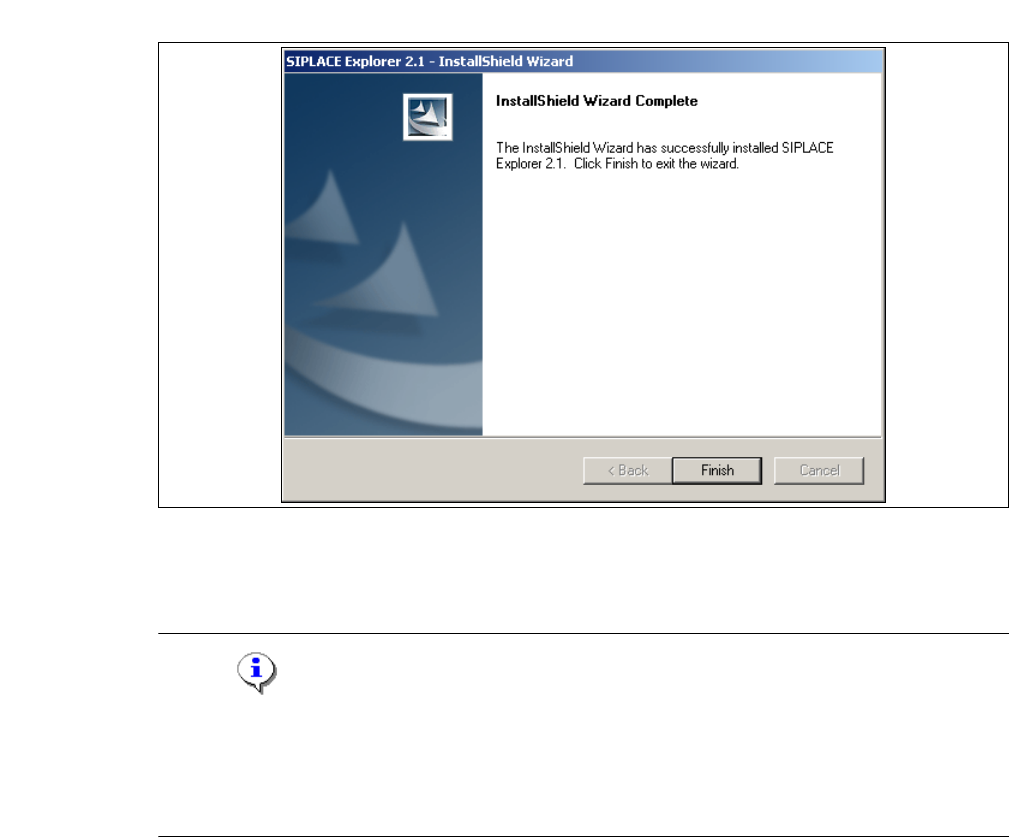
→ Once the installation procedure has finished, the following dialog box will appear.
3
Fig. 3 - 21 SIPLACE Explorer setup - installation complete
→ Click on Finish. After you have rebooted your computer, SIPLACE Explorer will be available
for use. Follow the instructions at “Starting SIPLACE Explorer” on page 56.
NOTE
After installation of SIPLACE Explorer you must reboot the system. This is necessary to guarantee
that port 1099 is available for Java Runtime Environment. It is rarely possible that port 1099 is
used by another application. If you start SIPLACE Explorer without system restart right after
installation following error message is displayed "SIPLACE Explorer 2.1 runtime not found". 3
3
Installation and Configuration Guide SIPLACE Explorer 3 Installing SIPLACE Explorer
Edition 11/2006 EN 3.1 Initial Installation of SIPLACE Explorer 2.1
37
3.1.3 Bundled Web Server Installation
NOTE
You must have Windows administrator privileges to perform installation. 3
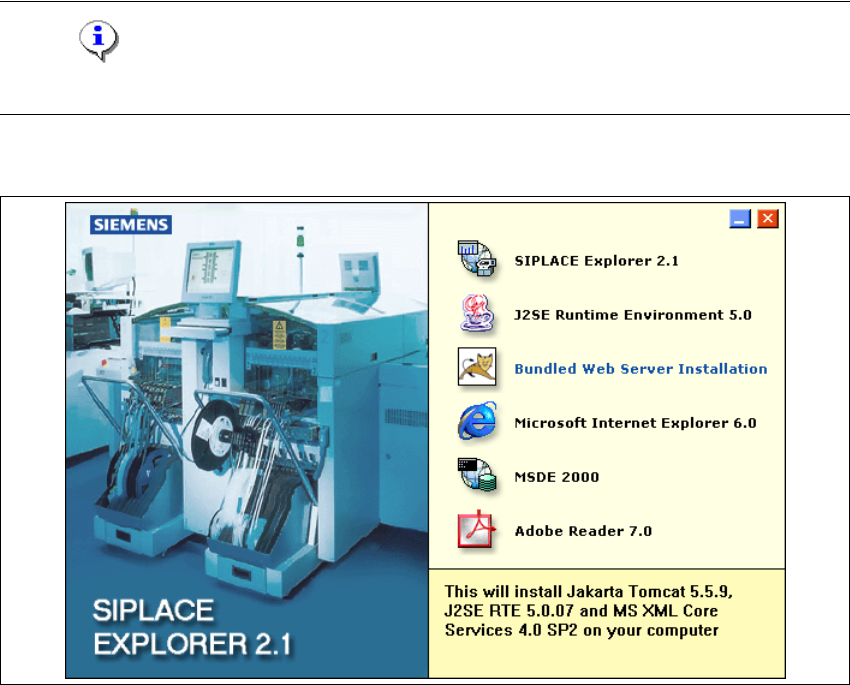
→ Place the SIPLACE Explorer CD in your CD-ROM drive. The Start screen will appear.
3
Fig. 3 - 22 SIPLACE Explorer setup - Start screen
→ Select Bundled Web Server Installation. The system will be checked for the following
software components and their versions.
– Tomcat 5.5.9
– Java runtime environment (J2SE RTE 5.0.07)
– MS XML Core services 4.0 SP2
– MS Excel 2000 or 2003