00193688-06_Installation SIPLACE Explorer2.1_EN.pdf - 第115页
Installation and Configuration Guide SIPLACE Explorer 4 Configuration Edition 11/2006 EN 4.3 Database Settings 115 – S tep 3- Configure Dat abas e → Ste p 3 takes your modifications fro m S tep 2 and uses them to configu…
4 Configuration Installation and Configuration Guide SIPLACE Explorer
4.3 Database Settings Edition 11/2006 EN
114
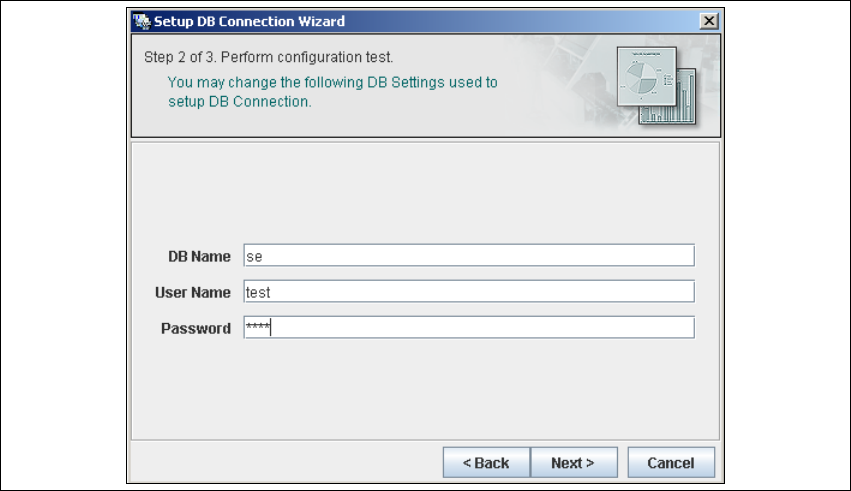
– Step 2 - Perform Configuration Test
→ At Step 2 you can change your settings. This is also where you define the name of the SE
system database for the line and where you specify the user (and corresponding password)
who is to have access to this database.
4
Fig. 4 - 53 Step 2- database connection wizard
→ Once you have made and checked all entries, click on Next to continue.
Installation and Configuration Guide SIPLACE Explorer 4 Configuration
Edition 11/2006 EN 4.3 Database Settings
115
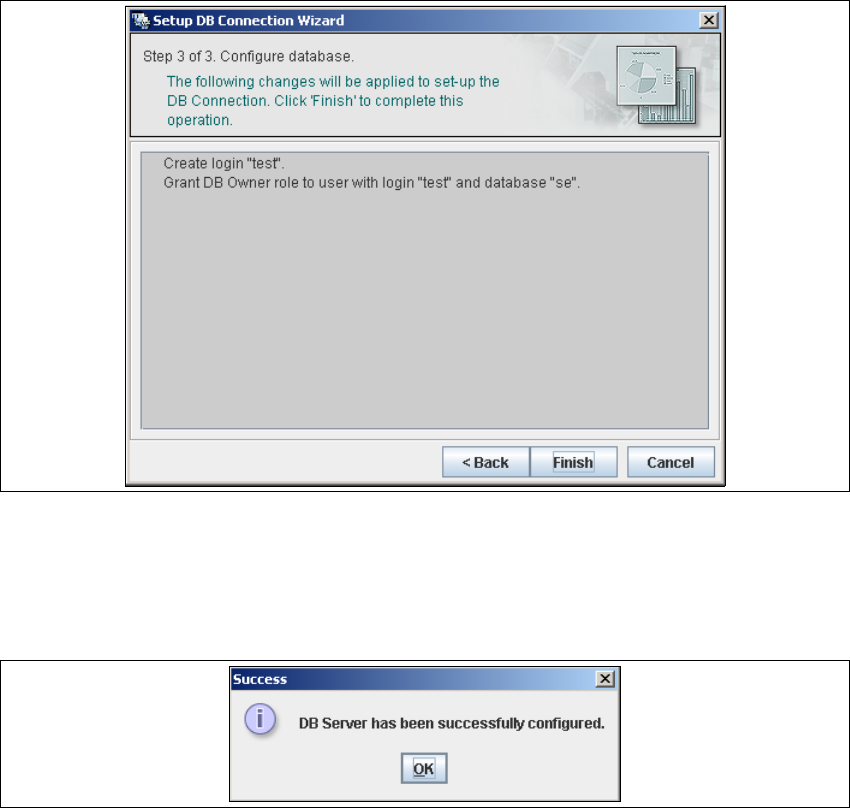
– Step 3- Configure Database
→ Step 3 takes your modifications from Step 2 and uses them to configure the database
connection.
4
Fig. 4 - 54 Step 3- database connection wizard
→ Click on Finish and the wizard will carry out the required configuration. The DB settings are
now correctly specified for your project. and the database and set user will be created.
→ You will receive a success message.
4
Fig. 4 - 55 Step 3 database connection wizard
→ Click OK. You can now configure your system database.
4 Configuration Installation and Configuration Guide SIPLACE Explorer
4.3 Database Settings Edition 11/2006 EN
116