00193688-06_Installation SIPLACE Explorer2.1_EN.pdf - 第30页
3 Installing SIPLACE Explorer Installation and Configuration Guide SIPLACE Explorer 3.1 Initial Installation of SIPLACE Explorer 2.1 Edition 11/2006 EN 30 → Y ou will be guided through the SIPLACE Explorer installa tion …
Installation and Configuration Guide SIPLACE Explorer 3 Installing SIPLACE Explorer
Edition 11/2006 EN 3.1 Initial Installation of SIPLACE Explorer 2.1
29
3.1.2 Installation of SIPLACE Explorer 2.1 - Initial Installation
NOTE
You must have Windows administrator privileges to perform installation. 3
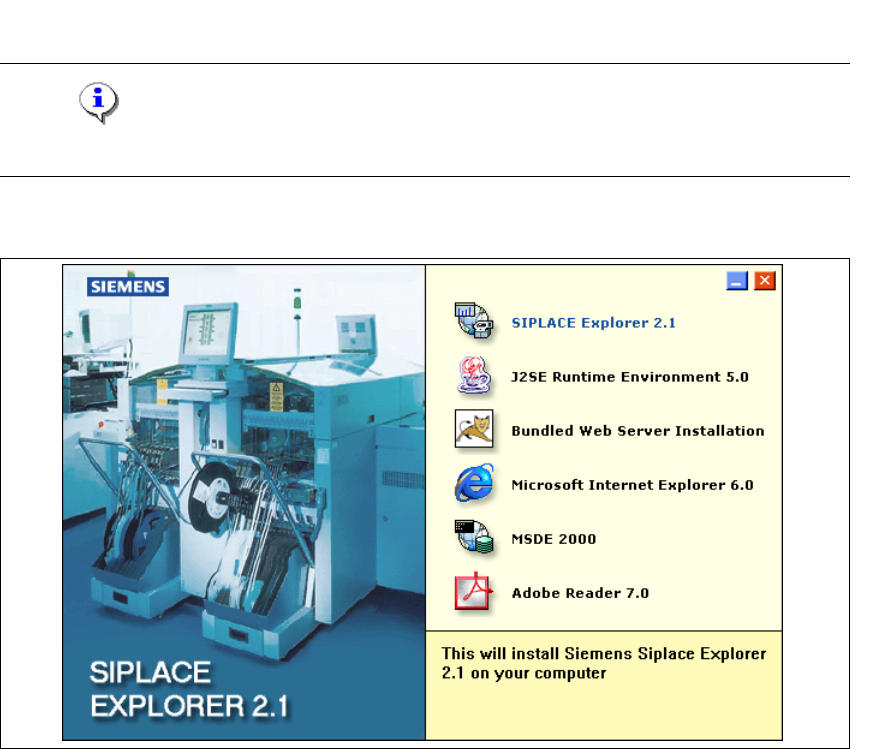
→ Place the SIPLACE Explorer CD in your CD-ROM drive. The Start screen will appear.
3
Fig. 3 - 10 SIPLACE Explorer setup - Start screen
→ Select SIPLACE Explorer 2.1.
3 Installing SIPLACE Explorer Installation and Configuration Guide SIPLACE Explorer
3.1 Initial Installation of SIPLACE Explorer 2.1 Edition 11/2006 EN
30
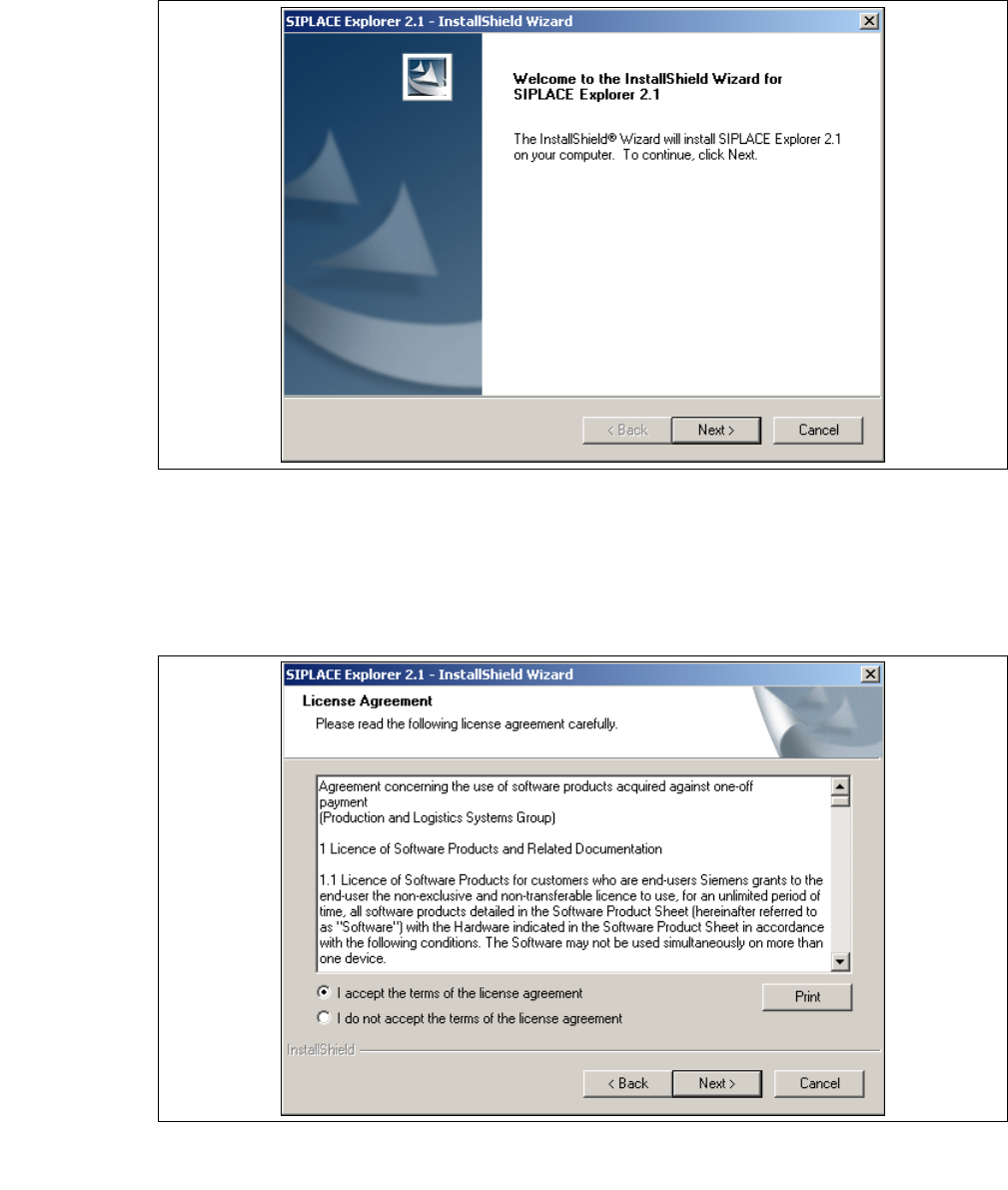
→ You will be guided through the SIPLACE Explorer installation procedure.
3
Fig. 3 - 11 SIPLACE Explorer welcome
→ Exit all other programs and then click on Next. The License Agreement dialog box will open.
→ Read the license agreement. If you agree with the conditions, click I accept ..., otherwise, click
on I do not accept .... If you select I do not accept ..., the installation procedure will be
terminated.
3
Fig. 3 - 12 SIPLACE Explorer setup - license agreement
→ Confirm your selection with Next.
Installation and Configuration Guide SIPLACE Explorer 3 Installing SIPLACE Explorer
Edition 11/2006 EN 3.1 Initial Installation of SIPLACE Explorer 2.1
31
→ Before you can run SIPLACE Explorer, J2SE Runtime Environment 5.0. update 7 must be
installed on your PC. If it is already installed on your PC, installation will begin automatically.
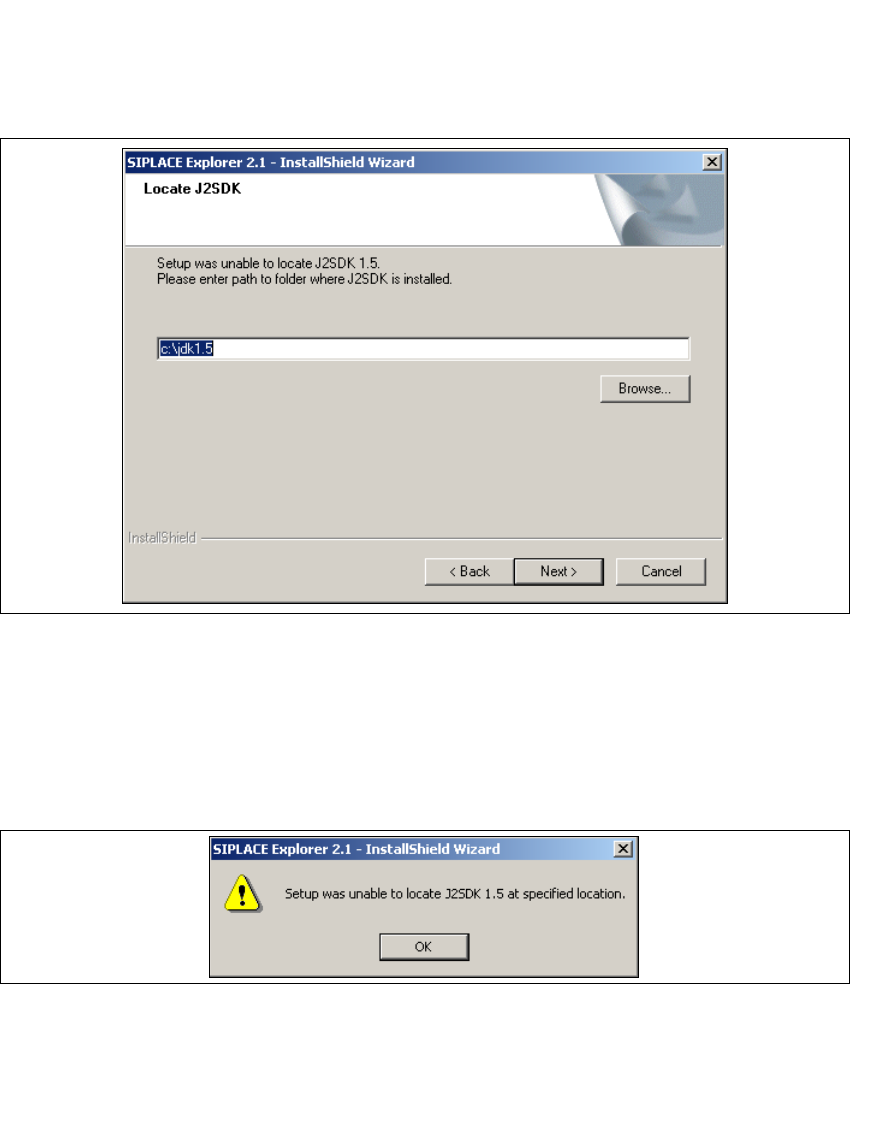
→ However, if the installation procedure is unable to find J2SE RTE 5.0.07, the Locate J2SDK
dialog box will appear on your screen.
3
Fig. 3 - 13 SIPLACE Explorer setup - locate JAVA 2 SDK
→ In this case, you can either enter the path to the J2SE Runtime Environment 5.0 folder directly
into the text field or click on the Browse button and use the Open File dialog box to find the
J2SE Runtime Environment 5.0 folder.
→ If you failed to correctly specify the path to the folder in which J2SE Runtime Environment 5.0
is installed, you will see the following message.
3
Fig. 3 - 14 SIPLACE Explorer setup - unable to locate J2SE
→ Click OK to return to the previous screen. SIPLACE Explorer requires J2SE Runtime
Environment 5.0 to be installed prior to installation of SIPLACE Explorer.
→ At this point, you can either try to specify the J2SE Runtime Environment 5.0 folder again, or
click Cancel to exit the installation of SIPLACE Explorer.