00193688-06_Installation SIPLACE Explorer2.1_EN.pdf - 第49页
Installation and Configuration Guide SIPLAC E Explorer 3 Installing SIPLACE Explorer Edition 11/2006 EN 3.1 Initial Installation of SIPLACE Explorer 2.1 49 3 Fig. 3 - 39 MSDE 2000 - Installation → Once the installation p…
3 Installing SIPLACE Explorer Installation and Configuration Guide SIPLACE Explorer
3.1 Initial Installation of SIPLACE Explorer 2.1 Edition 11/2006 EN
48
3.1.4 MSDE 2000 Installation Procedure
NOTE
You must have Windows administrator privileges to perform installation. 3
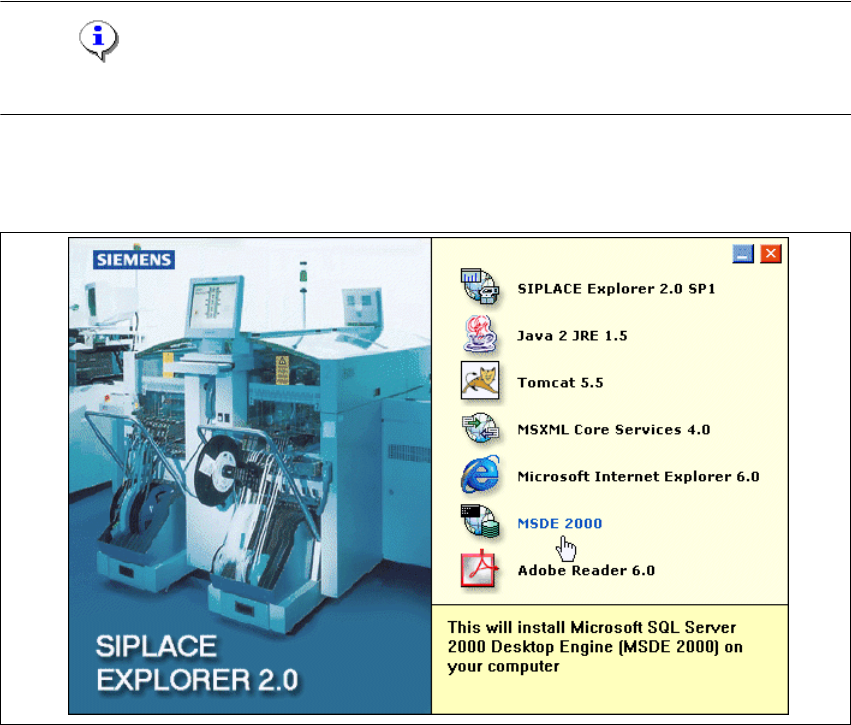
→ Place the SIPLACE Explorer CD in your CD-ROM drive.
→ The Start screen will appear.
3
Fig. 3 - 38 SIPLACE Explorer setup - Start screen
→ Select MSDE 2000. The MSDE 2000 installation procedure will run automatically.
Installation and Configuration Guide SIPLACE Explorer 3 Installing SIPLACE Explorer
Edition 11/2006 EN 3.1 Initial Installation of SIPLACE Explorer 2.1
49
3
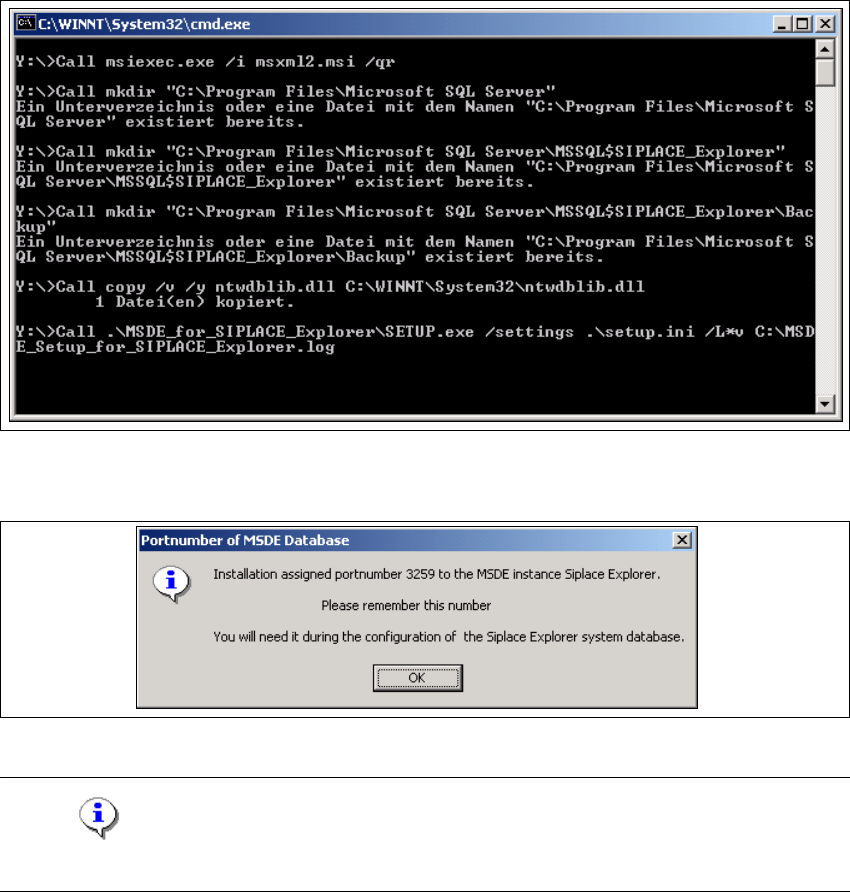
Fig. 3 - 39 MSDE 2000 - Installation
→ Once the installation procedure has finished, the following pop-up window will appear.
3
Fig. 3 - 40 MSDE 2000 - Port number
NOTE
Make a note of this port number. You will need it later, when using SIPLACE Explorer. 3

3 Installing SIPLACE Explorer Installation and Configuration Guide SIPLACE Explorer
3.1 Initial Installation of SIPLACE Explorer 2.1 Edition 11/2006 EN
50
3.1.4.1 Changing Password for "sa" Account Manually
If you want to change the password of the MSDE installation manually, you can do that via the
command line. 3
→ Open a command prompt window on the computer hosting MSDE and to which you wish to
establish a connection.
→ Type the following command, and then press ENTER:
osql -U sa 3
This command connects you to the local, default instance of MSDE by using the SA account.3
→ Type the following commands on two separate lines, and then press ENTER:
sp_password null, 'mynewpassword', 'sa' 3
go 3
NOTE
Replace 'mynewpassword' with the new password. 3
→ You will receive a message, informing you that your password was changed successfully.