00193688-06_Installation SIPLACE Explorer2.1_EN.pdf - 第41页
Installation and Configuration Guide SIPLAC E Explorer 3 Installing SIPLACE Explorer Edition 11/2006 EN 3.1 Initial Installation of SIPLACE Explorer 2.1 41 → Now specify the folder in which y ou wish to install the ap pl…
3 Installing SIPLACE Explorer Installation and Configuration Guide SIPLACE Explorer
3.1 Initial Installation of SIPLACE Explorer 2.1 Edition 11/2006 EN
40
3
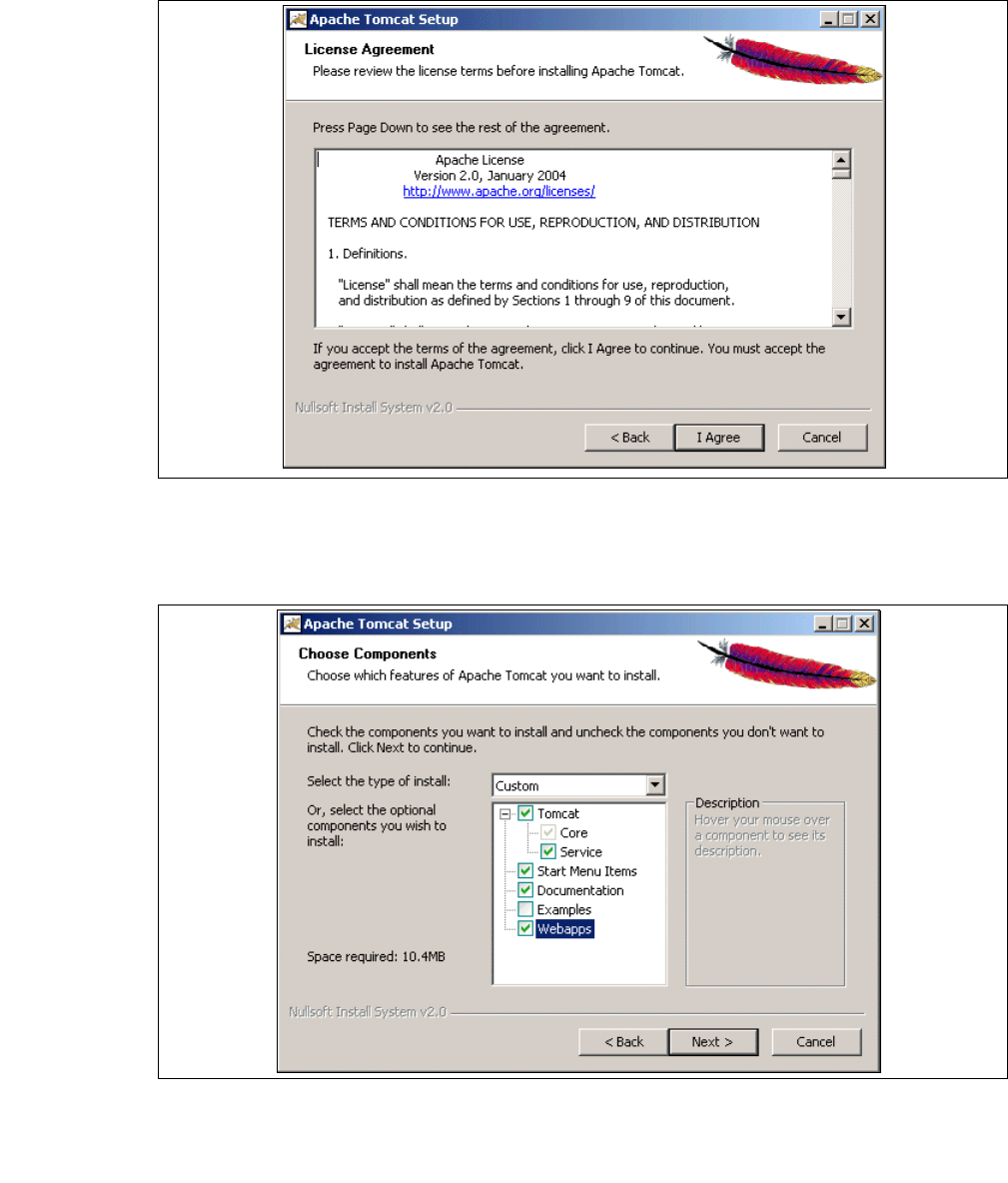
Fig. 3 - 26 Apache Tomcat setup - license agreement
→ The Choose Components dialog box will open.
→ Now select the features you wish to install.
3
Fig. 3 - 27 Apache Tomcat setup - selecting features
→ Select the installation variant Custom.
→ Click the Tomcat option Service. Click on Next to continue. The Choose Install Location
dialog box will open.
Installation and Configuration Guide SIPLACE Explorer 3 Installing SIPLACE Explorer
Edition 11/2006 EN 3.1 Initial Installation of SIPLACE Explorer 2.1
41
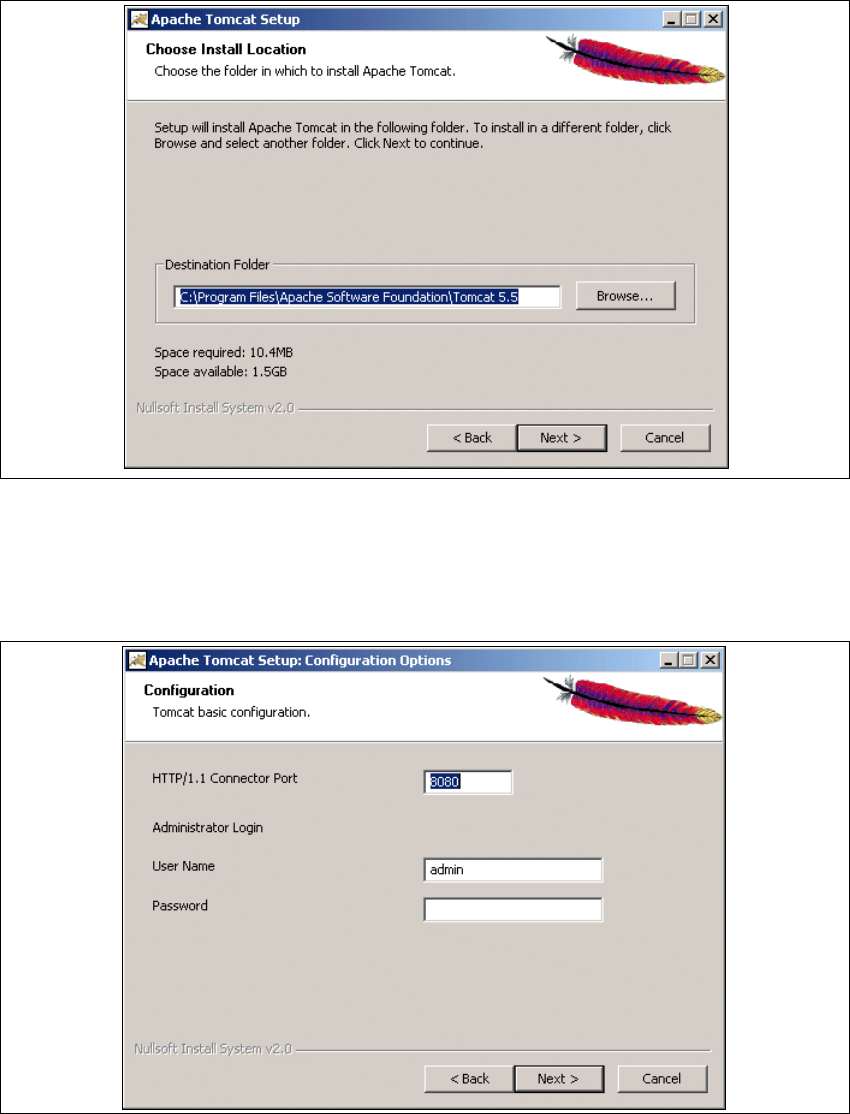
→ Now specify the folder in which you wish to install the application.
3
Fig. 3 - 28 Apache Tomcat setup - select installation destination folder
→ You can alter the default installation folder by using the Browse button.
→ Click on Next to continue. The Configuration dialog box will open.
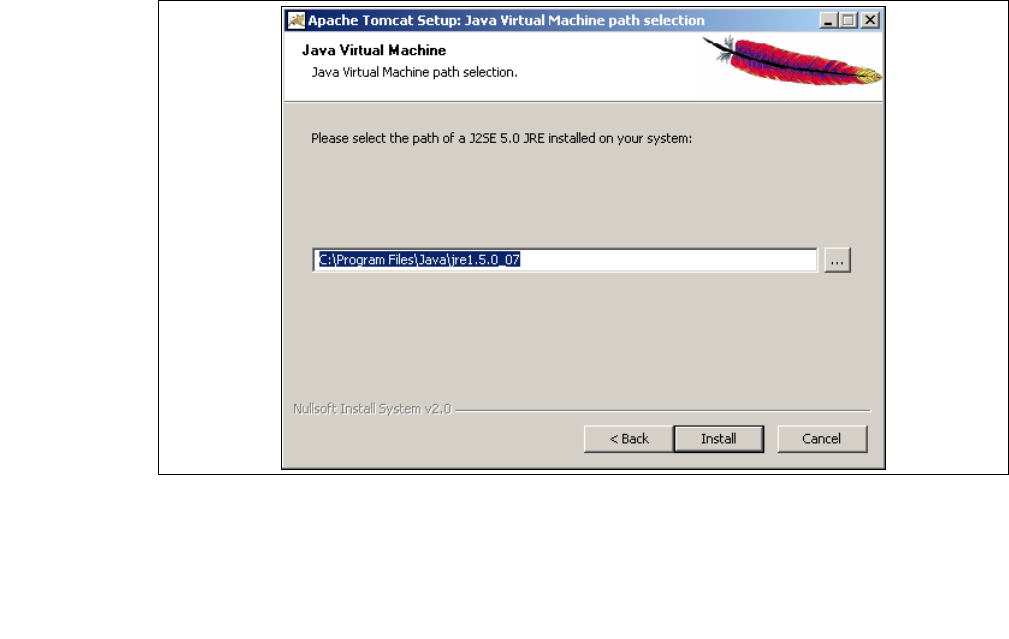
→ Now enter the port number and the administrator access data for Tomcat.
3
Fig. 3 - 29 Apache Tomcat setup - configuration
3 Installing SIPLACE Explorer Installation and Configuration Guide SIPLACE Explorer
3.1 Initial Installation of SIPLACE Explorer 2.1 Edition 11/2006 EN
42
→ Enter the port number for Tomcat in the HTTP/1.1 Connector Port field. By default, Tomcat is
installed on port 8080. This means that your users will access your website as follows:
http://yourServerName:8080/yourWebsite/index.jsp.
→ Now enter the Tomcat administrator access data in the User Name and Password fields.
This login will automatically be used as default login for Line Configuration - Step 7 "Website
Generation". If you leave the Password field empty for Tomcat configuration, this setting can
then be used as the default login for line configuration. 3
However, if you specify a password here, you must use the same password at Line
Configuration - Step 7 "Website Generation". 3
→ Click on Next to continue. The Java Virtual Machine dialog box will open.
→ Specify the path for Java 2SE 5.0.
3
Fig. 3 - 30 Apache Tomcat Setup - Java Virtual Machine
→ The default path during Tomcat installation is C:\Program Files\Java\jre1.5.0_07. You can
alter the default installation folder by using the ... button. If you leave the incorrect path,
SIPLACE Explorer websites will not be displayed.
→ Click on Install to continue.