00193688-06_Installation SIPLACE Explorer2.1_EN.pdf - 第26页
3 Installing SIPLACE Explorer Installation and Configuration Guide SIPLACE Explorer 3.1 Initial Installation of SIPLACE Explorer 2.1 Edition 11/2006 EN 26 → Read the license agreement. If you agree, click on Accep t >…
Installation and Configuration Guide SIPLACE Explorer 3 Installing SIPLACE Explorer
Edition 11/2006 EN 3.1 Initial Installation of SIPLACE Explorer 2.1
25
3
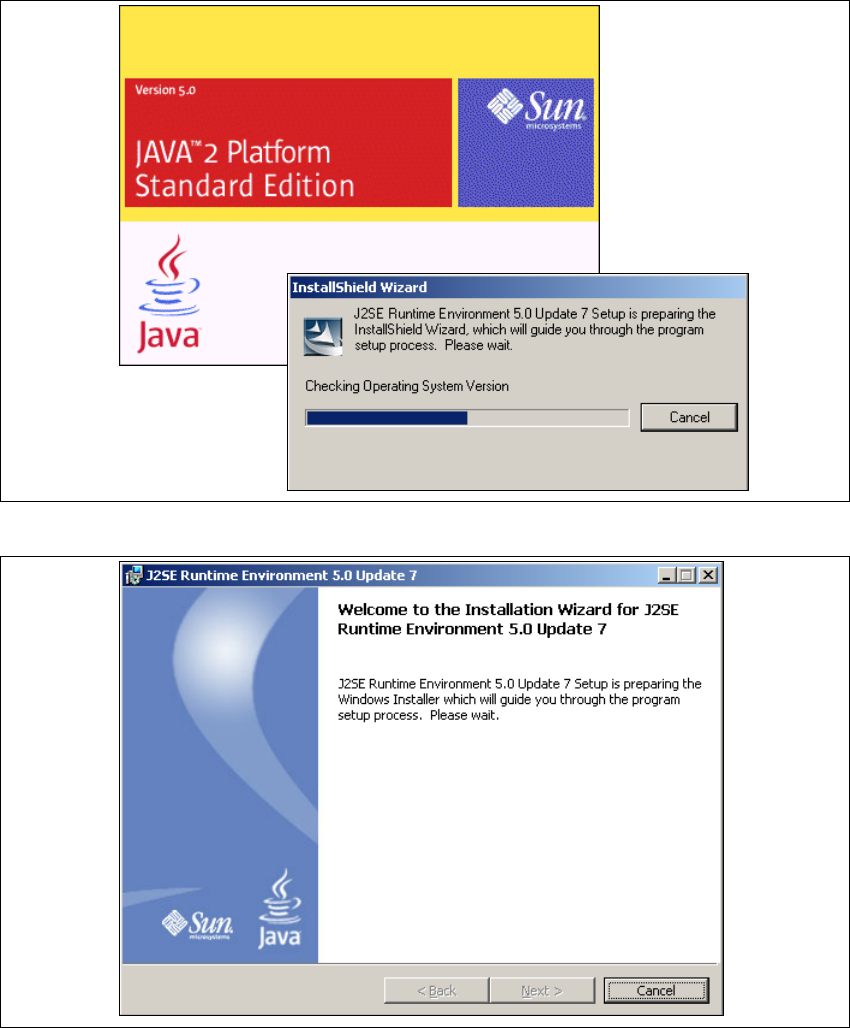
Fig. 3 - 2 Install shield wizard - preparing the installation
3
Fig. 3 - 3 Java 2SE setup - welcome to SIPLACE Explorer
→ Exit all other programs and then click on Next. The License Agreement dialog box will open.
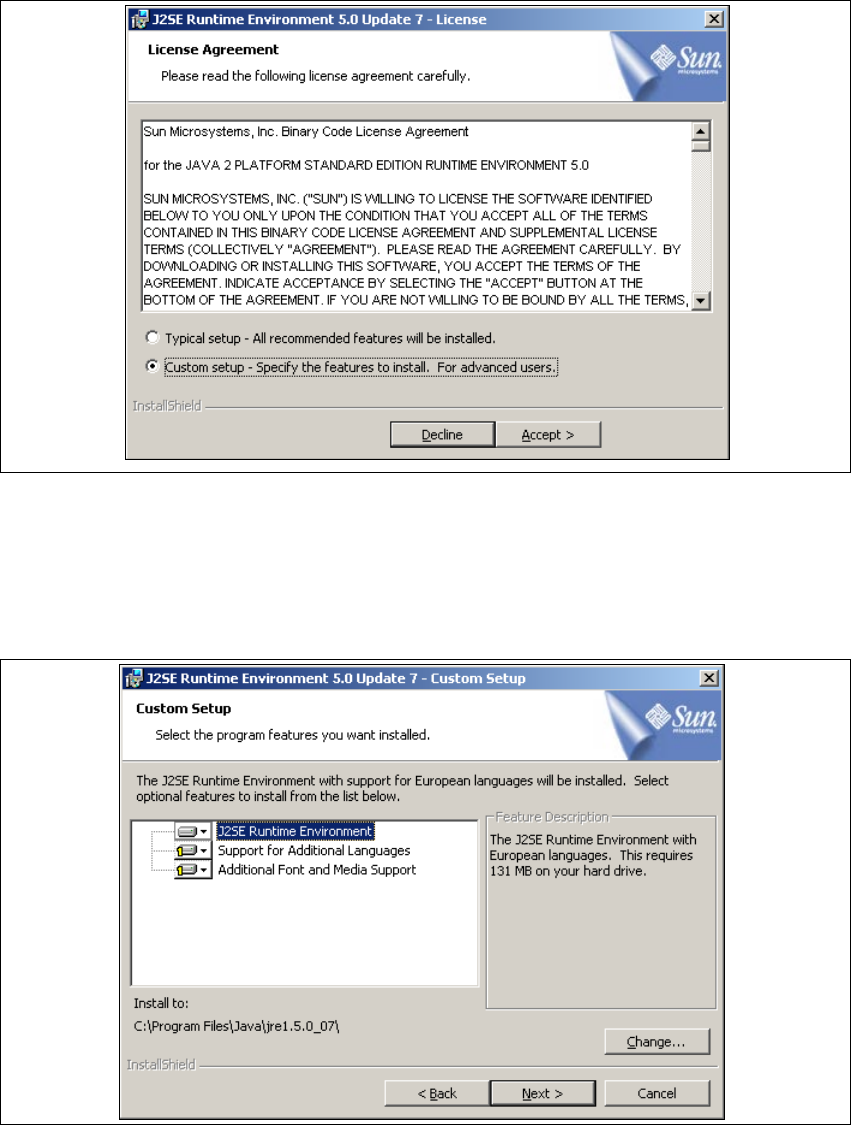
→ Select the option Custom Setup.
3 Installing SIPLACE Explorer Installation and Configuration Guide SIPLACE Explorer
3.1 Initial Installation of SIPLACE Explorer 2.1 Edition 11/2006 EN
26
→ Read the license agreement. If you agree, click on Accept > to continue the installation
procedure.Otherwise select Decline. The installation procedure will be canceled in this case.
3
Fig. 3 - 4 Java 2SE setup - license agreement
→ The Custom Setup dialog box will open.
→ Now select the required installation option and specify the folder in which you wish to install the
application. The default folder is C:\Program Files\Java\jre1.5.0_07\. This can be altered if
necessary.
3
Fig. 3 - 5 Java 2SE setup - user-defined installation
Installation and Configuration Guide SIPLACE Explorer 3 Installing SIPLACE Explorer
Edition 11/2006 EN 3.1 Initial Installation of SIPLACE Explorer 2.1
27
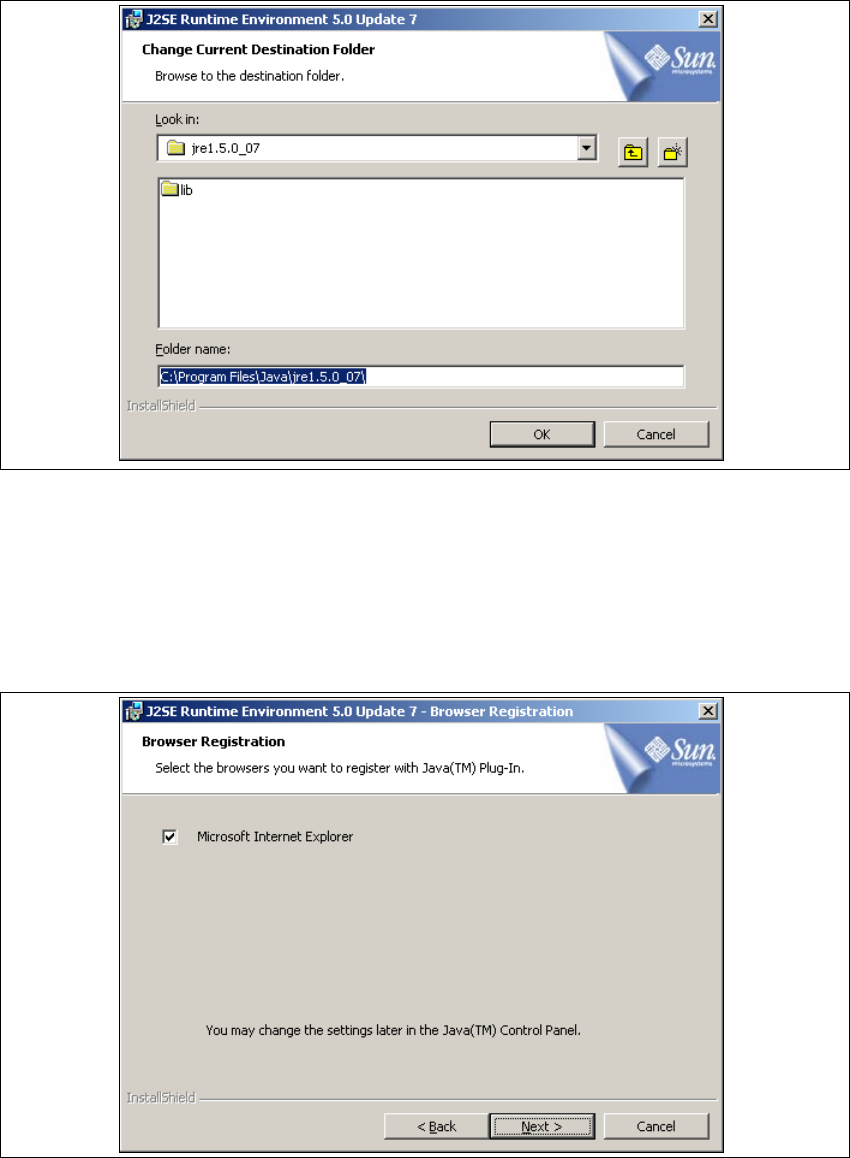
→ You can alter the default installation folder by using the Change button. The Change Current
Destination Folder dialog box will open.
. 3
Fig. 3 - 6 Java 2SE setup - selecting destination folder
→ Specify the required folder and click OK to confirm your choice. You will return to the Custom
Setup dialog box.
→ To accept the destination folder, click on Next in this window.
→ The Browser Registration dialog box will open. Select the default browser for the application,
here.
3
Fig. 3 - 7 Java 2SE setup - 'browser registration' dialog box