00193688-06_Installation SIPLACE Explorer2.1_EN.pdf - 第39页
Installation and Configuration Guide SIPLAC E Explorer 3 Installing SIPLACE Explorer Edition 11/2006 EN 3.1 Initial Installation of SIPLACE Explorer 2.1 39 3.1.3.1 Bundled W eb Server Inst allation - T omcat 5.5.9 NOTE B…
3 Installing SIPLACE Explorer Installation and Configuration Guide SIPLACE Explorer
3.1 Initial Installation of SIPLACE Explorer 2.1 Edition 11/2006 EN
38
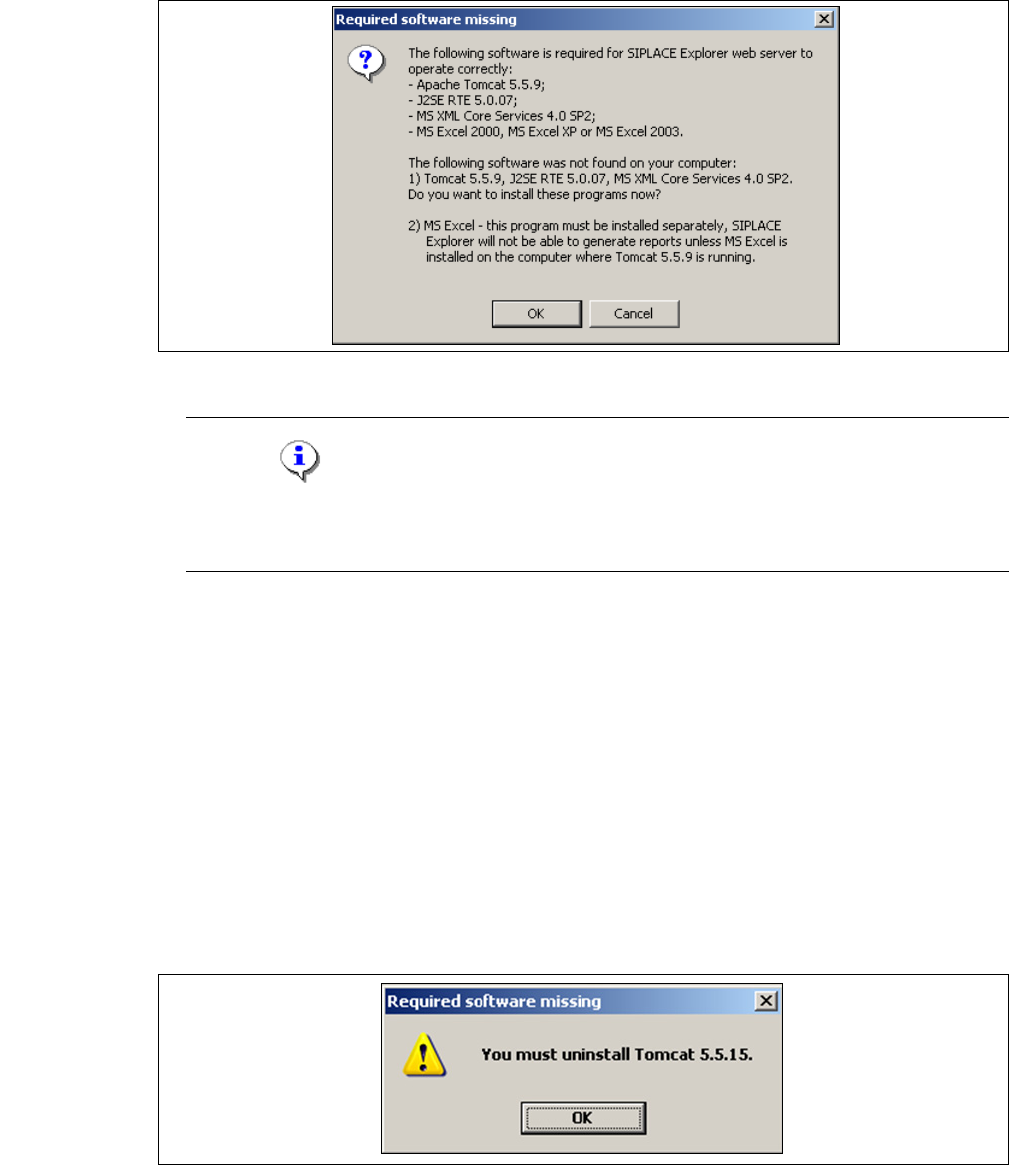
→ If none of the above mentionedsoftware components are installed on your system, you will
receive the following message:
3
Fig. 3 - 23 Bundled Web Server - required software missing
NOTE
The message issued and the subsequent Bundled Web Server installation may vary,
depending on the software components available on your system. 3
→ The software components Tomcat 5.5.9, Java runtime environment (J2SE RTE 5.0.07) and MS
XML Core services 4.0 SP2 can be installed from the SIPLACE Explorer installation CD.
Confirm the message window with OK, to start installation of the specified software
components. The Bundled Web Server installation will automatically install these in the correct
order.
→ MS Excel must be bought and installed separately. This program is required for the generation
of reports.
→ Before installing Tomcat 5.5.9, make sure that all versions of Tomcat < 5.5.9 have been
uninstalled. Use the Apache Tomcat uninstallation programm via the Windows menu
Start → Programs → Apache Tomcat 5.5 → Uninstall Tomcat.
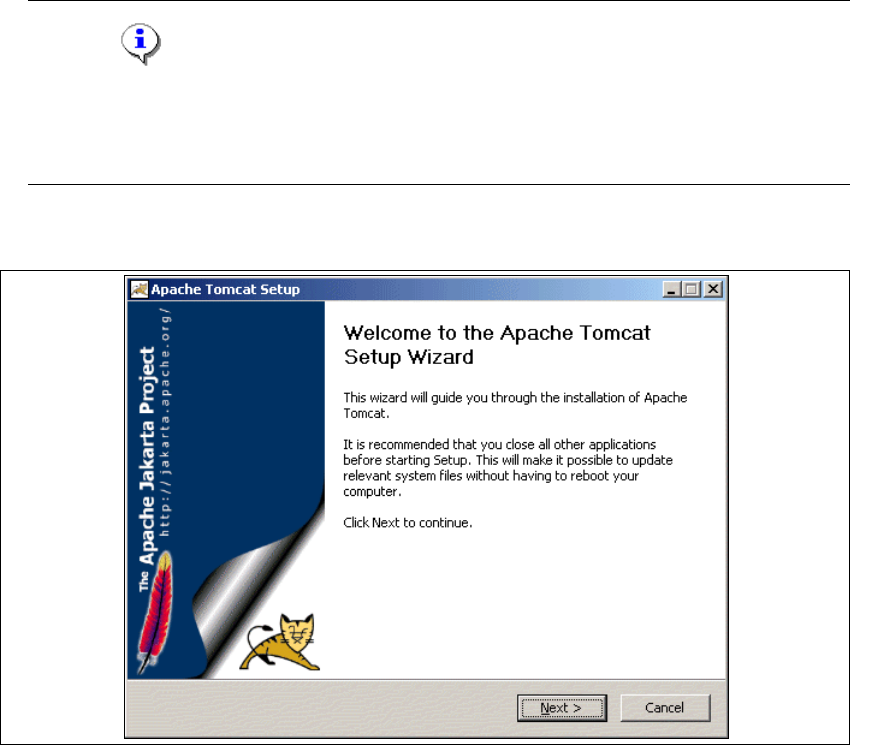
→ If a < 5.5.9 version of Tomcat exists on your system, the following message will appear:
3
Fig. 3 - 24 Bundled Web Server - required software missing
Installation and Configuration Guide SIPLACE Explorer 3 Installing SIPLACE Explorer
Edition 11/2006 EN 3.1 Initial Installation of SIPLACE Explorer 2.1
39
3.1.3.1 Bundled Web Server Installation - Tomcat 5.5.9
NOTE
Before installing Tomcat 5.5.9, make sure that all versions of Tomcat < 5.5 have been
uninstalled. Use the Apache Tomcat Uninstaller via the Windows menu
Start → Programs → Apache Tomcat 5.5 → Uninstall Tomcat. 3
→ You will be guided through the Tomcat installation procedure.
3
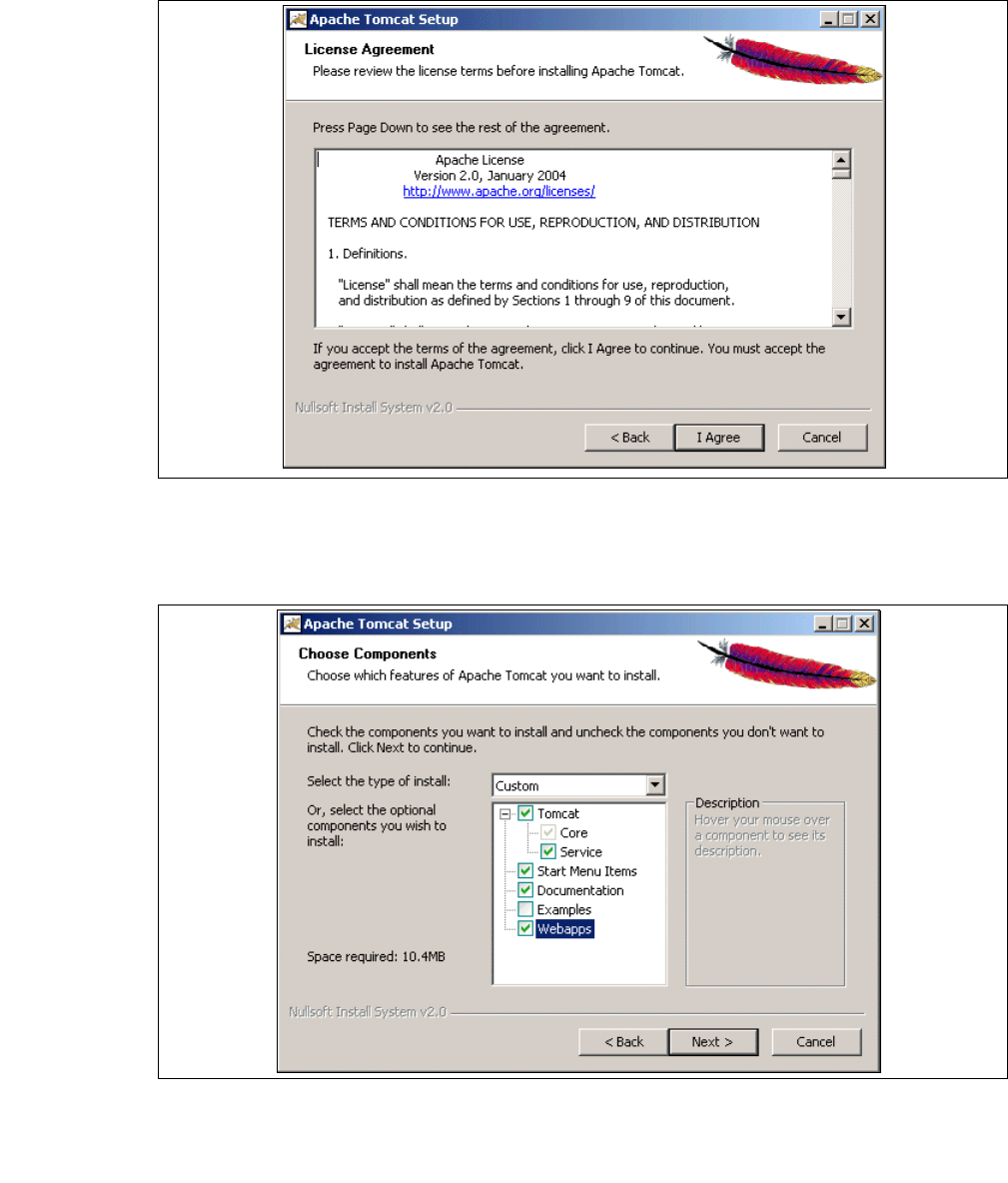
Fig. 3 - 25 Apache Tomcat setup - welcome screen
→ Exit all other programs and then click on Next. The License Agreement dialog box will open.
→ Read the license agreement. If you agree click I Agree, otherwise click Cancel. Clicking on
Cancel terminates the installation.
3 Installing SIPLACE Explorer Installation and Configuration Guide SIPLACE Explorer
3.1 Initial Installation of SIPLACE Explorer 2.1 Edition 11/2006 EN
40
3
Fig. 3 - 26 Apache Tomcat setup - license agreement
→ The Choose Components dialog box will open.
→ Now select the features you wish to install.
3
Fig. 3 - 27 Apache Tomcat setup - selecting features
→ Select the installation variant Custom.
→ Click the Tomcat option Service. Click on Next to continue. The Choose Install Location
dialog box will open.