00193688-06_Installation SIPLACE Explorer2.1_EN.pdf - 第68页
3 Installing SIPLACE Explorer Installation and Configuration Guide SIPLACE Explorer 3.4 Tomcat Configuratio n Edition 11/2006 EN 68
Installation and Configuration Guide SIPLACE Explorer 3 Installing SIPLACE Explorer
Edition 11/2006 EN 3.4 Tomcat Configuration
67
3.4.3 Memory Extension for Tomcat
When generating reports, you may require more memory e.g. when multiple reports are generated
at the same time. To cope with these peak requirements, you will need to increase the Tomcat
memory. 3
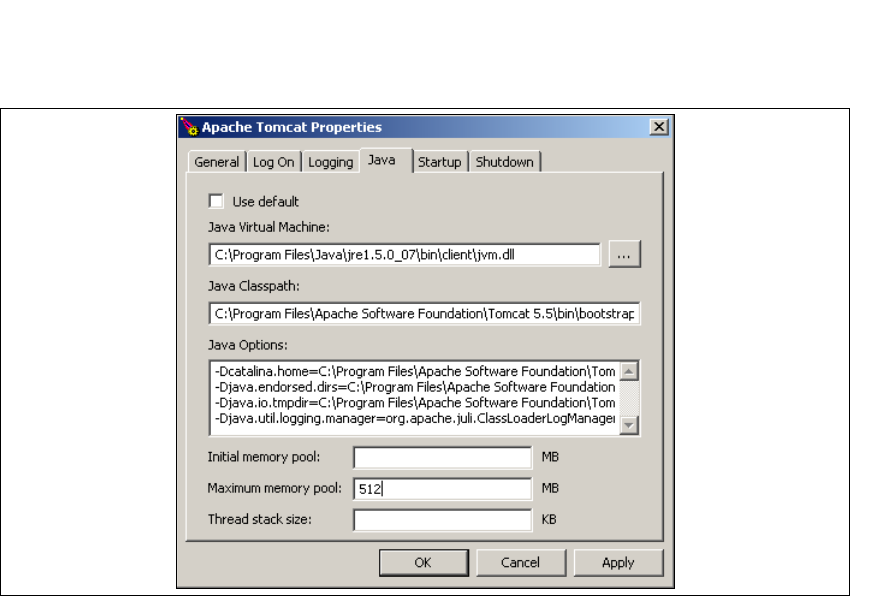
→ Start the Tomcat Configuration Tool via the Programs → Apache Tomcat 5.5 → Configure
Tomcat menu in Windows.
→ The Apache Tomcat Properties dialog box will open. Select the Java tab.
3
Fig. 3 - 59 Apache Tomcat properties
→ In the Maximum memory pool field, enter the value 512 and confirm your entry with OK.
3
3
3 Installing SIPLACE Explorer Installation and Configuration Guide SIPLACE Explorer
3.4 Tomcat Configuration Edition 11/2006 EN
68

Installation and Configuration Guide SIPLACE Explorer 4 Configuration
Edition 11/2006 EN 4.1 Standard Monitoring Application (SMA)
69
4 Configuration
This chapter will describe the following configurations: 4
– “Standard Monitoring Application (SMA)” on page 69
– “Configuring the Factory Configuration Utility” on page 93
– “Database Settings” on page 111
4.1 Standard Monitoring Application (SMA)
SIPLACE Explorer allows you to create custom-made applications to monitor production lines.
Standard Monitoring Application (SMA) and a set of corresponding websites are supplied with the
installation CD. SMA features various web pages that capture basic production information such
as machine status and time allocation, performance, components consumption, reject rate, etc.
This section describes how you can easily customize Standard Monitoring Application for your
production line configuration. 4
The procedure for creating an SMA depends on whether you have SIPLACE Explorer Runtime
Environment or SIPLACE Explorer Development Environment installed on your computer. This
chapter will describe both methods: 4
– Creating an SMA with Line Configuration, see page 70
(Runtime Environment),
– Creating an SMA with the Application Wizard, see page 88
(Development Environment),
4.1.1 Runtime Environment: Creating an SMA with Line Configuration
In order to create an SMA with the line configuration option, you must have SIPLACE Explorer
Runtime Environment installed on your computer. SMA creation consists of the following steps: 4
– Line configuration (wizard with 7 steps)
– Establishing a connection to the database (wizard with 3 steps)