00193688-06_Installation SIPLACE Explorer2.1_EN.pdf - 第73页
Installation and Configuration Guide SIPLACE Explorer 4 Configuration Edition 11/2006 EN 4.1 Standard Monitoring Application (SMA) 73 → All production lines available for import from OIS will be shown. 4 Fig. 4 - 4 S tep…
4 Configuration Installation and Configuration Guide SIPLACE Explorer
4.1 Standard Monitoring Application (SMA) Edition 11/2006 EN
72
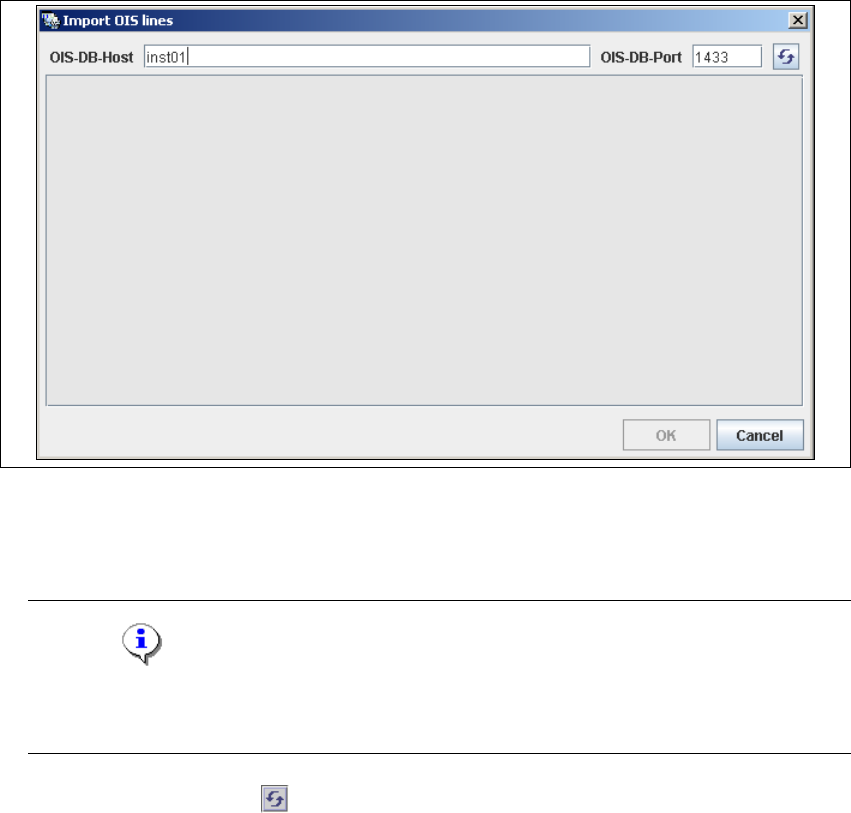
→ The Import OIS Lines dialog box will open.
4
Fig. 4 - 3 Step 1: import OIS lines
→ Enter the OIS DB host name in the OIS-DB-Host field and the OIS DB port in the OIS-DB-Port
field.
NOTE
If you have installed MSDE 2000, you must now enter the MSDE port number shown during
the installation procedure. 4
→ Click on the Refresh icon .
Installation and Configuration Guide SIPLACE Explorer 4 Configuration
Edition 11/2006 EN 4.1 Standard Monitoring Application (SMA)
73
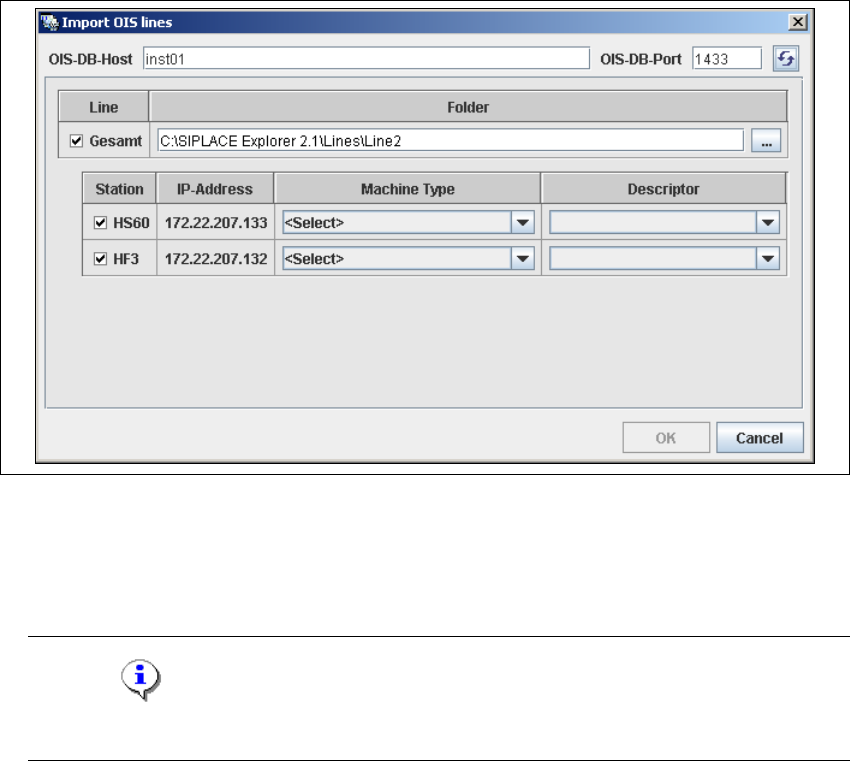
→ All production lines available for import from OIS will be shown.
4
Fig. 4 - 4 Step 1: import OIS lines
→ Now select the relevant machine type for each station and each production line, at Machine
Type. The corresponding OIS driver will then be automatically displayed in the Drescriptor
field.
NOTE
It is assumed that the machine types are known for each production line. 4
→ Once you have entered all settings, confirm your choice with OK.
4 Configuration Installation and Configuration Guide SIPLACE Explorer
4.1 Standard Monitoring Application (SMA) Edition 11/2006 EN
74
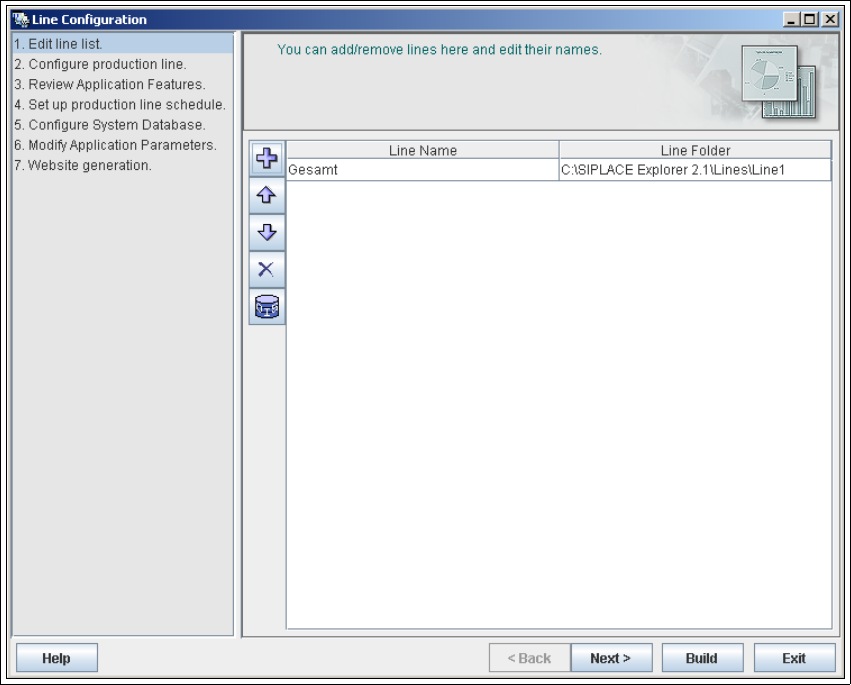
→ The added production lines will be shown in the Line Configuration - Edit Line List dialog
box.
4
Fig. 4 - 5 Step 1: line list
→ Specify the line name and the path at which the configured monitoring application is to be
stored for this production line. A *.gms file with the configuration settings for this line application
will then be saved at the specified path.
→ Click on Next to continue with the next step.