00193688-06_Installation SIPLACE Explorer2.1_EN.pdf - 第34页
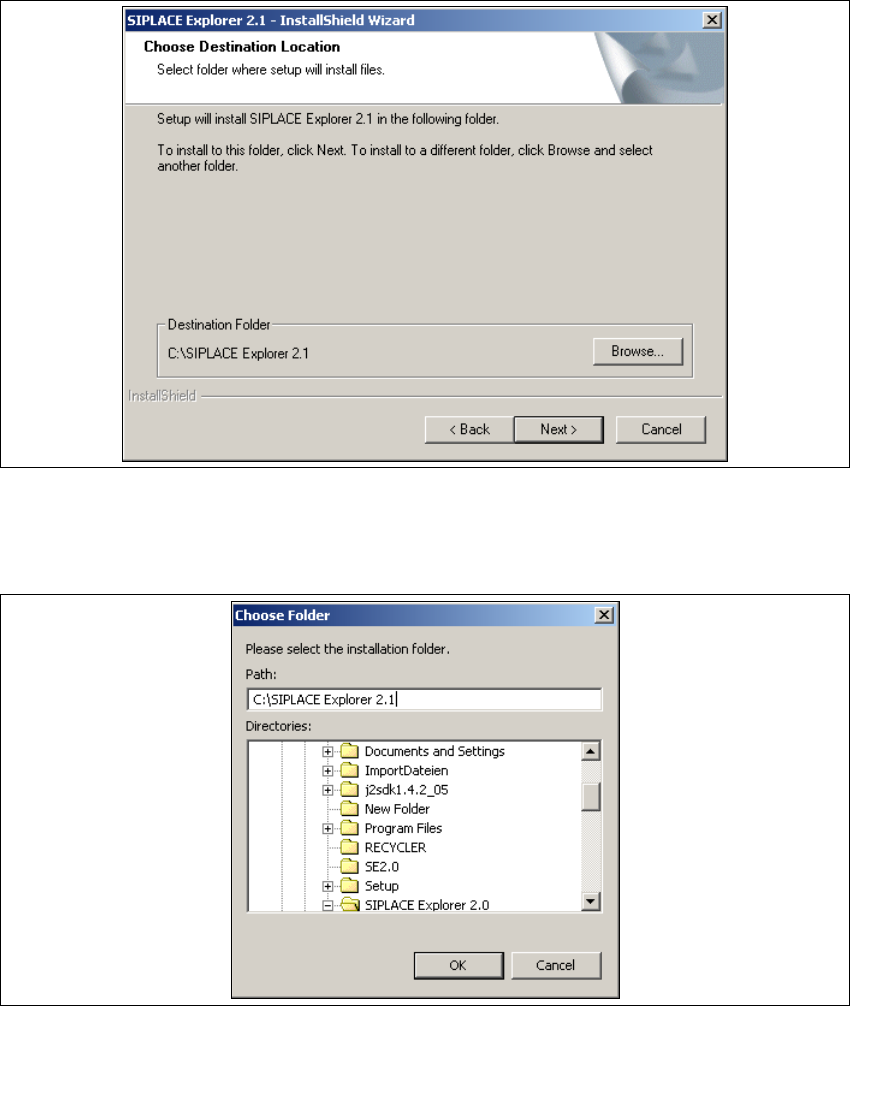
3 Installing SIPLACE Explorer Installation and Configuration Guide SIPLACE Explorer 3.1 Initial Installation of SIPLACE Explorer 2.1 Edition 11/2006 EN 34 → T o ac cept the destinatio n folder , click on Next in this win…
Installation and Configuration Guide SIPLACE Explorer 3 Installing SIPLACE Explorer
Edition 11/2006 EN 3.1 Initial Installation of SIPLACE Explorer 2.1
33
→ Now specify the folder in which you wish to install the application. The default folder is
C:\SIPLACE Explorer2.1.
3
Fig. 3 - 16 SIPLACE Explorer setup - choose destination location
→ You can alter the default installation folder by using the Browse button.
→ The Choose Folder dialog box will appear to locate the desired folder.
3
Fig. 3 - 17 SIPLACE Explorer Setup - 'choose folder' dialog box
→ Specify the required folder and click on OK, to confirm your choice. You will return to the
Choose Destination Location dialog box, where the folder will be shown.
3 Installing SIPLACE Explorer Installation and Configuration Guide SIPLACE Explorer
3.1 Initial Installation of SIPLACE Explorer 2.1 Edition 11/2006 EN
34
→ To accept the destination folder, click on Next in this window.
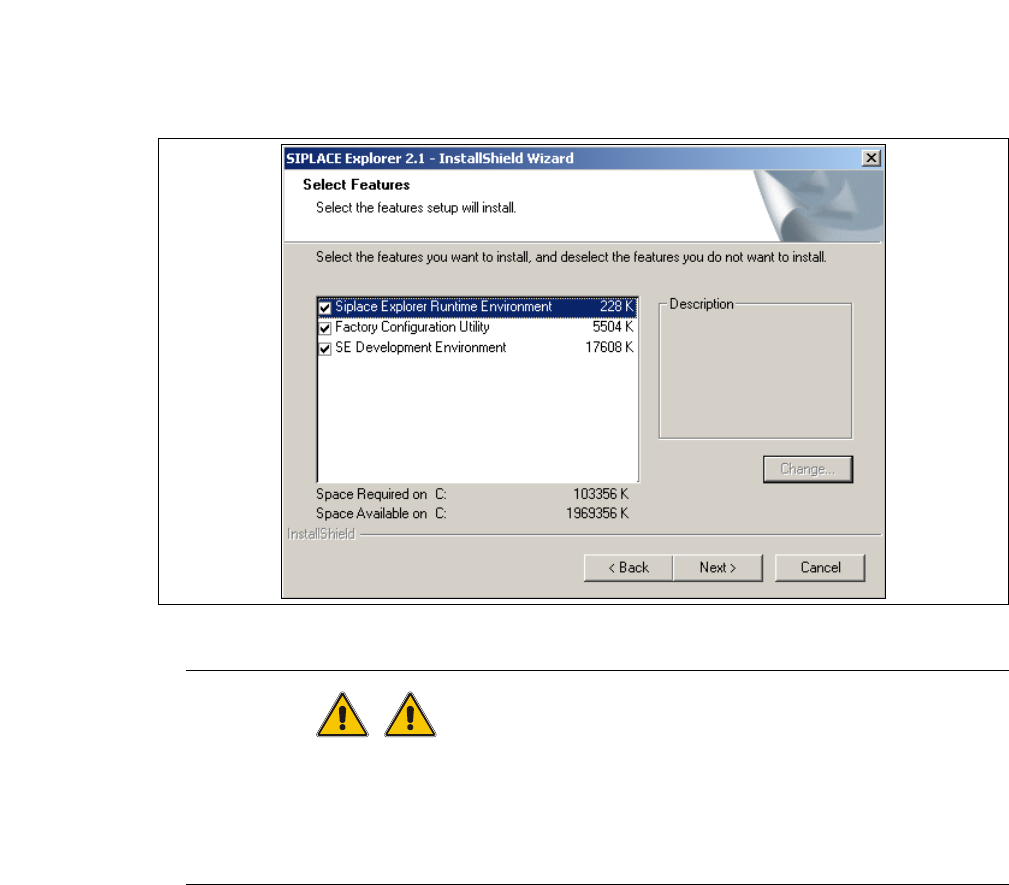
→ The Select Features dialog box will open. Here you can select any of the following three
components: SIPLACE Explorer Runtime Environment, Factory Configuration Utility and
SIPLACE Explorer Development Environment.
3
Fig. 3 - 18 SIPLACE Explorer setup - 'select features' dialog box
WARNING
Do not install "SIPLACE Explorer V.2.1 Runtime Environment" and "SIPLACE Explorer V.2.1
Development Environment" on the same computer. These two options will not run parallel to
one another. Before working with these options in succession, make sure you know the steps
for starting/terminating the respective option and observe these. 3
→ Once you have selected the required installation option, click on the Next button to continue.
Installation and Configuration Guide SIPLACE Explorer 3 Installing SIPLACE Explorer
Edition 11/2006 EN 3.1 Initial Installation of SIPLACE Explorer 2.1
35
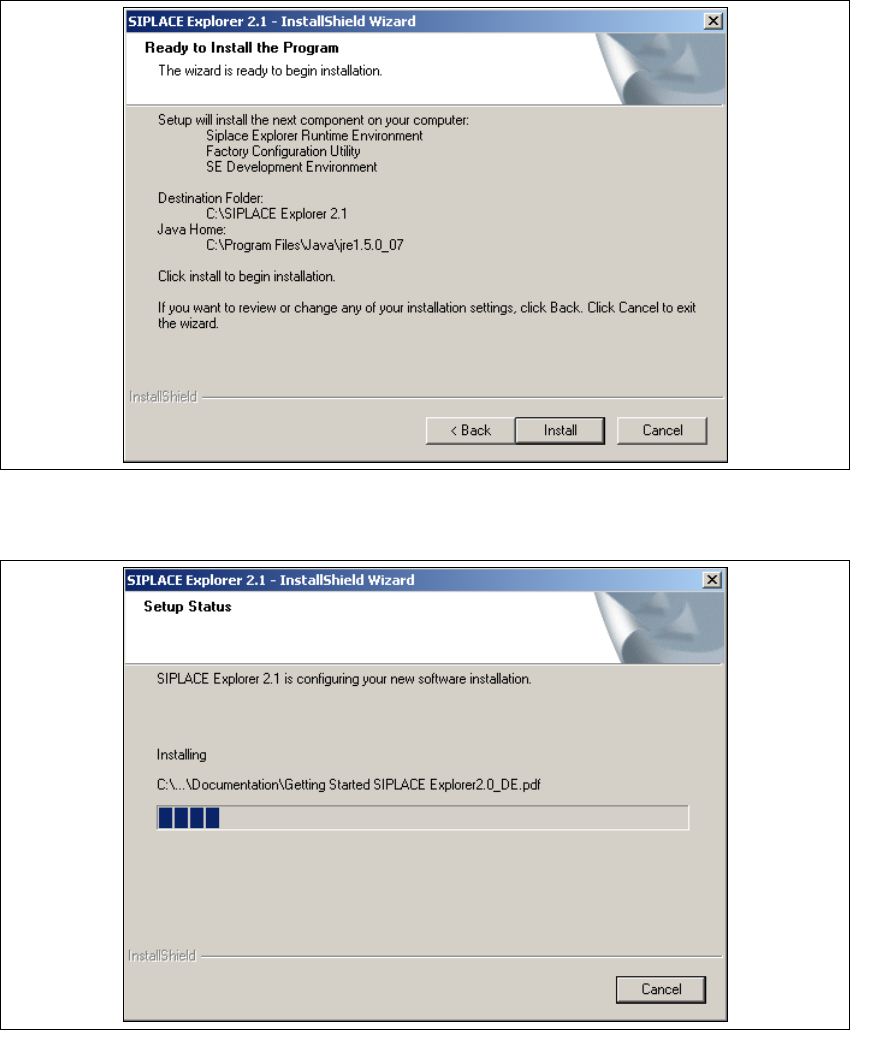
→ The Ready to Install the Program dialog box will open.
3
Fig. 3 - 19 SIPLACE Explorer setup - 'ready to install' dialog box
→ Click on the Install button, to begin the actual installation of SIPLACE Explorer V2.1.
3
Fig. 3 - 20 SIPLACE Explorer setup - setup status