00193688-06_Installation SIPLACE Explorer2.1_EN.pdf - 第51页
Installation and Configuration Guide SIPLAC E Explorer 3 Installing SIPLACE Explorer Edition 11/2006 EN 3.2 Update Installation of SIPLACE Explorer 2.1 51 3.2 Up date Inst allation of SIPLACE Explorer 2.1 T o update from…

3 Installing SIPLACE Explorer Installation and Configuration Guide SIPLACE Explorer
3.1 Initial Installation of SIPLACE Explorer 2.1 Edition 11/2006 EN
50
3.1.4.1 Changing Password for "sa" Account Manually
If you want to change the password of the MSDE installation manually, you can do that via the
command line. 3
→ Open a command prompt window on the computer hosting MSDE and to which you wish to
establish a connection.
→ Type the following command, and then press ENTER:
osql -U sa 3
This command connects you to the local, default instance of MSDE by using the SA account.3
→ Type the following commands on two separate lines, and then press ENTER:
sp_password null, 'mynewpassword', 'sa' 3
go 3
NOTE
Replace 'mynewpassword' with the new password. 3
→ You will receive a message, informing you that your password was changed successfully.
Installation and Configuration Guide SIPLACE Explorer 3 Installing SIPLACE Explorer
Edition 11/2006 EN 3.2 Update Installation of SIPLACE Explorer 2.1
51
3.2 Update Installation of SIPLACE Explorer 2.1
To update from SIPLACE Explorer predecessor versions to SIPLACE Explorer V2.1, you must
already have an executable version of SIPLACE Explorer installed on your system.. 3
– Update from SIPLACE Explorer V1.2, V2.0 and V2.0 SP1 to SIPLACE Explorer V2.1:
Deinstall the predecessor version with its components proceed by following the instructions at
“Uninstallation” on page 117. For the installation proceed by following the instructions at “Initial
Installation of SIPLACE Explorer 2.1” on page 21. 3
NOTE
If you want to keep the line configuration and other settings, you have to install SIPLACE
Explorer 2.1 in the same folder as the predecessor version. See figure 3 - 17 SIPLACE
Explorer Setup - "choose folder" dialog box. 3
NOTE
Before installing Tomcat 5.5.9, make sure that all versions of Tomcat < 5.5 have been
uninstalled. Use the Apache Tomcat uninstallation programm via the Windows menu
Start → Programs → Apache Tomcat 5.5 → Uninstall Tomcat. 3
After performing the update, you can also install additional SIPLACE Explorer options: 3
– SIPLACE Explorer V.2.1 options:
The two options Backflush V1.0 an SIPLACE Traceability Option V1.0 are not included in
the SIPLACE Explorer V2.1 delivery package and must be ordered (installed) separately.3
3.2.1 Installation of SIPLACE Explorer 2.1 - Update Installation
NOTE
You must have Windows administrator privileges to perform installation. 3
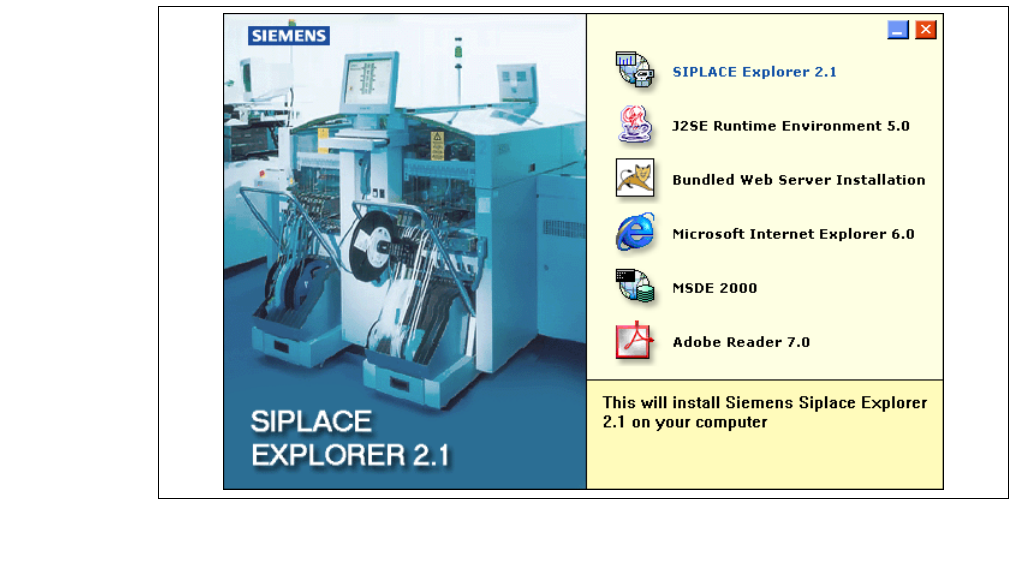
→ Place the SIPLACE Explorer CD in your CD-ROM drive.
→ The Start screen will appear.
3 Installing SIPLACE Explorer Installation and Configuration Guide SIPLACE Explorer
3.2 Update Installation of SIPLACE Explorer 2.1 Edition 11/2006 EN
52
3
Fig. 3 - 41 SIPLACE Explorer setup - Start screen
→ Select SIPLACE Explorer 2.1.