00193688-06_Installation SIPLACE Explorer2.1_EN.pdf - 第29页
Installation and Configuration Guide SIPLAC E Explorer 3 Installing SIPLACE Explorer Edition 11/2006 EN 3.1 Initial Installation of SIPLACE Explorer 2.1 29 3.1.2 Inst allation of SIPLACE Explorer 2.1 - Initial Ins t alla…
3 Installing SIPLACE Explorer Installation and Configuration Guide SIPLACE Explorer
3.1 Initial Installation of SIPLACE Explorer 2.1 Edition 11/2006 EN
28
→ Select the required browser by enabling the relevant checkbox.
→ Click on Next (continue) to begin the actual installation of Java 2 SE.
3
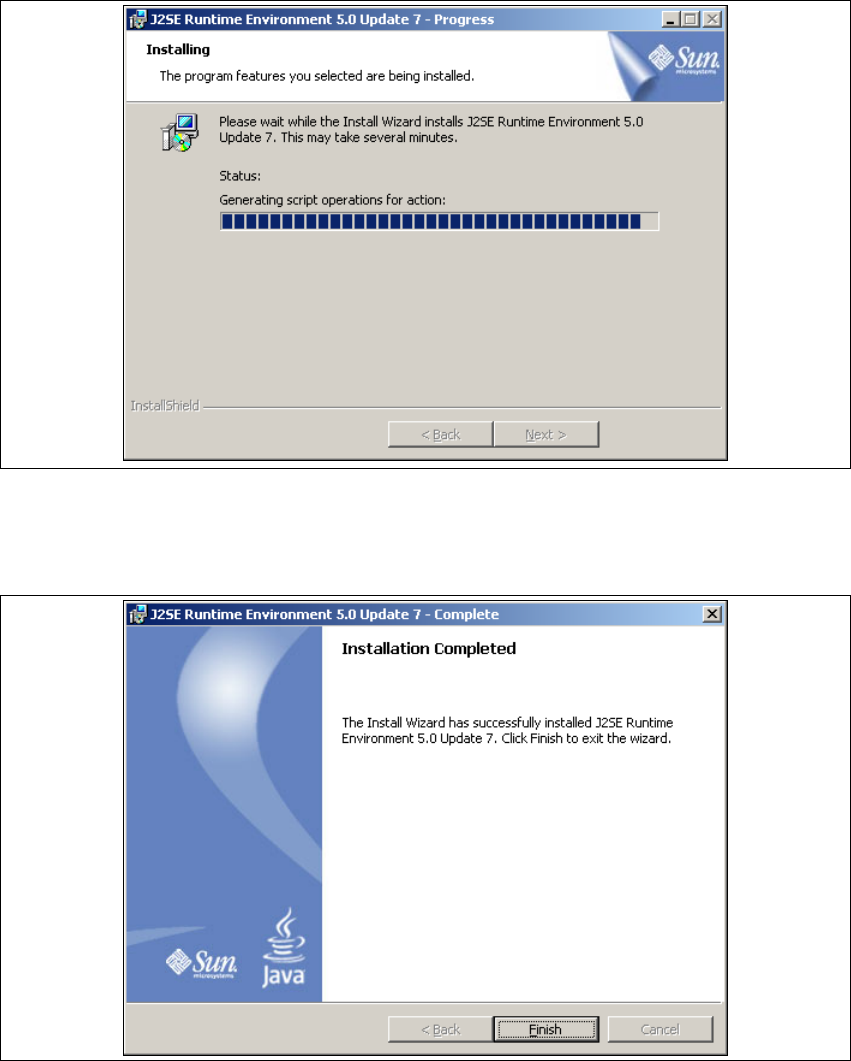
Fig. 3 - 8 Java 2SE setup - installation
→ The selected installation options will be installed in the correct order.
→ Once the installation procedure has finished, the Installation Completed dialog box will open.
3
Fig. 3 - 9 Java 2 SDK setup - installation complete
→ Click on Finish.
Installation and Configuration Guide SIPLACE Explorer 3 Installing SIPLACE Explorer
Edition 11/2006 EN 3.1 Initial Installation of SIPLACE Explorer 2.1
29
3.1.2 Installation of SIPLACE Explorer 2.1 - Initial Installation
NOTE
You must have Windows administrator privileges to perform installation. 3
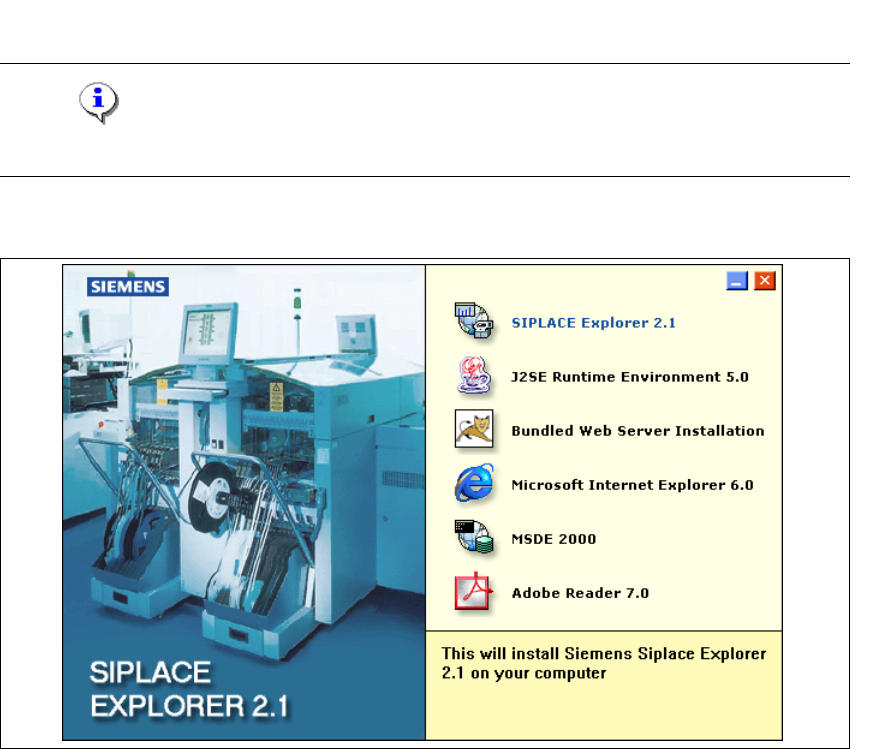
→ Place the SIPLACE Explorer CD in your CD-ROM drive. The Start screen will appear.
3
Fig. 3 - 10 SIPLACE Explorer setup - Start screen
→ Select SIPLACE Explorer 2.1.
3 Installing SIPLACE Explorer Installation and Configuration Guide SIPLACE Explorer
3.1 Initial Installation of SIPLACE Explorer 2.1 Edition 11/2006 EN
30
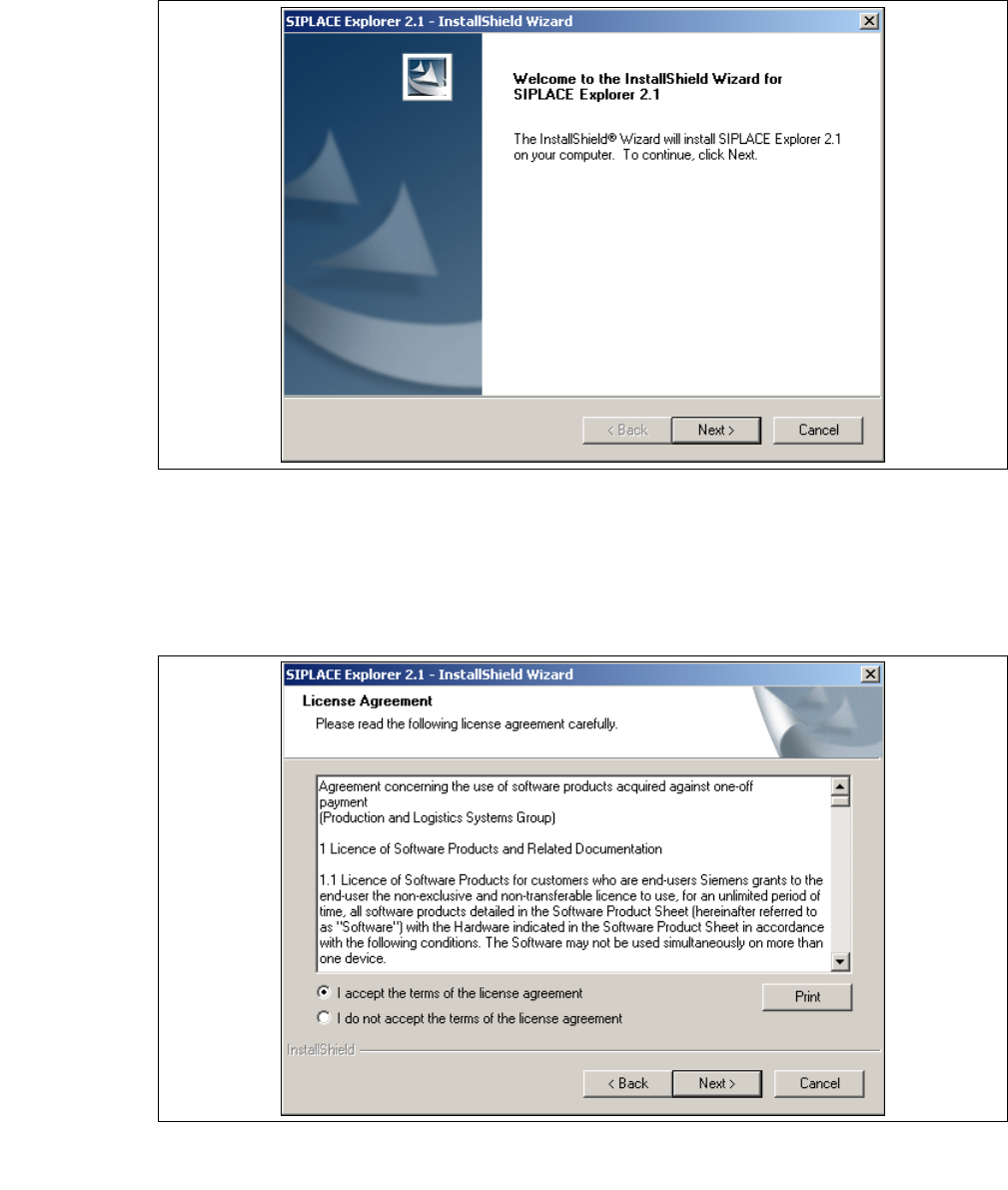
→ You will be guided through the SIPLACE Explorer installation procedure.
3
Fig. 3 - 11 SIPLACE Explorer welcome
→ Exit all other programs and then click on Next. The License Agreement dialog box will open.
→ Read the license agreement. If you agree with the conditions, click I accept ..., otherwise, click
on I do not accept .... If you select I do not accept ..., the installation procedure will be
terminated.
3
Fig. 3 - 12 SIPLACE Explorer setup - license agreement
→ Confirm your selection with Next.