00193688-06_Installation SIPLACE Explorer2.1_EN.pdf - 第55页
Installation and Configuration Guide SIPLAC E Explorer 3 Installing SIPLACE Explorer Edition 11/2006 EN 3.2 Update Installation of SIPLACE Explorer 2.1 55 → The actual installation of SI PLACE Explorer V2.1 will begin. 3…
3 Installing SIPLACE Explorer Installation and Configuration Guide SIPLACE Explorer
3.2 Update Installation of SIPLACE Explorer 2.1 Edition 11/2006 EN
54
→ In this case, you can either enter the path to the J2SE Runtime Environment 5.0 folder directly
into the text field or click on the Browse button and use the Open File dialog box to find the
J2SE Runtime Environment 5.0 folder.
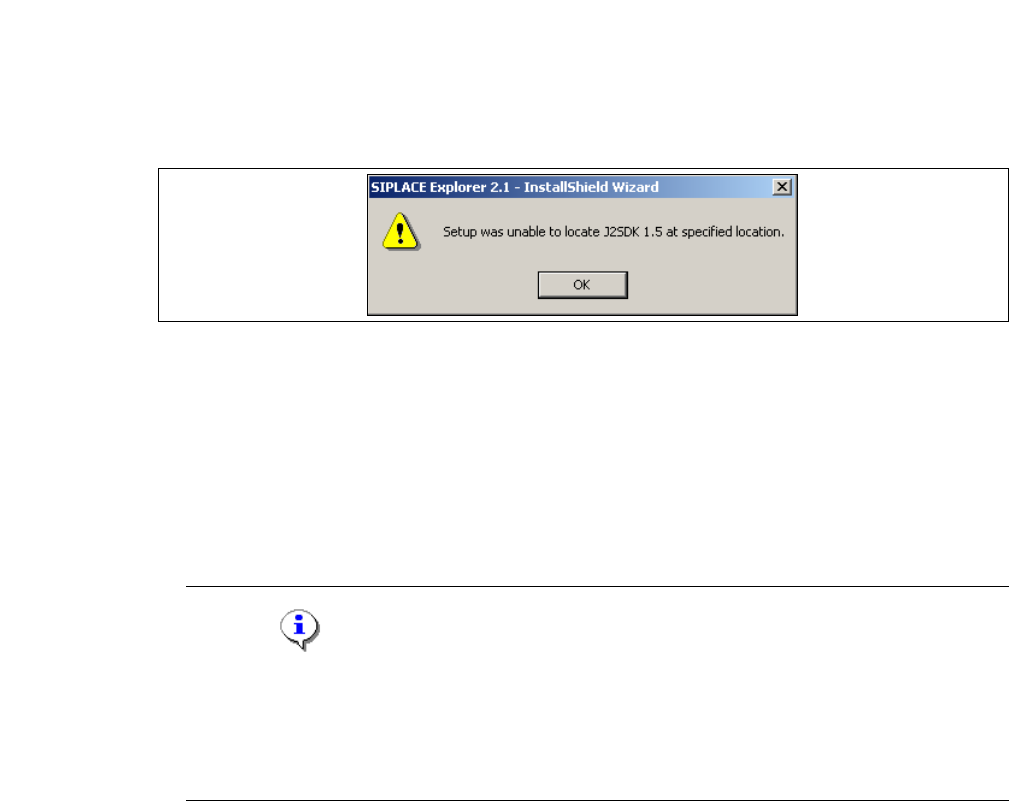
→ If you failed to correctly specify the path to the folder in which J2SE Runtime Environment 5.0
is installed, you will see the following message.
3
Fig. 3 - 44 SIPLACE Explorer setup - unable to locate J2SE
→ Click OK to return to the previous screen. SIPLACE Explorer requires J2SE Runtime
Environment 5.0 to be installed prior to installation of SIPLACE Explorer.
→ At this point, you can either try to specify the J2SE Runtime Environment 5.0 folder again, or
click Cancel to exit the installation of SIPLACE Explorer.
→ If you selected Cancel, install the version of J2SE Runtime Environment 5.0 included on the
Installation CD see page 24 and then restart installation of SIPLACE Explorer.
NOTE
If you have the J2 Runtime environment (not J2SE Runtime Environment 5.0) - available from
Sun Microsystems at http://java.sun.com/j2se - installed on your system, the website
generated by the SIPLACE Explorer Website Builder will not function properly as it is based
on JSP, which requires J2SE Runtime Environment 5.0. 3
→ The installation of SIPLACE Explorer 2.1 will be continued once J2SE Runtime Environment
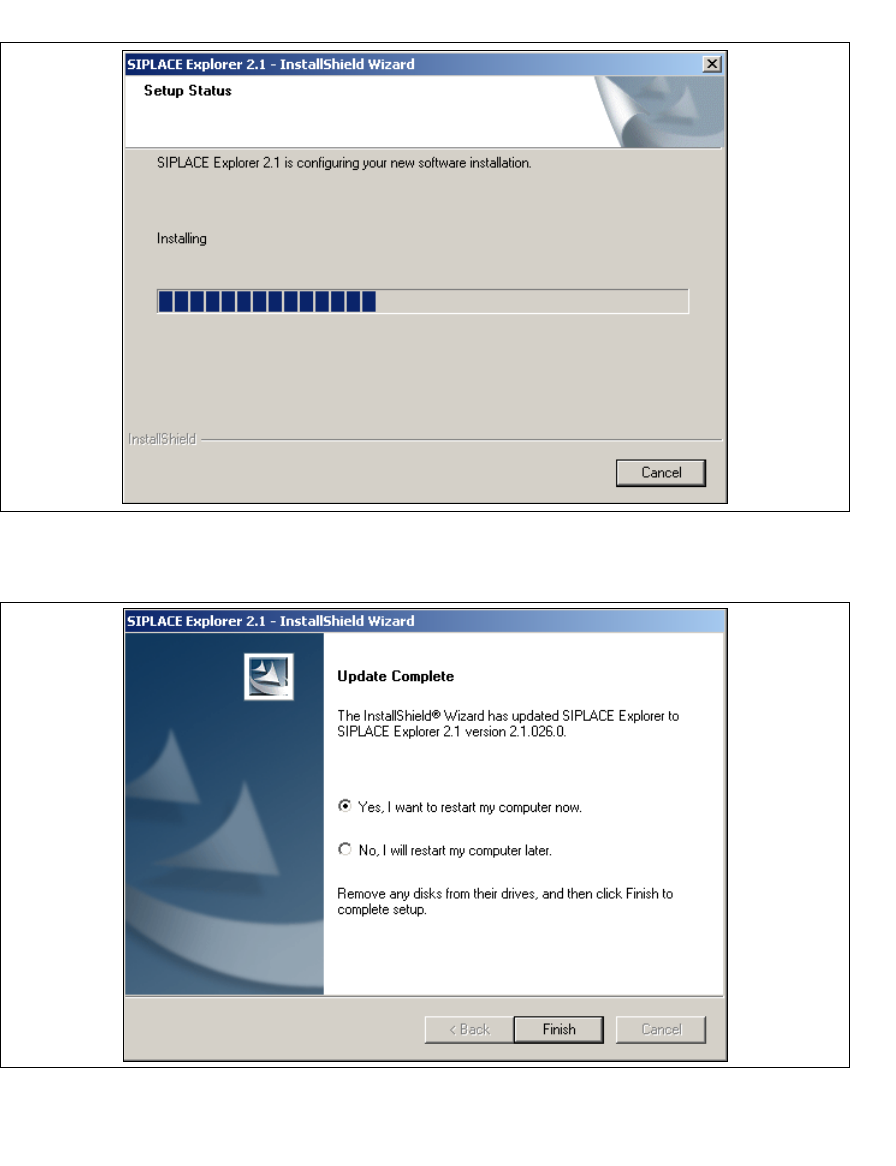
5.0 has been localized. The Setup Status dialog box will open.
Installation and Configuration Guide SIPLACE Explorer 3 Installing SIPLACE Explorer
Edition 11/2006 EN 3.2 Update Installation of SIPLACE Explorer 2.1
55
→ The actual installation of SIPLACE Explorer V2.1 will begin.
3
Fig. 3 - 45 SIPLACE Explorer setup - setup status
→ Once the installation procedure has finished, the following dialog box will appear.
3
Fig. 3 - 46 SIPLACE Explorer setup - installation complete
→ Click on Finish. After you have rebooted your computer, the update of SIPLACE Explorer 2.1
will be available for use. Follow the instructions at “Starting SIPLACE Explorer” on page 56.
3 Installing SIPLACE Explorer Installation and Configuration Guide SIPLACE Explorer
3.3 Starting SIPLACE Explorer Edition 11/2006 EN
56
3.3 Starting SIPLACE Explorer
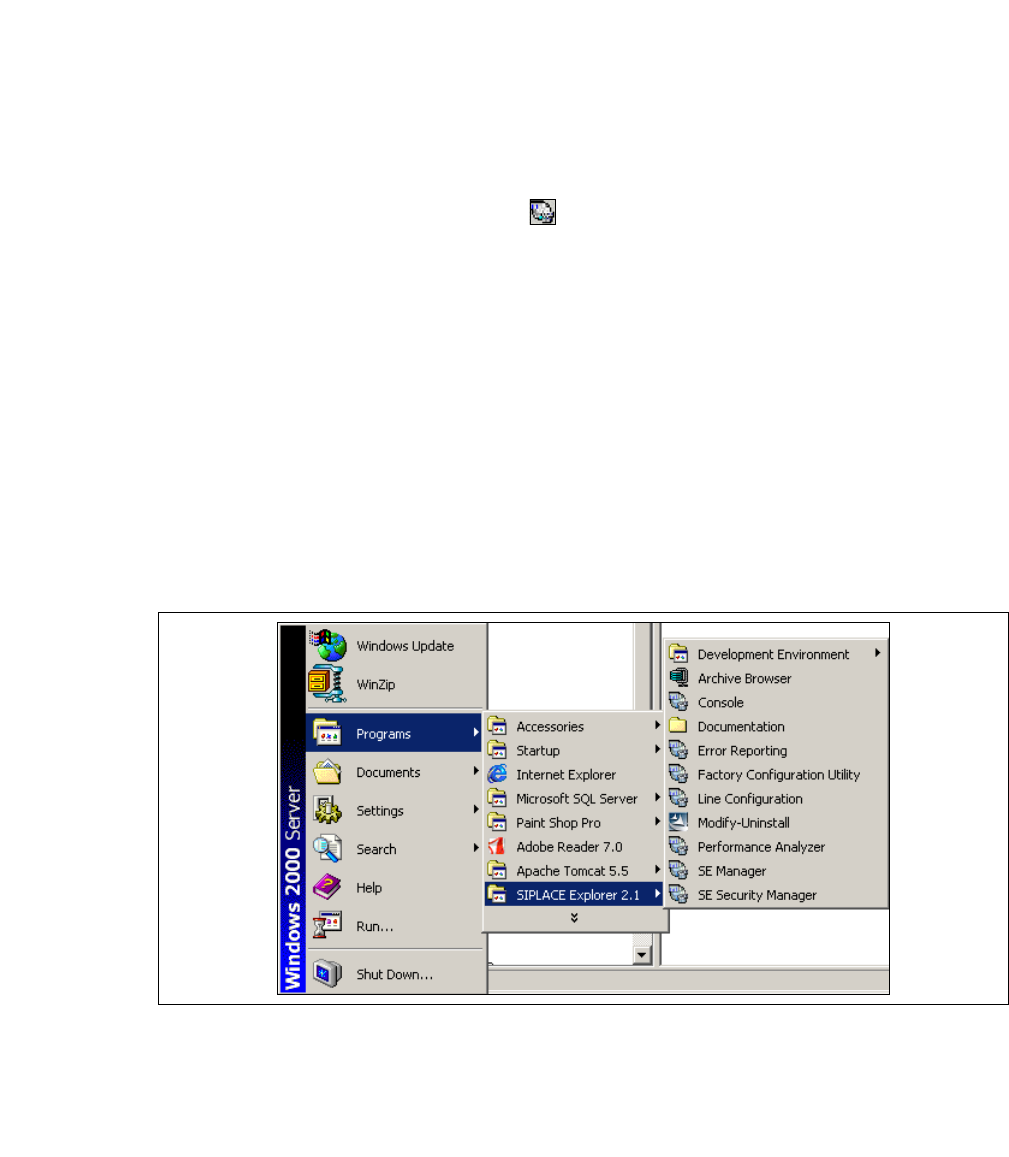
→ SIPLACE Explorer can be started by selecting Programs → SIPLACE Explorer 2.1 from the
Windows menu and will be loaded to correspond with your selected installation options.
→ SIPLACE Explorer V.2.1 Runtime Environment:
"Runtime Environment" runs as a Windows service and is automatically started whenever you
reboot your computer. You will see the icon in your console. Right-click with the mouse to
open other applications and tools. The following options are available: 3
– SE Manager
– SE Security Manager
– Line Configuration
– Performance Analyzer
–Console
– Language
These additional applications and tools can also be started via the Programs → SIPLACE
Explorer 2.1 menu in Windows. 3
3
Fig. 3 - 47 RTE Windows Start menu
The following options are available: 3
– Archive Browser
–Console
– Documentation
–Error Reporting