00193688-06_Installation SIPLACE Explorer2.1_EN.pdf - 第81页
Installation and Configuration Guide SIPLACE Explorer 4 Configuration Edition 11/2006 EN 4.1 Standard Monitoring Application (SMA) 81 “Database Connec tion Wizard” on page 1 1 1. → If the connection f unctions properly ,…
4 Configuration Installation and Configuration Guide SIPLACE Explorer
4.1 Standard Monitoring Application (SMA) Edition 11/2006 EN
80
4
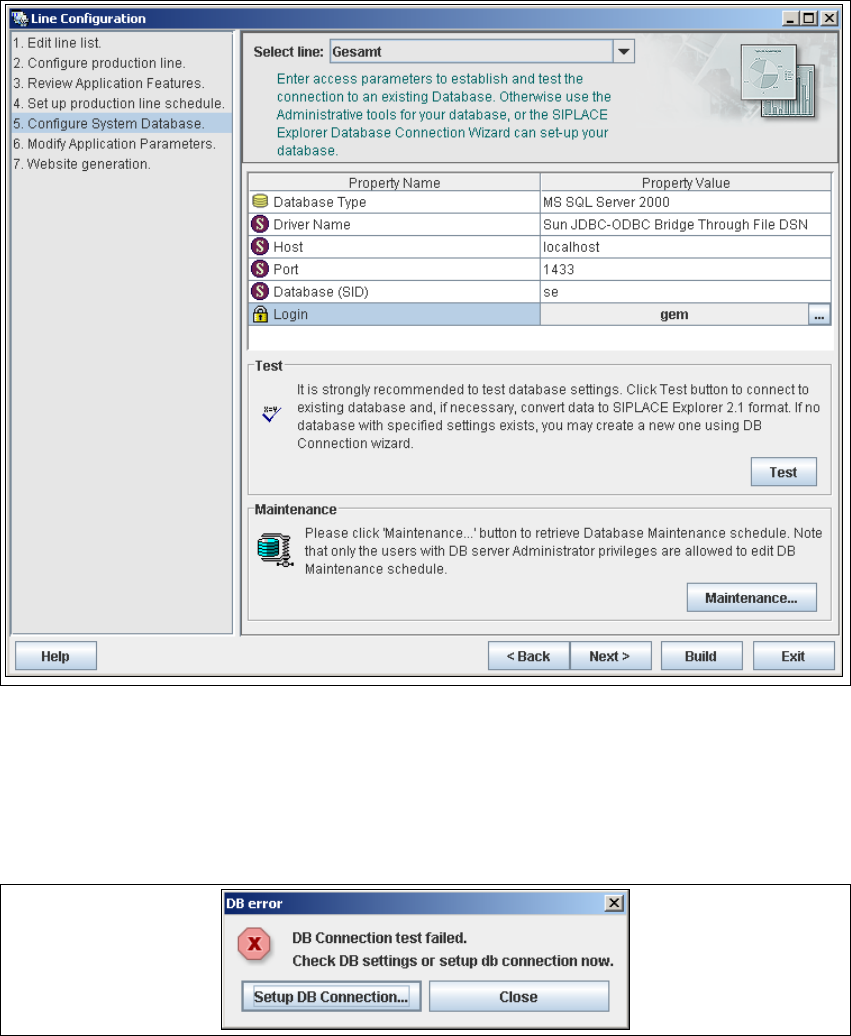
Fig. 4 - 9 Step 5: configure system database
→ After entering the database access parameters, we strongly recommend that you check the
connection to the database. Click Test to check whether the connection to the database can
be established.
→ If the connection does not function properly, you will see the following information box:
4
Fig. 4 - 10 DB error
→ Click on the Setup DB Connection button to start the DB Connection Wizard setup
sequence and configure the SIPLACE Explorer system database. Follow the instructions at
Installation and Configuration Guide SIPLACE Explorer 4 Configuration
Edition 11/2006 EN 4.1 Standard Monitoring Application (SMA)
81
“Database Connection Wizard” on page 111.
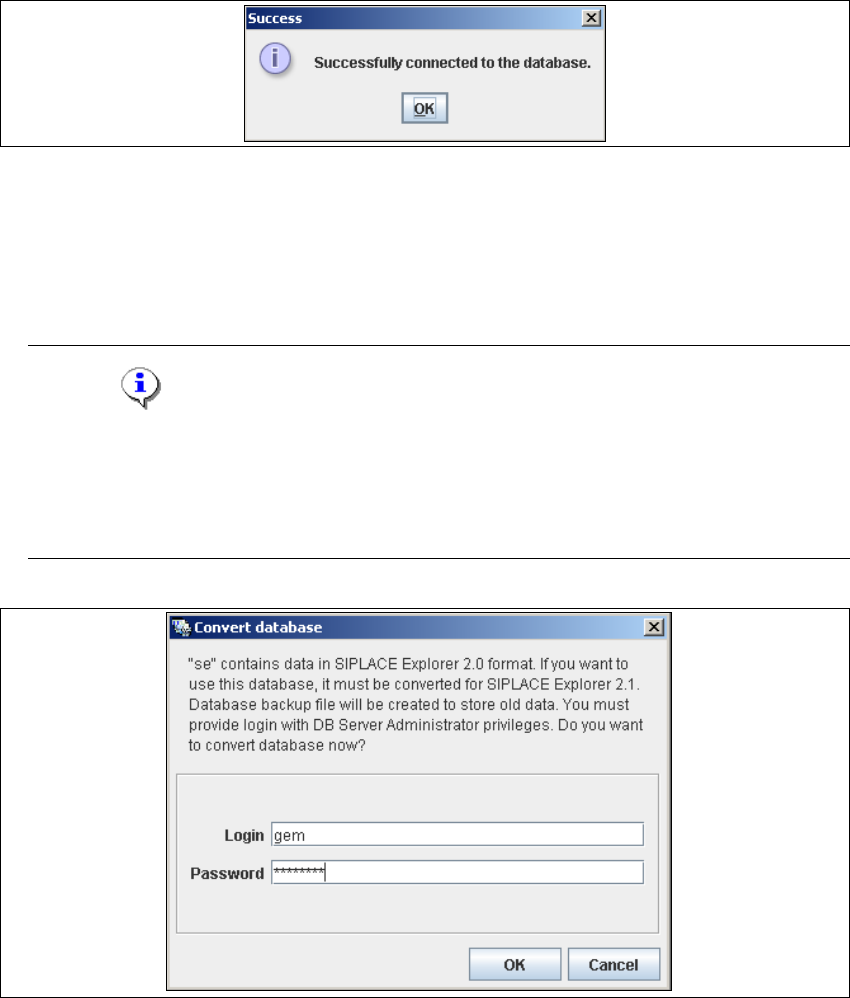
→ If the connection functions properly, you will see the following information box:
4
Fig. 4 - 11 Success
→ Click OK. The system will check the database data. If the database has data from SIPLACE
Explorer V2.0 or V1.2, you will need to convert the database for SIPLACE V2.1, due to the
changed data structure in the SIPLACE Explorer V2.1 database. In this case, the Convert
Database dialog box will open.
NOTE
Observe the following for database conversion:
- You will need database administrator rights.
- If you have started the conversion, this process can not be stopped.
- The conversion time depends on the size of the database. It may take up to an hour. 4
4
Fig. 4 - 12 Convert database
→ Specify the access data for the database administrator and confirm your entry with OK.
4 Configuration Installation and Configuration Guide SIPLACE Explorer
4.1 Standard Monitoring Application (SMA) Edition 11/2006 EN
82
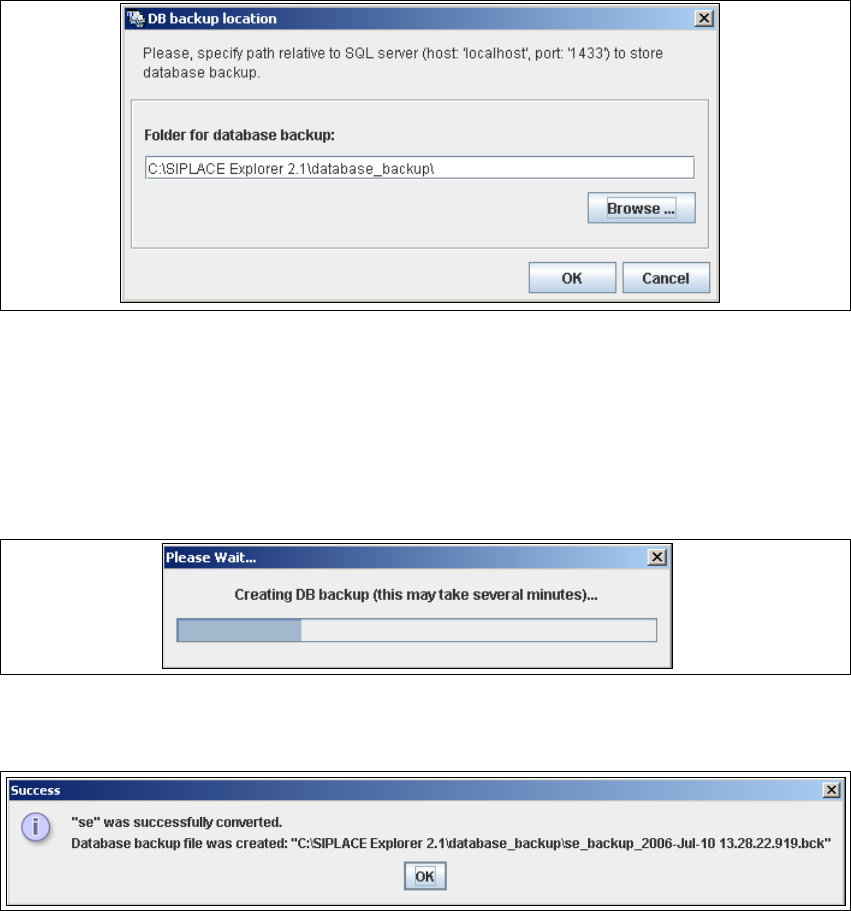
→ The DB backup location dialog box will open. This will only open during conversion of the
database from V2.0 to V2.1. When converting the database from V1.2 to V2.1, the database
backup will automatically be stored in the folder in which the V2.1 is stored.
4
Fig. 4 - 13 DB backup location
→ Before performing the conversion, the system creates a backup file of the database. Specify
the folder for this file in the Folder for database backup field. Click on the Browse ...
button to select an existing folder.
→ Confirm your choice with OK. The database will be converted. The conversion time
depends on the size of the database. It may take up to an hour.
4
Fig. 4 - 14 DB backup
→ After successful conversion of the database, the following information window will open:
4
Fig. 4 - 15 Success
→ Click OK. You can now continue with the line configuration process.
4