ServiceInstruction_Vision XP.pdf - 第108页
Page 104 Vision XP+ V AC 3 Setup Instructions 3.13 Settings for Individual Components Operating Instructions V ersion 1.5 Select “0-10 V ” input signal (the function is marked with “ “) and confirm wit h “SELEC“. Exit th…
Vision XP+ VAC Page 103
3 Setup Instructions
3.13 Settings for Individual Components
Operating Instructions
Version 1.5
3.13 Settings for Individual Components
3.13.1 Adjustment instruction for the vacuum pump positioner
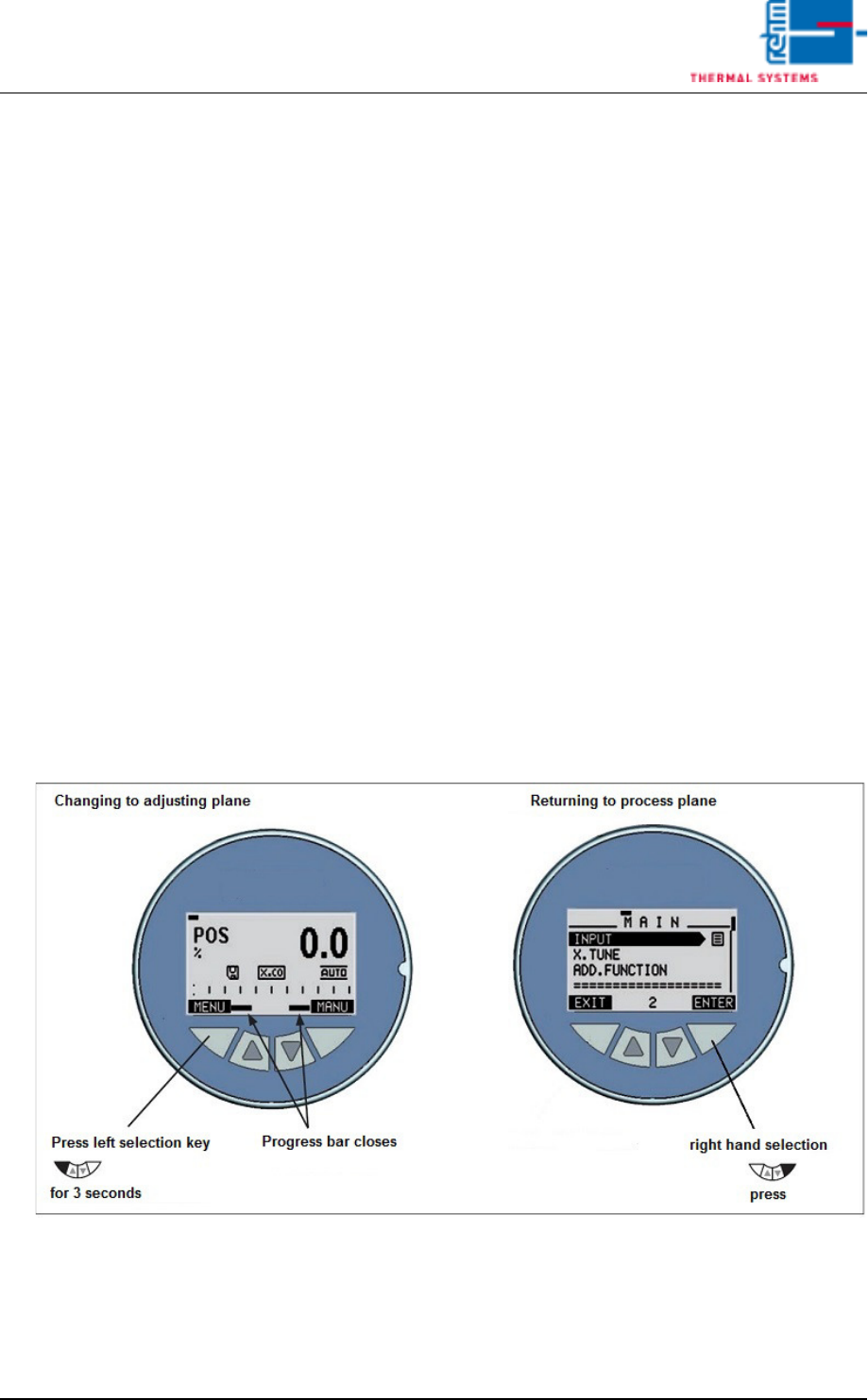
The positioner may be set and operated on the process and adjustments
level
Process level:
The running process will be shown and controlled on the process level.
Operating mode
– AUTOMATIC -Process data display
– MANU - Manual opening and closing of the valve.
Adjustment level:
Basic process settings may be made on the adjustment level.
– Entering the operating parameters
– Activation of additional functions.
Note!
If the apparatus is in AUTOMATIC mode when switching to the adjustment
level, the process will continue running during adjustments.
Fig. 3-17 Changing to adjusting plane
Press menu key for 3 seconds; the main menu opens.
The “INPUT” menu item is displayed. Press “ENTER” to confirm.

Page 104 Vision XP+ VAC
3 Setup Instructions
3.13 Settings for Individual Components
Operating Instructions
Version 1.5
Select “0-10 V” input signal
(the function is marked with “ “) and confirm with “SELEC“.
Exit the submenu by pressing “EXIT”.
Note!
The additional functions are activated via the basic function
"ADD.FUNCTION” and then taken over in the main menu (MAIN).
Now use the arrow key to page down in the menu until the submenu “ADD
FUNCTION” appears and confirm with “ENTER”.
Then select the analog output (Position 21) “OUTPUT” (the function is
marked with “X”) and confirm with “ENTER”.
Continue to the current as-is position (Position 26), select “POS-Sensor” and
confirm with “ENTER”.
Exit the submenu by pressing “EXIT”.
Select submenu “OUTPUT” and confirm with “ENTER”.
Select submenu “ANALOG” and confirm with “ENTER”.
Select POS (the function is marked with “ “) and confirm with “SELEC“.
Using the arrow page down and select “OUTtype”, confirm with “ENTER”.
Select subitem “0 – 10 V” and confirm with “SELEC”.
Press “EXIT” 4 times to return to the main menu.
Vision XP+ VAC Page 105
3 Setup Instructions
3.14 Backup Tool
Operating Instructions
Version 1.5
3.14 Backup Tool
Rehm Backup Tool ensures all relevant Rehm Visu, MES and CCS data
files or file folders. Configuration adjustments from Windows Registry and
the project *.ini *.dat data files are read in here by opening of the
application. Thus it is ensured that system and customer-specific
adjustments are considered.
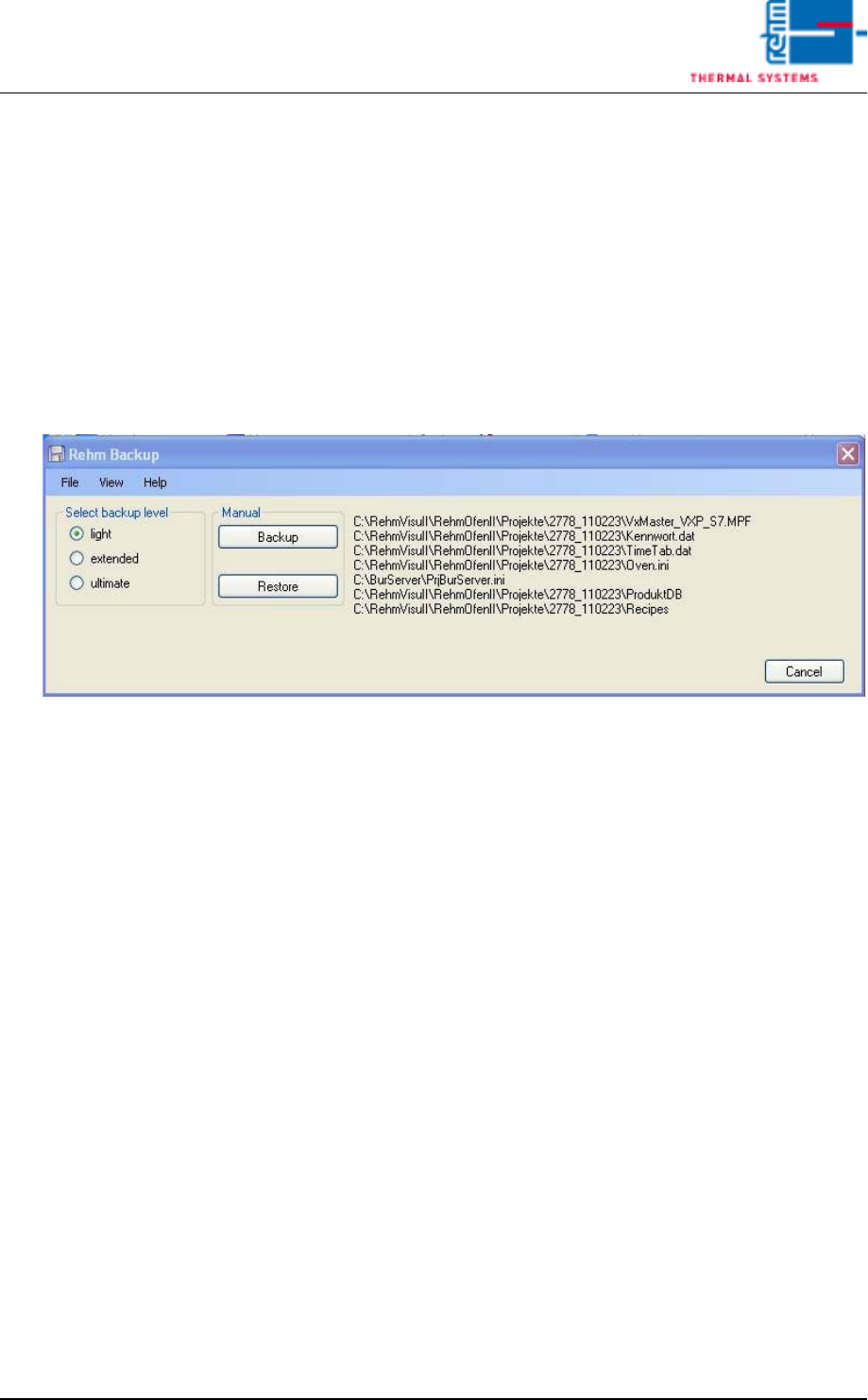
Over [Selected backup level] the volume of data back-up will be selected.
The selected data files and file folders are indicated to the right in the List
box
Fig. 3-18 Rehm Backup
Generally, the data back-up level [light] is sufficient for software update.
Separate important data files of Rehm Visu and of CCS are saved here.
With the data back-up level [extended] the server-configuration data files
and the complete file folders of MES and of Rehm Visu projects are saved.
With the data back-up level [ultimate] the complete folder files of the server,
MES and Rehm Visu.exe are saved.
Over the switch-key [Backup] the data backup is saved
Over the switch-key [Cancel] the data backup is interrupted
Over the switch-key [Restore] the last data backup of the selected backup
level is restored.