4H4CEPM.pdf - 第20页
Page 10 Summary of Data Editing 1-4 Exiting CM301 Editor When you click on Close on the main menu, the following screen is displayed. T o exit CM301 Editor , choose a save command, then click on OK . 4H4C-E-PMA01-A02-00 …
Page 9
301
CM
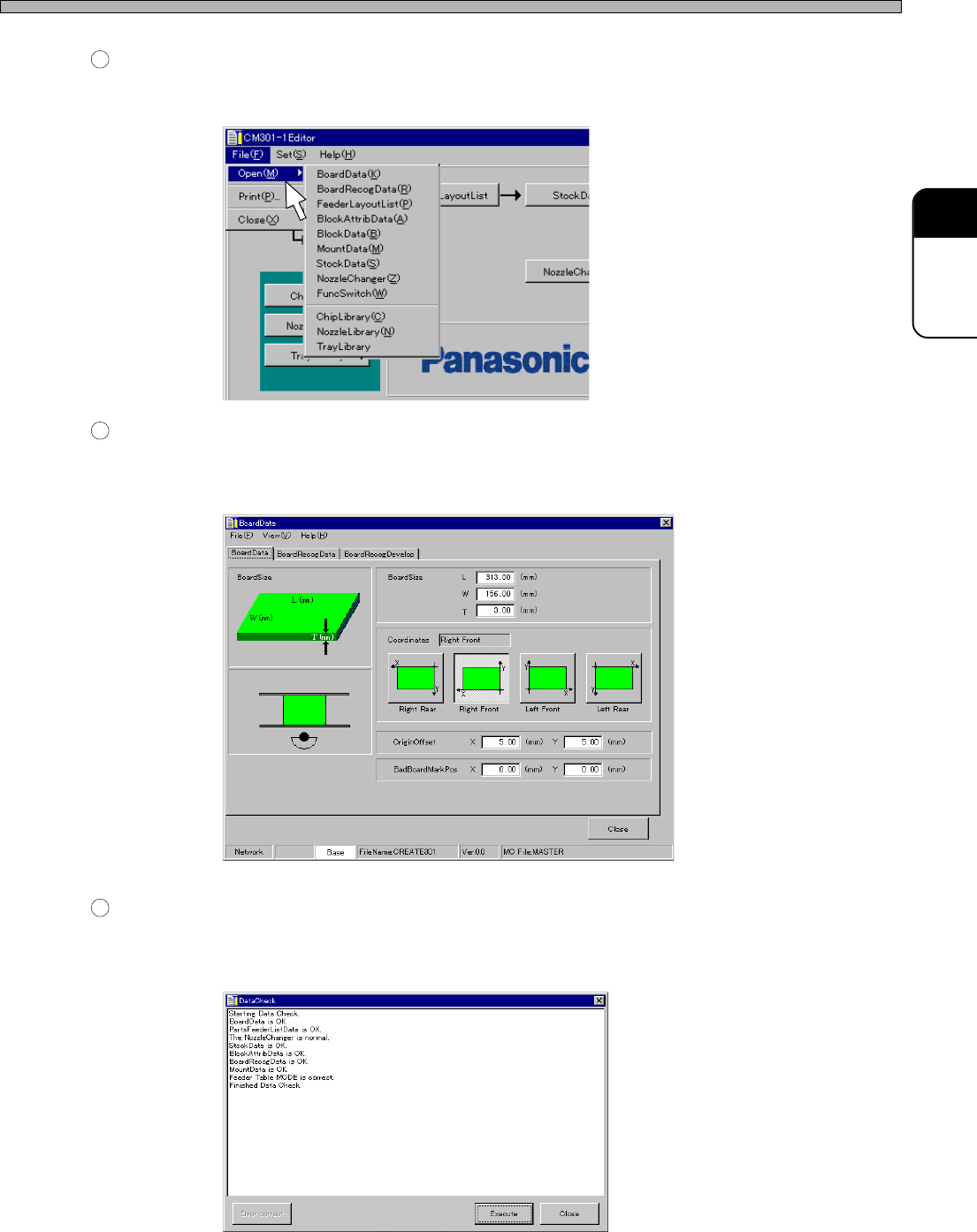
Summary of Data Editing
1
Menu Bar
When you place a pointer on a menu name and click on it, its command menu opens. Then drag a
mouse to choose the command. (Some menus contain sub menus.)
2
Switches for Each Data Edit
When you click on a switch, the Editor main screen closes and the screen for each data edit is
displayed.
e.g. Board data
3
Switches for Each Function
When you click on a switch, the Editor main screen closes and the screen for each function (func-
tion setup) is displayed.
e.g. Data check
4H4C-E-PMA01-A02-01
4H4C-EPt-Ed-002
444C-EPt-EdBd-001
4H4C-EPt-EdDc-001
Page 10
Summary of Data Editing
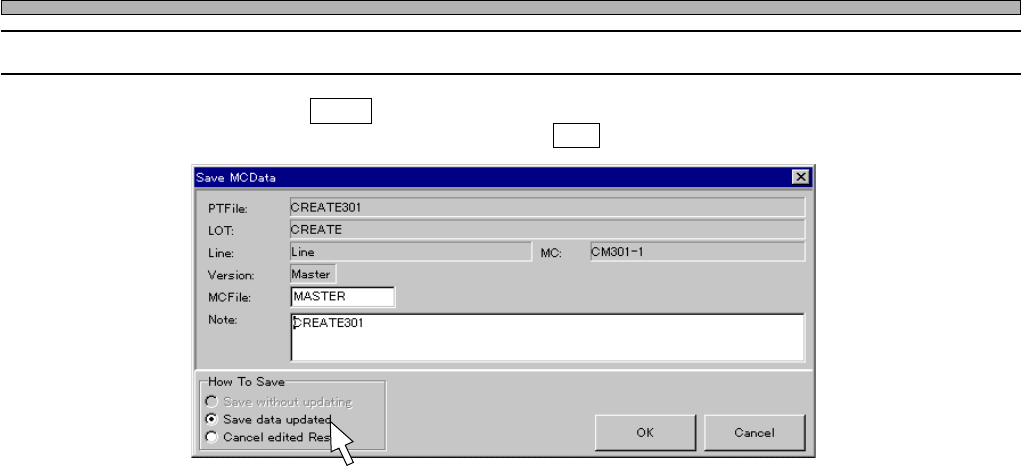
1-4 Exiting CM301 Editor
When you click on Close on the main menu, the following screen is displayed. To exit CM301
Editor, choose a save command, then click on OK .
4H4C-E-PMA01-A02-00
4H4C-EPt-EdEt-001
Page 11
301
CM
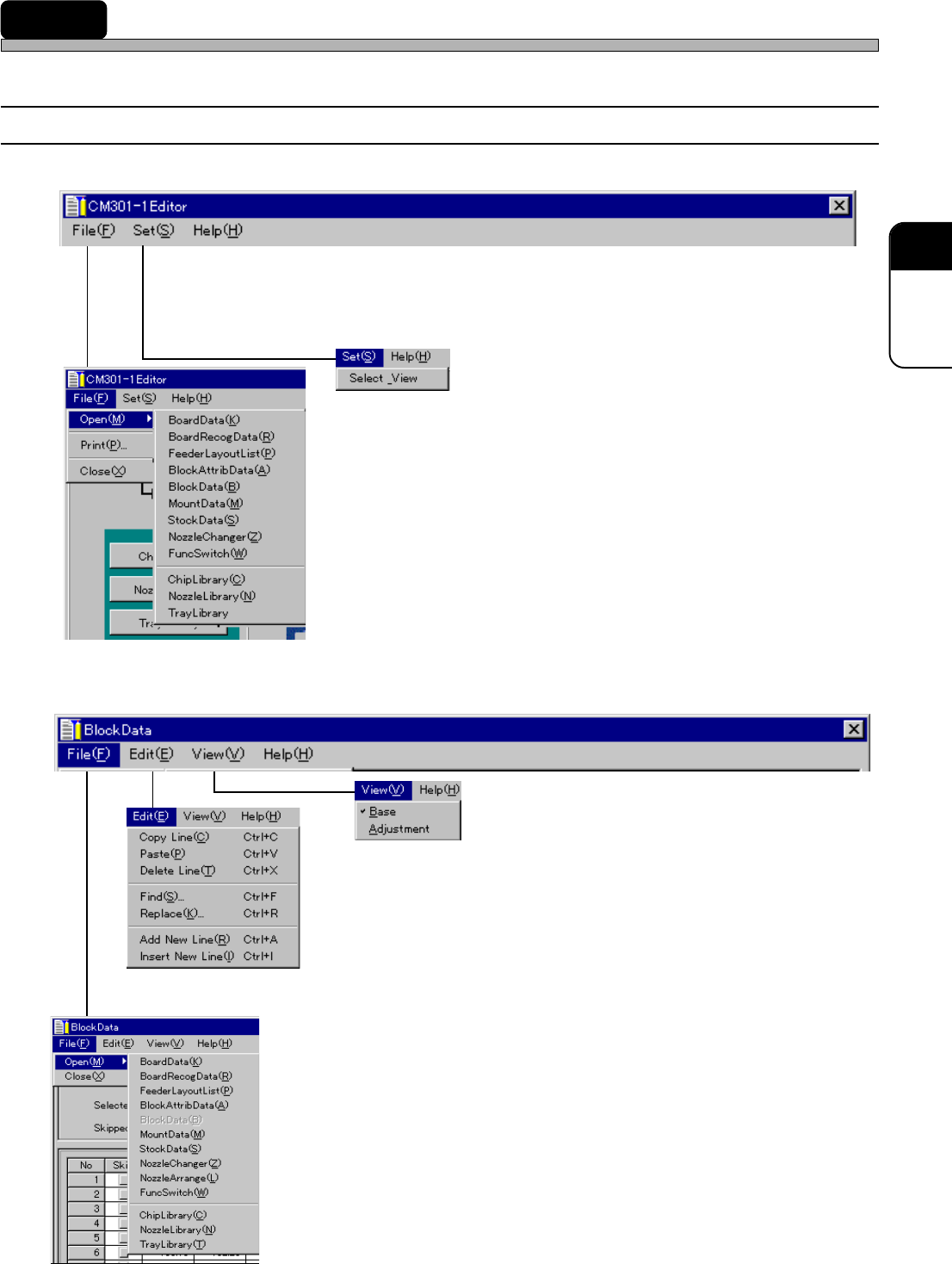
2 Basic Functions of CM301 Editor
This chapter describes the menu structure and main functions of the Editor.
2-1 Menu Structure
∗∗
∗∗
∗ Editor Main Screen
∗∗
∗∗
∗ Each Data Edit Screen (e.g. Block Data Screen)
4H4C-E-PMA01-A02-01
444C-EPt-EdBl-003
You can open the chosen data editing screen.
This is used to edit (copy, paste, etc.) data, such as block data, etc.
which use more than one row (mounting point coordinates, etc.).
You can open the chosen data edit screen on any data edit screen.
The display mode of all data is changed.
The display mode is changed for each data.
444C-EPt-Ed-004
444C-EPt-EdBl-009
4H4C-EPt-Ed-001
4H4C-EPt-Ed-002
4H4C-EPt-EdBl-002
4H4C-EPt-EdBl-002