4H4CEPM.pdf - 第61页
Page 51 301 CM Case of T ape Feeder 4. Click on next to FeederT ype field. • [SelectFeederT ype] window opens. 5. Choose the type of feeder , and click on Select . 6. Click on a Layout field of the address where you will…
Page 50
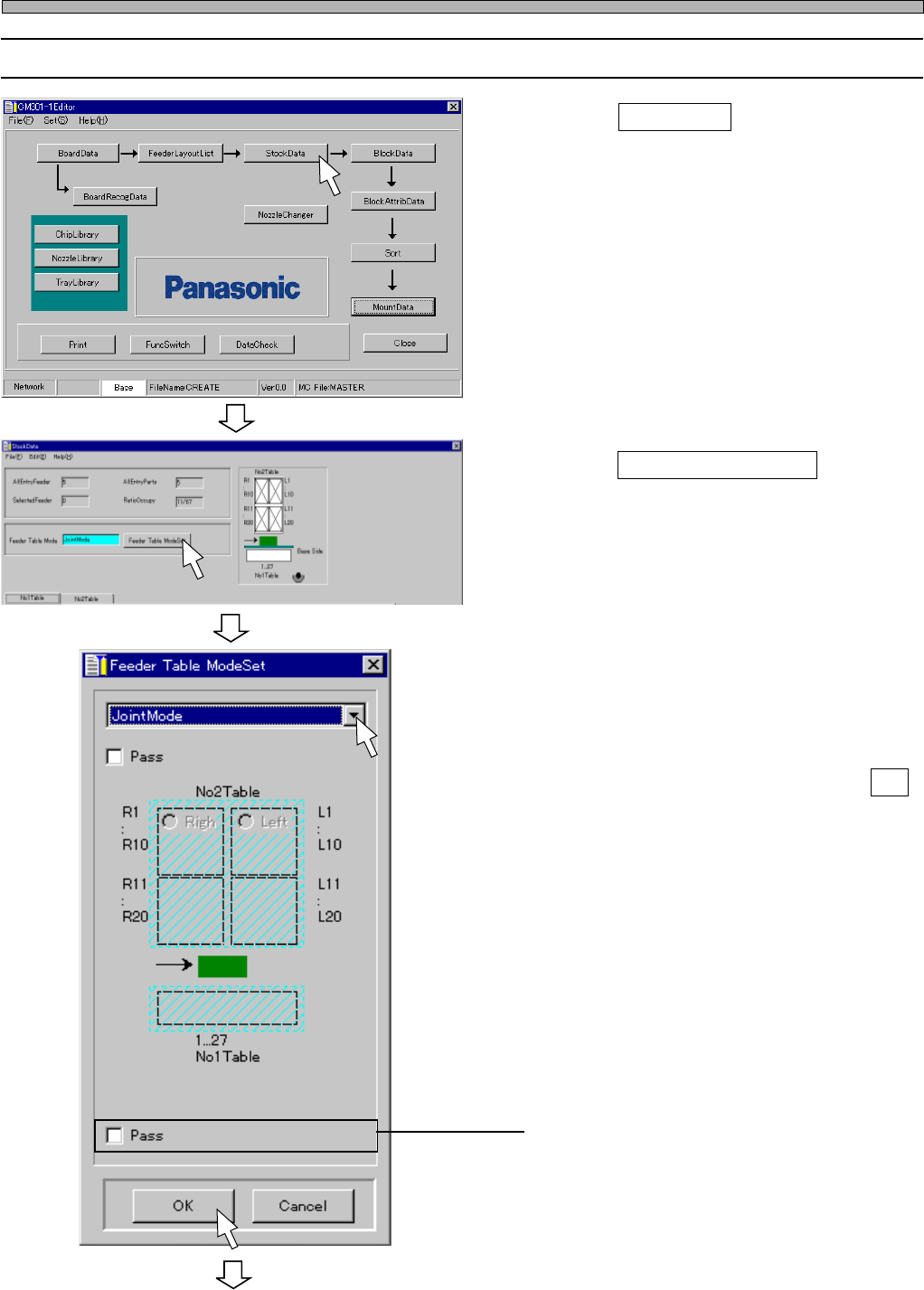
9-2 Editing Stock Data
1. Click on StockData .
• [StockData] window opens.
2. Click on Feeder Table Mode .
3. Set the feeder table mode.
• When you select ReserveMode or
ChangeMode, click on the feeder table to use.
• When mode setting is complete, click on OK .
∗ When you do not use the table for mounting,
click on the radio button of “Pass”.
4H4C-E-PMA01-A03-02
Stock Data
To the next page
4H4C-EPt-Ed-001
4H4C-EPt-EdSd-001
4H4C-EPt-EdSd-002
Page 51
301
CM
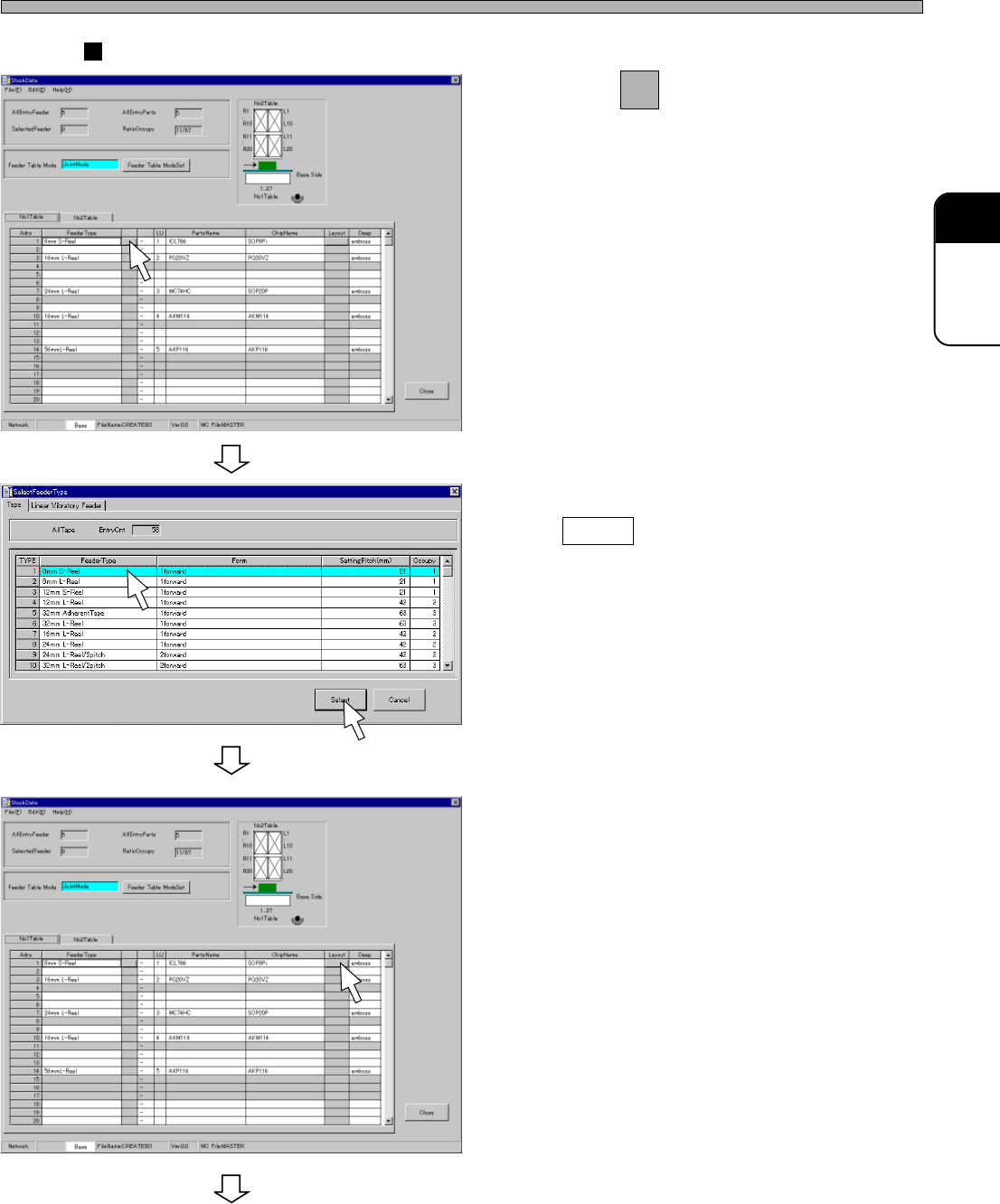
Case of Tape Feeder
4. Click on next to FeederType field.
• [SelectFeederType] window opens.
5. Choose the type of feeder, and click
on Select .
6. Click on a Layout field of the address
where you will set the chip.
• [SelectFeederLayoutList] window opens.
4H4C-E-PMA01-A03-01
Stock Data
To the next page
4H4C-EPt-EdSd-001
4H4C-EPt-EdSd-006
4H4C-EPt-EdSd-004
Page 52
4H4C-E-PMA01-A03-01
Stock Data
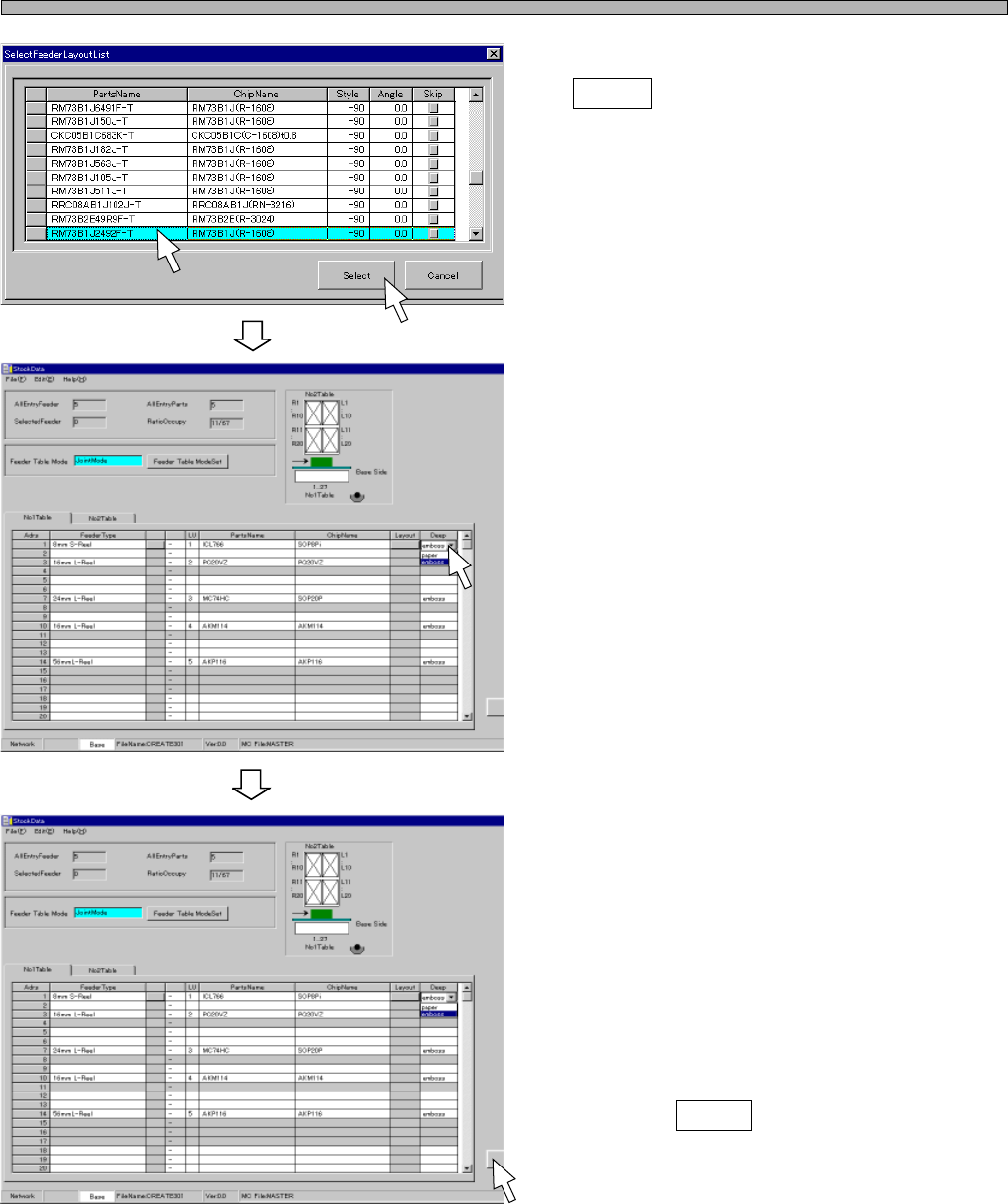
7. Choose the chip to set, and click on
Select .
• [SelectFeederLayoutList] window closes, and
the chosen chip is set.
8. Choose Deep.
9. Set all the chips to mount for each
table in stock data by repeating the
steps from 4. to 8.
10. Click on Close .
• The screen returns to the main menu.
444C-EPt-EdSd-002
4H4C-EPt-EdSd-004
4H4C-EPt-EdSd-004