4H4CEPM.pdf - 第53页
Page 43 301 CM 4. Click on next to the ChipName field. • [SelectChipKind] window opens. 5. Choose the type of chip, and click on Select . • [SelectChipKind] window closes, and [SelectChip] window opens. 4H4C-E-PMA01-A03-…
Page 42
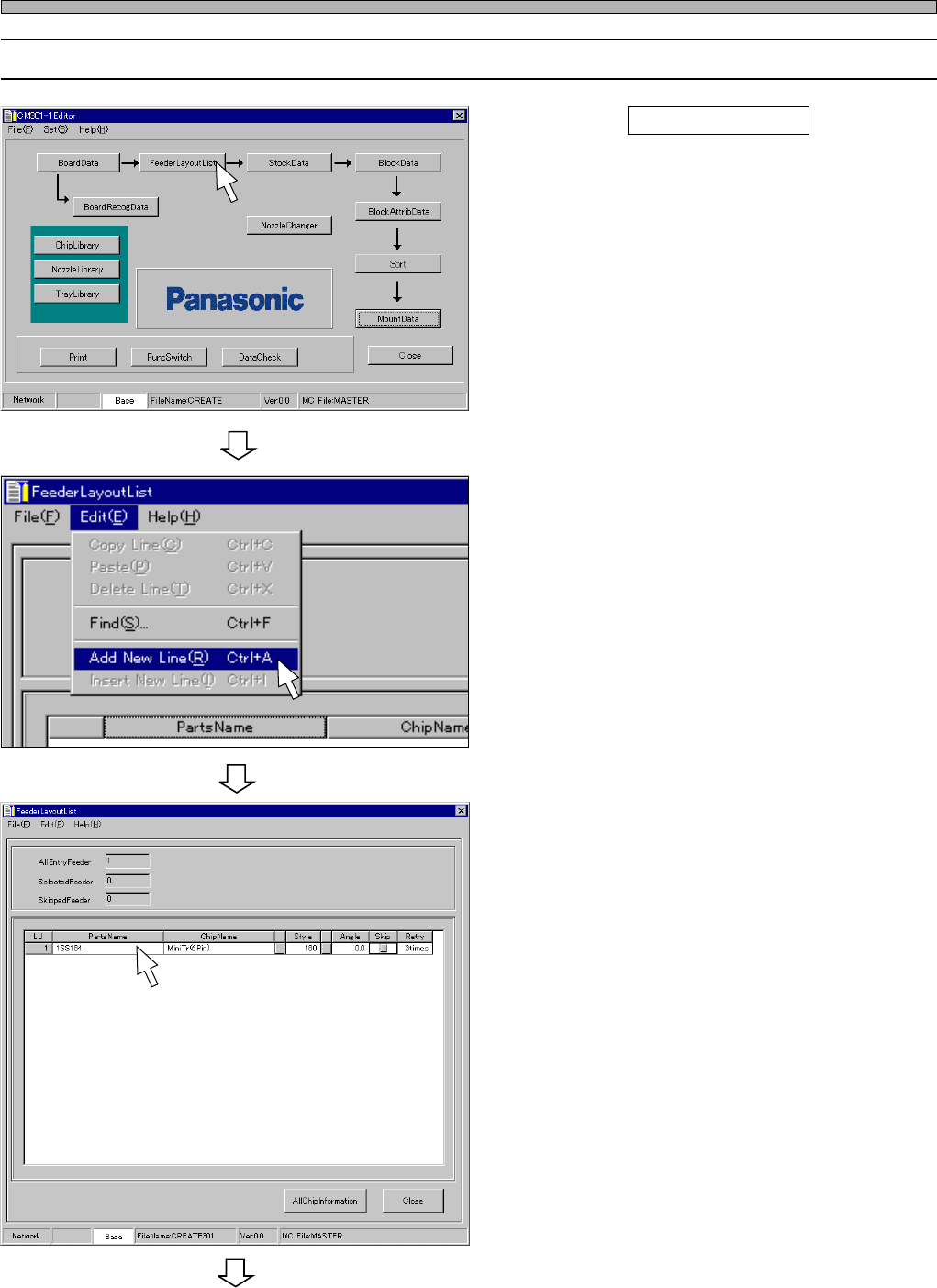
8-2 Editing Feeder Layout List
1. Click on FeederLayoutList .
• [FeederLayoutList] window opens.
2. Choose “Add New Line.” from “Edit”
on the menu bar.
• A new row is created.
3. Enter PartsName.
4H4C-E-PMA01-A03-01
444C-EPt-EdPl-003
Feeder Layout List
To the next page
4H4C-EPt-Ed-001
4H4C-EPt-EdPl-005
Page 43
301
CM
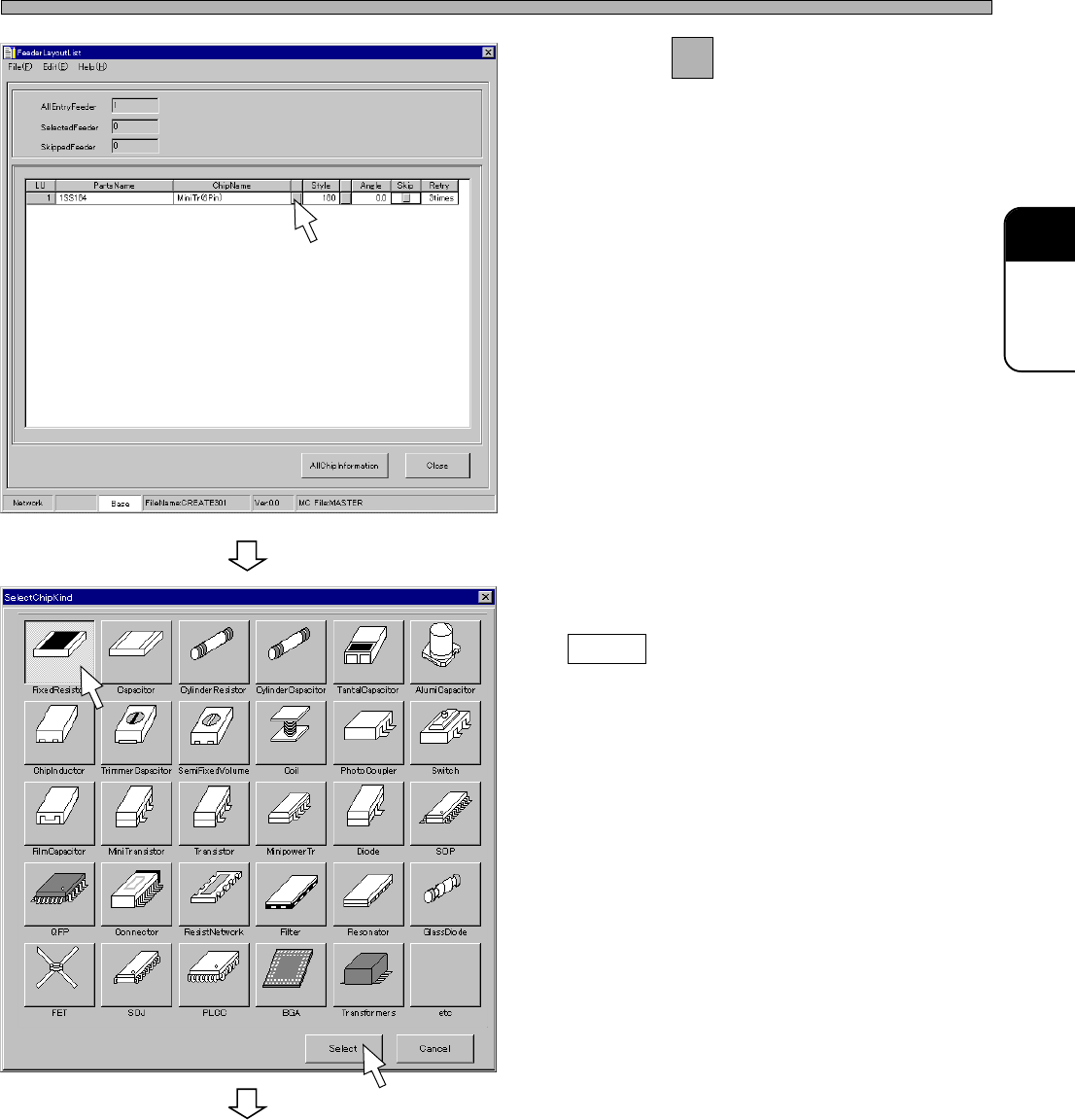
4. Click on next to the ChipName
field.
• [SelectChipKind] window opens.
5. Choose the type of chip, and click on
Select .
• [SelectChipKind] window closes, and
[SelectChip] window opens.
4H4C-E-PMA01-A03-01
444C-EPt-EdCl-015
Feeder Layout List
To the next page
4H4C-EPt-EdPl-005
Page 44
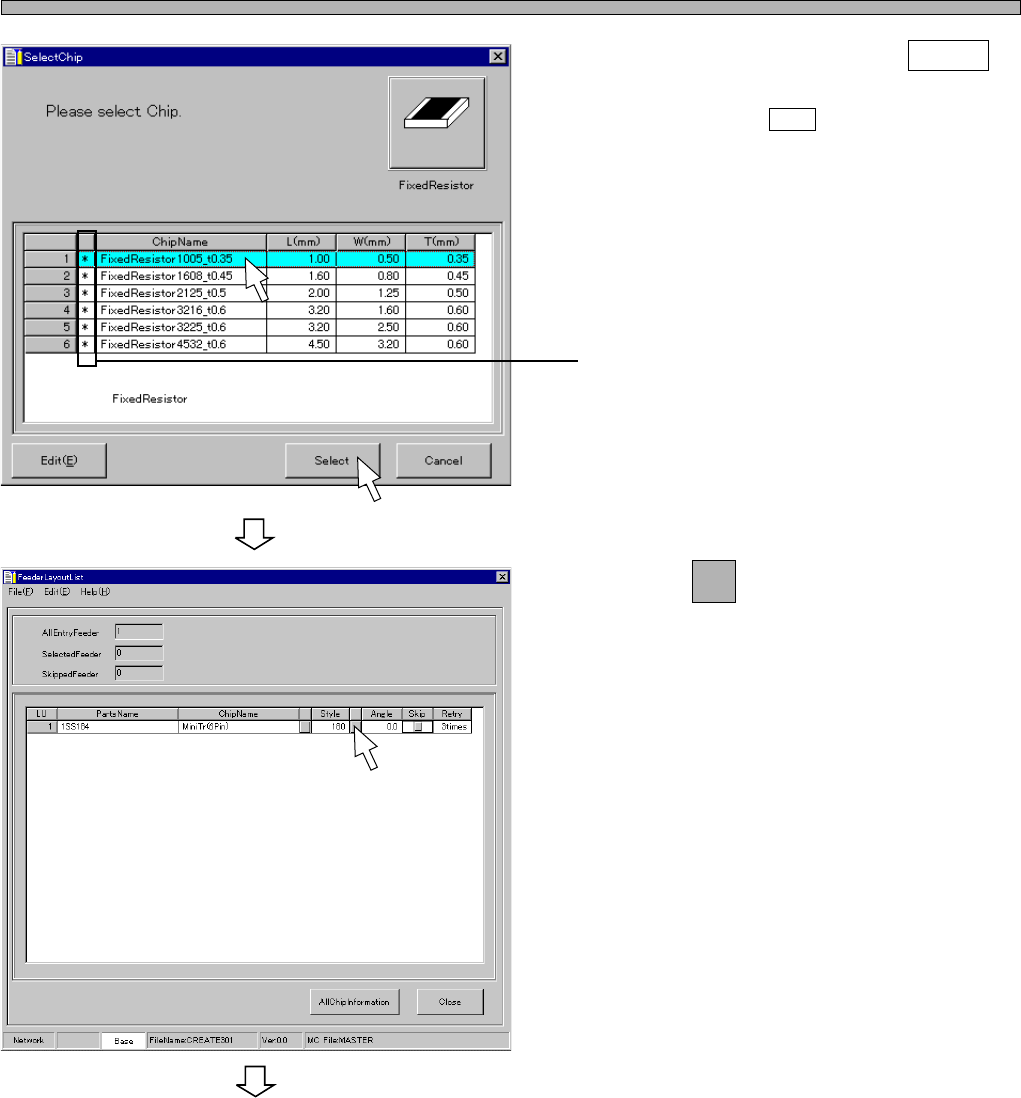
6. Choose a chip, and click on Select .
∗ When you click on Edit , [ChipLibrary] window
opens. Then you can edit the data.
∗ The chip with “∗” in this field indicates it is in
the standard chip library.
7. Click on next to Style field.
• [SelectStyle] window opens.
4H4C-E-PMA01-A03-01
Feeder Layout List
To the next page
444C-EPt-EdPl-007
4H4C-EPt-EdPl-005