4H4CEPM.pdf - 第54页
Page 44 6. Choose a chip, and click on Select . ∗ When you click on Edit , [ChipLibrary] window opens. Then you can edit the data. ∗ The chip with “ ∗ ” in this field indicates it is in the standard chip library . 7. Cli…
Page 43
301
CM
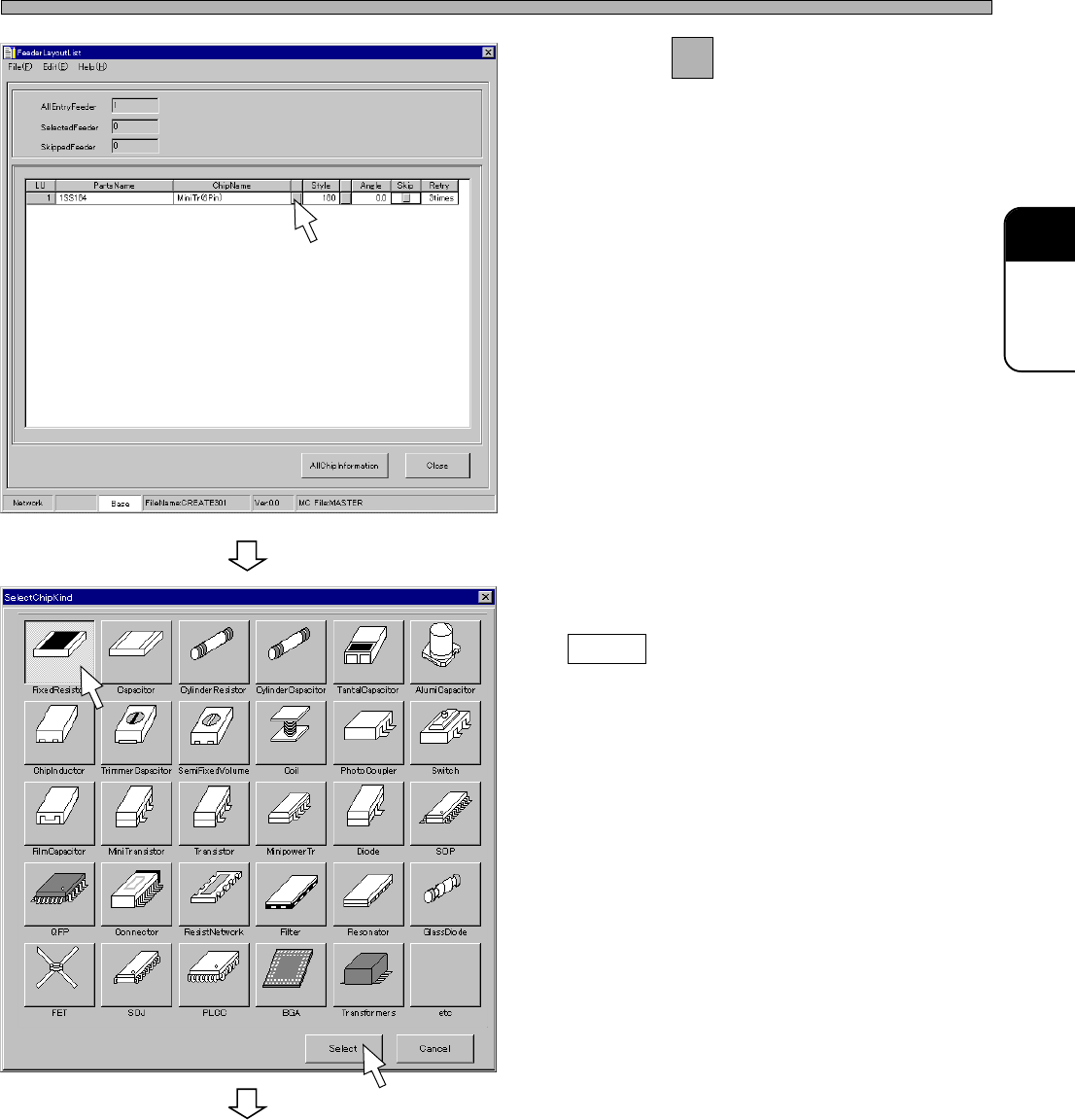
4. Click on next to the ChipName
field.
• [SelectChipKind] window opens.
5. Choose the type of chip, and click on
Select .
• [SelectChipKind] window closes, and
[SelectChip] window opens.
4H4C-E-PMA01-A03-01
444C-EPt-EdCl-015
Feeder Layout List
To the next page
4H4C-EPt-EdPl-005
Page 44
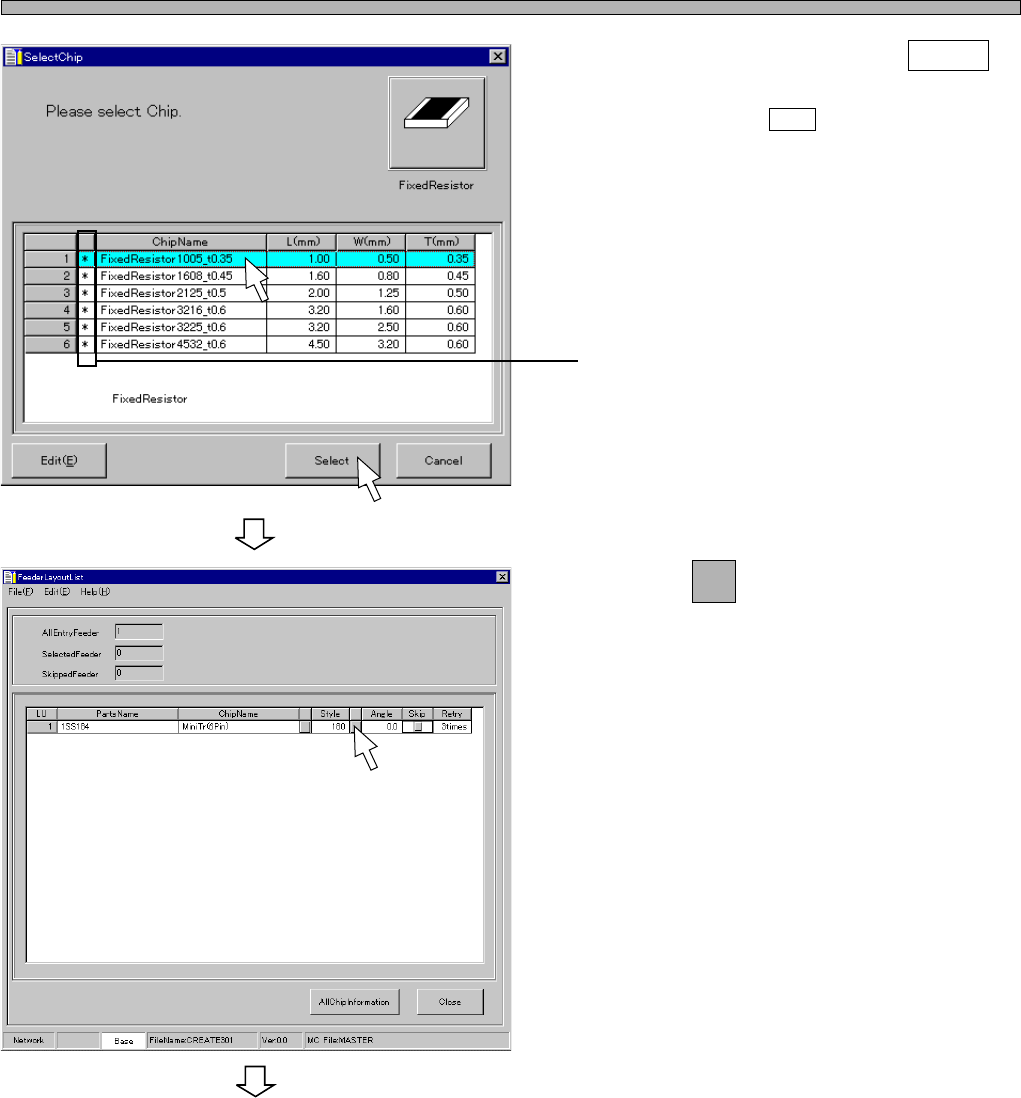
6. Choose a chip, and click on Select .
∗ When you click on Edit , [ChipLibrary] window
opens. Then you can edit the data.
∗ The chip with “∗” in this field indicates it is in
the standard chip library.
7. Click on next to Style field.
• [SelectStyle] window opens.
4H4C-E-PMA01-A03-01
Feeder Layout List
To the next page
444C-EPt-EdPl-007
4H4C-EPt-EdPl-005
Page 45
301
CM
4H4C-E-PMA01-A03-02
Feeder Layout List
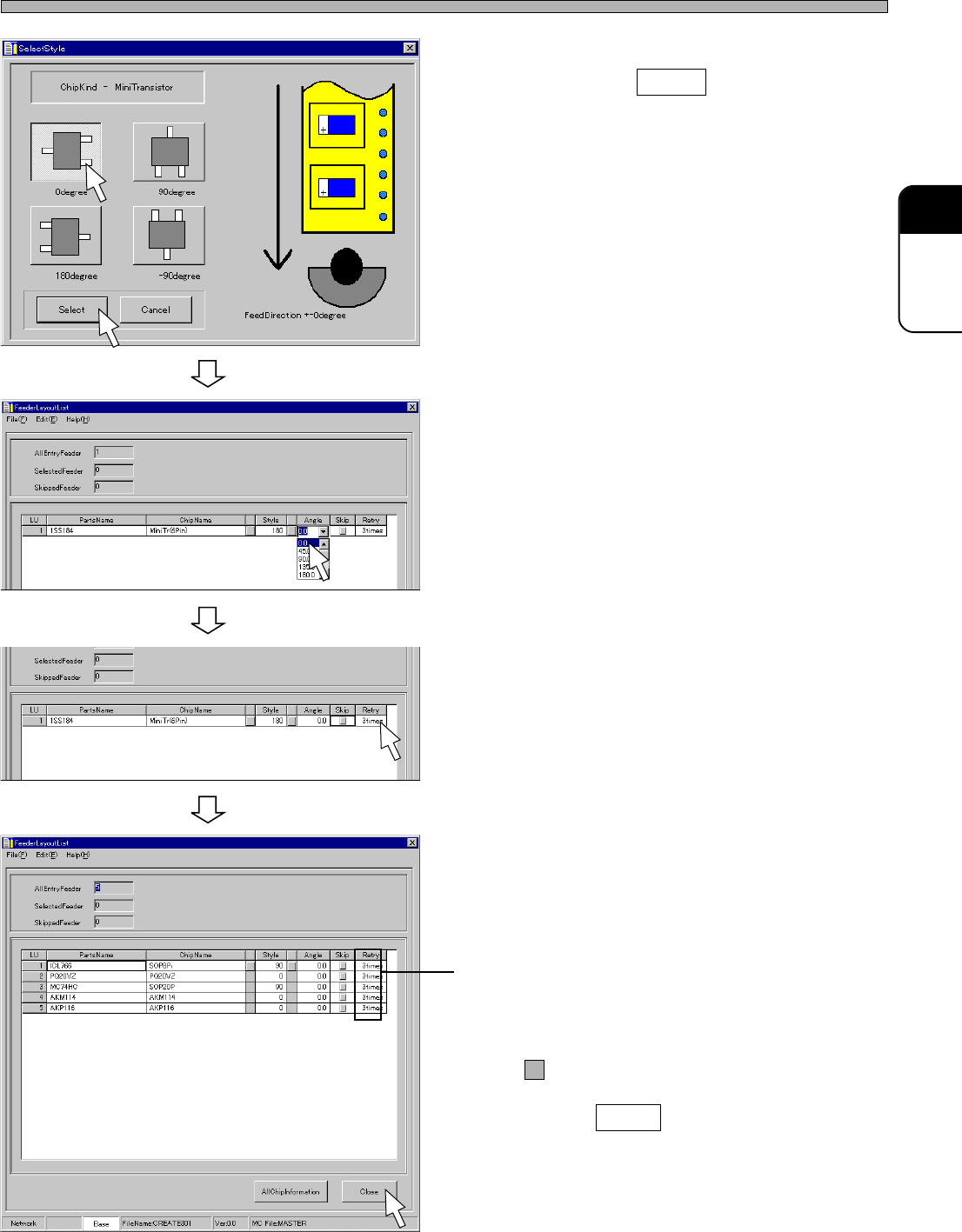
8. Choose the packing form of the chip,
and click on Select .
• [SelectStyle] window closes, and the chosen
packing form is set.
∗ Illustrations of the select button varies accord-
ing to the shape of chip.
9. Choose Angle.
10. Select the number of times of retry.
11. Register all the chips to use in the
feeder layout list by repeating the
steps from 2. to 10.
12. Confirm the settings of Skip and
Rcvry.
• If you do not use the feeder temporarily, tick off
by clicking.
13. Click on Close .
• The main menu is displayed.
4H4C-EPt-EdPl-003
4H4C-EPt-EdPl-006
4H4C-EPt-EdPl-005
4H4C-EPt-EdPl-001