00198150-02_SM_TX_en.pdf - 第175页
7 Conveyor 7.6 Fiber Optic Cable and Light Barriers Service Manual SIPLACE TX Series 06/2017 175 Removal CAUTION Do not bend the fiber optic cable ► Make sure you do not bend the fiber optic cable. Otherwise the cable wi…
7 Conveyor
7.6 Fiber Optic Cable and Light Barriers
174 Service Manual SIPLACE TX Series 06/2017
7.6.5 Replacing the Fiber Optic Cable Sensor
Parts, equipment and tools
●
Fiber optic sensor WLL180T-M pre-programmed SXa [03093294-xx] (master) or
Fiber optic sensor WLL180T-F pre-programmed SXa [03093295-xx] (slave)
Overview
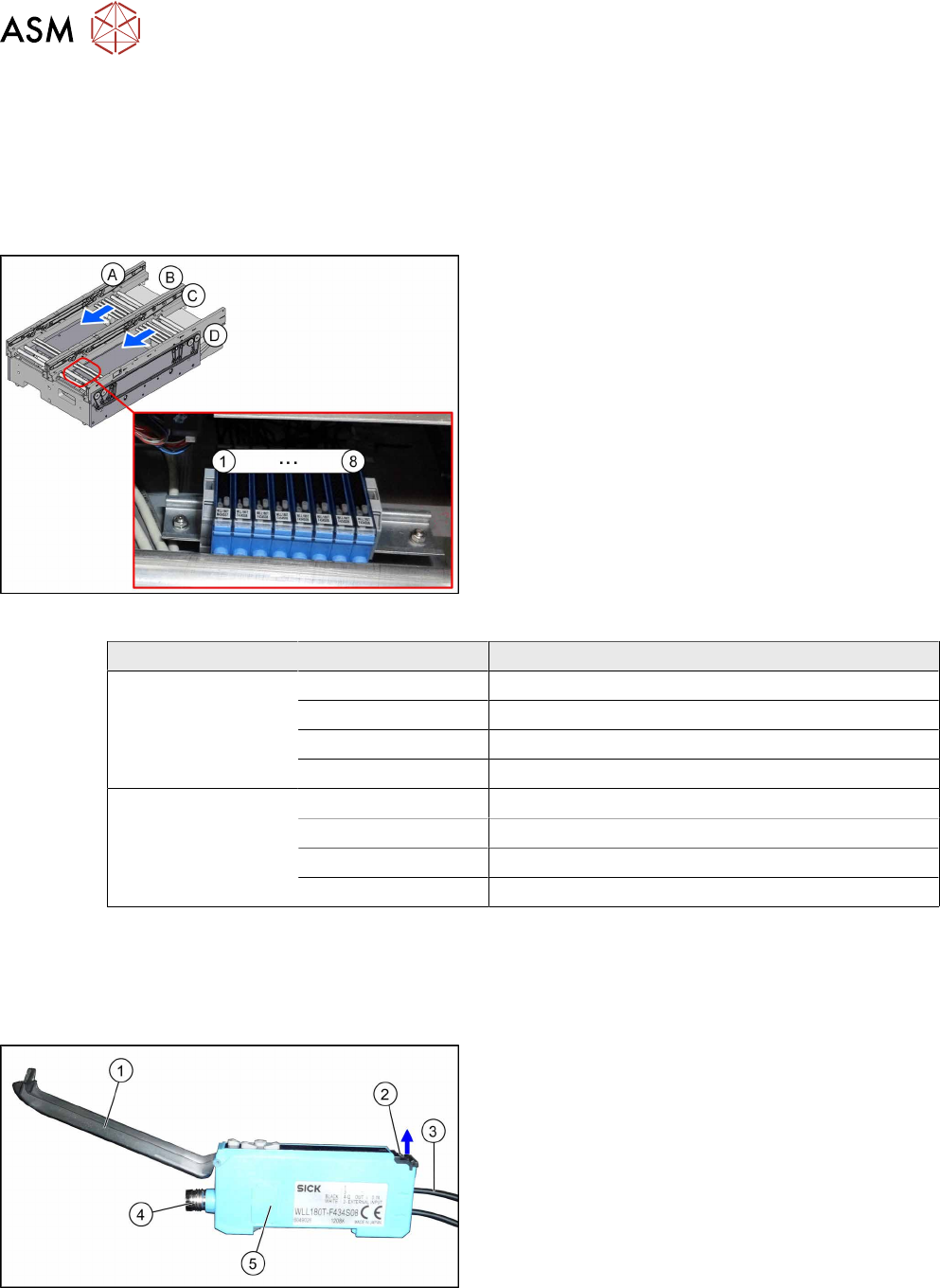
Fig.235: Fiber optic cable sensors
The fiber optic cable sensors are located at location 2
under the lifting table plate.
The sensors (1) to (8) for the input conveyor, place-
ment area (second sensor as option) and output area.
The receiver is always at the top of the sensors and
the transmitter at the bottom.
Conveyor lane Designation Location
Lane 1 1 (master) Input belt
2 (slave) Placement area
3 (slave) Second sensor as option
4 (slave) Output belt
Lane 2 5 (slave) Input belt
6 (slave) Placement area
7 (slave) Second sensor as option
8 (slave) Output belt
The master synchronizes the slaves to prevent any mutual interference. This is conducted via a
side connection to the neighboring sensor. For this reason, do not simply lift the sensors up and off
the strip.
Each sensor has two fiber optic cables connected (transmitter/receiver), which belong to the same
conveyor belt (segment).
Fig.236: Fiber optic cable sensor
1. Cover
2. Locking the fiber optic cables
top = open
bottom = closed
3. Fiber optic cable
4. Electrical connection
5. Electrical connection to neighboring receiver (un-
der the plastic cover)
7 Conveyor
7.6 Fiber Optic Cable and Light Barriers
Service Manual SIPLACE TX Series 06/2017 175
Removal
CAUTION
Do not bend the fiber optic cable
► Make sure you do not bend the fiber optic cable. Otherwise the cable will become
cloudy and no longer transmit the signal properly.
► Use the software or manually move the conveyor rail into a position which allows you best ac-
cess.
– To move the conveyor rail manually, pull the toothed belt of the width adjustment unit.
► Switch off the machine, disconnect it from the power supply and secure it to prevent
unauthorized reactivation. Observe the instructions in section 1.2 "Preparatory Work..." [}15].
► Move all gantries out of the transport area as far as possible at one side of the machine.
► Dismantle the cover on the fiber optic sensors.
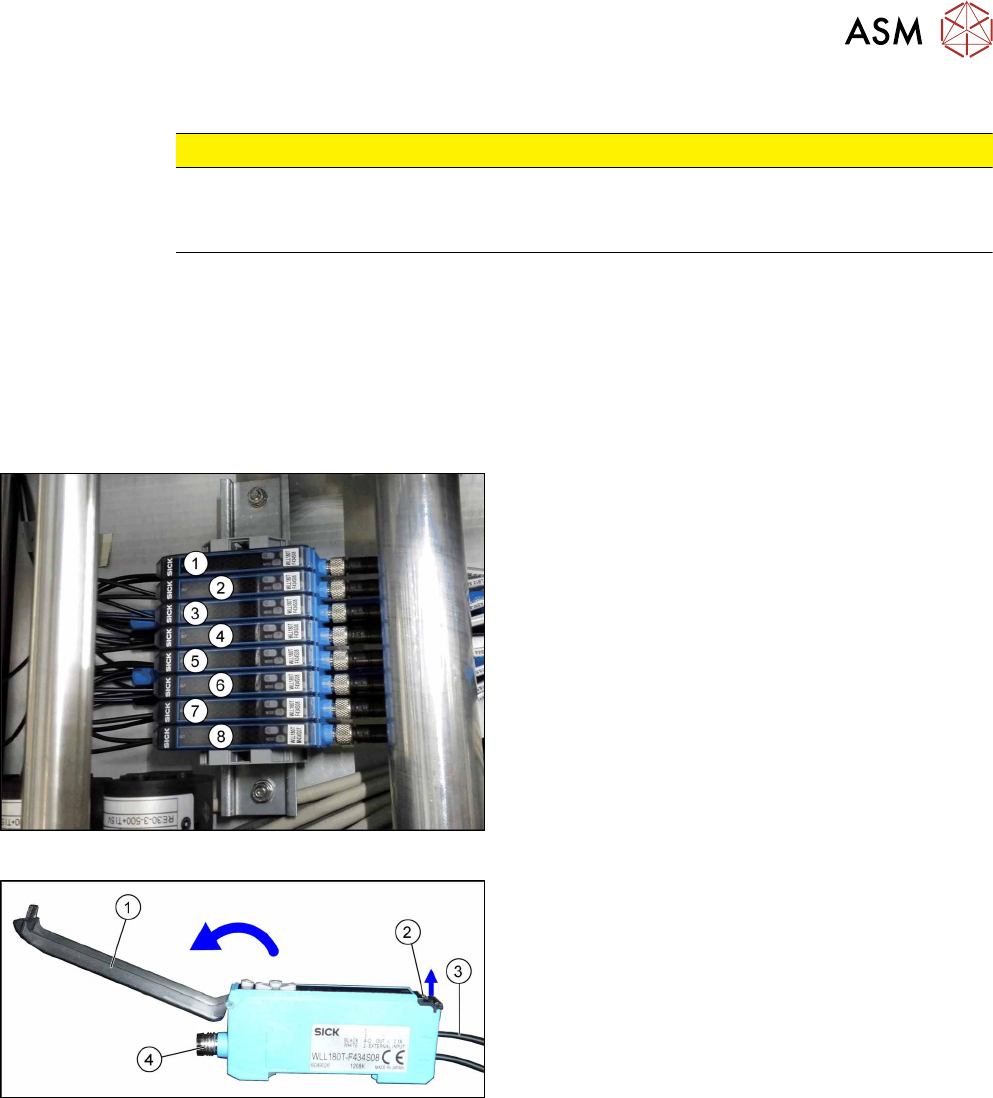
Fig.237: Fiber optic cable sensors
The individual sensors are connected to one another
via a small terminal strip.
Dismantle the row after the sensors, beginning with (8)
(lane2, output belt) until you have reached the sensor
to be replaced. Perform the following tasks at each
sensor:
► Open the cover(1) on the sensor.
► Open the lock(2) on the fiber optic cables(3) and
then pull off the fiber optic cables. You might like
to mark their positions to make clear assignment
easier later on.
► Disconnect from the power supply(4). You may
want to mark the position, to make clear assign-
ment easier later on.
► Pull the sensor slightly away from the other
sensors, to loosen the electrical connection to the
neighboring sensor. Now you can pull the sensor
up and off the strip.
► Repeat these steps if needed for any other
sensors.
7 Conveyor
7.6 Fiber Optic Cable and Light Barriers
176 Service Manual SIPLACE TX Series 06/2017
Installation
► Follow the removal instructions in reverse order for installation. Also observe the following in-
structions:
CAUTION
Installation instructions
► Check the setting on the fiber optic sensor and correct if necessary (see following sec-
tion).
New sensors are preset.
► Remove the plastic cover for the sensor on the side press-fit connections, if needed.
► Teach the PCB sensors.
See also
2 Setting the Fiber Optic Cable Sensor [}176]
7.6.5.1 Setting the Fiber Optic Cable Sensor
The brightness of the sensors changes according to the positions of the conveyor sides. For this
reason, the sensors are automatically recalibrated after each automatic adjustment of the conveyor
sides.
If the conveyor sides are manually adjusted, there will be no automatic calibration. In this case, cal-
ibration needs to be manually triggered in the Service menu. Without this calibration, the station
software will show boards which are not physically present.
You can check the correct calibration on the sensor modules.
●
Red display: current signal strength of receiver
●
Green display: reference value of receiver
A board is recognized if the value in the red display is smaller than the value in the green display.
Without a board, the value of the green display must be 10 to 20% smaller than the value of the
red display.
During calibration, the reference value (green display) is automatically set to a lower value than the
current signal strength (red display). It is assumed that there is no board in the sensor range at this
moment.
The absolute sensor value is not significant. This can vary between sensor modules.
NOTICE
No board in conveyor
When calibrating the light barriers make sure that there is no board in the conveyor.