00198140-01_UM_JTF-ML_TX12_de_en.pdf - 第100页
Setting up and Commissioning Configuration of JEDEC Tray Feeders in SIPLACE Pro 4.3.5 Configu ration of the Setup – Setup Tree View 100 JEDEC Tray Feeder (JTF-ML) 4.3.5 4 . 3 . 5 C o n f ig u r a t io n o f t h e S e t u…
Setting up and Commissioning
4.3.4 Assignment of JEDEC Tray to the Component Shape – Component Shape Tree View Configuration of JEDEC Tray Feeders in SIPLACE
JEDEC Tray Feeder (JTF-ML) 99
4.3.4
4.3.4 Assignment of JEDEC Tray to the Component Shape – Component Shape Tree View
Assignment of JEDEC Tray to the Component Shape – Component Shape Tree View
To be able to place a component with the JEDEC tray feeder later on, you must assign a JEDEC tray to
the component shape.
Component Shape Tree View
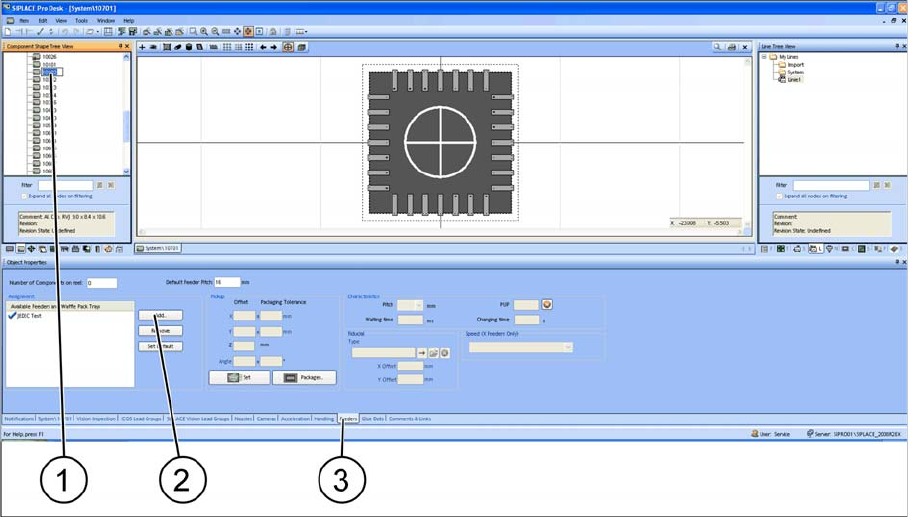
► (1) Select the component shape.
► (3) Select the Feeders tab.
► (2) Select Add to add the JEDEC tray.
► Select an appropriate JEDEC tray from the list. The selected JEDEC tray is displayed under Assign-
ment.
Setting up and Commissioning
Configuration of JEDEC Tray Feeders in SIPLACE Pro 4.3.5 Configuration of the Setup – Setup Tree View
100 JEDEC Tray Feeder (JTF-ML)
4.3.5
4.3.5 Configuration of the Setup – Setup Tree View
Configuration of the Setup – Setup Tree View
4.3.5.1
4.3.5.1 Head Configurations on the SIPLACE TX 1 and TX2
Head Configurations on the SIPLACE TX 1 and TX2
The SIPLACE JTF-ML feeder may only be configured at location 1, with the following heads:
1. CPP_H
2. TwinHead
You can perform the table configuration if one of these heads is configured.
4.3.5.2
4.3.5.2 Table Configuration
Table Configuration
After you have configured one of the heads mentioned in Head Configurations SX1, SX2, X Series S
and X4i S, select the necessary table type that is the prerequisite for setting up a JEDEC tray feeder.
The table types are:
▪ SIPLACE SX1 and SIPLACE SX2 : MTF table 60 X
▪ SIPLACE X-Series S and SIPLACE TX-Series: MTF table 40 X
SIPLACE Pro table configurations (example of SIPLACE SX1/SX2)
Example:
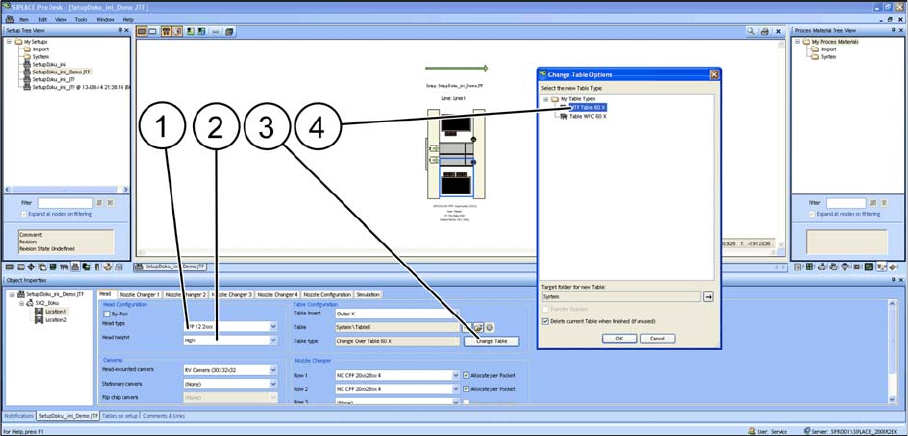
► (1) Head type: CPP 12 2xxx
► (2) Head height: Due to selection of CPP 12 2xxx, select High.
► (3) Table type: Change Table
► (4) Confirm the selection of each table type and click on OK.
After the relevant table type has been selected, the options in the Camera and Nozzle Changer fields
are automatically disabled. For design reasons, these configuration options are no longer available after
the table type has been selected.
All cameras and nozzle changer configurations that are selectable are displayed as active.
Setting up and Commissioning
4.3.5 Configuration of the Setup – Setup Tree View Configuration of JEDEC Tray Feeders in SIPLACE Pro
JEDEC Tray Feeder (JTF-ML) 101
4.3.5.3
4.3.5.3 Configuring the JEDEC Tray Feeder on the Table
Configuring the JEDEC Tray Feeder on the Table
There are two ways to set up the JEDEC tray feeder on the table:
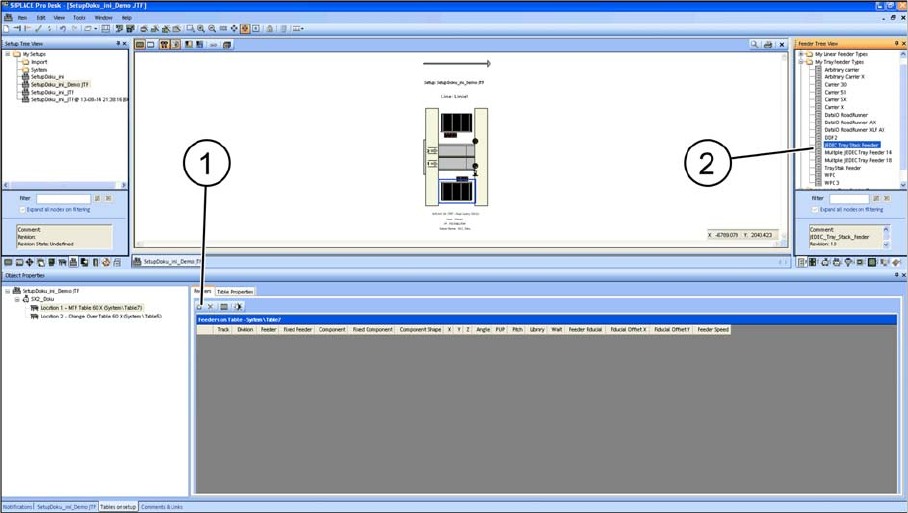
▪ Manually dragging the JTEDEC tray feeder onto the table (2).
▪ By selecting the Insert a new item into the collection (1) menu option.
Configuring the JEDEC Tray Feeder
The JEDEC tray feeder is always set on the track that is allowed for the machine.
This track cannot be changed.
▪ SIPLACE SX1/SX2: tracks 11 - 26
▪ SIPLACE X-Series S, location 3: tracks 1 – 15
▪ SIPLACE X-Series S, location 2: tracks 27 – 40
▪ SIPLACE TX-Series: tracks 29 – 40 (SIPLACE JTF-ML FDK)