00198140-01_UM_JTF-ML_TX12_de_en.pdf - 第98页
Setting up and Commissioning Configuration of JEDEC Tray Feeders in SIPLACE Pro 4.3.3 Configu ration of the Station – Station Tree View 98 JEDEC Tray Feeder (JTF-ML) Tray Tree View – Assign Feed er ► After defining a JED…
Setting up and Commissioning
4.3.2 JEDEC Tray Description – Tray Tree View Configuration of JEDEC Tray Feeders in SIPLACE Pro
JEDEC Tray Feeder (JTF-ML) 97
4.3.2
4.3.2 JEDEC Tray Description – Tray Tree View
JEDEC Tray Description – Tray Tree View
Tray Tree View
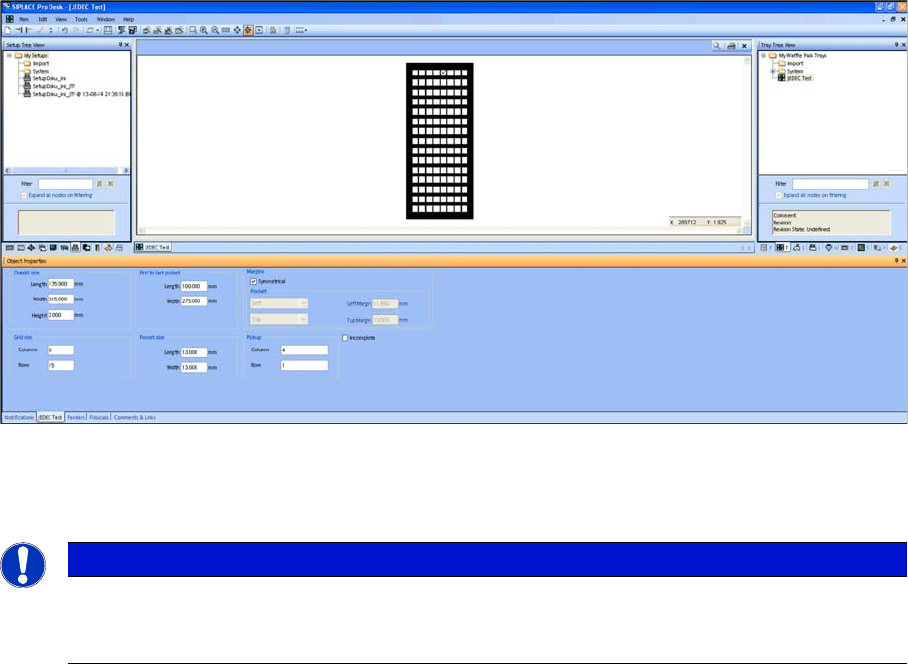
► Define one JEDEC tray with dimensions that comply with the JEDEC tray standard.
► For the dimensions, refer to the data sheet of the manufacturer.
NOTICE
JEDEC tray standard
In order to fit in a JEDEC tray feeder, the dimensions must comply with the JEDEC tray stand-
ard. In the example, a JEDEC tray with the name JEDEC Test was defined.
Setting up and Commissioning
Configuration of JEDEC Tray Feeders in SIPLACE Pro 4.3.3 Configuration of the Station – Station Tree View
98 JEDEC Tray Feeder (JTF-ML)
Tray Tree View – Assign Feeder
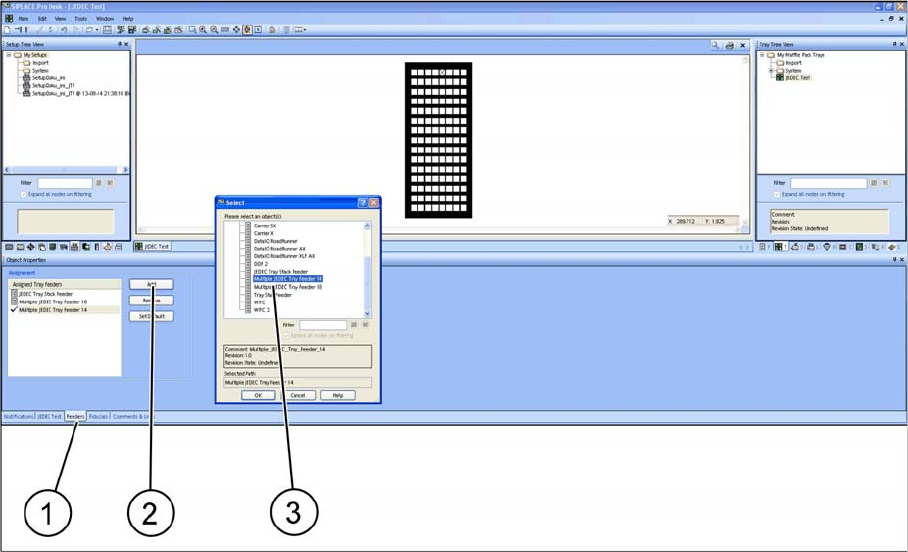
► After defining a JEDEC tray you must assign it to a feeder. Select the relevant SIPLACE JTF feeder
type.
► Select the Feeder tab (1).
► Select Add to add a feeder or Remove to remove a feeder (2).
► Select the relevant SIPLACE JTF feeder(s) (multiple selection is possible) and confirm with OK. As-
signed SIPLACE JTF feeders (3) are displayed in the Assignment window.
4.3.3
4.3.3 Configuration of the Station – Station Tree View
Configuration of the Station – Station Tree View
Not every station can be configured for the use of a JEDEC tray feeder.
TX
The following stations with station software 709.0 or higher support the SIPLACE JTF-ML.
▪SIPLACE TX1
▪SIPLACE TX2
Setting up and Commissioning
4.3.4 Assignment of JEDEC Tray to the Component Shape – Component Shape Tree View Configuration of JEDEC Tray Feeders in SIPLACE
JEDEC Tray Feeder (JTF-ML) 99
4.3.4
4.3.4 Assignment of JEDEC Tray to the Component Shape – Component Shape Tree View
Assignment of JEDEC Tray to the Component Shape – Component Shape Tree View
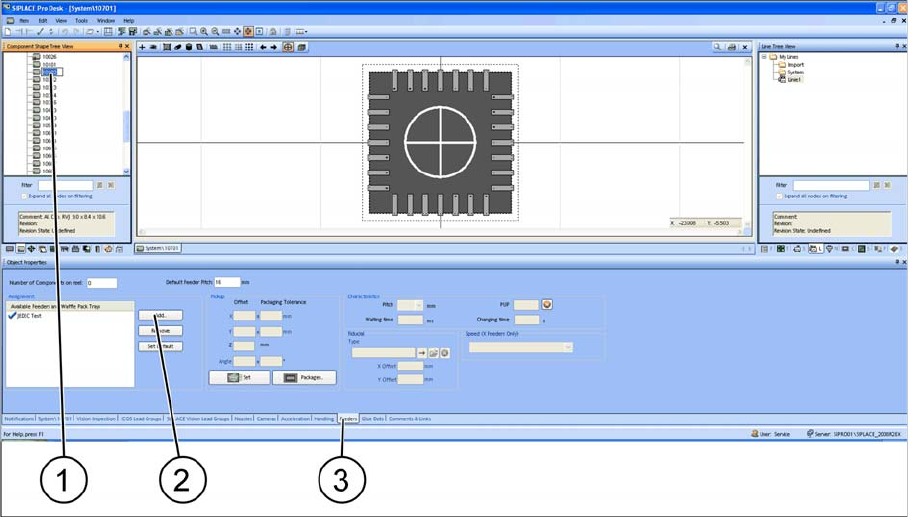
To be able to place a component with the JEDEC tray feeder later on, you must assign a JEDEC tray to
the component shape.
Component Shape Tree View
► (1) Select the component shape.
► (3) Select the Feeders tab.
► (2) Select Add to add the JEDEC tray.
► Select an appropriate JEDEC tray from the list. The selected JEDEC tray is displayed under Assign-
ment.