00198140-01_UM_JTF-ML_TX12_de_en.pdf - 第110页
Tasks on the Machine Operating the JEDEC Tray Feeder in the Station Software 5.3.2 "D isplay, Check and Set up Feeders, Components and N ozzles" Menu 110 JEDEC Tray Feeder (JTF-ML) 5.3.2 5 . 3 . 2 " D is p…
Tasks on the Machine
5.3.1 JEDEC Tray Feeder Configured in SIPLACE Pro and Defined at the Machine Operating the JEDEC Tray Feeder in the Station Software
JEDEC Tray Feeder (JTF-ML) 109
5.3.1
5.3.1 JEDEC Tray Feeder Configured in SIPLACE Pro and Defined at the Machine
JEDEC Tray Feeder Configured in SIPLACE Pro and Defined at the Machine
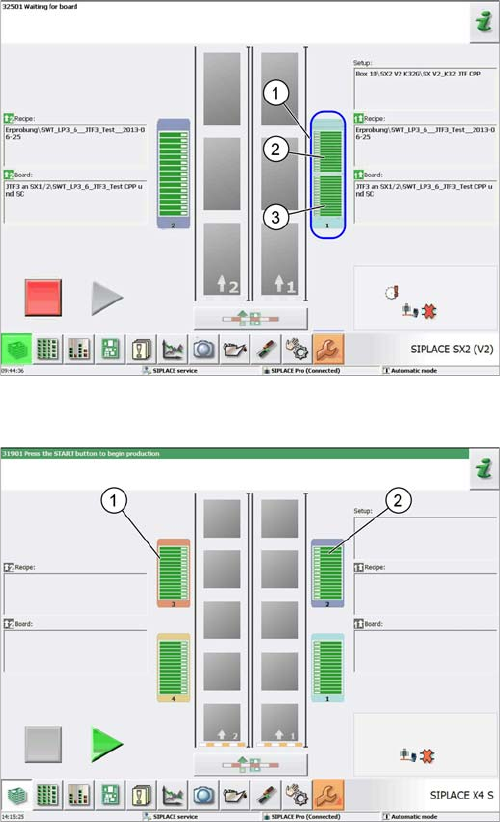
If a JEDEC tray feeder has been configured in SIPLACE Pro, the corresponding location is divided into
two areas when the job is defined for the machine. For X-Series S machines the location is not divided.
Location view
(example of SIPLACE SX2 V2)
1. Location 1 – two areas
2. Area for tapeless feeders
3. Area for SIPLACE JTF feeders
Location view
(example of SIPLACE X4 S)
1. Location 3
2. Location 2
Tasks on the Machine
Operating the JEDEC Tray Feeder in the Station Software 5.3.2 "Display, Check and Set up Feeders, Components and Nozzles" Menu
110 JEDEC Tray Feeder (JTF-ML)
5.3.2
5.3.2 "Display, Check and Set up Feeders, Components and Nozzles" Menu
"Display, Check and Set up Feeders, Components and Nozzles" Menu
5.3.3
5.3.3 Selecting the JEDEC Tray Feeder at the Location
Selecting the JEDEC Tray Feeder at the Location
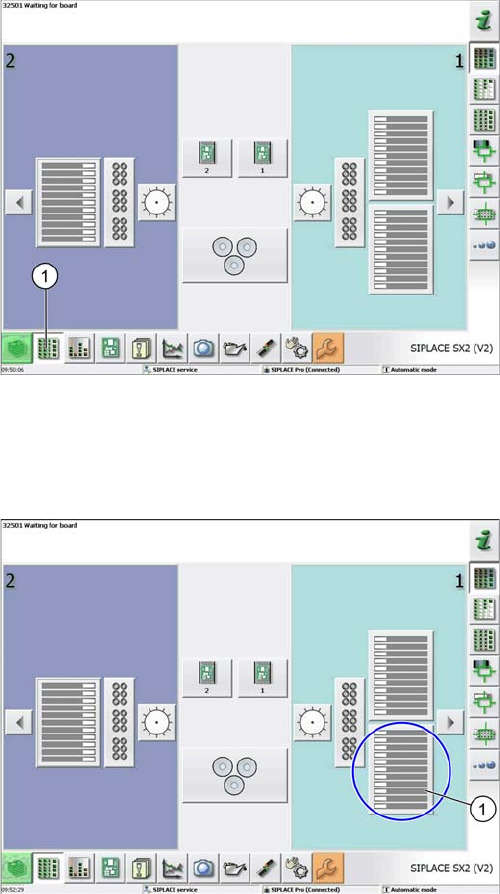
Select menu
(example of SIPLACE SX2 V2)
► Select the Display, check and set up feeders, compo-
nents and nozzles menu (1) to display the sub views
of the relevant locations.
Loc 1 at location 1
(example of SIPLACE SX2 V2)
► Select the relevant location (1) to display the view of
the current setup.
Tasks on the Machine
5.3.3 Selecting the JEDEC Tray Feeder at the Location Operating the JEDEC Tray Feeder in the Station Software
JEDEC Tray Feeder (JTF-ML) 111
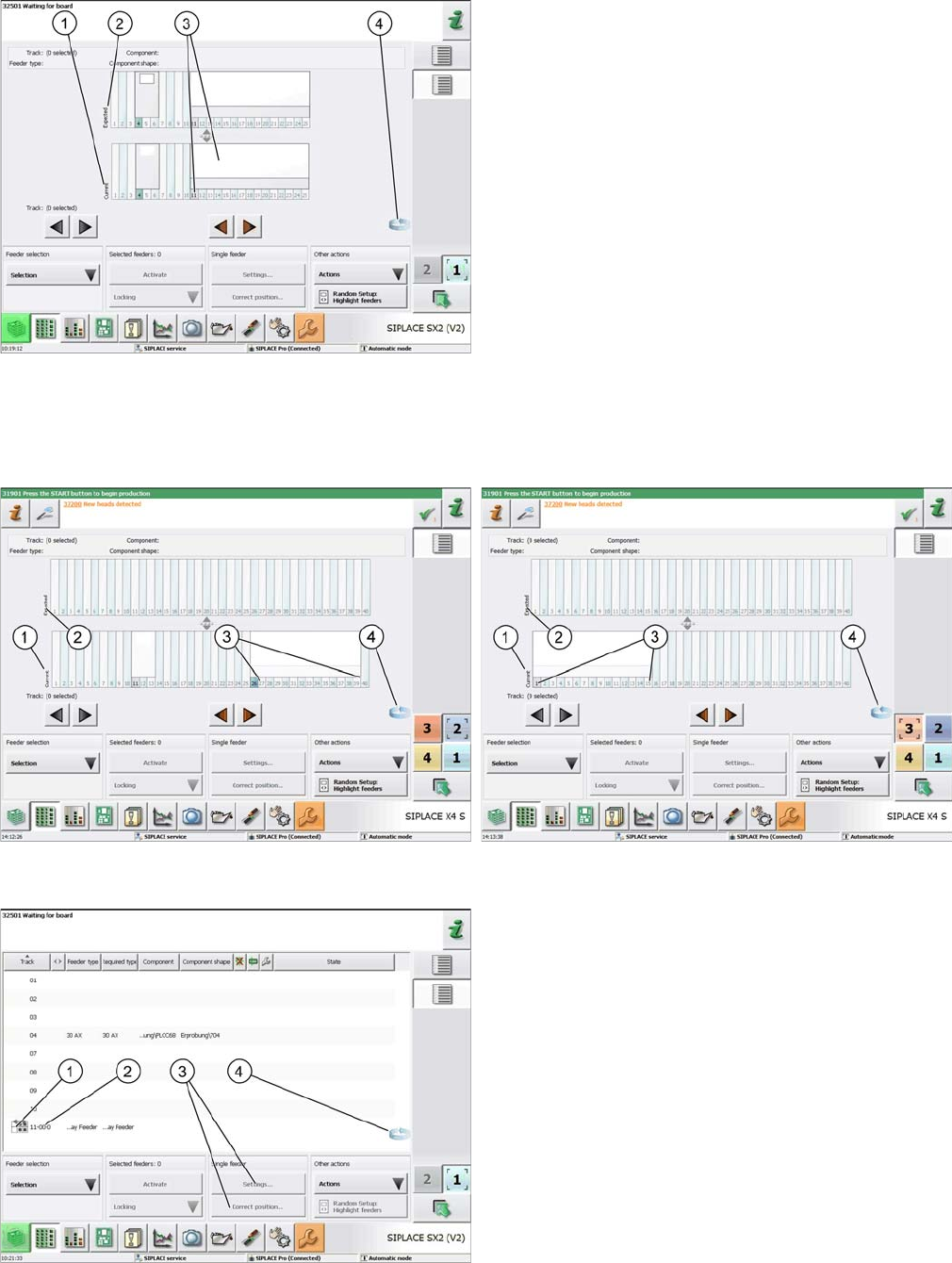
SIPLACE X-Series S:
Loc 1 selected at location 1
(example of SIPLACE SX1/2)
1. Current setup (currently set-up feeders)
2. Expected setup (setup expected by SIPLACE Pro)
3. SIPLACE JTF-S, SIPLACE JTF-M feeders on
SIPLACE SX1/2
4. Change button for switching to the Track information
sub menu.
► Press the change button to display the Track informa-
tion submenu.
Location 2 = tracks 27 to 40
(example of SIPLACE X4 S)
Location 3 = tracks 1 to 15
(example of SIPLACE X4 S)
Track 11 selected
(example of SIPLACE SX2 V2)
1. SIPLACE JTF-S, SIPLACE JTF-M for SIPLACE SX1/
2
2. Abbreviation for the SIPLACE JTF feeder (visualiza-
tion)
3. The settings menu is not active until the relevant track
has been selected (highlighted in blue color)
4. Change button to switch back to the current setup
view