00191025-01.pdf - 第61页
SIPLACE 80S/F/G User’s Manual 2 Display and Operati ng Elements Edition 07/97 from S oftwareversion SR.010.xx 2.3 Keyboard C ontrol of the Machine 2 - 13 ● Menu windows with display panel A displ ay panel is shown be sid…
2 Display and Operating Elements SIPLACE 80S/F/G User’s Manual
2.3 Keyboard Control of the Machine Edition 07/97 from Softwareversion SR.010.xx
2 - 12
●
Using the keyboard at the main menu
After the station computer completed its start-up, the selector cursor is positioned at the first option. Key
assignments are shown in Fig. 2.2.3.
-
Cursor up / down, left / right Use these keys to move the cursor in the direction desired.
No menu window is shown at this stage.
-
RETURN RETURN activates that menu item on which the cursor is
positioned.
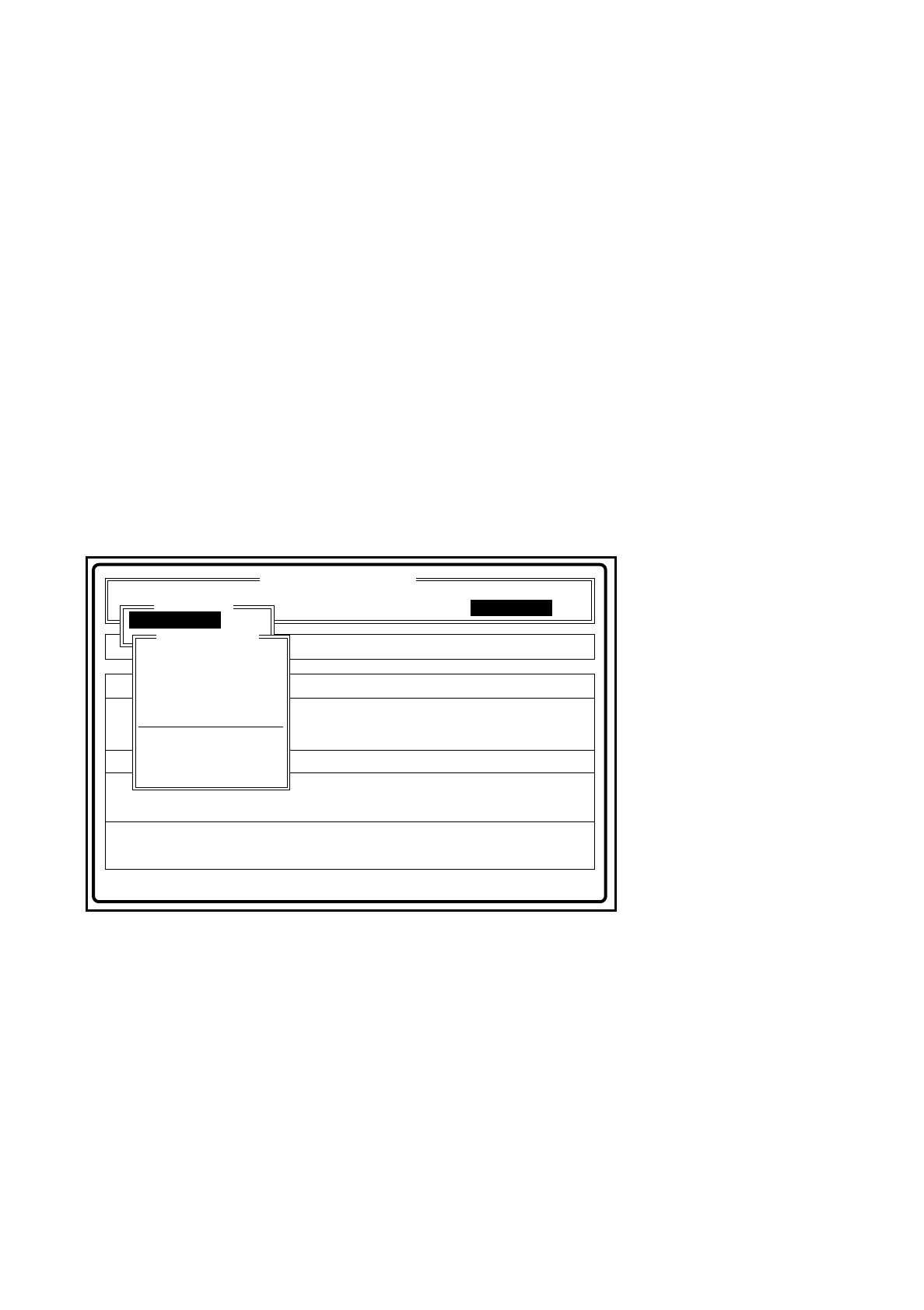
2.3.2 Menu Control and Key Assignments with Menu Windows
With the menus the following kinds of displays are distinguished:
●
Menu windows
Menu items are presented vertically in a menu window
Fig. 2.3.2 Example of menu window
●
Using the keyboard in a menu window (with and without display panel)
If you have activated a menu window, the selector cursor will be positioned on the first option.
-
Cursor up / down These keys are used to move the selector cursor.
-
RETURN key When this key is pressed the menu item upon which the cursor is
positioned is activated.
-
ESC key This key deactivates the active menu window and positions the
selector cursor on the previous menu item.
Disp track error
Error
State:
Action:
tem
Enter fiducial number to be processed
Rüstung:
Placement optns Single functions
Disp machine error Software options
:
:
:
Comp feeding
Clustr:
SIPLACE 80S Version 1.0
Visionsystem
Teach fiduc.
Vision system
Enter fiducial number
New fiduc
Alter fiduc.
Test fiduc.
Travel x/y axes
PCB to cent. conv.
PCB to output conv
Teach portal
Center fiducial
Width adjustment
Teach fiduc.
SIPLACE 80S/F/G User’s Manual 2 Display and Operating Elements
Edition 07/97 from Softwareversion SR.010.xx 2.3 Keyboard Control of the Machine
2 - 13
●
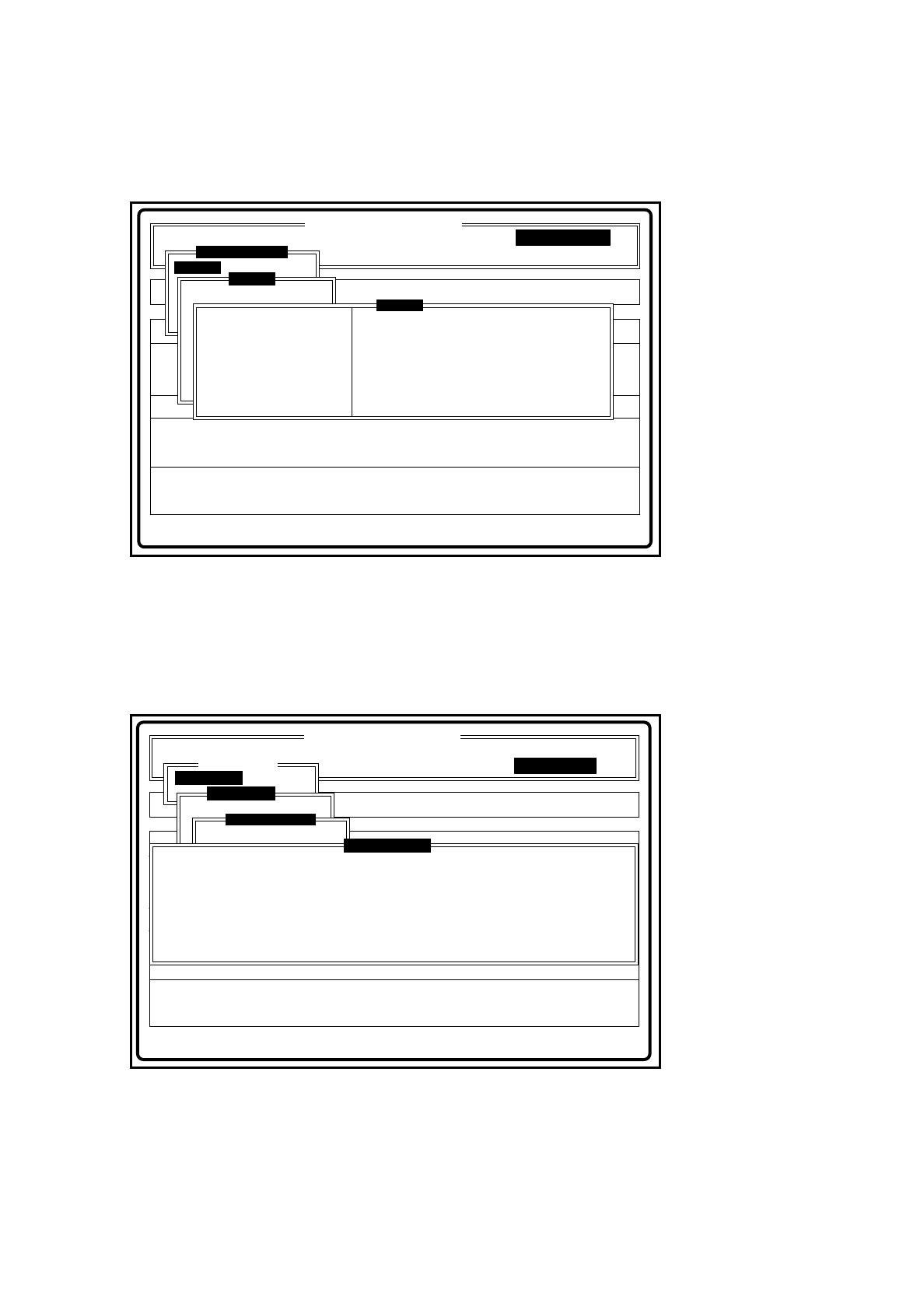
Menu windows with display panel
A display panel is shown beside the menu window which, for example, may contain measured values.
Fig. 2.3.3 Example of menu window with display area
●
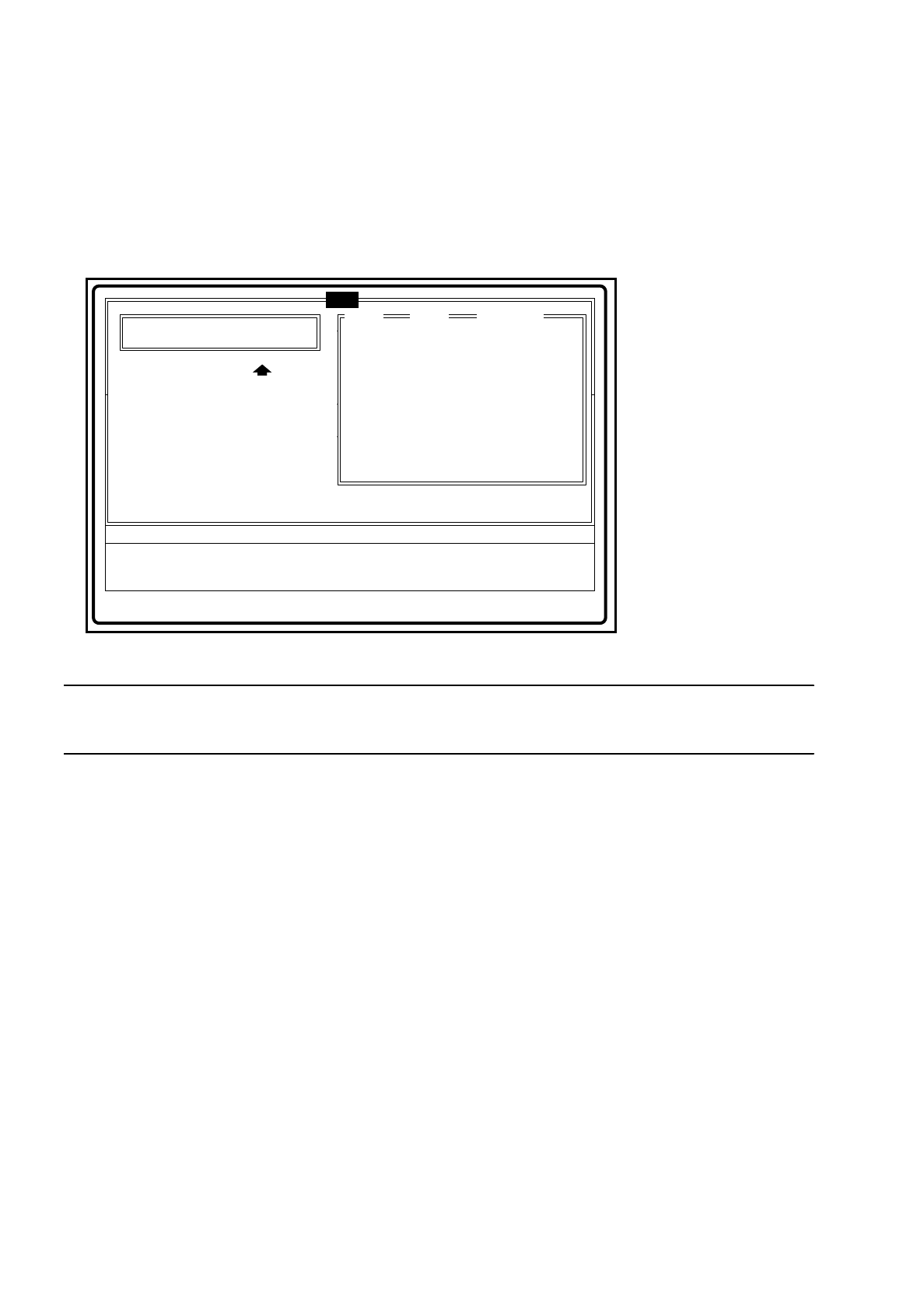
Menu windows with options field
-
Options field One or more options fields can be selected.
The options field selected is marked with an x in round brackets " ( ) ”
in front of it.
Fig. 2.3.4 Example of menu window with options field
Disp track error
Error
State
Action
tem
Actuate pusher in pickup/placement station
Placement optns
Disp machine error Software options
:
:
:
Comp feeding
Clustr:
SIPLACE 80S Version 1.0
Portal 1
Visionsystem
Go to service pos'n
Marke ändern
Marke testen
LP ins Mittenband
Single functions
Single functions
Portal 1
Pusher pickup pos'n
Pusher reject pos'n
Measure nozzle
Vacuum test
Star in position 1
Cycle star
Head ref. run
Measure nozzle offset
Head
Disp track error
Error
State
Action
tem
Adjust PCB transport width manually
Rüstung:
Placement optns Single functions
Disp machine error Software options
:
:
:
Comp feeding
Clustr:
SIPLACE 80S Version 1.0
Visionsystem
Teach fiduc.
Vision system
Marke ändern
LP ins Ausgabeband
Teach fiduc.
Enter fiducial number
Width adjustment
Specify setpt width
Breitenverstell.
Adjust manually
( ) High conv. speed
( ) Low conveyor speed
Esc: abort <: smaller >: larger
2 Display and Operating Elements SIPLACE 80S/F/G User’s Manual
2.3 Keyboard Control of the Machine Edition 07/97 from Softwareversion SR.010.xx
2 - 14
●
Menu windows with input and list field
-
List field List fields are used for specifying possible values. One or more values can
be selected. In addition, you also have the possibility of scrolling through the
list. If an input field is present, then the value selected is take over.
-
Input field The operator can input text.
Fig. 2.3.5 Example of menu window with input and list field
NOTE
Once values have been entered, they are automatically re-specified at the next call.
●
Using the keyboard within a menu window with options, input or list field
-
TAB The TAB key selects the next field in a menu window with
input and list field.
-
SHIFT-TAB With this key combination you can select the previous field in a menu
window with input and list field.
-
RETURN By pressing this key the operator transfers the input data to the program and
ends the input field if all data have been input.
-
ESC With this key you can abort inputting into an input or options field.
Any data which may have been input are discarded.
-
Cursor up / down With these keys you can move the cursor within a group of options fields
and within input or list fields. If the cursor is located at the stop in the list
field, then scrolling is line by line.
-
Bild
↑
[Page up] /
-
Bild
↓
[Page dn] If the cursor is positioned in the list field, then scrolling will be page by page.
-
Space bar This key switches the status of an options field or marks a field in a list field.
-
Ende [End] When this key is pressed the cursor jumps to the end of the data.
-
Pos1 [Home] When this key is pressed the cursor jumps to be beginning of the data.
Error
State
Action
Fill empty tracks and acknowledge
:
:
:
Rüstung:
Breitenverstell.
Esc: abort Tab: change wind
Refill
Table Track Comp. name
Track Barcode
Comp. Barcode
:
:
1
2
2
2
2
2
2
6
6
7
8
9
10
17
C2
R2
C2
R3
R2
L1
L2
Input field
List field
tem