00191025-01.pdf - 第89页
SIPLACE 80S/F/G User’s Manual 5 Placement Edition 12/96 from S oftware Version SR.009.xx 5.4 Component Handling 5 - 13 5.4.4 Menu "Refill" If you ha ve sele cted the m enu item "Refill" i n the menu &…
5 Placement SIPLACE 80S/F/G User’s Manual
5.4 Component Handling Edition 12/96 from Software Version SR.009.xx
5 - 12
NOTE
If refill check has been set in the machine options, only then will it be possible to refill and reset using bar-
codes.
If refill check has not been set in the machine options, it is possible to choose whether to use the barcode
function. It is however still possible to perform a manual reset.
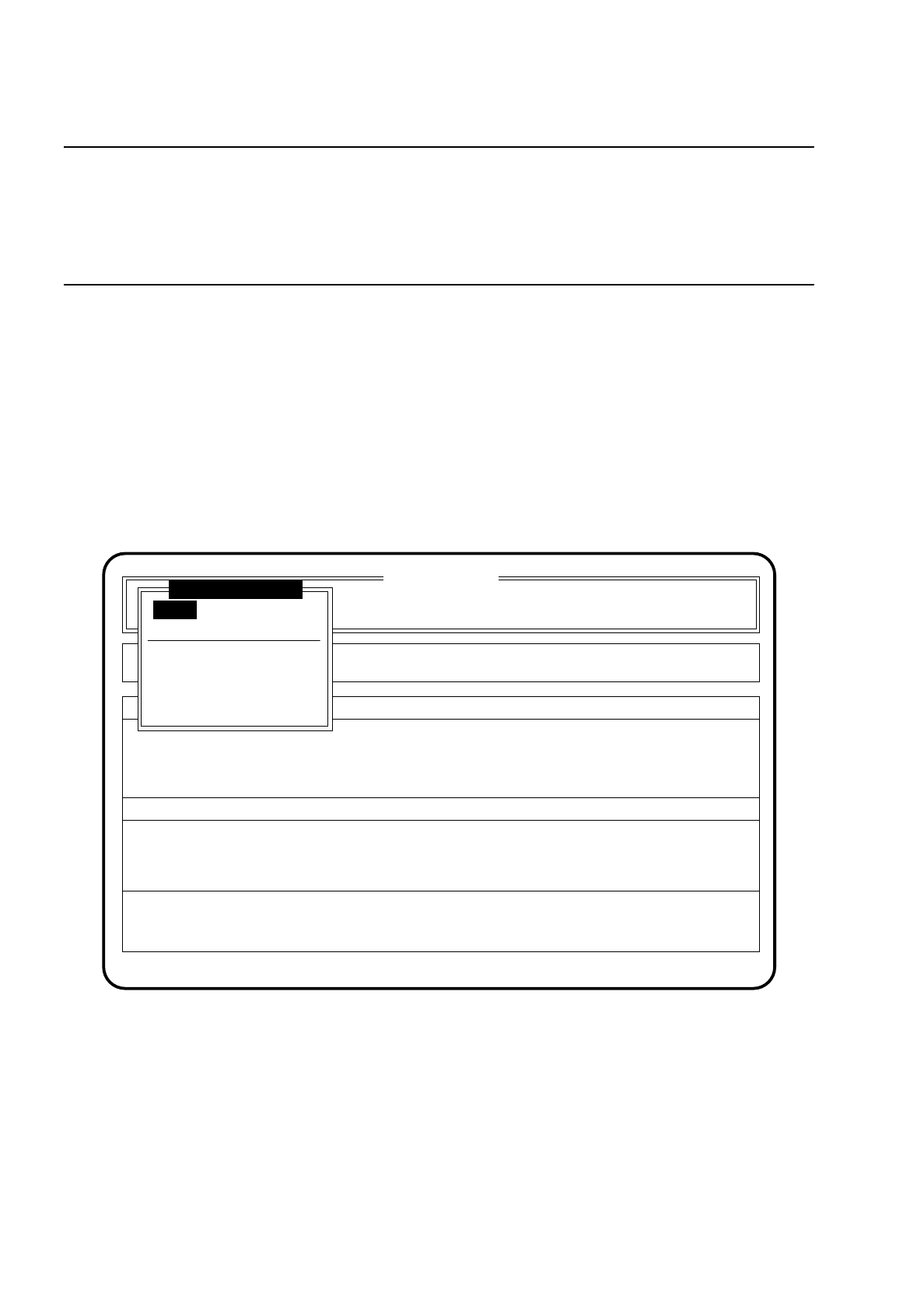
5.4.2 Menu "Component Feeding"
●
In the main menu use the
cursor keys
to select the menu item "Component feeding" . The menu "Compo-
nent feeding" is displayed on the screen.
●
Press the
Esc key
to return to the main menu.
●
If you wish to make any inputs (eg setting tracks to full), use the
cursor keys
to select a menu item and
press the
Return key
.
Fig. 5.4.1
5.4.3 Function "Fill all"
After entering the
line engineer password
the function "Fill all" is shown in the menu "Component feeding".
After selecting this function using the
cursor keys
and calling using the
Return key
, all empty tracks are set to
full and the relevant track errors cancelled. To enable this function to be performed, the refill test in the
machine options menu must be disabled (see Section 5.3.1).
SI 80 V 9.x
Cluster:
BE - Zuführung
Neuer Nutzen
Display errors
Confirm errors
Machine options Single functions
Error
State
Action
:
:
:
Softwareoptionen
Masch.Fehler anz.
Spurfehler anz.
Refill
Location 1
Location 2
Location 3
Location 4
Component feeding
Fill all
Fill empty tracks separately and continue
SIPLACE 80S/F/G User’s Manual 5 Placement
Edition 12/96 from Software Version SR.009.xx 5.4 Component Handling
5 - 13
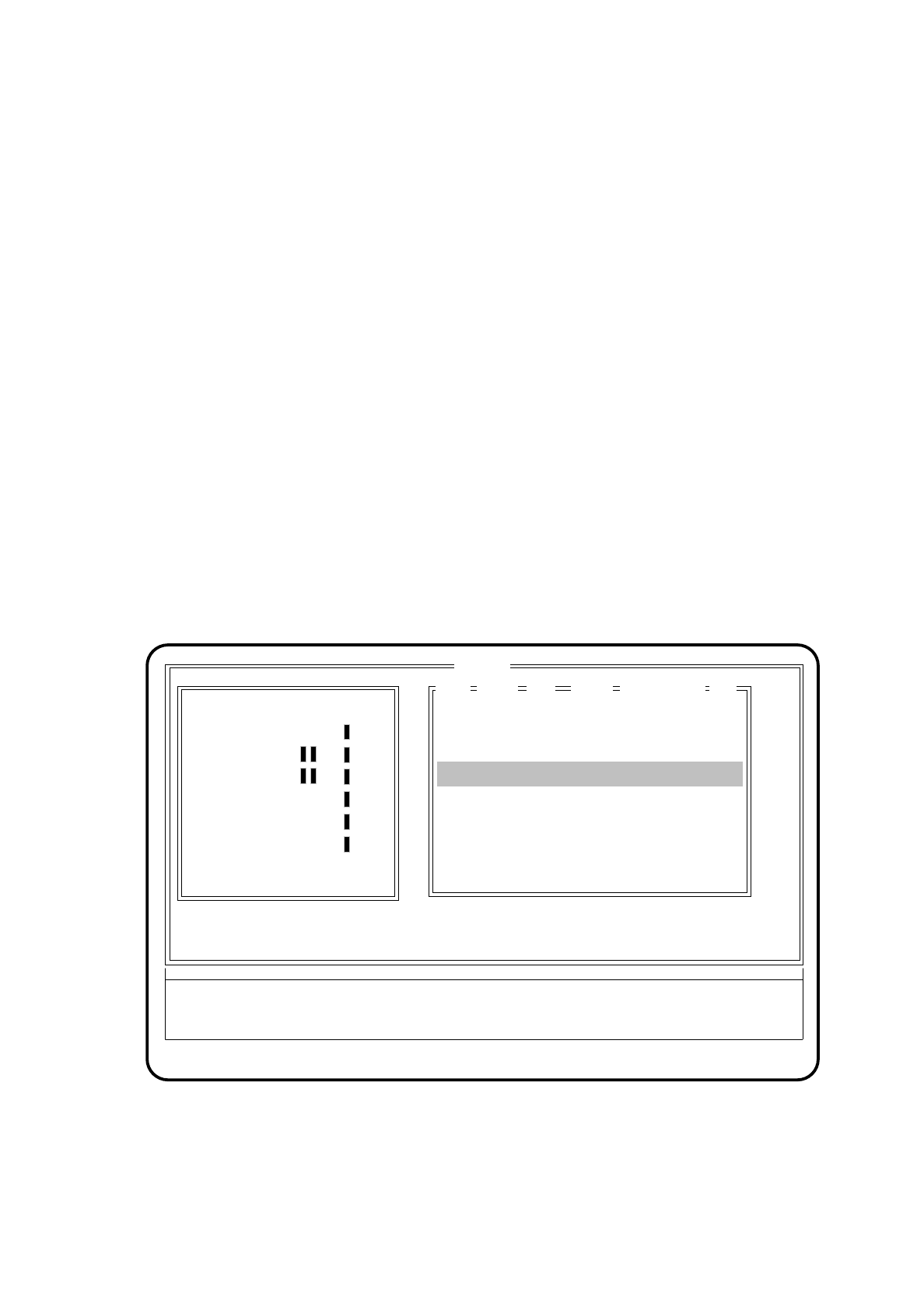
5.4.4 Menu "Refill"
If you have selected the menu item "Refill" in the menu "Component feeding", the "Refill" menu appears on the
screen.
In this menu all inputs connected with track assignment are carried out. You can use the barcode reader
(option) or the keyboard to make the inputs.
Key Functions:
-
Esc key:
This key is used to return to the "Component feeding" menu.
-
Return key:
With this key the inputs are taken over and the track which has been checked
(it is highlighted by a yellow background) is set to full. Tracks which have not been
checked are set to empty.
-
Spacebar:
Using this key a line can be selected in the righthand window of the refill menu.
-
Tab key:
Using this key you can move between the two windows.
-
Cursor keys:
Using these keys the cursor bar can be moved within the selected window.
Fig. 5.4.2
BC
1. BC + filter:
4. BC + filter:
2. BC + filter:
3. BC + filter:
5. BC + filter:
6. BC + filter:
12 1 0
CO-R12534 *
33 1 0
CO-R12534 -
69 1 0
CO-R12534 *
48 1 0
CO-R12534 -
2007
TRX-7
TRY-3
Y-7
B-7
TRX-8
TRA-7
02
08
03
04
07
04
Error
State
Action
:
:
:
Fill empty tracks separately and continue
ESC: abort Ret. input Blank: select Tab: change wind
Track barcode:
Comp barcode:
Refill
Level Comp nameDivTrackLoc

5 Placement SIPLACE 80S/F/G User’s Manual
5.4 Component Handling Edition 12/96 from Software Version SR.009.xx
5 - 14
Input Options
Lefthand window:
-
Track barcode:
Input of the track bar-code using the bar-code pen by running it over the
track bar-code at the machine or by using the keyboard to enter the track bar-code.
-
Des'd BC w. filt:
Possible bar-codes are shown here.
If a filter was entered in the LC for certain positions in the barcode this will be
shown here. The masked-out positions are marked by a rectangle.
-
Comp. barcode:
Input of component barcode by reading in the barcode on the component package
or by entering the component barcode via keyboard.
Righthand window:
-
Displays the table side, track number and component name belonging to the track barcode selected.
-
Listing the empty tracks when the "Refill" menu is called during placement. In this listing it is possible to
display, by pressing the
spacebar
, the track barcode belonging to the line which was selected with the
cur-
sor bar
.
When the refill check is not enabled (see Chapter 5.3 "Options") it is possible to call the corresponding
component barcode by pressing the spacebar once more.
-
BC:
* With this track at least one component bar-code will be present. Bar-code comparison is possible.
When fill check is enabled the bar-code comparison is mandatory.
- This component bar-code is not found. You can fill manually.
NOTE
Up to 40 characters may be entered as a component barcode. The display can be scrolled in the display area
Component barcode with filter. Arrows indicate in which direction the characters in the display area should be
read.
5.4.4.1 Setting Tracks Full
●
Read in or enter the track bar-code and then the component bar-code of the track to be dealt with.
●
Press the
Return key
or move the
pen reader
over the return barcode. If the track and the component bar-
code agree with one another, the corresponding line in the righthand window is highlighted by a yellow
background. If the track and component barcodes do not agree with one another, a warning message is
displayed.