00197725-12_GS_SE3.11_EN.pdf - 第15页
Getting Started SIPLACE Explorer 3 SIPLACE Explorer Runtime Envi ronment from 3.11 (R20-2) Edition 11/2020 EN 1 5 3 SIPLACE Explorer Runtime Environment This chapter describe s the menus and tools in the SIPLACE Explo re…
2 Overview of the SIPLACE Explorer Getting Started SIPLACE Explorer
Edition 11/2020 EN from 3.11 (R20-2)
14
2.1.3 Factory Configuration Utility
If you want to work with Factory Configuration Utility, you will also need to install the option
"Factory Configuration Utility". The following features will then be available: 2
– Overview of all SIPLACE production lines during production
– The factory website is the so-called "single entry point" for all production line websites i.e.
you can navigate directly from the factory website to all other production line websites.
– Factory Reporting
– Central organization of users with User Management
Please also read “SIPLACE Explorer Factory Configuration Utility” on page 77. 2
2.1.4 Development Environment
Development Environment is an independent application which supports all tools and utilities
from SIPLACE Explorer. 2
This application can be used as follows: 2
– Development of SIPLACE Explorer applications
– Configuration of line monitoring applications from the installed SIPLACE Explorer applica-
tions
– Creation of templates for SIPLACE Explorer applications
– Execution of the created line monitoring applications
Please note that the online monitoring of board production should be performed with Runtime En-
vironment. 2
Basic developer skills are required for Development Environment. 2

Getting Started SIPLACE Explorer 3 SIPLACE Explorer Runtime Environment
from 3.11 (R20-2) Edition 11/2020 EN
15
3 SIPLACE Explorer Runtime Environment
This chapter describes the menus and tools in the SIPLACE Explorer Runtime Environment: 3
– “Starting SIPLACE Explorer Runtime Environment” on page 15
– “Setting the Language” on page 17
– “User Management” on page 17
User management
– “SE Security Manager” on page 18
Managing access to the SIPLACE Explorer Runtime Environment tools
– “SE Manager” on page 20
Starting and stopping production line monitoring
– “Line Configuration” on page 28
Creating and processing an SMA with Line Configuration
– “Database Settings” on page 54
Creating and converting a database
– “Console” on page 62
Viewing system and error log reports for the production line
– “Performance Analyzer” on page 65
Evaluating the communication between the production line and SIPLACE Explorer
– “Archive Browser Wizard” on page 67
Recovering archived databases
3.1 Starting SIPLACE Explorer Runtime Environment
"Runtime Environment" runs as a Windows NT service and is automatically started whenever you
reboot your computer. You will see the icon in your Windows console. Right-click with the
mouse to open other applications and tools. 3
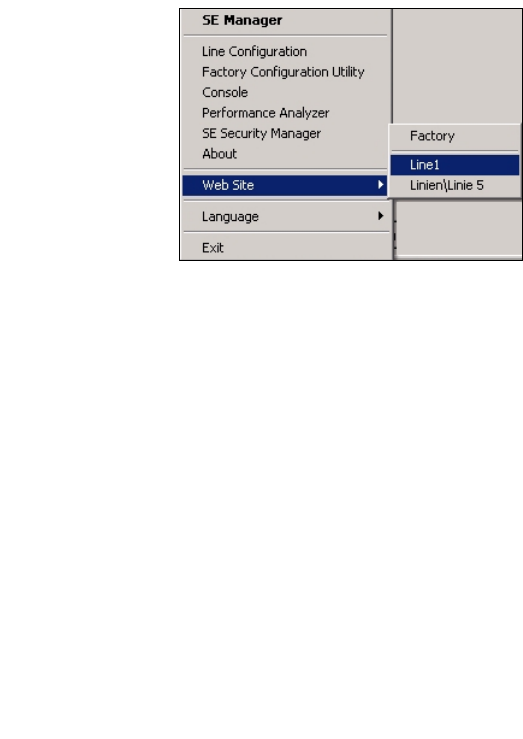
3 SIPLACE Explorer Runtime Environment Getting Started SIPLACE Explorer
Edition 11/2020 EN from 3.11 (R20-2)
16
3
Fig. 3 - 1 RTE Windows start menu
The following options are available: 3
– SE Manager
– Line Configuration
– Factory Configuration Utility
–Console
– Performance Analyzer
– SE Security Manager
– About
–Website:
Wit this menu, you can open the websites as well as the factory website.
– Language
– Exit
These additional applications and tools can also be started via the Programs SIPLACE
Explorer menu in Windows. 3
The following options are available: 3
– Archive Browser
–Console
– Documentation
– Error Reporting
– Factory Configuration Utility
– Line Configuration
– Modify Uninstall
– Performance Analyzer
– SE Manager