00197725-12_GS_SE3.11_EN.pdf - 第45页
Getting Started SIPLACE Explorer 3 SIPLACE Explorer Runtime Envi ronment from 3.11 (R20-2) Edition 11/2020 EN 4 5 3.6.1.7 Step 6 - Modify Application Parameters Parameters for the applicatio n yo u have created can be …
3 SIPLACE Explorer Runtime Environment Getting Started SIPLACE Explorer
Edition 11/2020 EN from 3.11 (R20-2)
44
NOTE
If you want to recover the data with the help of the Archive Browser, you must define a DB
maintenance schedule and disable Disable Maintenance Schedule. 3
NOTE
If you want to compress the database at next DB maintenance, you must enable Compress
one time at next DB maintenance.
We recommend enabling this DB compression step, when the user has restored the
SIPLACE Explorer line database or has moved the raw database files to another disk or to
another computer.
With the DB compression it is possible to avoid extended access times of the websites.
Follow the instructions at “Compressing the Database” on page 60. 3
Once you have defined all settings in Step 5, click on Next to continue with the next step.
Getting Started SIPLACE Explorer 3 SIPLACE Explorer Runtime Environment
from 3.11 (R20-2) Edition 11/2020 EN
45
3.6.1.7 Step 6 - Modify Application Parameters
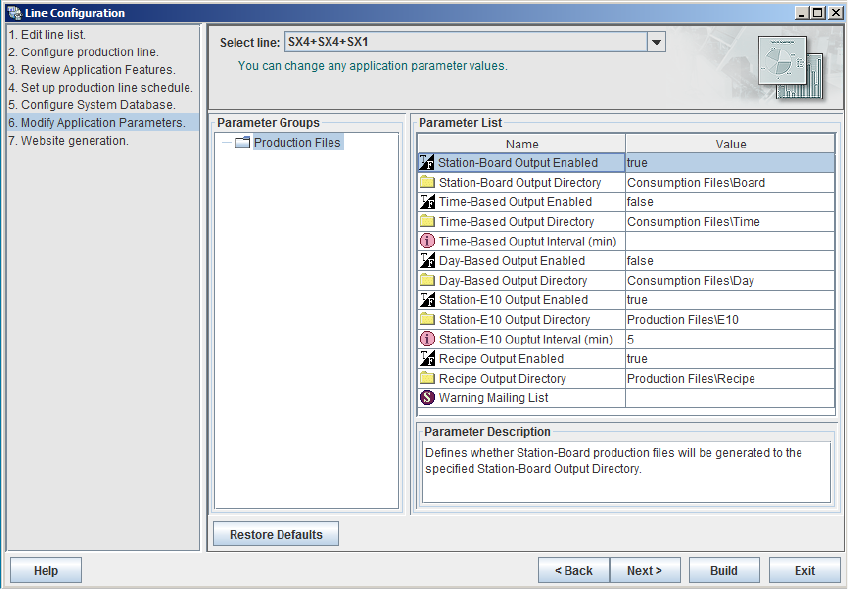
Parameters for the application you have created can be checked and edited here.
3
Fig. 3 - 28 Step 6: modify application parameters
In the left window Parameter Groups, select the entry Pickup Alarms.
In the right window Parameter List, you can specify the users you want an e-mail to be sent
to, when the set pickup alarm rate is exceeded. The e-mail address is taken from the user
management, which will be defined with the Factory Configuration Utility.
The alarm parameters (threshold values) can be directly edited in the parameter list. 3
There are various different alarm classes. In the Value field, you can set the number "N" of
pickups to be monitored for each alarm class. You can also specify a limit value "R" for the
pickup errors in each class
The alarm is set according to the following rule:
– No alarm
Pickup errors within the monitored number of pickups "N" < set limit value "R"
–Alarm set
Pickup errors within the monitored number of pickups "N" > set limit value "R"
3 SIPLACE Explorer Runtime Environment Getting Started SIPLACE Explorer
Edition 11/2020 EN from 3.11 (R20-2)
46
The following alarm classes are available: 3
– Pickup errors by machine
– Pickup errors by track
– Pickup errors by component
– Pickup errors by component shape
If you have edited the alarm parameters, you need to initialize the monitoring application via
the SE Manager, in order to enable the changes made. Follow the instructions at “Using the
SE Manager” on page 21.
In the left window - Parameter Groups - click on Consumption. The right window - parameter
list - shows the parameters which can be changed for the Backflush function. Enter the details
in the Value column:
Station-Board Output enabled
– Column Value, entry true:
The component consumption per machine/board is recorded and an xml file for each
board is generated for each machine in the line.
– Column Value, entry false:
No data recording
Station-Board Output directory
Enter the target folder for the generated xml file, here.
Time-Based Output enabled
– Column Value, entry true:
The component consumption over time is recorded and an xml file is generated for each
line.
– Column Value, entry false:
No data recording
Time-Based Output directory
Enter the target folder for the generated xml file, here. 3
Time-Based Output Interval (min)
Specify a time interval in minutes, for the recording period. You can enter a value from 1 ..
1440 minutes (24 hours). Data recording and xml file generation will be started after website
generation. The default setting is a time interval of 60 minutes. 3