00197725-12_GS_SE3.11_EN.pdf - 第22页
3 SIPLACE Explorer Runtime Environment Getting Started SIPLACE E xplorer Edition 11/2020 EN from 3.11 (R20-2) 22 Ye s This initializes all applicatio n objects and de letes non-append able tables. The initial bean valu…
Getting Started SIPLACE Explorer 3 SIPLACE Explorer Runtime Environment
from 3.11 (R20-2) Edition 11/2020 EN
21
3.5.1 Using the SE Manager
Start the SE Manager via the Programs SIPLACE Explorer SE Manager menu in
Windows.
Select the production line for which you wish to start or end monitoring, from the Line menu.
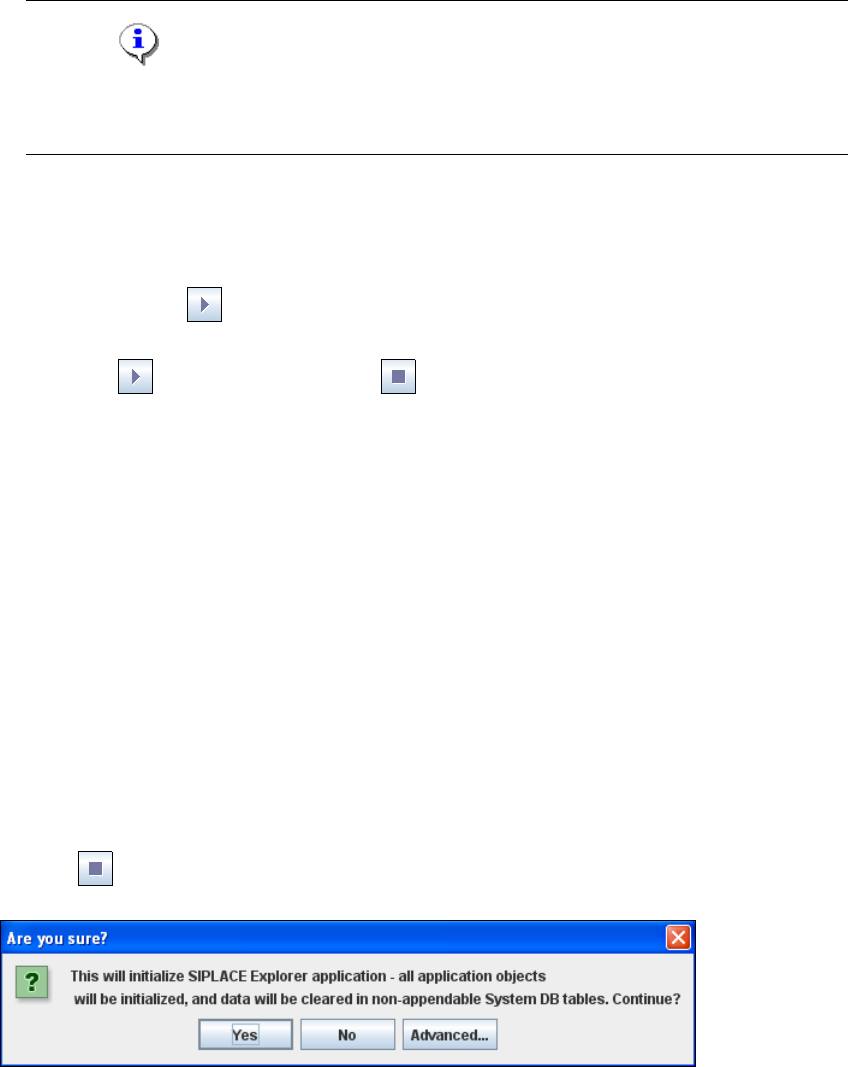
NOTE
The system only displays those production line check setting which have already been
configured with Line Configuration. 3
If you want to work with multiple production lines, you will need to select, start, stop, initialize
or check the configuration of each of these, one after the other.
Start
Click on the Start icon to start monitoring the selected production line. Monitoring will be
initialized and the data will be saved in the production line database. 3
The Start icon will become a Stop icon. Click on this icon to stop monitoring the
selected production line. This icon will only be enabled if production line monitoring has already
been started with the Start icon. 3
Auto-start SIPLACE Explorer when OS starts
– Checkbox enabled:
SIPLACE Explorer Runtime runs as a Windows NT service and is started whenever you
reboot your computer.
– Checkbox disabled:
SIPLACE Explorer Runtime Environment needs to be manually restarted after you reboot
your computer.
This checkbox is enabled as a default. 3
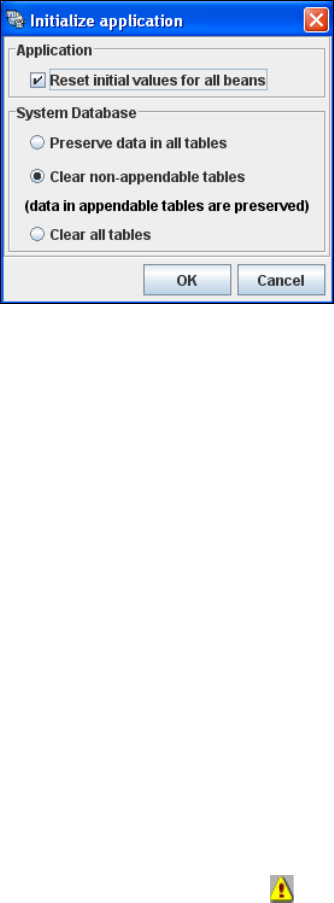
Initialize ...
The SIPLACE Explorer application will be initialized for the selected production line. This
button will only be enabled if production line monitoring has previously been stopped with the
Stop icon. The following dialog box will appear: 3
3
Fig. 3 - 5 RTE - initializing the SIPLACE Explorer application
3 SIPLACE Explorer Runtime Environment Getting Started SIPLACE Explorer
Edition 11/2020 EN from 3.11 (R20-2)
22
Yes
This initializes all application objects and deletes non-appendable tables. The initial bean
values are set as a default. 3
No
The process will be canceled. 3
Advanced ...
The Initialize application dialog box opens. This is where you can reset the system state,
i.e. initialize database tables and the state for all beans. 3
3
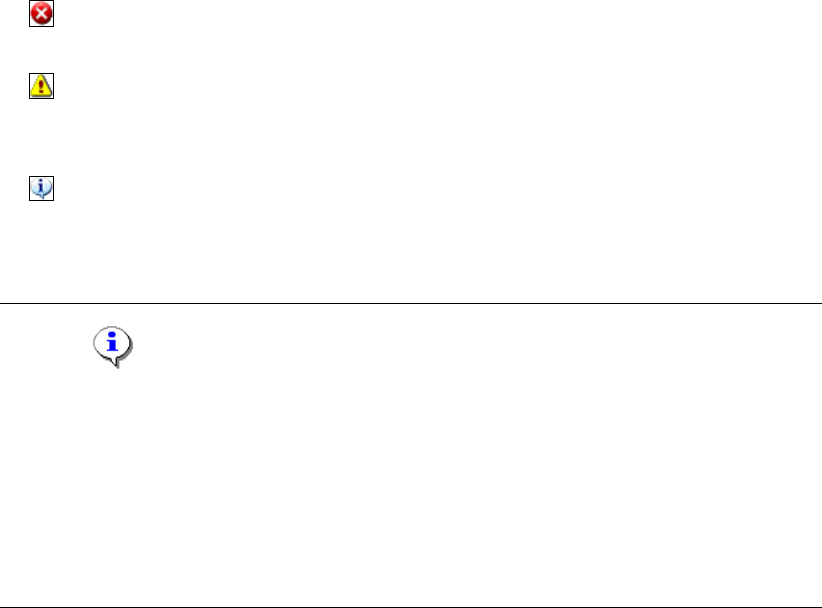
Fig. 3 - 6 Initialize application
– Reset initial values for all beans
Resets all beans in the application back to their original (initial) state.
– Preserve data in all tables
The database data will not be changed.
– Clear non-appendable DB tables
If checked, the database tables not marked as appendable (refer to System Database) will
be cleared.
– Clear all tables
All existing tables will be deleted from the system database.
Check ...
The system checks, if there are any deviations in the line configuration in OIS/SIS and in
SIPLACE Explorer. 3
The message shown to the user differs according to the gravity of the problem. It can belong
to one of three categories: 3
If you receive a message about incorrect settings, while you are operating the SIPLACE
Explorer, a warning symbol will be shown on the SMA pages at line level. This warning
symbol will be displayed until the problem has been fixed. 3
Getting Started SIPLACE Explorer 3 SIPLACE Explorer Runtime Environment
from 3.11 (R20-2) Edition 11/2020 EN
23
All currently existing warnings and all warnings for which the problem has been fixed are
shown on the SMA page Warnings. For a detailed description of this page, please refer to
SIPLACE Explorer SMA User Guide. 3
The following information categories exist: 3
– Critical error
The problem must be fixed before data monitoring can continue.
– Data loss
The problem must be fixed. Data monitoring will continue before the problem is fixed but
the data will not be complete.
– Notification
The problem must be fixed. However, if you ignore this problem, there may be
inconsistencies between the data in the SIPLACE Explorer and the OIS/SIS databases.
NOTE
To fix a problem, perform the following steps:
- Stop the monitoring procedure
- Correct the data accordingly
- Rebuild the application
- Start the monitoring procedure
For a detailed description of this procedure, refer to Section “Manually Checking the
SIPLACE Explorer Configuration for Problems” on page 26. 3
The following settings will be checked for possible problems: 3
– Coordination of line names in SIS and OIS:
The station or line name was changed in SIS but not in OIS. In this case, SIPLACE Explorer
can not receive information about the current setup data and will therefore be unable to
supply the user with information about component names and component shapes. 3
In this case, a message of category 'data loss' will be issued. 3
This check is performed automatically, when setup data are altered in the OIS. SIPLACE
Explorer will try to locate the new setup data in SIS. 3