00197725-12_GS_SE3.11_EN.pdf - 第77页
Getting Started SIPLACE Explorer 4 SIPLACE Explorer Factor y Conf iguration Utility from 3.11 (R20-2) Edition 11/2020 EN 7 7 4 SIPLACE Explorer Factory Configuration Utility This chapter describes the follo wing procedur…
3 SIPLACE Explorer Runtime Environment Getting Started SIPLACE Explorer
Edition 11/2020 EN from 3.11 (R20-2)
76

Getting Started SIPLACE Explorer 4 SIPLACE Explorer Factory Configuration Utility
from 3.11 (R20-2) Edition 11/2020 EN
77
4 SIPLACE Explorer Factory Configuration Utility
This chapter describes the following procedures and menus in the Factory Configuration Utility:4
– “Starting the SIPLACE Factory Configuration Utility” on page 78
– “Configuring Production Lines” on page 80
How to Configure Production Lines and Their Properties
– “Factory Calendar” on page 84
How to Create a Factory Calendar
– “Reports” on page 85
How to Create a Report Generation Schedule
– “User Management” on page 86
User Management and Organization
– “SMTP Server” on page 90
How to Define a Mail Server Configuration
– “Description of the Menus” on page 94
– “How To Use the Factory Website” on page 98
4 SIPLACE Explorer Factory Configuration Utility Getting Started SIPLACE Explorer
Edition 11/2020 EN from 3.11 (R20-2)
78
4.1 Starting the SIPLACE Factory Configuration Utility
Start the SIPLACE Factory Configuration Utility via the Programs SIPLACE Explorer
Factory Configuration Utility menu in Windows.
Or click on the Factory Configuration Utility icon on your desktop.
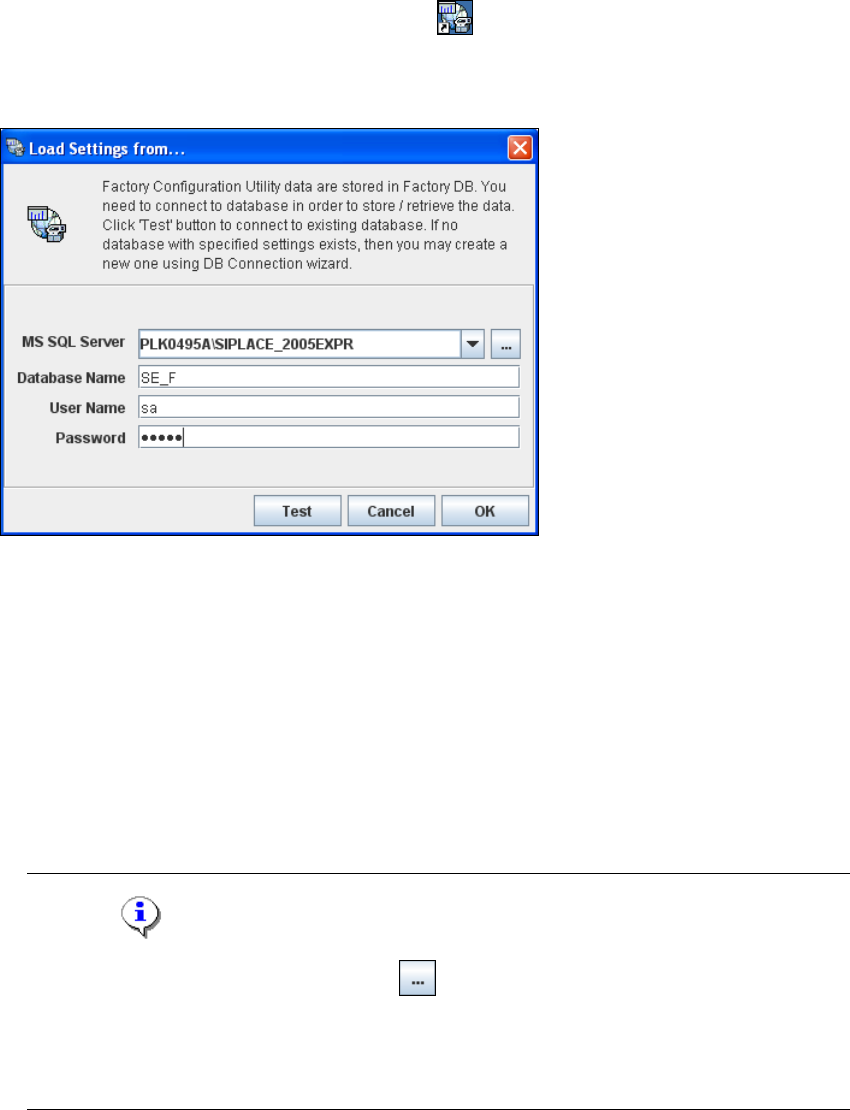
The Load settings from... dialog box will open. You need to establish a connection to the
factory database, before data can be called up.
4
Fig. 4 - 1 Loading settings
Enter the following information:
– MS SQL Server:port number
You can add the port number to the SQL Server instance, separated by a colon, for
example: PLK0495A\SIPLACE_2005EXPR:12345.
– Database name
– Database user
–DB password
NOTE
Click on the Browse for SQL instances icon. All SQL server instances available will be
shown in the Select SQL Server instance dialog box.
If the Select SQL Server instance dialog box shows no entries, you need to specify the SQL
server instance manually in the MS SQL Server field. 4