00197725-12_GS_SE3.11_EN.pdf - 第94页
4 SIPLACE Explorer Factory Configuratio n Utility Getting Started SIPLACE Explorer Edition 11/2020 EN from 3.11 (R20-2) 94 NOTE If you want to compress the database at next DB maintenan ce, you must enable Comp ress one …
Getting Started SIPLACE Explorer 4 SIPLACE Explorer Factory Configuration Utility
from 3.11 (R20-2) Edition 11/2020 EN
93
4
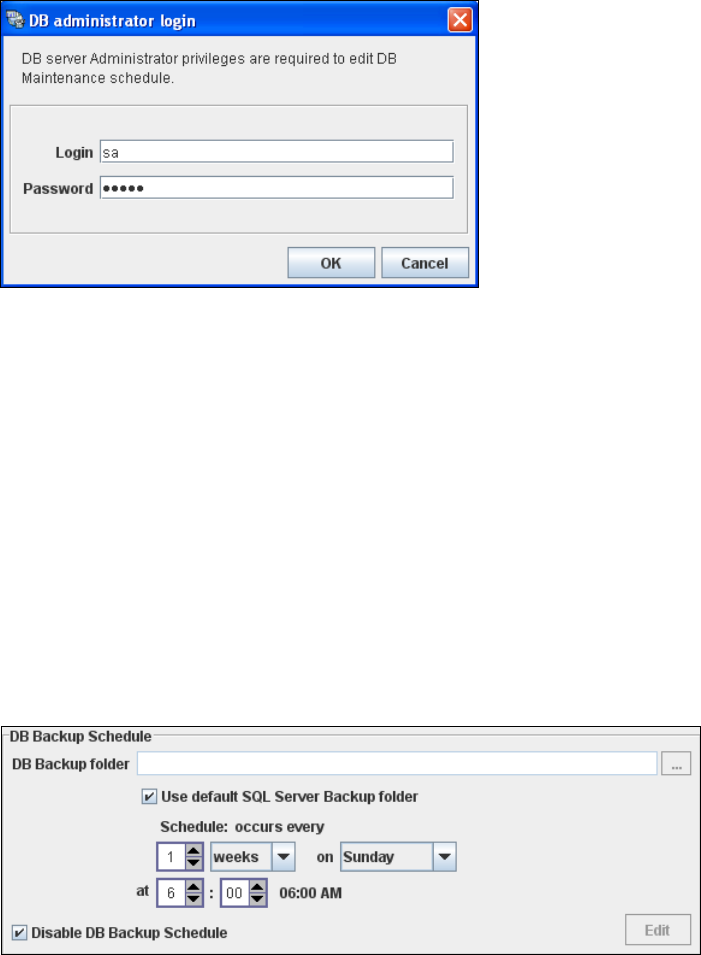
Fig. 4 - 19 DB administrator login
Enter the access data here and confirm your entries with OK.
The input fields in the DB Maintenance dialog box will be enabled. The following details can
be defined:
– The file and path for the saved data
– A schedule specifying the intervals and times when data is to be removed from the line
system database and stored in the archive.
– When to execute the backup schedule.
– The backup schedule defined here will be stored in the database and can be called up when
required.
– Database compression with the next database maintenance.
4
Fig. 4 - 20 DB backup
Check your entries and confirm with OK.
4 SIPLACE Explorer Factory Configuration Utility Getting Started SIPLACE Explorer
Edition 11/2020 EN from 3.11 (R20-2)
94
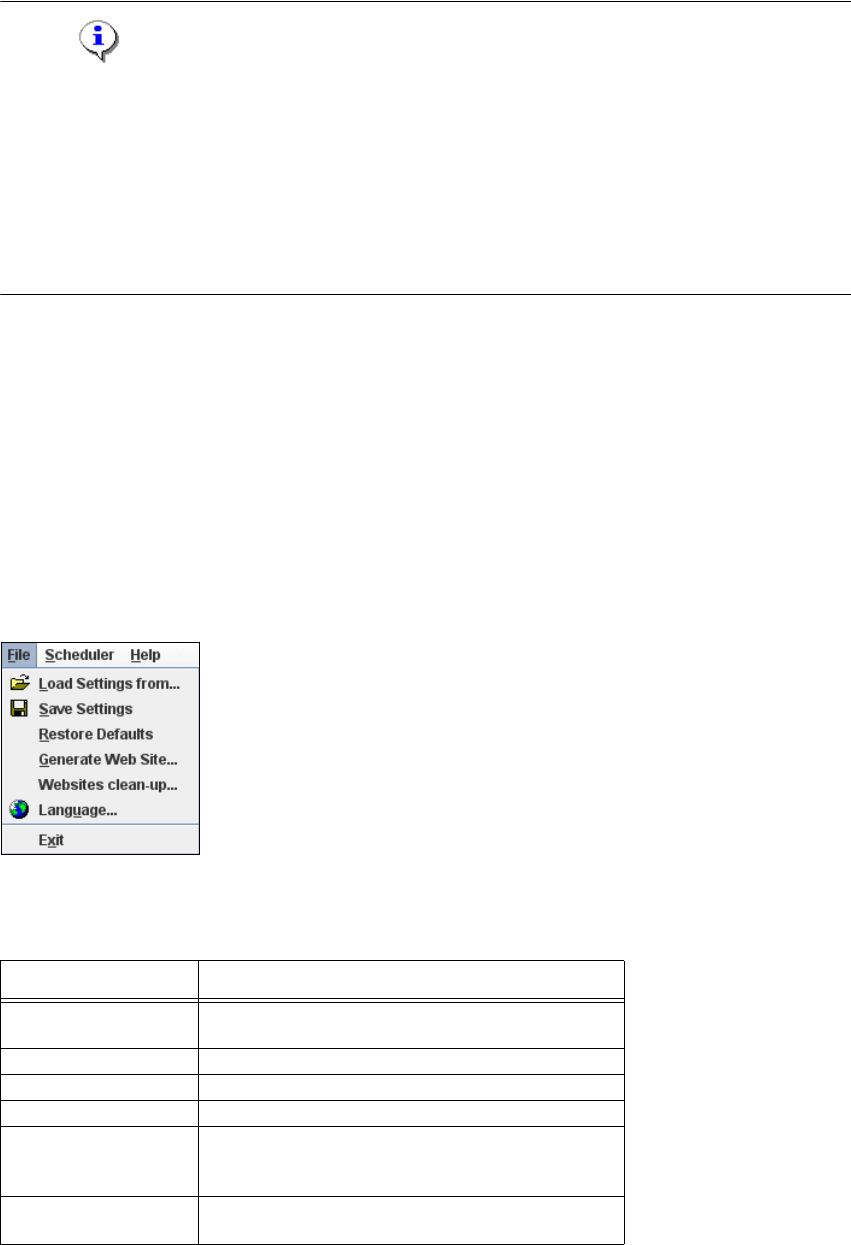
NOTE
If you want to compress the database at next DB maintenance, you must enable Compress one
time at next DB maintenance.
We recommend enabling this DB compression step, when the user has restored the SIPLACE
Explorer line database or has moved the raw database files to another disk or to another
computer.
With the DB compression it is possible to avoid extended access times of the websites.
Follow the instructions at “Compressing the Database” on page 60. 4
4.8 Description of the Menus
The following menus are described in brief: 4
– “Menu File” on page 94
– “Menu Scheduler” on page 97
4.8.1 Menu File
4
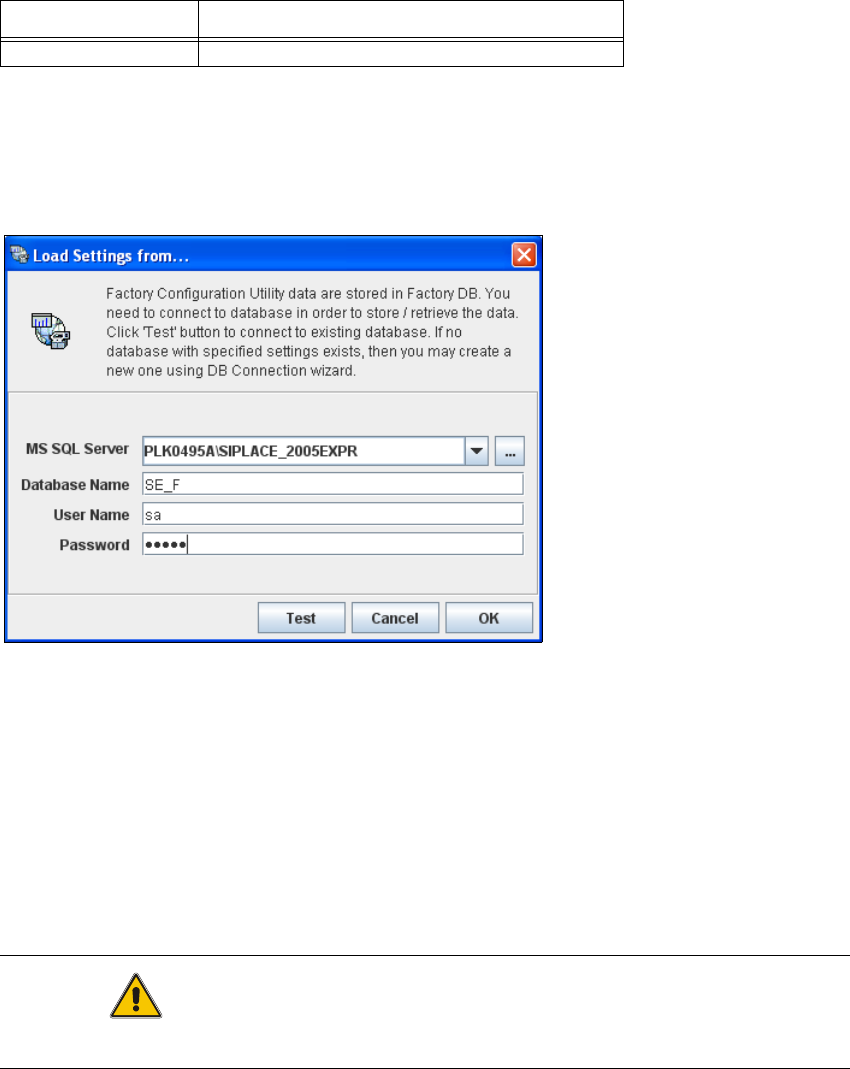
Fig. 4 - 21 Factory configuration utility - drop down menu file
This feature can be started from the list displayed by the drop down menu:
4
Function Action
Load Settings from...
Opens a dialog box for selecting stored factory
settings.
Save Settings Saves the factory settings just defined.
Restore Defaults Resets the default settings set on delivery.
Generate Web Site... Creates a factory website.
Websites clean-up
Opens a dialog box for setting the properties of the
clean-up options for SE line websites and SE factory
websites.
Language...
Opens a dialog box for changing the language of the
GUI.
Getting Started SIPLACE Explorer 4 SIPLACE Explorer Factory Configuration Utility
from 3.11 (R20-2) Edition 11/2020 EN
95
4.8.1.1 Load Settings from ...
This is where you can select the required factory settings from a list of available factory settings.4
In the File menu, select the item Load Settings from ....
4
Fig. 4 - 22 Factory configuration utility - load settings from
4.8.1.2 Save Settings
This is where the factory settings just defined can be saved. 4
In the File menu, select the item Save Settings.
4.8.1.3 Restore Defaults
This is where the default settings set on delivery can be restored. 4
CAUTION
This deletes all entries for this factory database 4
In the File menu, select the item Restore defaults.
Exit Terminates the Factory Configuration Utility.
Function Action