00197725-12_GS_SE3.11_EN.pdf - 第72页
3 SIPLACE Explorer Runtime Environment Getting Started SIPLACE E xplorer Edition 11/2020 EN from 3.11 (R20-2) 72 Select the req uired path f rom the lef t w indow - Look in - a nd c l i c k o n i t . T h e d a ta ba s …
Getting Started SIPLACE Explorer 3 SIPLACE Explorer Runtime Environment
from 3.11 (R20-2) Edition 11/2020 EN
71
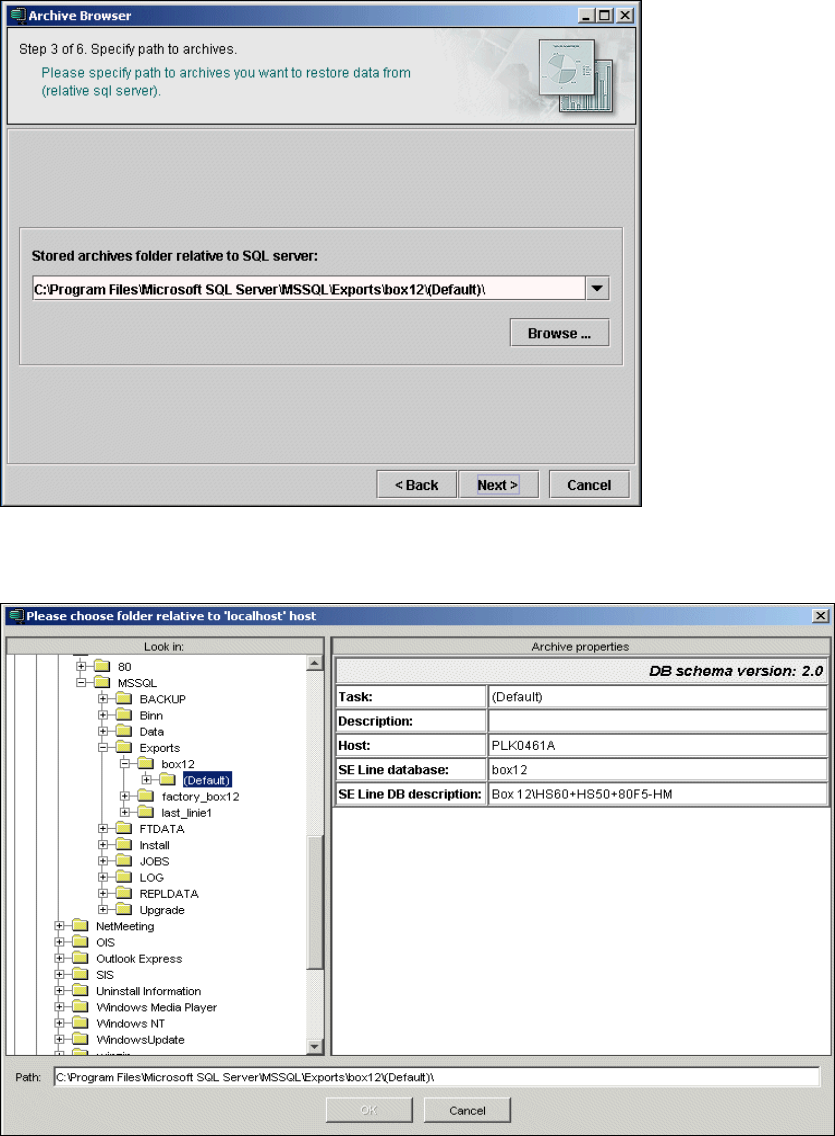
3.10.1.3 Step 3 - Specify Paths to Archives
Specify the path of the archive you want to recover.
3
Fig. 3 - 52 Archive browser
Click on the Browse button. A selection window will open:
3
Fig. 3 - 53 Archive browser
3 SIPLACE Explorer Runtime Environment Getting Started SIPLACE Explorer
Edition 11/2020 EN from 3.11 (R20-2)
72
Select the required path from the left window - Look in - and click on it. The database archive
and its corresponding properties will be shown in the right window, Archive properties.
Once you have selected the required database, confirm your choice with OK. You will be taken
back to Step 3, where the selected path will now be shown.
Click on Next to continue with the next step.
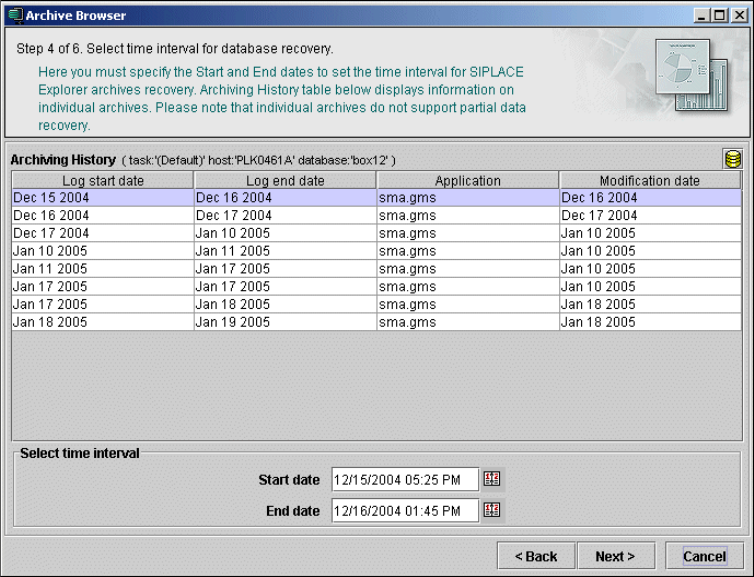
3.10.1.4 Step 4 - Select Time Intervals for Database Recovery
Specify the time intervals at which archive recovery is to be performed, here.
3
Fig. 3 - 54 Archive browser
A list of all the archives in the database will be displayed here. Select the relevant archive and
the required time interval.
Click on Next to continue with the next step.
Getting Started SIPLACE Explorer 3 SIPLACE Explorer Runtime Environment
from 3.11 (R20-2) Edition 11/2020 EN
73
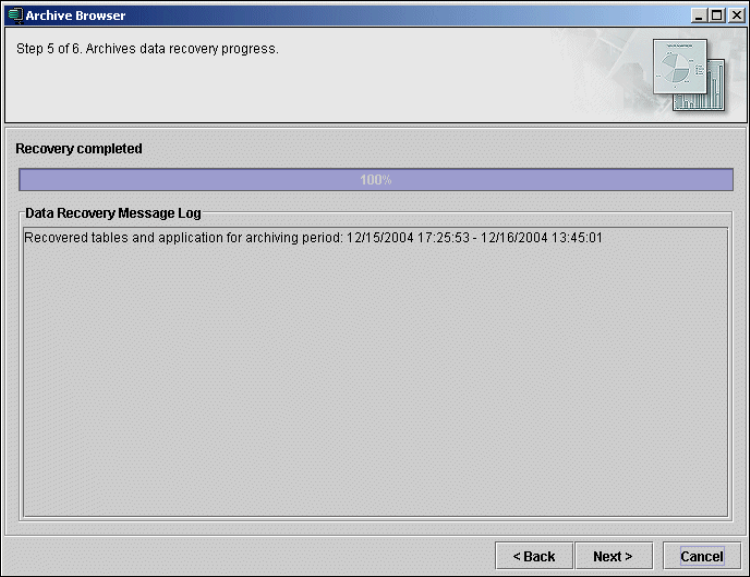
3.10.1.5 Step 5 - Archive Data Recovery Progress
Archive recovery will be initialized and the progress shown.
3
Fig. 3 - 55 Archive browser
Click on Next to continue with the next step.