00197725-12_GS_SE3.11_EN.pdf - 第29页
Getting Started SIPLACE Explorer 3 SIPLACE Explorer Runtime Envi ronment from 3.11 (R20-2) Edition 11/2020 EN 2 9 3.6.1.2 Step 1 - Edit Line List Create the relevant pr oduction line (lines) her e. 3 Fig. 3 - 10 S tep …

3 SIPLACE Explorer Runtime Environment Getting Started SIPLACE Explorer
Edition 11/2020 EN from 3.11 (R20-2)
28
3.6 Line Configuration
Line Configuration is used to configure applications for simultaneous monitoring of multiple pro-
duction lines. You can also modify existing applications. If modifications have been made to the
line configuration, you will need to adjust the applications accordingly and then regenerate them.3
This section will describe the following actions: 3
– “How to create an SMA with Line Configuration” on page 28
– “Database Connection Wizard” on page 54
– “How to Edit an Existing SMA with Line Configuration” on page 51
3.6.1 How to create an SMA with Line Configuration
SMA creation consists of the following steps: 3
– Line Configuration (wizard with 7 steps)
– Establishing a connection to the database (wizard with 3 steps)
3.6.1.1 Starting Line Configuration
Open Line Configuration
Proceed by selecting Programs SIPLACE Explorer Line Configuration from the menu
in Windows or by clicking on the icon in the console. Right-click with the mouse to select
Line Configuration from the menu. 3
The Line Configuration dialog box will open. This is the first step of the Line Configuration
process.
Getting Started SIPLACE Explorer 3 SIPLACE Explorer Runtime Environment
from 3.11 (R20-2) Edition 11/2020 EN
29
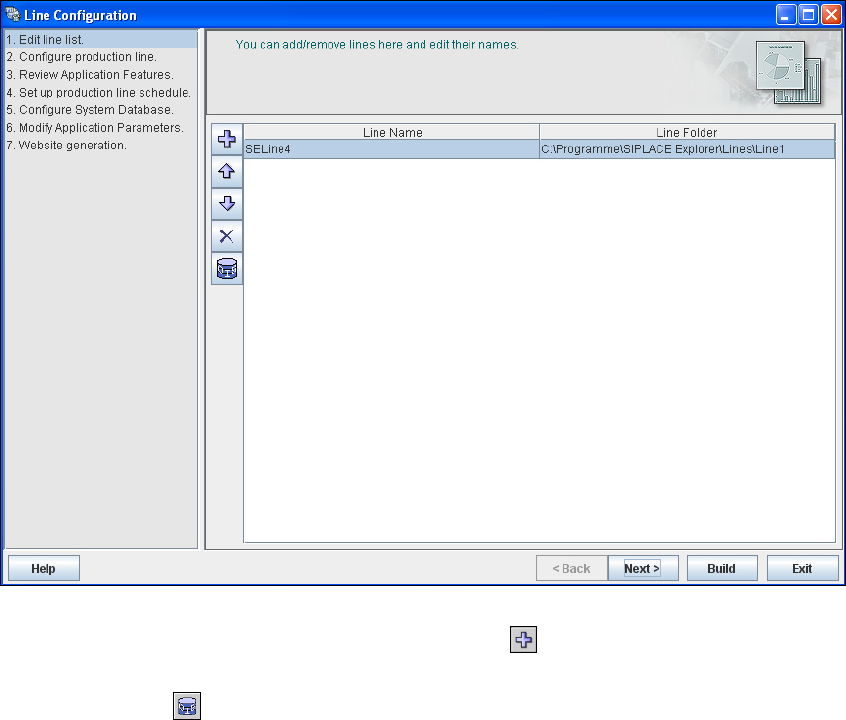
3.6.1.2 Step 1 - Edit Line List
Create the relevant production line (lines) here.
3
Fig. 3 - 10 Step 1: edit line list
New production lines can be created via the Add Line icon.
An existing production line can be imported with the OIS import feature. Simply click on the
Import OIS line icon.
3 SIPLACE Explorer Runtime Environment Getting Started SIPLACE Explorer
Edition 11/2020 EN from 3.11 (R20-2)
30
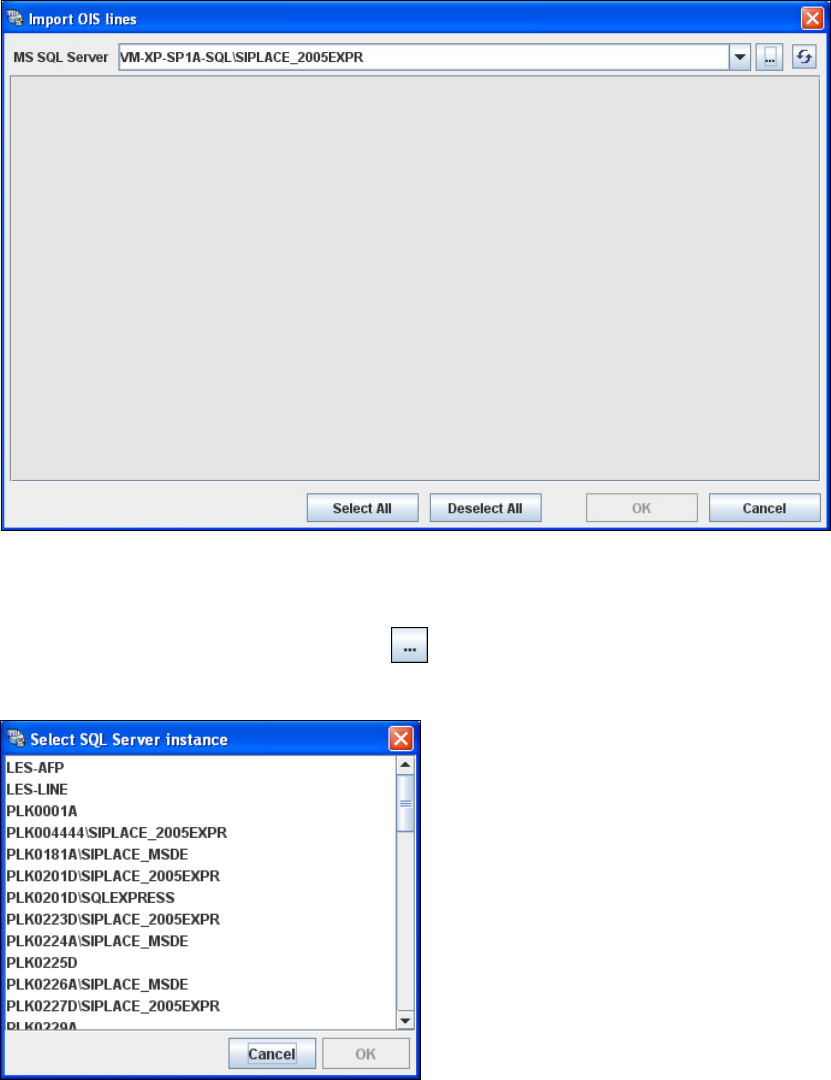
The Import OIS Lines dialog box will open.
3
Fig. 3 - 11 Step 1: import OIS lines
The SQL server instance is automatically adopted from the OIS and the SIPLACE Explorer
database. This is shown in the MS SQL Server text box.
Click on the Browse for SQL instances icon. All SQL server instances available will be
shown in the Select SQL Server instance dialog box.
3
Fig. 3 - 12 Step 1: Select SQL Server instance
Select the required SQL server instance and confirm with OK. You will be taken back to the
Import OIS Lines dialog box.