00197725-12_GS_SE3.11_EN.pdf - 第36页
3 SIPLACE Explorer Runtime Environment Getting Started SIPLACE E xplorer Edition 11/2020 EN from 3.11 (R20-2) 36 From the Features list in the lef t window , you can select the application featur es y ou want to add to…
Getting Started SIPLACE Explorer 3 SIPLACE Explorer Runtime Environment
from 3.11 (R20-2) Edition 11/2020 EN
35
NOTE
The standard SIPLACE Explorer delivery package includes support tools for SIPLACE machines
listed in the Software Version Description SIPLACE Explorer. SIPLACE Explorer is also capable
of connecting to other factory floor equipment (e.g. reflow oven and screen printer) and data
sources, and can be used for purposes such as reporting production performance with the
Standard Monitoring Application (SMA) or other applications.
Please contact your SIPLACE sales representative for further details relating to specific
equipment, and interface versions. 3
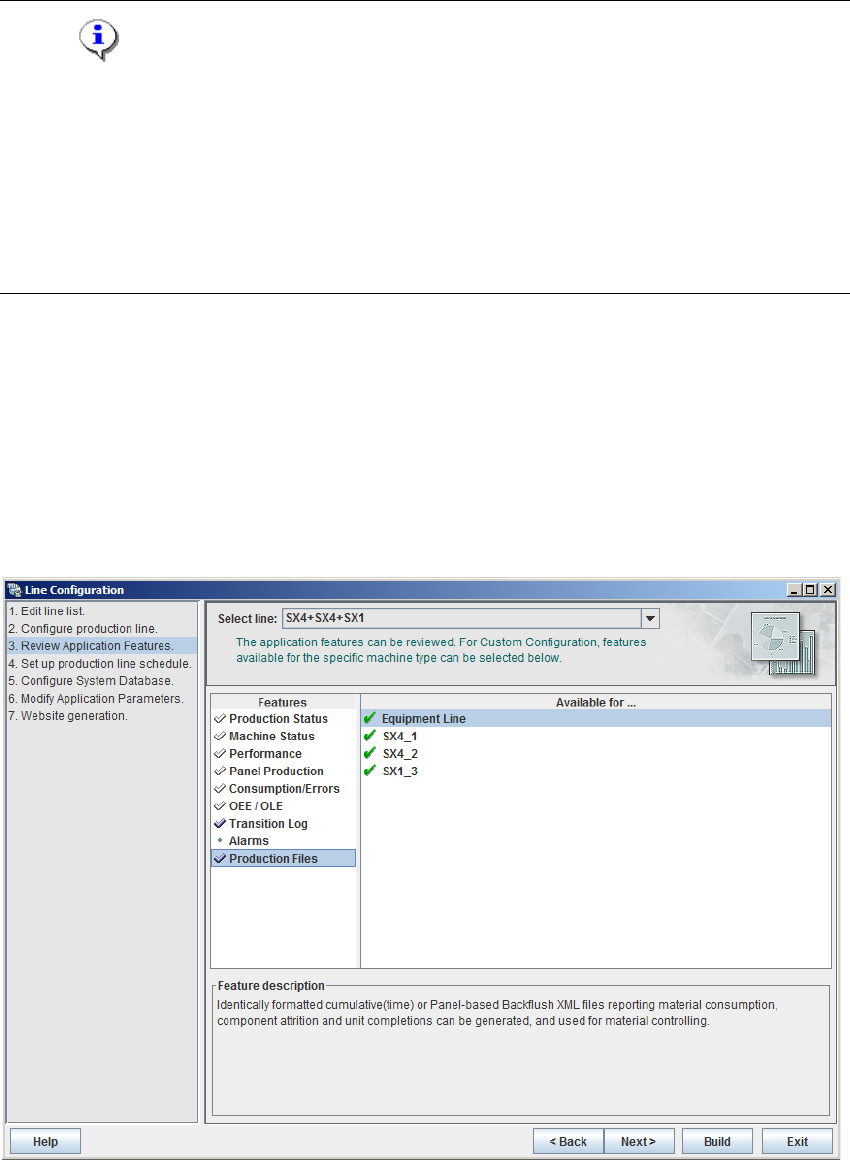
3.6.1.4 Step 3 - Review Application Features
A list of Features will be presented in the left box. If you chose custom configuration, any feature
can be selected from the list. Otherwise, a minimum or maximum list of features will be shown. 3
A list of machines for the chosen feature will be shown in the Available for box on the right. An
icon next to the machine name indicates whether the selected feature is implemented for this
machine or not. The Feature Description window shows a comment for the selected feature. 3
3
Fig. 3 - 17 Step 3: review application features
3 SIPLACE Explorer Runtime Environment Getting Started SIPLACE Explorer
Edition 11/2020 EN from 3.11 (R20-2)
36
From the Features list in the left window, you can select the application features you want to
add to the application to be generated. To select a feature, mark the check box next to the
feature name.
If you want an e-mail to be sent to certain users, if the pickup error rate during production
exceeds a set value, enable the Alarm feature.
Users can be defined with the User Management feature of the Factory Configuration Utility.
The alarms can be set with Step 6 of Line Configuration. For further information, please see
“Step 6 - Modify Application Parameters” on page 45. 3
Enable the function Production Files, to activate Backflush.
Check the features for the relevant machines of all available production lines and add other
features, where necessary.
Repeat all steps separately for each production line.
After selecting all the features for the machines and production lines, click Next to continue
with the next step.
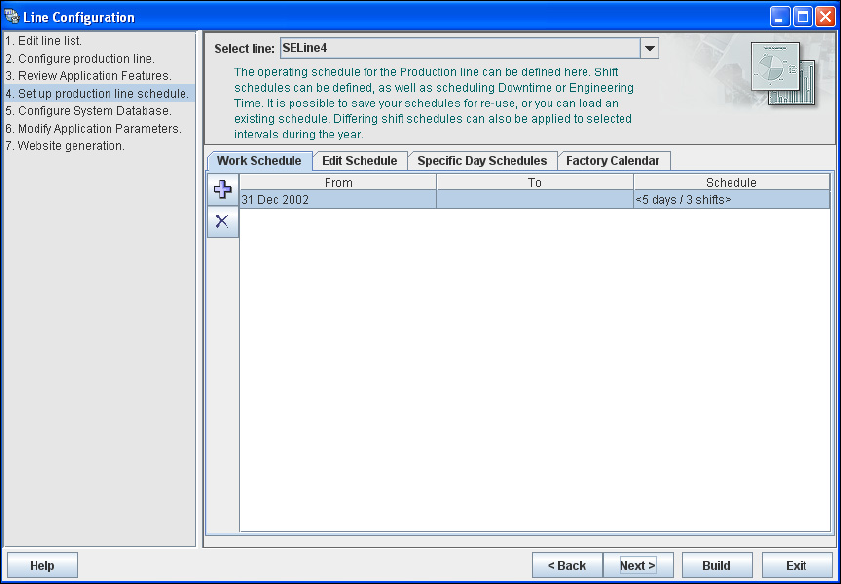
3.6.1.5 Step 4 - Set Up Production Line Schedule
The SIPLACE Explorer Calendar allows you to specify a production line schedule: 3
– Define a weekly shift schedule,
– Plan maintenance and scheduled downtime for machines in the production line.
– Apply the schedule to a time interval.
Getting Started SIPLACE Explorer 3 SIPLACE Explorer Runtime Environment
from 3.11 (R20-2) Edition 11/2020 EN
37
3
Fig. 3 - 18 Step 4: Set production line schedule
When the schedule for the production line as been defined, click on Next to continue with the
next step.