00197725-12_GS_SE3.11_EN.pdf - 第84页
4 SIPLACE Explorer Factory Configuratio n Utility Getting Started SIPLACE Explorer Edition 11/2020 EN from 3.11 (R20-2) 84 4.3 Factory Calendar This is where you can create a c alendar with det ails of working times e.g.…
Getting Started SIPLACE Explorer 4 SIPLACE Explorer Factory Configuration Utility
from 3.11 (R20-2) Edition 11/2020 EN
83
4
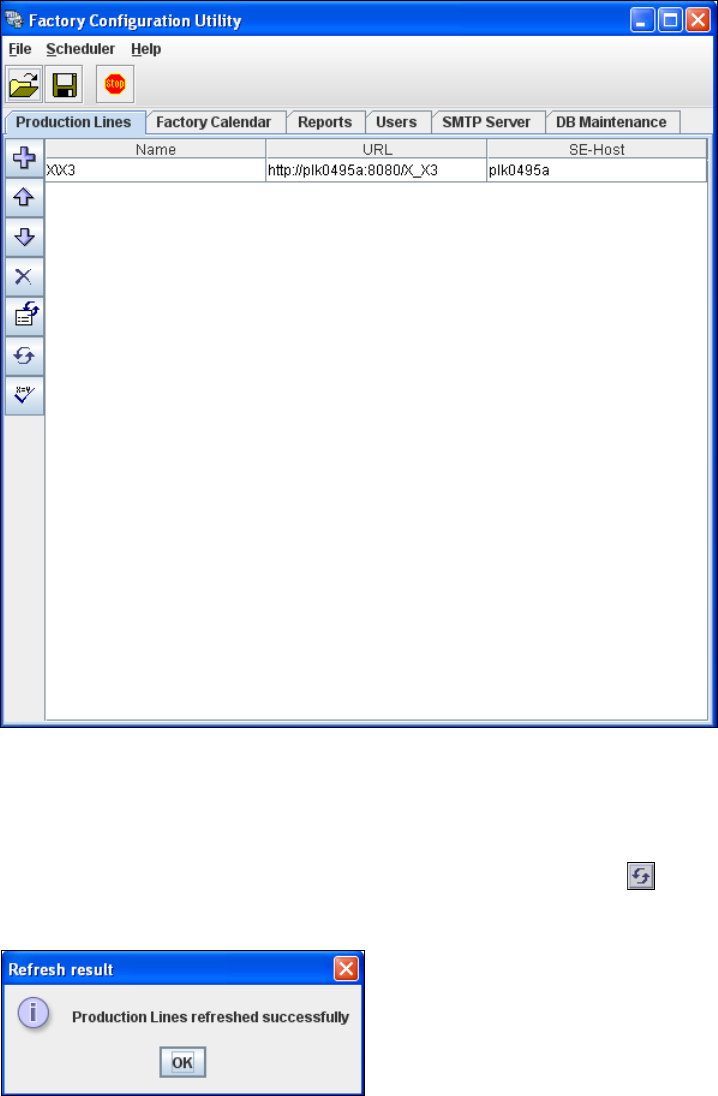
Fig. 4 - 8 Factory configuration utility - production lines
After the data for the selected production line has been transferred, the line name, line URL
and host name can no longer be changed.
If you have made changes to the other tabs, you will need to synchronize this data with the
data in the SIPLACE Explorer host, by clicking on the Refresh lines icon. If the data have
been successfully synchronized, you will see the following information box:
4
Fig. 4 - 9 Factory configuration utility - refresh result
4 SIPLACE Explorer Factory Configuration Utility Getting Started SIPLACE Explorer
Edition 11/2020 EN from 3.11 (R20-2)
84
4.3 Factory Calendar
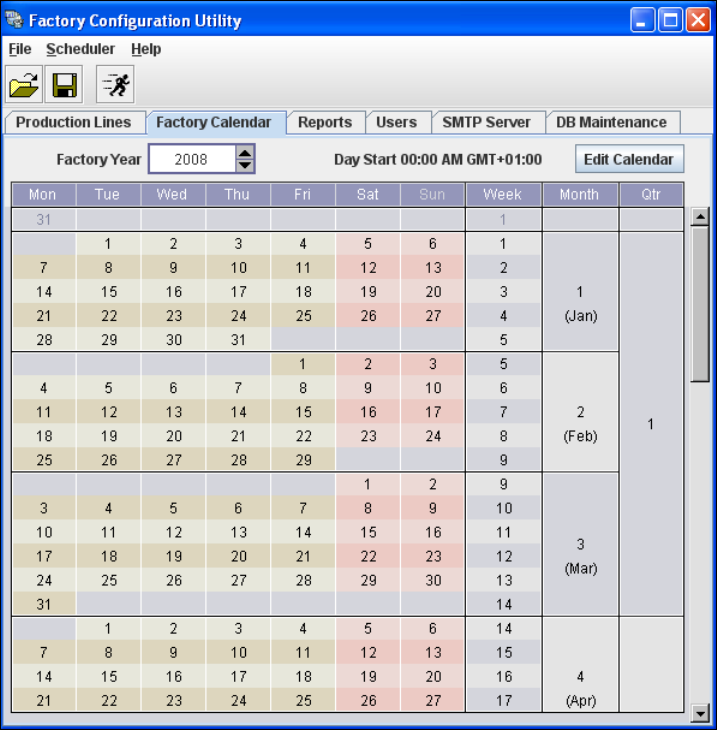
This is where you can create a calendar with details of working times e.g. on which day the work-
ing week begins, at which time a shift begins etc. 4
Select the Factory Calendar tab.
4
Fig. 4 - 10 Factory configuration utility - factory calendar
Getting Started SIPLACE Explorer 4 SIPLACE Explorer Factory Configuration Utility
from 3.11 (R20-2) Edition 11/2020 EN
85
4.4 Reports
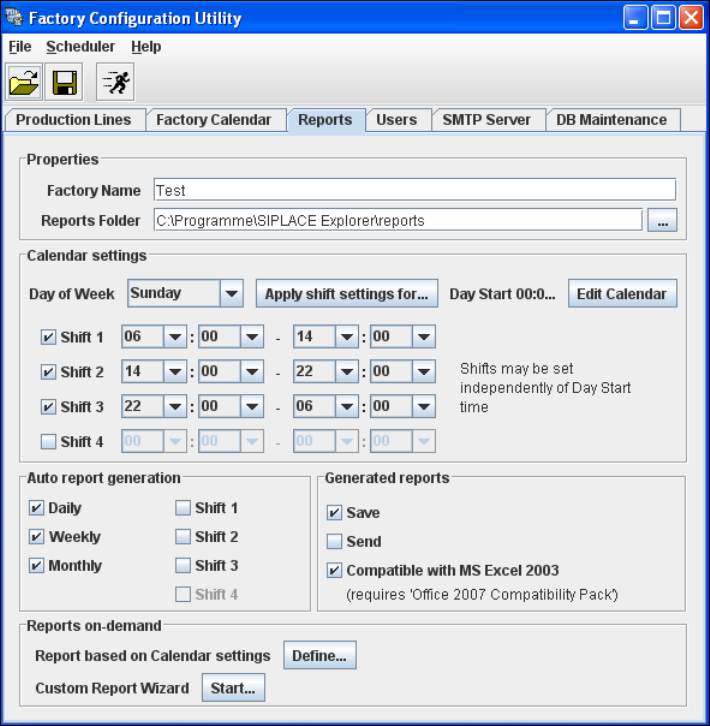
This is where you can define a schedule for the management and generation of factory reports.
You can specify the intervals at which factory reports are to be generated, where they are to be
saved to etc. 4
These reports can be automatically sent via e-mail. The e-mail addresses can be specified in the
Users tab. The necessary information about report type, when sent etc. can be defined on the
factory website. For further informations, please refer to SIPLACE Explorer SMA User Guide. 4
Select the Reports tab.
4
Fig. 4 - 11 Factory configuration utility - reports
If Excel 2007 or Excel Viewer 2007 is installed, disable the MS Excel documents compatible
with MS Excel 2007 option in Generated reports. The new features of Excel 2007 for a better
display are used during the xlsx generation for websites.
Proceed to Reports on-demand and click on the Start button. A wizard with 4 steps will open.
Use this wizard to generate the reports and send or save them.