00197725-12_GS_SE3.11_EN.pdf - 第60页
3 SIPLACE Explorer Runtime Environment Getting Started SIPLACE E xplorer Edition 11/2020 EN from 3.11 (R20-2) 60 3 Fig. 3 - 40 Success Click OK . The database h as been converted according ly . 3.7.3 Compressing the Da…
Getting Started SIPLACE Explorer 3 SIPLACE Explorer Runtime Environment
from 3.11 (R20-2) Edition 11/2020 EN
59
3
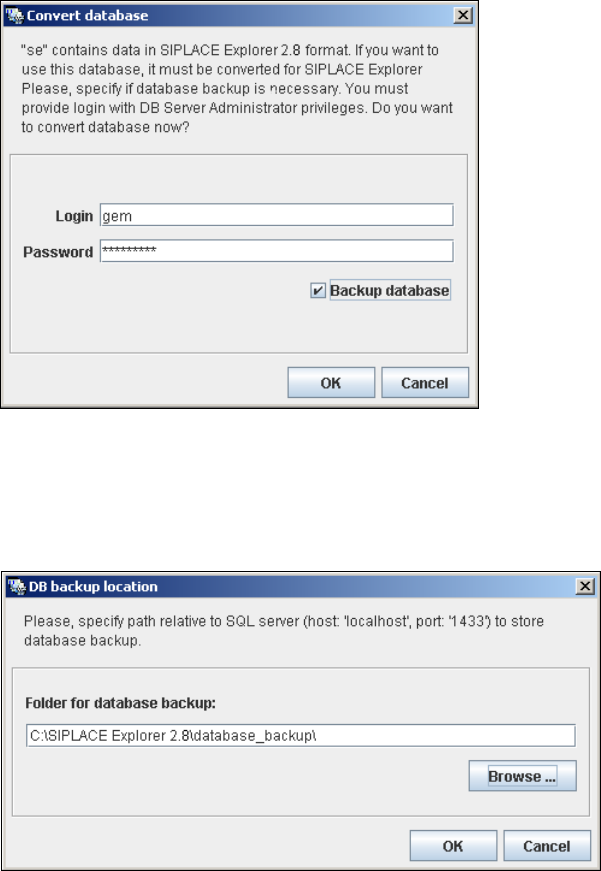
Fig. 3 - 38 Convert database
Specify the access data for the database administrator and enable the Backup database
option.
Confirm your entries with OK. The DB backup location dialog box will open.
3
Fig. 3 - 39 DB backup location
Before performing the conversion, the system creates a backup file of the database. Specify
the folder for this file in the Folder for database backup field. Click on the Browse ... button
to select an existing folder.
Confirm your choice with OK. The database will be converted. This may take up to one hour.
The conversion time depends on the size of the database and on the performance of the
computer.
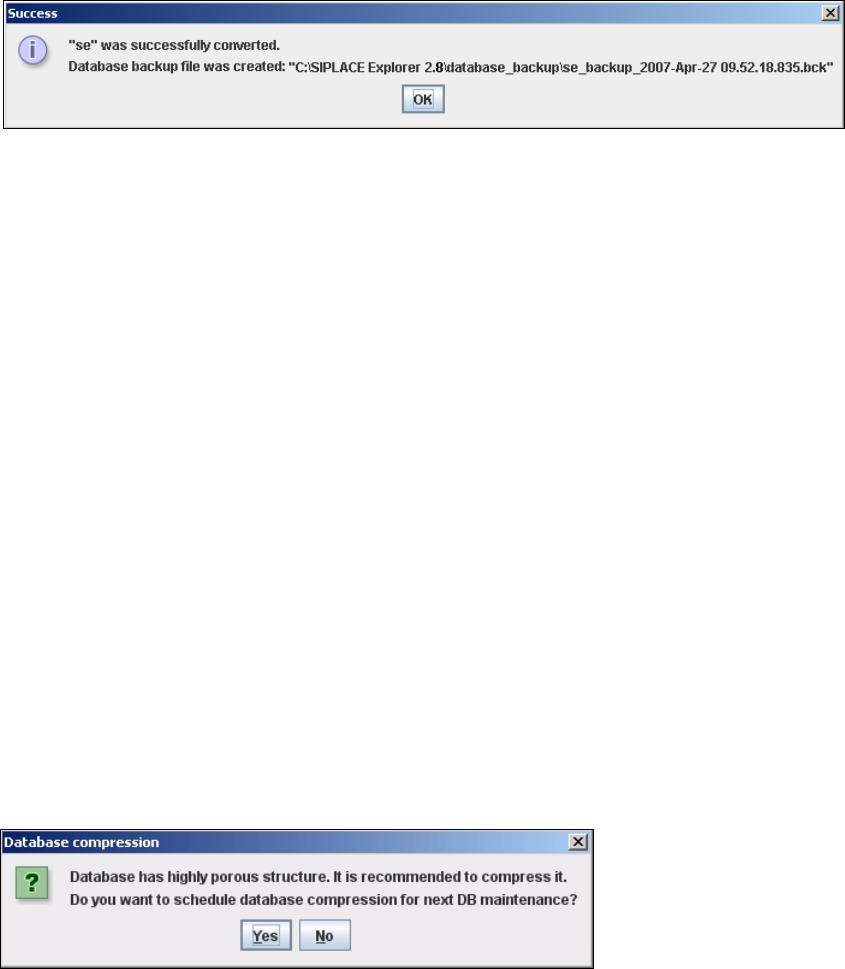
After successful conversion of the database, the following information window will open:
3 SIPLACE Explorer Runtime Environment Getting Started SIPLACE Explorer
Edition 11/2020 EN from 3.11 (R20-2)
60
3
Fig. 3 - 40 Success
Click OK. The database has been converted accordingly.
3.7.3 Compressing the Database
We recommend compressing the database, when the user has restored the SIPLACE Explorer
line database or has moved the raw database files to another disk or to another computer. 3
With the DB compression it is possible to avoid extended access times of the websites. 3
The DB compression can be started in the following cases: 3
– Using the SE database
– Runtime Environment:
Step 5 - Configure System Database page 38
Enabling the DB maintenance functionality or building the website.
– Using the factory database
– Factory Configuration Utility
Enabling the DB maintenance functionality or building the website.
Database compression can only be performed if a connection has already been established to the
database. 3
Dependent of starting the DB compression, the following information window will open:
3
Fig. 3 - 41 Database compression
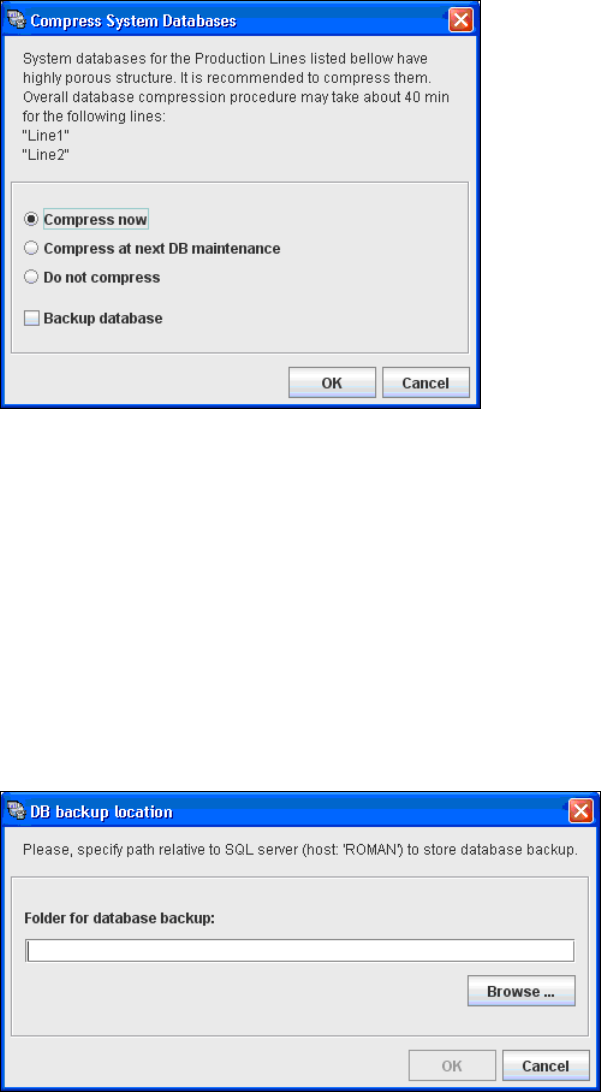
Click Yes to select the compress options, the Compress System Database dialog box will
open.
Getting Started SIPLACE Explorer 3 SIPLACE Explorer Runtime Environment
from 3.11 (R20-2) Edition 11/2020 EN
61
3
Fig. 3 - 42 Compress DB
Select one of the following options:
– Compress now
The database will be compressed now.
– Compress at next DB maintenance
The database will be compressed with the next execution of the defined DB maintenance.
– Do not compress
The database will not be compressed.
If you have enabled the Backup database option, the DB backup location dialog box will
open.
3
Fig. 3 - 43 DB backup location
If enabled, before performing the compression, the system creates a backup file of the
database. Specify the folder for this file in the Folder for database backup field. Click on the
Browse ... button to select an existing folder.