00197725-12_GS_SE3.11_EN.pdf - 第49页
Getting Started SIPLACE Explorer 3 SIPLACE Explorer Runtime Envi ronment from 3.11 (R20-2) Edition 11/2020 EN 4 9 – Generate line website The website will a lways be generated for the selected productio n line. – If chan…
3 SIPLACE Explorer Runtime Environment Getting Started SIPLACE Explorer
Edition 11/2020 EN from 3.11 (R20-2)
48
Warning Mailing List
Shows a list of those users who will receive a warning per e-mail, if the system is unable to
generate the consumption data in the specified target folder. You need to define these users
in the Factory Configuration Utility. 3
NOTE
For a detailed description of the generated xml files, please refer to Annex on page 99. 3
Once you have made all modifications, click on Next to continue with the next step.
3.6.1.8 Step 7: Website Generation
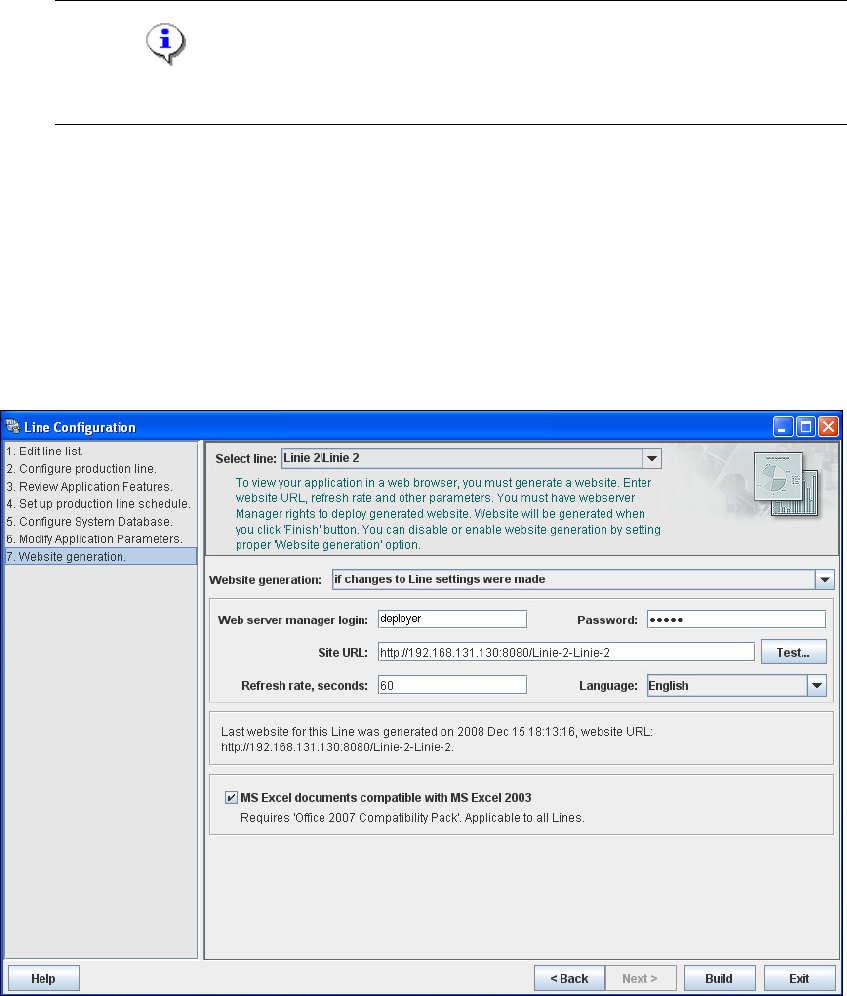
In order to monitor your production line in the web browser, you will need to generate a website.
For this purpose, you require web server manager privileges (Tomcat website creator,
deployer) and the corresponding password. If you have imported a production line from the
OIS the webserver access data are automatically adopted.
3
Fig. 3 - 29 Step 7: website generation
At Website Generation, specify whether and when the website is to be generated. The
following options are available:
Getting Started SIPLACE Explorer 3 SIPLACE Explorer Runtime Environment
from 3.11 (R20-2) Edition 11/2020 EN
49
– Generate line website
The website will always be generated for the selected production line.
– If changes to line settings were made
A website will only be generated if changes have been made to the production line
configuration.
– Do not generate line website
Website generation will not be performed. This can be performed later, while editing the
generated application.
Specify the access data for the Tomcat website generator. If you entered admin and an empty
password during Tomcat configuration, this data will be automatically used as a default login.
If this is not the case, use the data you specified during Tomcat configuration. If you have
imported a production line from the OIS the webserver access data are automatically adopted.
3 SIPLACE Explorer Runtime Environment Getting Started SIPLACE Explorer
Edition 11/2020 EN from 3.11 (R20-2)
50
Enter the following information here:
– The folder in which the website will be generated;
– The website URL;
This URL contains a port number, which applies to the web server (Tomcat 5.5) e.g. "8080".
If you change the port number here, you will also need to update the port number of the web
server. For a detailed description, please see the installation instructions.
NOTE
If no connection can be established to the web server, enter the IP address instead of the
computer name. 3
– The refresh rate;
For capacity purposes, we recommend a refresh rate of at least one minute (60000 ms).
– Website language
– Line host address
– Specify whether the login page is to be generated
If Excel 2007 or Excel Viewer 2007 is installed, disable the MS Excel documents compatible
with MS Excel 2007 option. The new features of Excel 2007 for a better display are used
during the xlsx generation for websites.
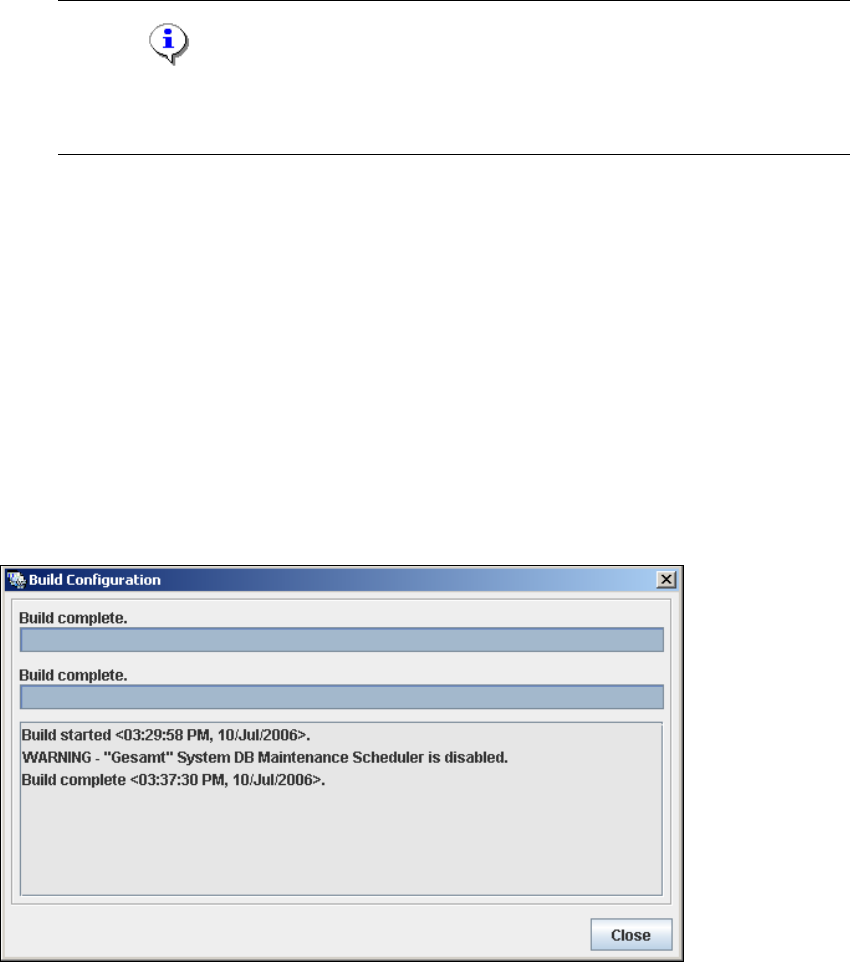
Once you have made and checked all entries, click on the Build button. An information box,
showing the website generation, will appear.
3
Fig. 3 - 30 Build configuration
At this point, the application is generated automatically and is loaded into SIPLACE Explorer.3