00197725-12_GS_SE3.11_EN.pdf - 第64页
3 SIPLACE Explorer Runtime Environment Getting Started SIPLACE E xplorer Edition 11/2020 EN from 3.11 (R20-2) 64 – MSM Error log Error and warning me ssages are c ollected and stor ed in th e spec ified log file The fo…
Getting Started SIPLACE Explorer 3 SIPLACE Explorer Runtime Environment
from 3.11 (R20-2) Edition 11/2020 EN
63
NOTE
The system only displays those production lines which have already been configured with
Line Configuration. 3
Clear icon
The system or error log report for the selected production line will be deleted. 3
Log options icon
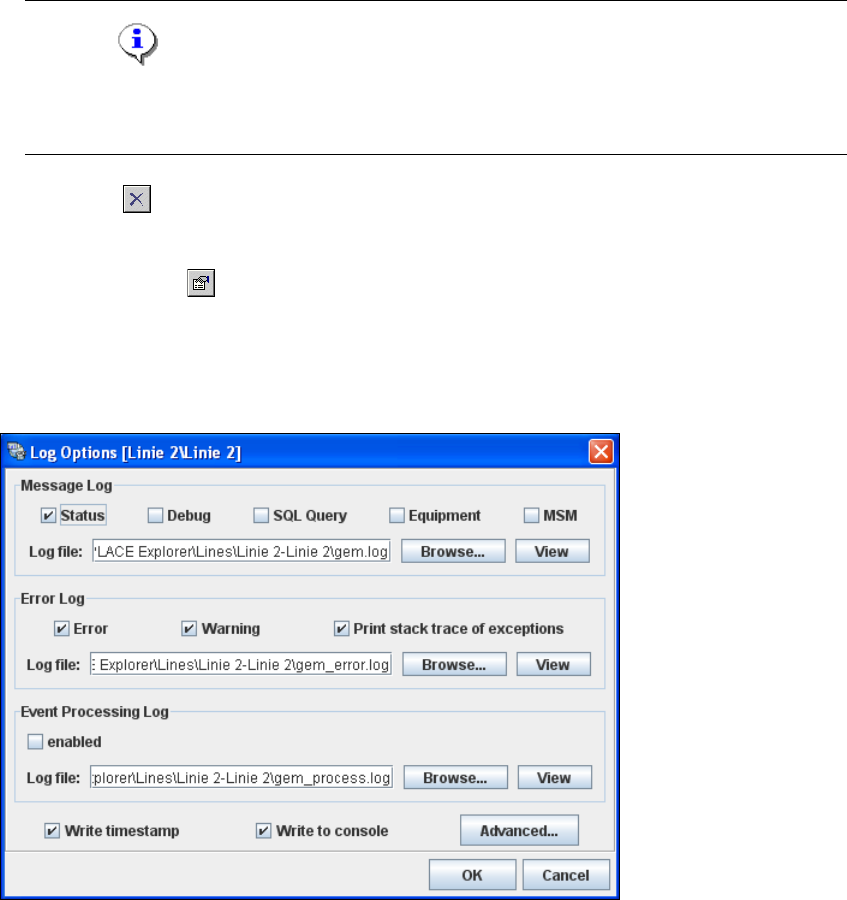
The Log options dialog box will open. Select the type of notification messages and errors to
be recorded. Specify the file names and path for the log files. You can also select options which
write a time stamp and place these in the console. 3
3
Fig. 3 - 45 Log options
Message Log
Information messages are collected and stored in the specified log file, in line with your
selections.
The following message types are available: 3
– Status
– Debug
– SQL Query
– Equipment
3 SIPLACE Explorer Runtime Environment Getting Started SIPLACE Explorer
Edition 11/2020 EN from 3.11 (R20-2)
64
– MSM
Error log
Error and warning messages are collected and stored in the specified log file
The following message types are available: 3
– Error
– Warning
– Print stack log of exceptions
Print stack log of exceptions:
Event processing log
All defined events will be reported. 3
– Enabled
No events will be reported.
Write timestamp
Time and date are added to the message. 3
Write to console
The message will be written in the console display. 3
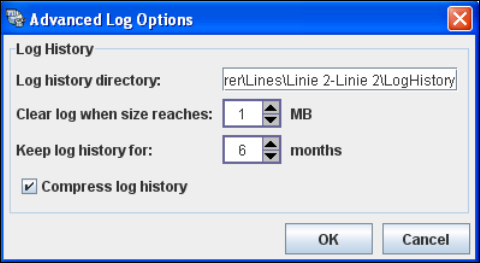
Advanced ...
The Advanced Log Options dialog box will open. This is where you can specify further log
report options e.g. the file size at which logs are to be deleted or the log file path. 3
3
Fig. 3 - 46 Advanced log options
Getting Started SIPLACE Explorer 3 SIPLACE Explorer Runtime Environment
from 3.11 (R20-2) Edition 11/2020 EN
65
3.9 Performance Analyzer
The Performance Analyzer tool can be used to evaluate the communication between the pro-
duction line and SIPLACE Explorer. It shows real-time data. 3
NOTE
The performance analyzer tool functions only when the application is running, see “Using the SE
Manager” on page 21 3
3.9.1 How to Use the Performance Analyzer
Start the Performance Analyzer via the Programs SIPLACE Explorer Performance
Analyzer menu in Windows. The Performance Analyzer window will open, showing the Line
Performance and Equipment Status tabs.
Select the production line for which you wish to view the communication, from the Line menu.
NOTE
The system only displays those production lines which have already been configured with
Line Configuration. 3
Reset icon
All views will be set to zero. Communication recording will start again. 3
Line Performance tab
This is where, for example, users can view the number of events per minute or the waiting time
in ms. The tool always shows the most recent value and displays the highest value as a
"peak". 3