00197725-12_GS_SE3.11_EN.pdf - 第74页
3 SIPLACE Explorer Runtime Environment Getting Started SIPLACE E xplorer Edition 11/2020 EN from 3.11 (R20-2) 74 3.10.1.6 Step 6 - Set Website Properties In order to view the recovered data in th e browser , you need t…
Getting Started SIPLACE Explorer 3 SIPLACE Explorer Runtime Environment
from 3.11 (R20-2) Edition 11/2020 EN
73
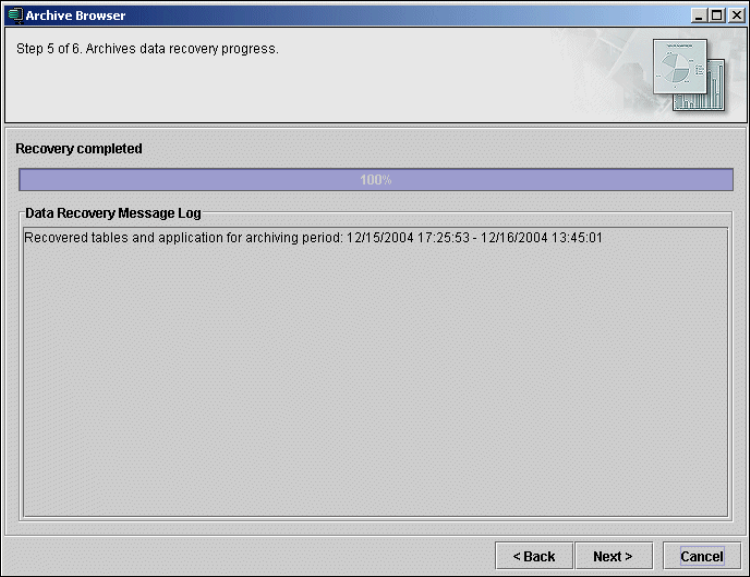
3.10.1.5 Step 5 - Archive Data Recovery Progress
Archive recovery will be initialized and the progress shown.
3
Fig. 3 - 55 Archive browser
Click on Next to continue with the next step.
3 SIPLACE Explorer Runtime Environment Getting Started SIPLACE Explorer
Edition 11/2020 EN from 3.11 (R20-2)
74
3.10.1.6 Step 6 - Set Website Properties
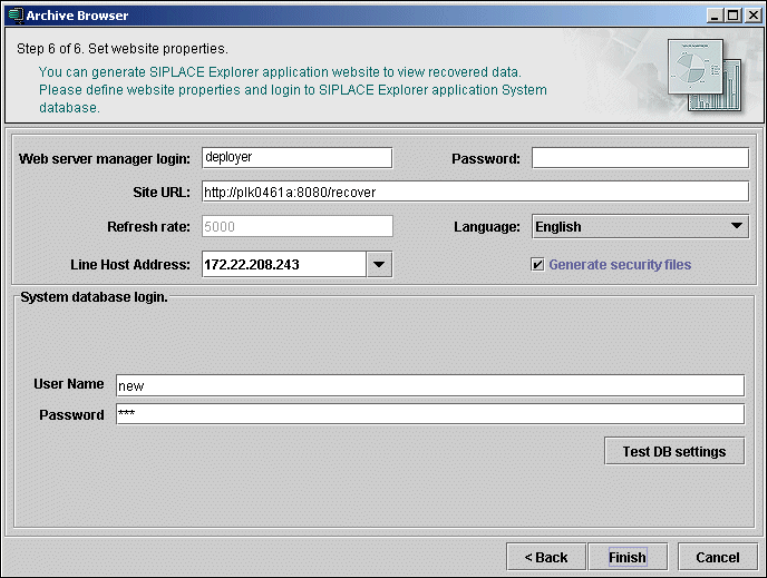
In order to view the recovered data in the browser, you need to generate a website. For this
purpose, you require web server manager privileges (Tomcat website generator, deployer) and
the corresponding password. Enter the required data.
3
Fig. 3 - 56 Archive browser
Specify the access data for the Tomcat website generator. If you entered admin and an empty
password during Tomcat configuration, this data will be automatically used as a default login.
If this is not the case, use the data you specified during Tomcat configuration.
Enter the following information here:
– The website URL;
This URL contains a port number, which applies to the web server (Tomcat 5.5) e.g. "8080".
If you change the port number here, you will also need to update the port number of the web
server. For a detailed description, please see the installation instructions.
– The refresh rate;
For capacity purposes, we recommend a refresh rate of at least one minute (60000 ms).
– Website language
– Line host address;
– Specify whether the login page is to be generated
Getting Started SIPLACE Explorer 3 SIPLACE Explorer Runtime Environment
from 3.11 (R20-2) Edition 11/2020 EN
75
– Access data for the system database - specified in Step 1 - (see ”Step 1 - Define DB
Settings”, page - 69).
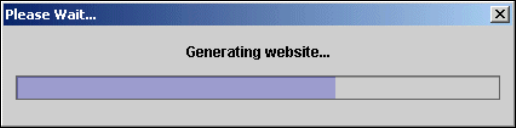
Once you have made and checked all entries, click on the Finish button. An information box,
showing the website generation, will appear.
3
Fig. 3 - 57 Generating a website
At this point, the application is generated automatically and is loaded into SIPLACE Explorer.3
This website can now be started from your web browser.
3