00197725-12_GS_SE3.11_EN.pdf - 第16页
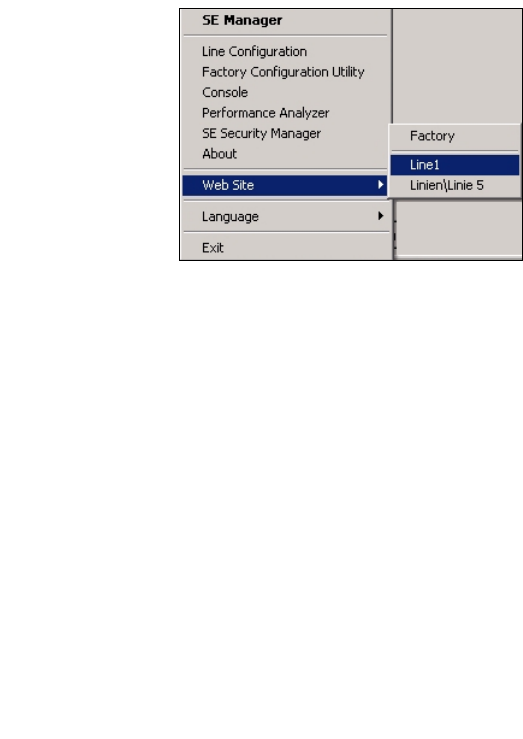
3 SIPLACE Explorer Runtime Environment Getting Started SIPLACE E xplorer Edition 11/2020 EN from 3.11 (R20-2) 16 3 Fig. 3 - 1 RTE Windows start menu The following options are available: 3 – SE Manager – Line Configuratio…

Getting Started SIPLACE Explorer 3 SIPLACE Explorer Runtime Environment
from 3.11 (R20-2) Edition 11/2020 EN
15
3 SIPLACE Explorer Runtime Environment
This chapter describes the menus and tools in the SIPLACE Explorer Runtime Environment: 3
– “Starting SIPLACE Explorer Runtime Environment” on page 15
– “Setting the Language” on page 17
– “User Management” on page 17
User management
– “SE Security Manager” on page 18
Managing access to the SIPLACE Explorer Runtime Environment tools
– “SE Manager” on page 20
Starting and stopping production line monitoring
– “Line Configuration” on page 28
Creating and processing an SMA with Line Configuration
– “Database Settings” on page 54
Creating and converting a database
– “Console” on page 62
Viewing system and error log reports for the production line
– “Performance Analyzer” on page 65
Evaluating the communication between the production line and SIPLACE Explorer
– “Archive Browser Wizard” on page 67
Recovering archived databases
3.1 Starting SIPLACE Explorer Runtime Environment
"Runtime Environment" runs as a Windows NT service and is automatically started whenever you
reboot your computer. You will see the icon in your Windows console. Right-click with the
mouse to open other applications and tools. 3
3 SIPLACE Explorer Runtime Environment Getting Started SIPLACE Explorer
Edition 11/2020 EN from 3.11 (R20-2)
16
3
Fig. 3 - 1 RTE Windows start menu
The following options are available: 3
– SE Manager
– Line Configuration
– Factory Configuration Utility
–Console
– Performance Analyzer
– SE Security Manager
– About
–Website:
Wit this menu, you can open the websites as well as the factory website.
– Language
– Exit
These additional applications and tools can also be started via the Programs SIPLACE
Explorer menu in Windows. 3
The following options are available: 3
– Archive Browser
–Console
– Documentation
– Error Reporting
– Factory Configuration Utility
– Line Configuration
– Modify Uninstall
– Performance Analyzer
– SE Manager
Getting Started SIPLACE Explorer 3 SIPLACE Explorer Runtime Environment
from 3.11 (R20-2) Edition 11/2020 EN
17
– SE Security Manager
3.1.1 Access Privileges for Individual Runtime Environment Tools
Access to the Runtime Environment tools can be restricted or permitted as required, by using the
SE Security Manager. This access may vary, according to the individual settings in the SE Security
Manager. For details, please refer to the Section “SE Security Manager” on page 18. 3
3.2 Setting the Language
The language of the SIPLACE Explorer user interface can be set to German or English. 3
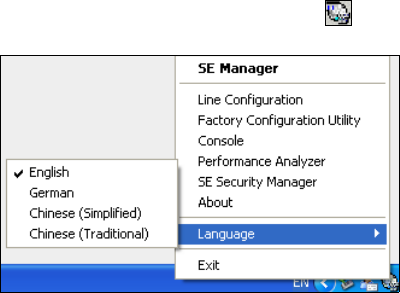
Right-click with the mouse on the icon in the console to open the selection menu.
3
Fig. 3 - 2 RTE language selection
Select Language and choose the language you need when working with SIPLACE Explorer
Runtime Environment.
The selected language will now be used for all the menus and tools you call up.
3.3 User Management
User management is performed in SIPLACE Explorer Runtime Environment with the help of the
Factory Configuration Utility User Management tool. This feature is used to define the users, their
duties/privileges and their restrictions, for each production line. For more details, please refer to
Section “User Management” on page 86. 3
If you have not installed the Factory Configuration Utility, you will not be able to manage users in
the SIPLACE Explorer Runtime Environment. 3
In this event, you will be provided with two default users and an empty password: 3
–"Admin"
– "Operator"