00197725-12_GS_SE3.11_EN.pdf - 第51页
Getting Started SIPLACE Explorer 3 SIPLACE Explorer Runtime Envi ronment from 3.11 (R20-2) Edition 11/2020 EN 5 1 Once the website has been fully generated, click on Close . The SMA h as been completed. Click on the Ex…
3 SIPLACE Explorer Runtime Environment Getting Started SIPLACE Explorer
Edition 11/2020 EN from 3.11 (R20-2)
50
Enter the following information here:
– The folder in which the website will be generated;
– The website URL;
This URL contains a port number, which applies to the web server (Tomcat 5.5) e.g. "8080".
If you change the port number here, you will also need to update the port number of the web
server. For a detailed description, please see the installation instructions.
NOTE
If no connection can be established to the web server, enter the IP address instead of the
computer name. 3
– The refresh rate;
For capacity purposes, we recommend a refresh rate of at least one minute (60000 ms).
– Website language
– Line host address
– Specify whether the login page is to be generated
If Excel 2007 or Excel Viewer 2007 is installed, disable the MS Excel documents compatible
with MS Excel 2007 option. The new features of Excel 2007 for a better display are used
during the xlsx generation for websites.
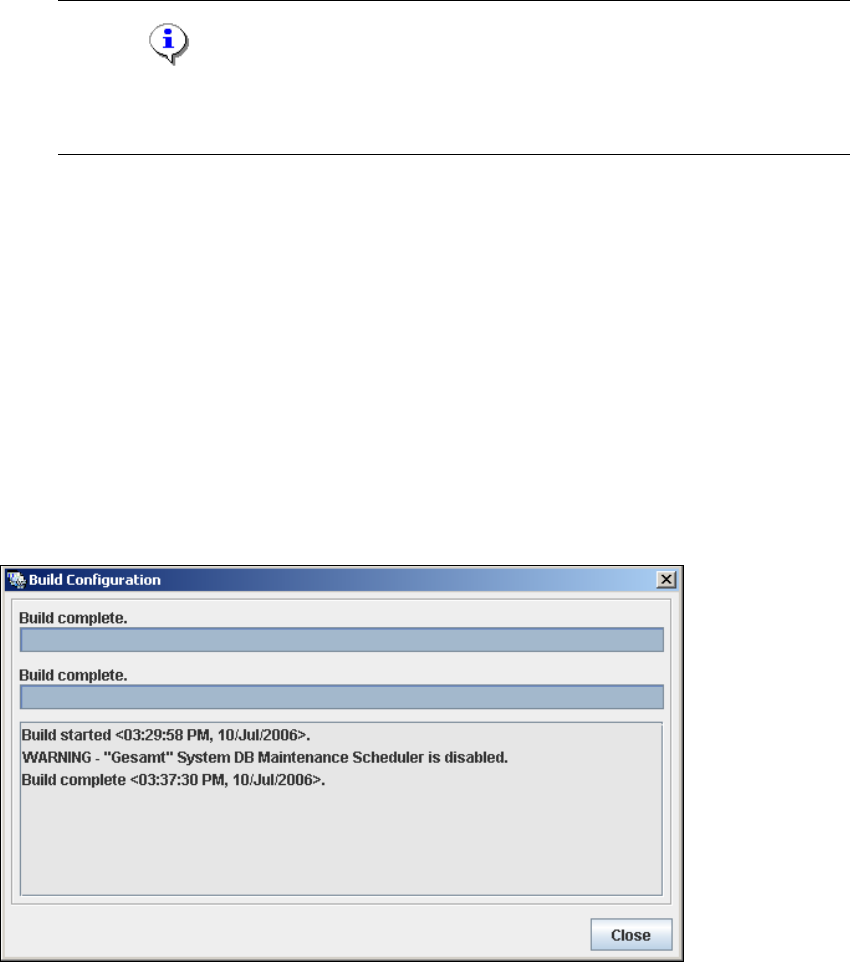
Once you have made and checked all entries, click on the Build button. An information box,
showing the website generation, will appear.
3
Fig. 3 - 30 Build configuration
At this point, the application is generated automatically and is loaded into SIPLACE Explorer.3
Getting Started SIPLACE Explorer 3 SIPLACE Explorer Runtime Environment
from 3.11 (R20-2) Edition 11/2020 EN
51
Once the website has been fully generated, click on Close. The SMA has been completed.
Click on the Exit button in the Line Configuration - Website Generation dialog box. This
website can now be started from your web browser.
NOTE
Before you can load a website from your web browser, you must make sure that the relevant
application has been started via the SE Manager. For further details, please refer to “SE Manager”
on page 20. 3
3.6.2 How to Edit an Existing SMA with Line Configuration
An existing SMA can be subsequently processed via Line Configuration e.g. if you need to alter
the shift schedule. Simply select the required step in Line Configuration and make the changes.3
However, there are cases in which the existing line configuration must be edited and the SMA re-
generated: 3
– If incorrect configurations were detected during the manual configuration check with the SE
Manager.
– If incorrect configurations were detected during the automatic configuration check.These
will be marked with an icon on the SMA pages at line level.
– If the production line configuration has changed e.g.:
– Through adding or removing stations/equipment
– Through changing the station names
– Through changing the IP address
3
Before you can edit an existing SMA, stop the monitoring procedure for the relevant production
line with the SE Manager, see ”Using the SE Manager”, page - 21.
Now start Line Configuration.
Proceed by selecting Programs SIPLACE Explorer Line Configuration from the menu
in Windows or by clicking on the icon in the console. Right-click with the mouse to select
Line Configuration from the menu. 3
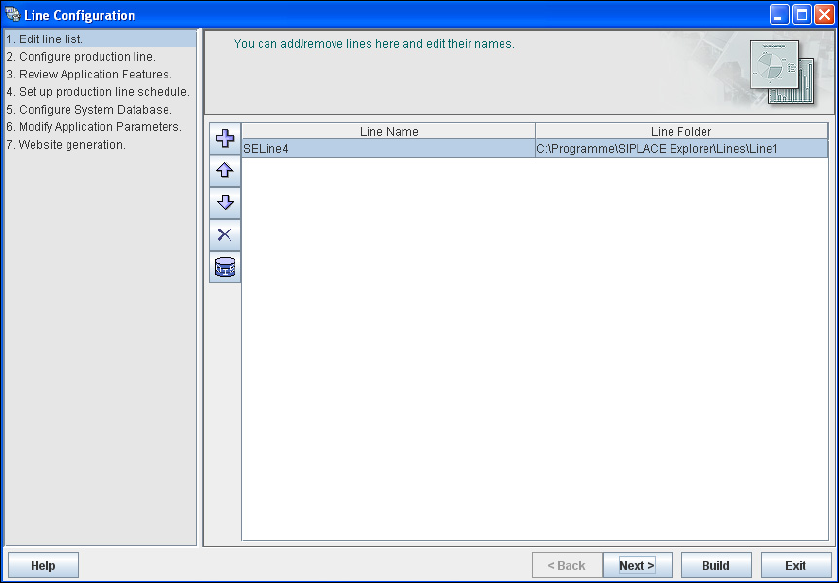
The Line Configuration dialog box will open. This is the first step of the line configuration
process. All configured applications will be shown.
3 SIPLACE Explorer Runtime Environment Getting Started SIPLACE Explorer
Edition 11/2020 EN from 3.11 (R20-2)
52
3
Fig. 3 - 31 Step 1: edit line list
Select the required step from the left window and click on it. In this case, it is step 4.