00197725-12_GS_SE3.11_EN.pdf - 第88页
4 SIPLACE Explorer Factory Configuratio n Utility Getting Started SIPLACE Explorer Edition 11/2020 EN from 3.11 (R20-2) 88 The User Det ails dialog box will open. Enter the user-specific det a ils, such as access data an…
Getting Started SIPLACE Explorer 4 SIPLACE Explorer Factory Configuration Utility
from 3.11 (R20-2) Edition 11/2020 EN
87
4.5.1 How to Use the User Management
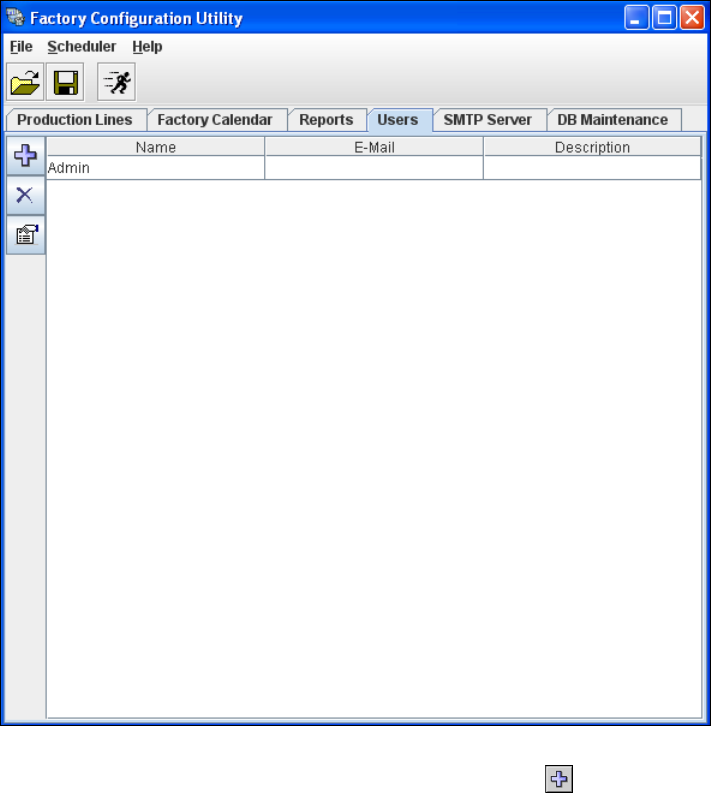
Select the Users tab.
4
Fig. 4 - 12 Factory configuration utility - users
Now add the individual users, by clicking on the Add User icon.
4 SIPLACE Explorer Factory Configuration Utility Getting Started SIPLACE Explorer
Edition 11/2020 EN from 3.11 (R20-2)
88
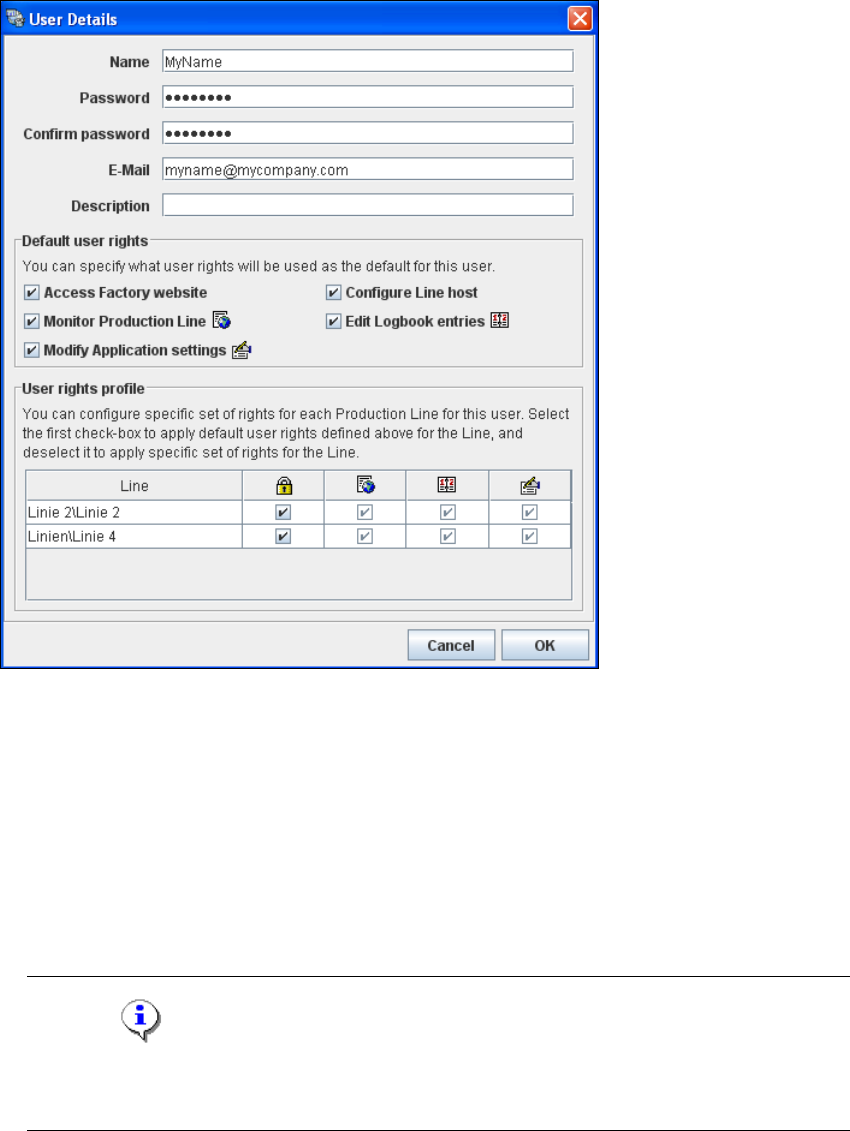
The User Details dialog box will open. Enter the user-specific details, such as access data and
user privileges, here. 4
4
Fig. 4 - 13 Factory configuration utility - user details
Enter the user name in the Login field.
Enter the user login password in the Password field.
In the Confirm Password field, reenter (confirm) the password you specified in the Password
field.
Enter the user's e-mail address in the E-Mail field. The generated reports will be sent to this e-
mail address.
Enter a user description e.g. administrator, in the Description field.
NOTE
If you define the default users "Admin" and "Operator" from Runtime Environment in this
Description field, these default users will become invalid in the Runtime Environment. 4
Getting Started SIPLACE Explorer 4 SIPLACE Explorer Factory Configuration Utility
from 3.11 (R20-2) Edition 11/2020 EN
89
Specify the user privileges in the Default user rights field. To do this, enable the
corresponding checkboxes.
Define the user privileges for each production line at User rights profile. If you have enabled
the Use default user rights field for a particular line, the system will automatically enable/
disable all the rights/privileges you have defined for that user at Default user rights. The
checkboxes on the right-hand side will then be faded out (gray) i.e. they can not be
subsequently enabled or disabled.
Check your entries and confirm with OK.
Repeat this procedure for all other users.
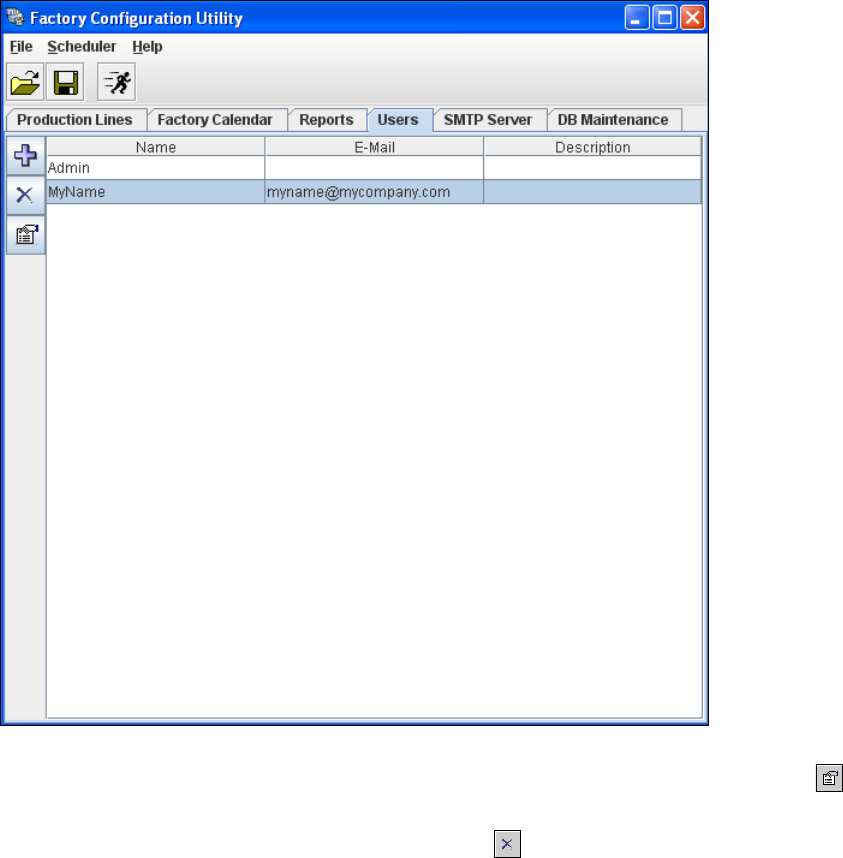
The list of defined users will be shown in the Factory Configuration Utility - Users dialog box.4
4
Fig. 4 - 14 Factory configuration utility - users
In order to edit user details, select the user concerned from the list and click on the Details
icon. The User Details dialog box will open and the user details can be edited.
To delete a user from the list, click on Remove User .